Reference
Account & Authentication
Reference
Account & Authentication
You can find all settings related to your account and authentication in the app settings (bottom left cog icon).
Two-Factor Authentication
Two-Factor Authentication adds another layer of security to your account. To use it you will need an authenticator app such as Microsoft Authenticator or Google Authenticator. You can remove Two-Factor Authentication at any point, but this will reduce the security of your account relative to one with it enabled.
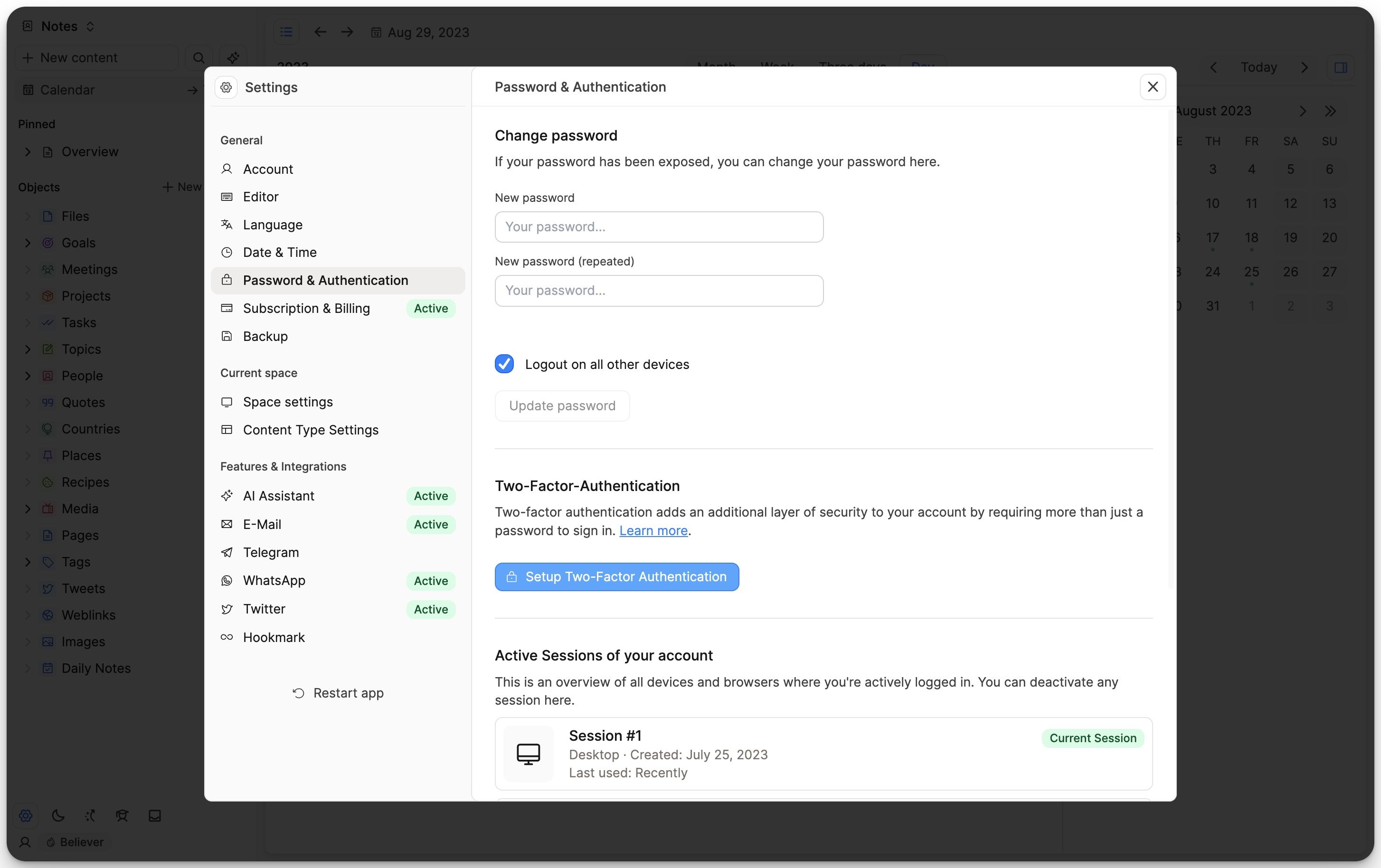
To set it up, open the settings via the cog icon in the bottom left corner of the Capacities window and navigate to the ‘Password & Authentication’ section. Click on ‘Setup Two-Factor Authentication’.
10 Backup codes will be automatically generated for you, which you can use if you lose access to your authenticator app. Download these and save them to a safe place.
Remember to store your backup codes in a safe location
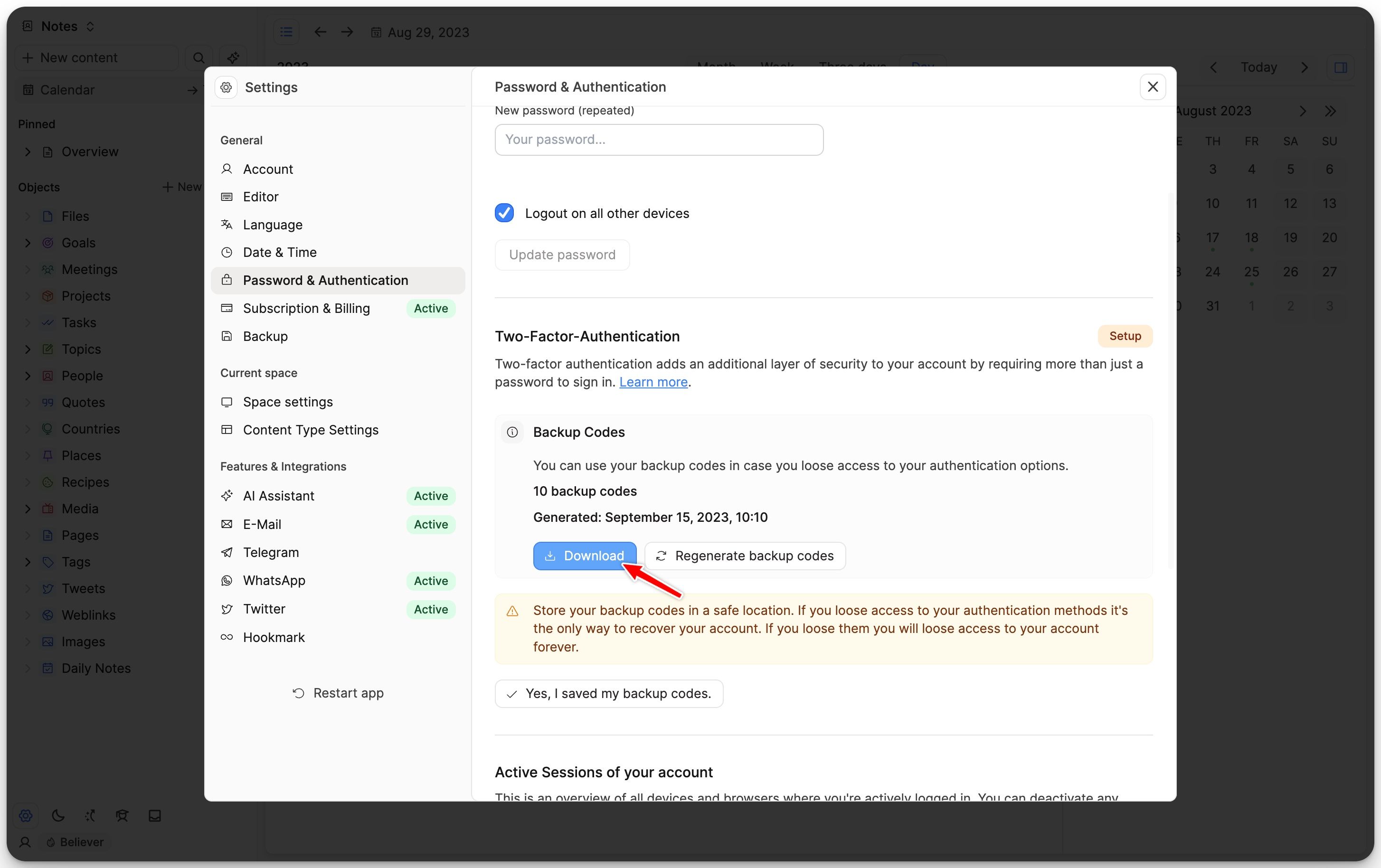
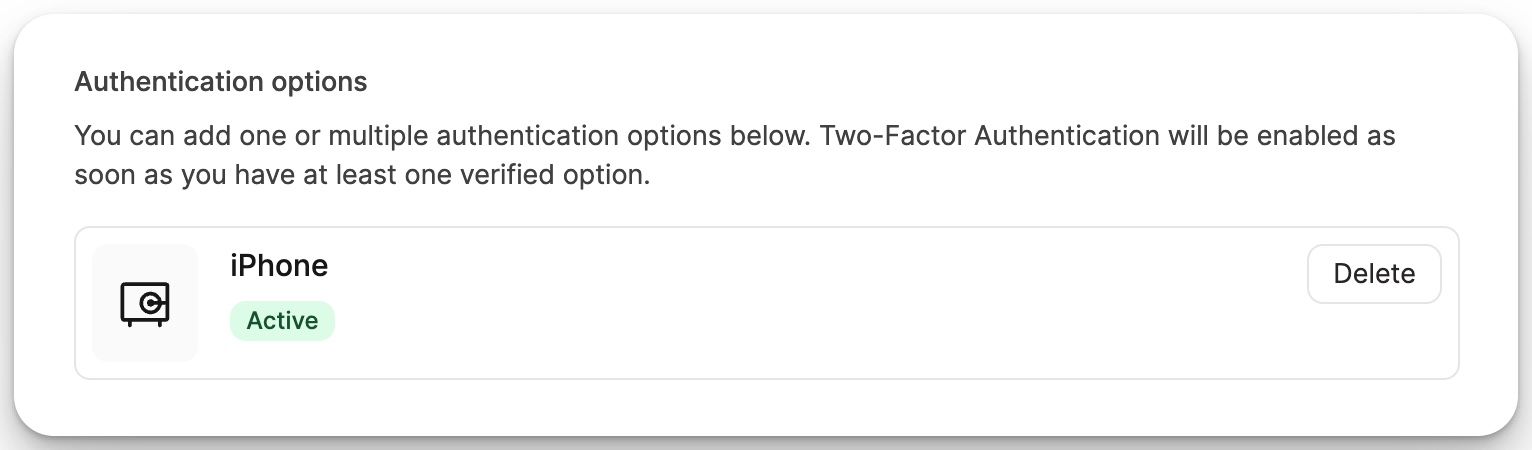
Then click ‘Yes I saved my backup codes’, then ‘Add Authenticator App’ and follow the instructions on the screen.
Once you have verified the authenticator app, your Two-Factor Authentication set up is complete.
Account Deletion
Account deletion closes your Capacities account entirely after a waiting period. For the full steps, cancel windows, and export advice, see How can I delete my account and associated data?.
If you only want empty notes and a clean setup, create a new space instead.
FAQs
I want a fresh start. Do I need to delete my account?
No. Create a new space from the space switcher in the top-left corner and optionally restart the onboarding. See I want a fresh start. Do I need to delete my account?.
How can I change my email address?
Please go to Settings > Account > Change email.
How can I delete a space?
You can go to Settings > Space Settings > Delete Space.
Deleted spaces are soft‑deleted for 30 days and can be restored in Settings > Account > Deleted Spaces.
To delete a space immediatly, go to Settings > Account > Deleted Spaces and click 'Permanently delete'.
After 30 days or after clicking 'Permanently delete', your content cannot be recovered.
Ask a question! - The Docs Assistant knows everything about the documentation, and the ideas and feature requests from other users.
Create a ticket on our feedback board. - Let us know if you have an idea for a feature, improvement or think there is something missing.
Request additions to the documentation. - If your questions are not getting answered, let us know and we will extend the documentation.