Apps
Capacities on Mobile
Apps
Capacities on Mobile
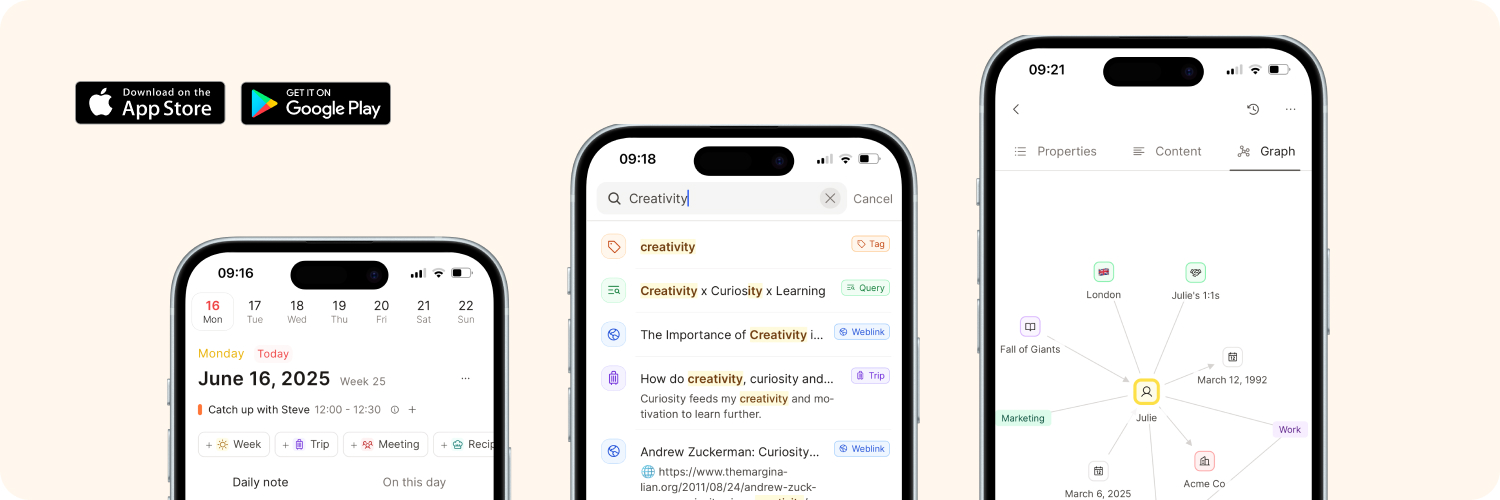
The mobile app is a companion to desktop for day-to-day work in your space: search and capture on the go. On phone, your notes stay front and center, with the main buttons sitting above them.
Downloading the app
The mobile app is available for iOS and Android:
Navigation
The phone app has a tab bar at the bottom of the screen. Depending on your plan and space settings, you will see 4–6 tabs:
- Home (Space Overview)
- Calendar & Daily Note
- Tasks (if task management is enabled)
- Create
- Explore (AI) (if AI is enabled)
- Search (Find)
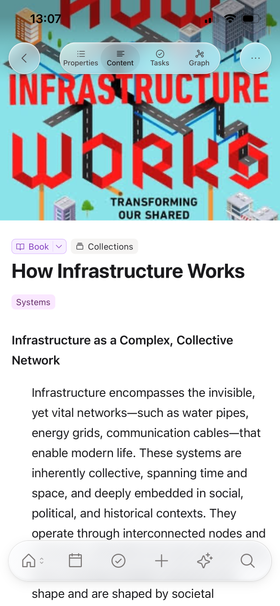
Useful shortcuts on the tab bar
- Home: tap once to open Space Overview; tap again (or long-press) to open the space switcher
- Calendar: tap once to open the calendar; tap again while already on the calendar to focus the daily note editor; long-press to start a quick note
- Create (+): opens the Create sheet; long-press to create a new Page
- Tasks: opens your Tasks dashboard; tap again or long-press to create a task (when available)
- Search: opens Find; tap again to leave search
You will not see the tab bar when the keyboard is open, when you are in an Explore chat, when Find is open, during block selection, or when you are viewing an image or PDF fullscreen.
Home & Space Overview
Space Overview is a full screen. Open it from the Home tab (house icon).
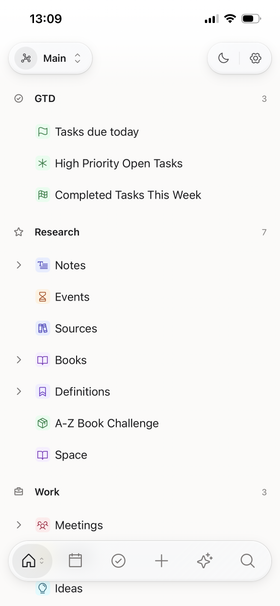
At the top of Home you will find:
- The space switcher (top left)
- The theme toggle (light / dark)
- Settings (gear), including logout and reload / reboot options
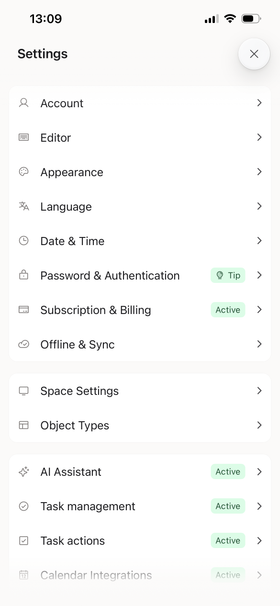
Below that, your overview shows the same kinds of workspace content you know from desktop, including:
- Your object types
- Workspace sections such as recents and pinned items, plus any custom sections you add
- An Account & support area with Help and the mobile Guide, plus What’s New
Calendar on Mobile
The calendar is a central part of the mobile app, just as it is on desktop.
Tap the Calendar tab to open it. Use the week strip at the top to pick a day, and expand it for a month overview.
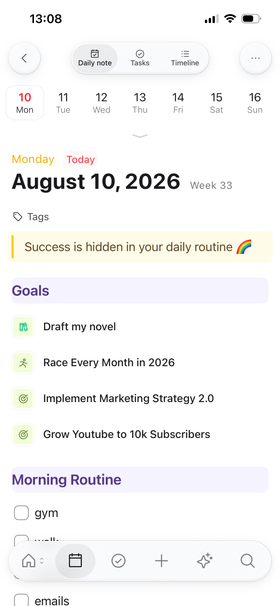
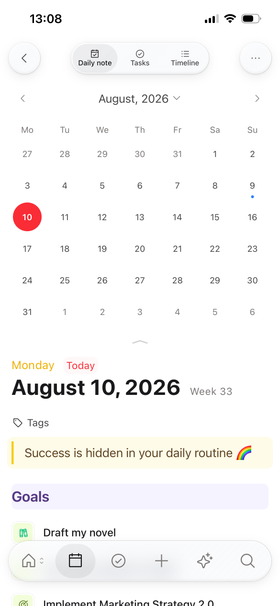
While on the calendar, buttons at the top let you switch between:
- Daily note
- Tasks (if task management is enabled)
- Timeline: date references and objects linked to that day
The Timeline is mobile-only. On desktop, the Day view uses tabs such as Date references and Created today instead. See Dates and daily notes.
You can also swipe left/right between these modes.
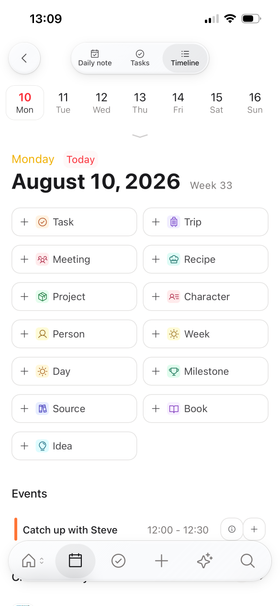
With the ⋯ menu in the top bar (for the active daily note), you can access more options for your daily note:
- Share your daily note
- Load templates
- Edit the object settings
- Export your notes
- Copy
- Delete your daily note
Tasks on Mobile
If tasks are enabled in your space, a Tasks tab appears in the bottom bar.
- Open the tab to reach your Tasks dashboard
- On the calendar, switch to the Tasks mode to work with tasks for that day
- Create tasks from the Tasks tab (re-tap / long-press) or from the Create sheet
Create on Mobile
Tap the + tab to open the Create sheet for common capture actions:
- Create new objects
- Create a quick note
- Record audio (Believer early access)
- Take a photo
- Choose a photo from your camera roll
- Select a file to upload
- Paste from clipboard
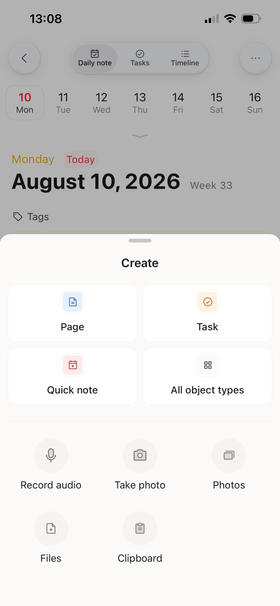
For AI chats, use the Explore tab.
Create New Object on Mobile
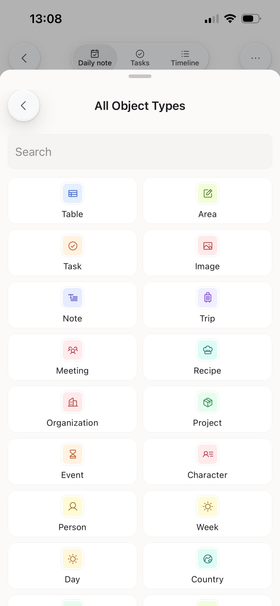
Create a Page, a Task (if tasks are enabled; Pro), or browse All object types.
You can scroll to choose the object type you need, or type to refine the list. This opens a new object ready for editing.
Quick Note
Add a note to today’s daily note quickly.
This takes you to a new block in the daily note, ready to type. You can also long-press the Calendar tab for the same action.
Record Audio
Capacities BelieverRecord audio and save it as an audio object in Capacities. Recording is available in early access for Capacities Believer. After early access, it will be part of Capacities Pro.
With AI enabled, open the audio object and click Analyze for a transcript and a summary. See Audio analysis.
You will need to approve the necessary permissions when prompted.
Take Photo
Take a photo in Capacities and upload it as an image object. From there you can rename it, add tags, or take notes.
You will need to approve the necessary permissions when prompted.
Access your photos
Choose an existing photo from your camera roll. Capacities uploads it as an image object too.
You will need to approve the necessary permissions when prompted.
Select File
You can also choose a file to upload to Capacities.
Paste from Clipboard
Copy links or images into Capacities from another app: open Capacities, open Create, and choose Clipboard.
Explore & AI on Mobile
If AI is enabled, the sparkle tab opens Explore, your AI chats workspace.
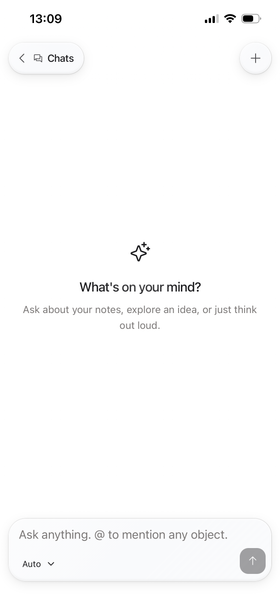
In Explore you can:
- Browse existing chats
- Start a New chat
- Search your chats from the top bar
- Choose models and chat options from the chat’s ⋯ menu
On phone, Explore has two screens:
- Chats list
- An individual Chat
Use the Chats control (or the system back gesture) to leave a chat and return to the list. While you are inside a chat, the bottom tab bar hides so the composer stays clear.
If you open AI from an object or from selected blocks, you can load that content as context like on the desktop app.
Search on Mobile
Open search from the Search tab. This opens Find, a full-screen search experience.
Search works with:
- titles
- page content
- properties
On object type dashboards and some other screens, you may also see a search bar above the keyboard for filtering the current list.
Gestures and controls
Useful gestures:
- Swipe between calendar modes (Daily note / Tasks / Timeline)
- Expand the calendar week strip for a month overview
- Scroll long lists: you may see a scroll-to-top button when the list is long
- When viewing an image or PDF fullscreen, tap to show or hide the controls
Editing on Mobile
Each object has buttons in the top bar to switch between:
- Content
- Properties
- Media (for media objects)
- Graph
The default is usually Content, so you can get to your notes quickly.
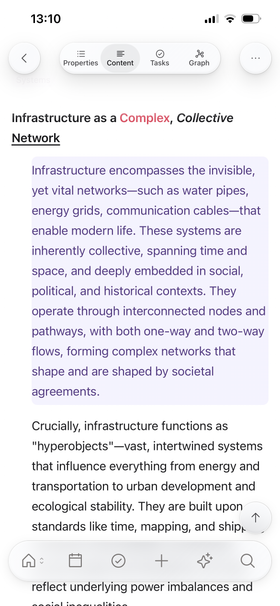
Mentions and related content show as collapsible sections on the page.
Text Editing & Block Selection
You have full-text editing on mobile via the editing menu above your keyboard.
It uses the same symbols and commands as on desktop (such as @ and +). The linking menu stays above the keyboard while you type a link.
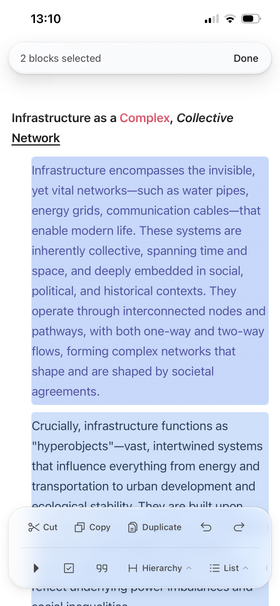
Close your keyboard, then long-press a block to enter block selection. The top bar shows how many blocks are selected and a Done button. An action panel appears above the keyboard with options such as:
- Indent / Unindent
- Cut / Copy / Duplicate
- Move up / Move down
- Undo / Redo
- Group blocks
- Select all
- Add a block above or below
- Open AI with the selection as context
- Copy block reference
- Delete
- Style options (to-do, quote, lists, hierarchy, color, and more)
If you do not see the button you need, scroll sideways in that action panel until you find it.
To indent text, select the block, then tap Indent in the action panel above the keyboard.
Tap Done, tap elsewhere, or dismiss the menu to leave selection mode.
To act on multiple blocks: select one block to enter selection mode, select additional blocks, then choose an action.
Change object type
To change an object's type:
- Open the object
- Tap the object type label
- Choose the type you wish to convert to
- Ensure all properties are mapped to the new type, otherwise the information will be lost
- Press Change type
Share sheet
Use the system share sheet on iOS or Android to send content into Capacities from other apps. You do not need to open Capacities first.
Supported content includes:
- Links (saved as weblinks)
- Text
- Images and other media files
How to share into Capacities
- In another app, open the share menu and choose Capacities.
- Pick the space and the destination for the content (for example today’s daily note, a page, or a media object type).
- Confirm. Capacities captures the content in the background, so you can stay in the app you shared from.
You can share more than one media item in a single share action when the source app allows it.
If Capacities does not appear in the share menu, open the system share sheet’s app list and enable Capacities. On iOS, use Edit or More in the share sheet; on Android, check the share target list for Capacities.
Widgets and shortcuts
You can use Capacities from your phone’s Home Screen without opening the app first. Widgets show useful content at a glance. Shortcuts give you a quick way to capture a note or open search.
Widgets and shortcuts are still being improved. Make sure you are signed in to Capacities and have opened the app at least once, so your spaces and content can appear.
Available widgets
Add these from your phone’s widget gallery by searching for Capacities:
- Quick Open: open objects you choose yourself, with one tap
- Recents: jump back into objects you opened recently
- Pinned: see your pinned objects
- Tasks: see your open tasks at a glance
- Quick Capture: quickly save a thought into Capacities
- Quick Create: create a new object of a type you choose
- Daily Note: open a daily note (larger sizes can show Today, Yesterday, and Tomorrow)
- AI Assistant: start a new AI chat
- Record audio (iOS): start a voice note from your Home Screen or Lock Screen (Believer early access)
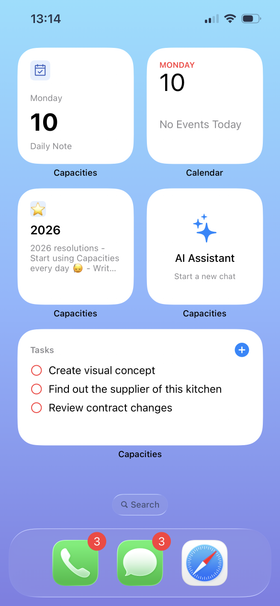
Some widgets ask you to pick a space, and sometimes also objects, a pin section, or an object type. On iOS, long-press the widget and choose Edit Widget. On Android, you can usually set this when you add the widget, or afterwards from the widget options.
Tasks and AI Assistant need Capacities Pro (and the matching features turned on for your account or space). Record audio is available in early access for Believers.
How to add a widget
On iPhone
- Touch and hold an empty spot on your Home Screen until the icons jiggle.
- Tap the + button in the corner.
- Search for Capacities.
- Choose a widget, pick a size, then tap Add Widget.
- If needed, long-press the widget and choose Edit Widget to pick your space and options.
On Android
- Touch and hold an empty spot on your Home Screen.
- Choose Widgets.
- Find Capacities.
- Drag a widget onto your Home Screen.
- Choose your space and other options when asked.
If a widget says it needs you to sign in or sync, open Capacities, sign in, and wait a moment. Then try again.
Shortcuts from your phone
Besides widgets, your phone can offer quick actions for Capacities.
On iPhone
- Long-press the Capacities app icon for quick actions.
- Use Siri or the Shortcuts app with phrases like “Quick capture in Capacities”, “Search in Capacities”, “New task in Capacities”, or “Ask Capacities”.
- On newer iPhones, you can also add Capacities controls to Control Center (swipe down from the top right of the screen), such as Quick Capture, Search, New Task, Daily Note, and AI Assistant. Record audio is available in early access for Believers.
On Android
- Long-press the Capacities app icon for quick actions such as Search and Quick Capture. When available, you may also see New Task, AI Assistant, or Last opened. Record audio is available in early access for Believers.
- You can also add Capacities buttons to Quick Settings (the panel you open by swiping down from the top of the screen), including Quick Capture, Search, New Task, Daily Note, and AI Assistant.
Tips
- Open Capacities now and then so widgets stay up to date with your latest objects, pins, and tasks.
- If a widget looks empty, check that you picked the right space. For Quick Open, also check that you selected which objects to show.
- Widgets are a fast way in. Use the full app when you need deeper editing or browsing.
Mobile Limitations
Treat the mobile app as a companion to the desktop apps, not a full replacement.
These features and actions are not available on phone:
- No bulk actions for objects
- Can't create new object types
- No 'move to' action
- No editing templates (but you can apply them)
- No link view options
- No gallery, wall, table, or embed views (list view only)
- No advanced search (Pro)
- No formula editor
- Some settings and desktop-only tools (for example full export flows and the web extension setup)
FAQs
- Can I see wall view or gallery view on mobile?
On phone, tags, collections, queries, and object types are shown in list view only. Gallery, wall, table, and embed are not available on phone, even if you chose one of them on a computer. You can use those views on tablet and desktop. - How do I open Space Overview or search?
Use Home for Space Overview and Search for Find. - How do I open AI on mobile?
Use the sparkle Explore tab (when AI is enabled). You can also open AI from selected blocks. - Can I swipe to select a block?
No. Long-press a block instead. - How do I turn text into an object on mobile?
Select the text, tap the + button in the bar above the keyboard, then choose your object type. - How can I deselect blocks?
Tap Done in the top bar, or dismiss the action menu / tap elsewhere on the screen. - How do I add a cover image on mobile?
Open... > Customize > Add cover image. - How do I add an icon on mobile?
Open... > Customize > Add icon. - How do I add a description on mobile?
Open... > Customize > Add descriptionto do it manually, orFill descriptionto use AI autofill (Capacities Pro). - How do I add an alias on mobile?
Open... > Customize > Add alias. - How do I switch spaces on mobile?
Open Home, then tap the space switcher at the top. You can also tap or long-press Home again while already on overview.
Ask a question! - The Docs Assistant knows everything about the documentation, and the ideas and feature requests from other users.
Create a ticket on our feedback board. - Let us know if you have an idea for a feature, improvement or think there is something missing.
Request additions to the documentation. - If your questions are not getting answered, let us know and we will extend the documentation.