Reference
Export
Reference
Export
Exports from Capacities are fully human- and machine-readable at the same time.
- All your properties are transformed into front matter values, all collections are stored as CSV files, making it easy to reuse your content in other apps or work with it programmatically.
- All folders and file names are human-readable, making it easier for you to use them in apps that are based on markdown directories.
- Media assets are exported into separate folders with human-readable naming making it easy to use them in your files, photo apps, etc.
- All the links you create are transformed into local links so the graph character of your space is fully contained and can be directly used and visualized in other apps.
Exports don’t just give you the guarantee that you can extract all your content from Capacities within a few clicks but also allow you to use constantly work with your created content in different ways. Publish blog posts, create articles, finalize essays, use it in excel for calculations, and much more. 💡
Automated Export
You can schedule automatic exports by going to Settings > Full Export > Automated Full Export > Add Schedule.
- Choose which spaces you’d like to include.
- Select a file location. Without this step, automated export will not work.
- Choose your export schedule.
- Configure any extra options if needed.
The status of your export appears both in the Export settings and as a small indicator at the top right of the Capacities window.
Scheduling
You can schedule exports daily, weekly or monthly.
- Default time: Midday (12:00 PM) in your local timezone.
- Weekly exports occur at midday on Monday.
- Monthly exports occur at midday on the first day of the month.
In order to work, Capacities must be open at the scheduled time, and the automation must show a green ‘active’ flag.
You can also specify how many exports to keep: up to 99 if using a custom setting.
Troubleshooting
My automation isn’t running:
Make sure you’ve selected a file location and the schedule shows a green ‘active’ flag.
I can’t export media:
If media is not on this device, export cannot include it. Enable local media downloading: go to Settings > Offline & Sync > Media Download Settings and set it to Everything.
Manual Export
For on-demand exports, go to Settings > Full Export > Manual Full Export.
You can customize the export options, and the file will be saved to your downloads folder.
Export single objects
The following information is for singular objects, if you're looking for full space exports see above.
You can export individual objects into various formats by opening the three-dot menu (...) on the object, clicking Export, and then choosing the settings you'd like. The export menu uses option cards (similar to import) so each format and extra choice is easy to scan.
Media can be downloaded as a file while content can be exported into the following formats:
- PDF (
*.pdf) - Markdown (
*.md) - Microsoft Word (
*.docand*.docx) - LaTeX (
*.tex)
PDF export styles
Capacities ProWhen you export a page as a PDF, you can choose a style. This option is experimental. It is available for Capacities Pro and Believer.
- Notes – Keeps the look of the page, including colors and embeds.
- Essay – A single-column layout for reading and sharing.
- Academic – A compact two-column layout with numbered headings. This is a layout choice, not a journal or citation format.
Use the All properties toggle to show or hide every property at once. Page content stays separate from that toggle. You can also choose to export pages that are mentioned or included in the content, and to include media items from that content.
If media is not downloaded on this device, export explains why it cannot be included and how to change that (enable local media download in Settings > Offline & Sync > Media Download Settings).
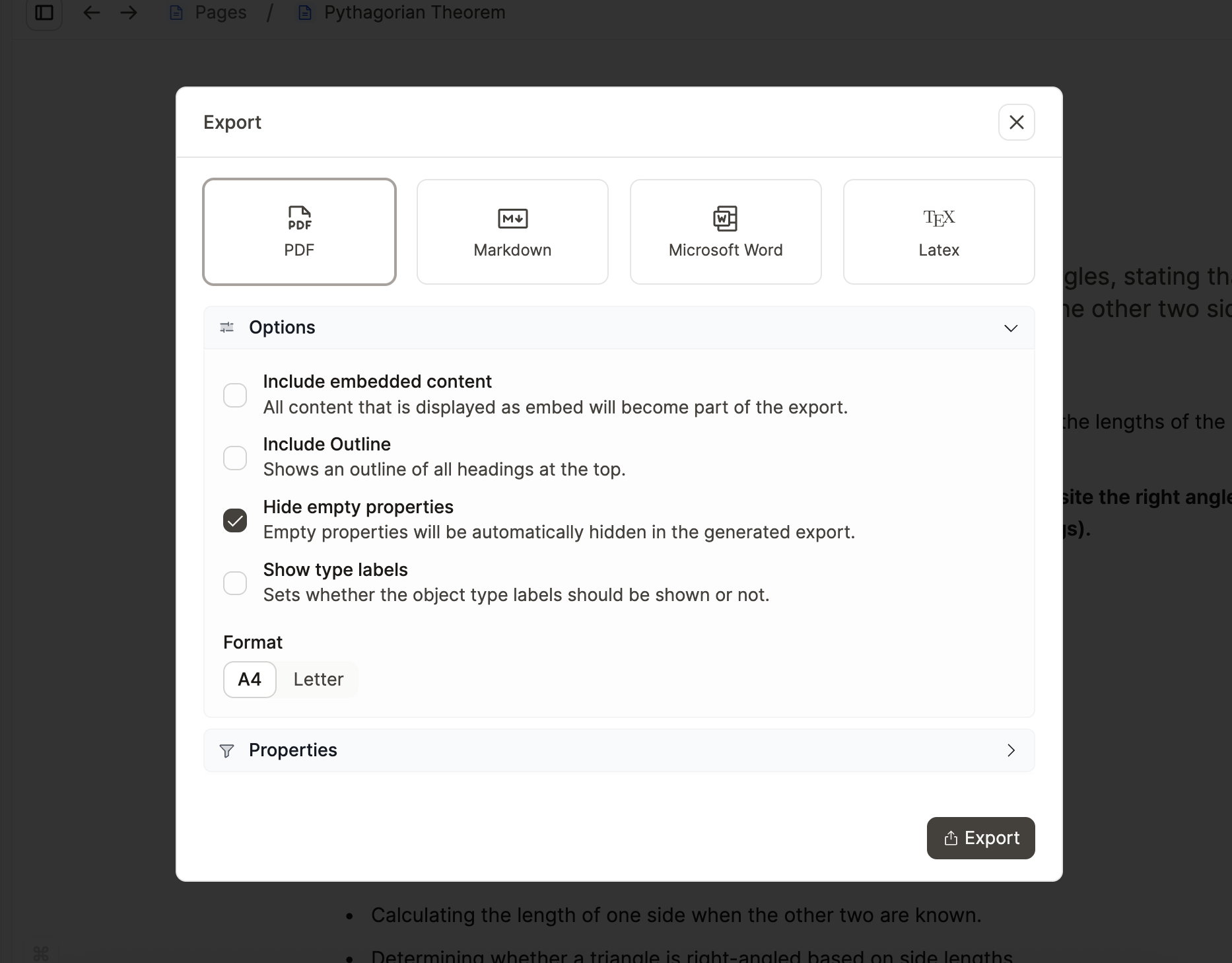
If you export from the web version it will be downloaded like any other file in your browser. If you export from the desktop app you will be prompted with a file dialog to select the location where you want to save the file. If you don't get prompted, you can find the file in your download folder.
Export content views
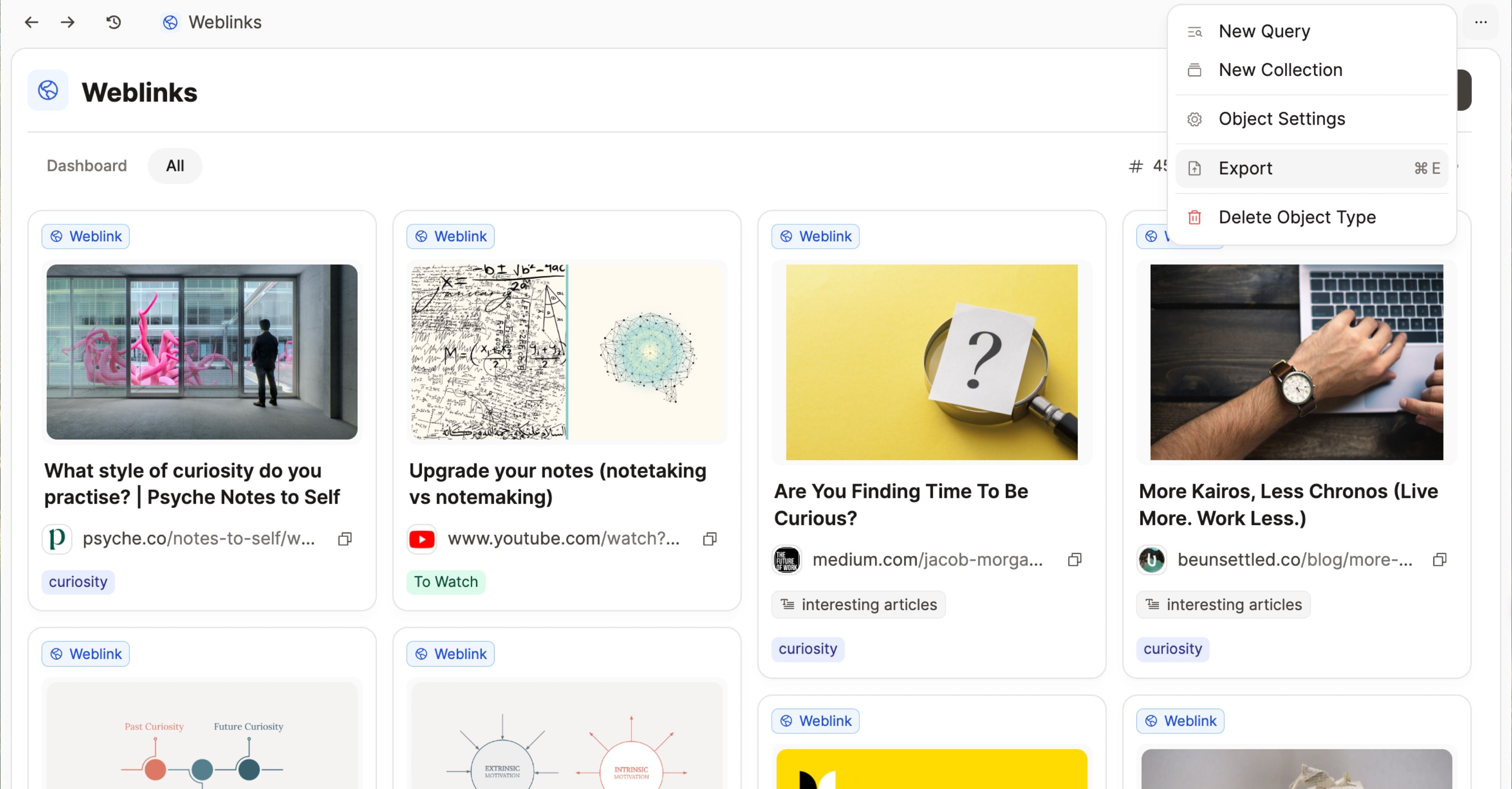
You can export the following views to CSV
- Queries
- Tags
- Collections
- All objects of a certain type.
You can include sub-pages and media as markdown and media files, if your media files are downloaded to your device.
To do this, open the desired view, click the three-dot menu (...), and click on "Export".
In table, gallery, wall, or list views, you can export a selected set of objects instead of the entire view. Select the objects you want, open the three-dot menu (...), and choose Export. Only the selected objects are included.
FAQs
- Do exports overwrite previous exports?
No they do not.
Ask a question! - The Docs Assistant knows everything about the documentation, and the ideas and feature requests from other users.
Create a ticket on our feedback board. - Let us know if you have an idea for a feature, improvement or think there is something missing.
Request additions to the documentation. - If your questions are not getting answered, let us know and we will extend the documentation.