Reference
Dates and daily notes
Reference
Dates and daily notes
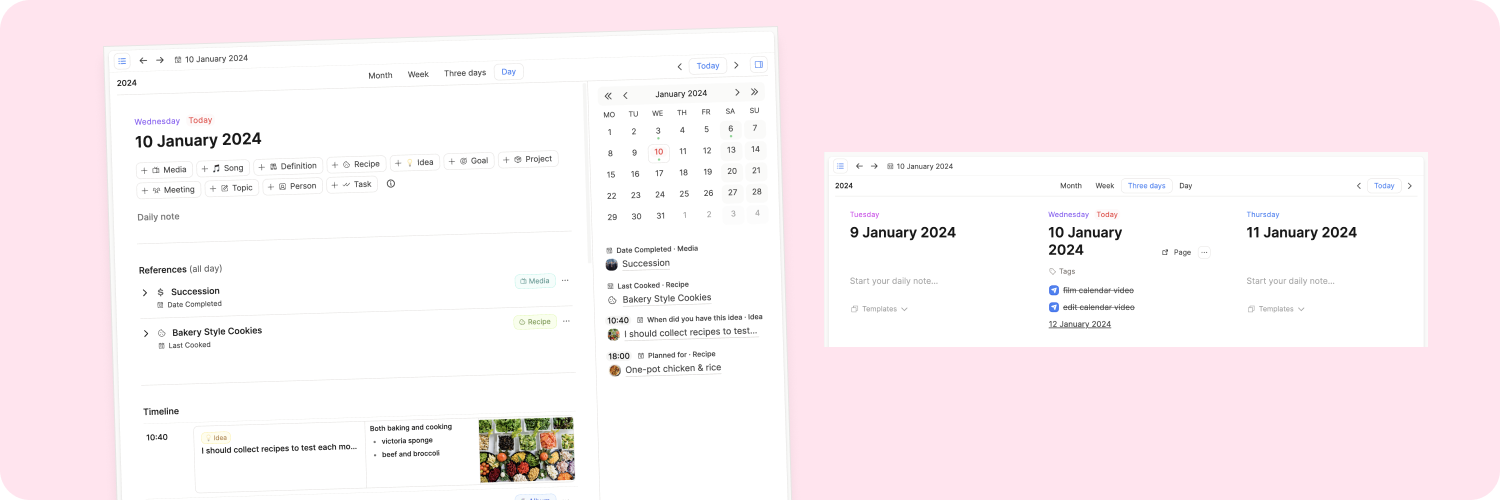
Time is a fundamental pillar of Capacities and working with dates is supported in many ways. The Calendar is the main way to interact with the time dimension in Capacities.
The Calendar
You can access the Calendar by clicking on "Calendar" at the top of the left sidebar. The Calendar comes with four different views: "Month", "Week", "Three days", and "Day".
Shift + click the Today button (or today's date in the calendar sidebar) to open that day's daily note in the side panel.
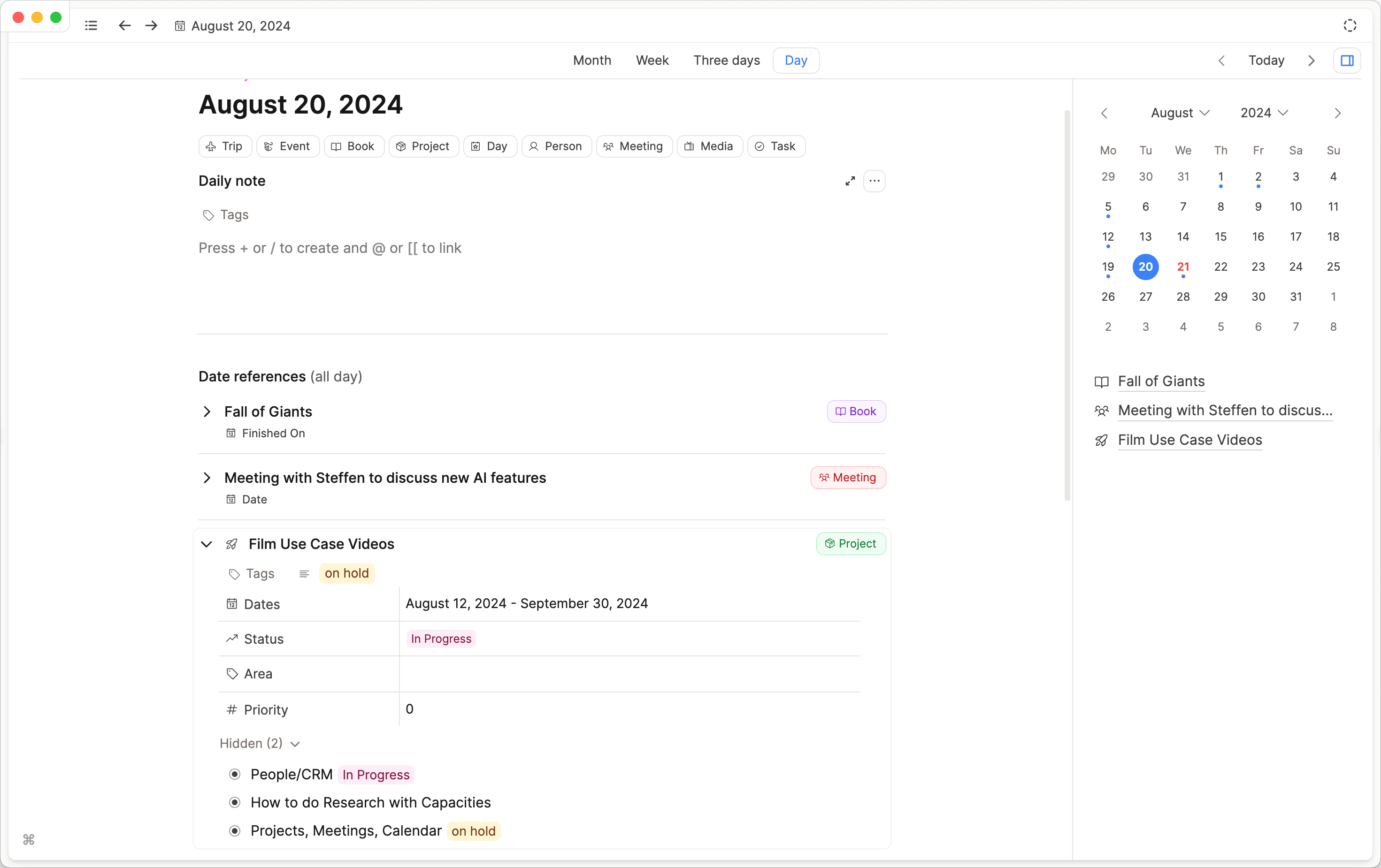
The "Day" view incorporates all available information for that day, such as content created on that day or links to a certain time.
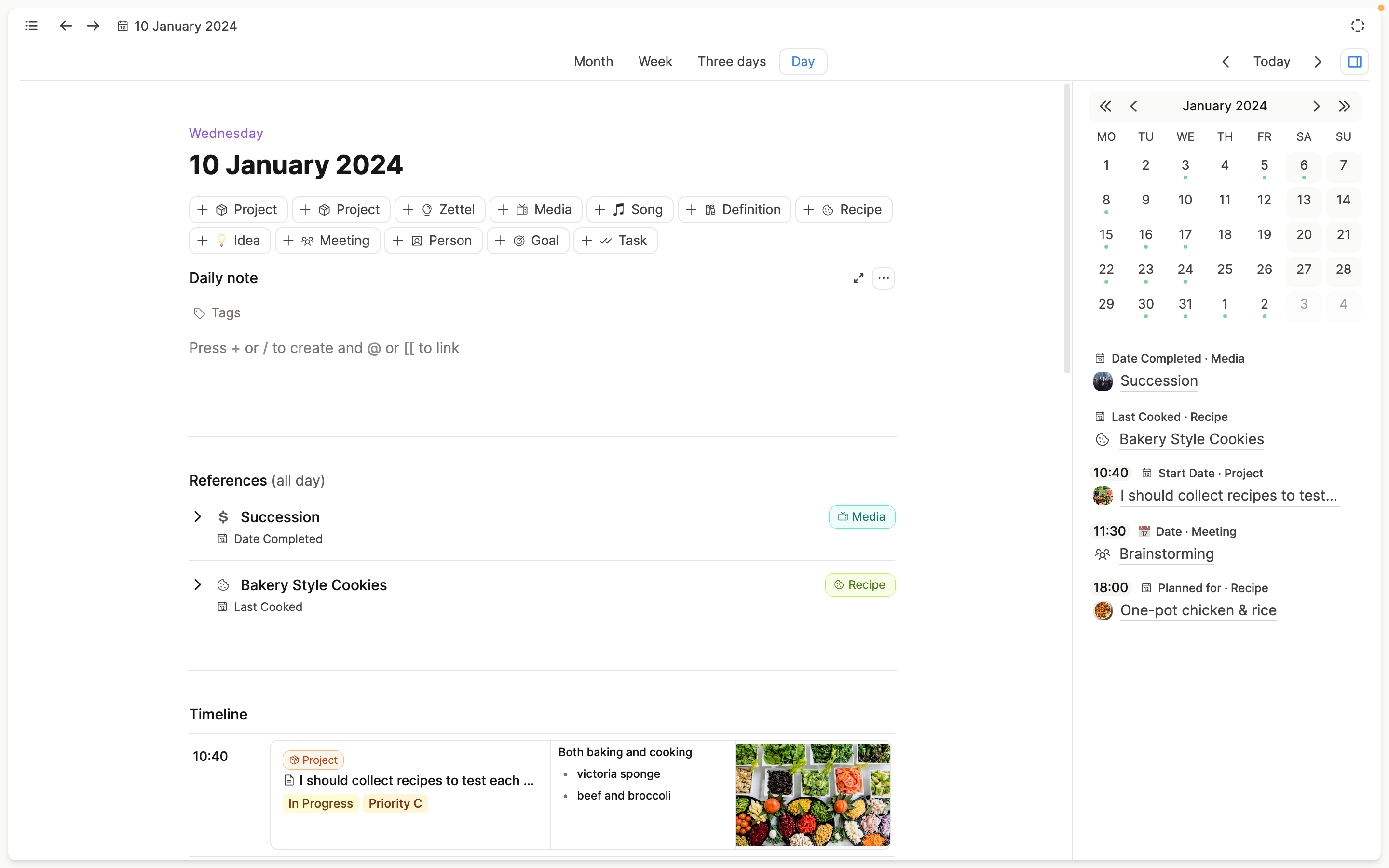
At the top, just below the date, you’ll see quick actions to create objects with their date set to this day. All objects with a date property are shown here.
On desktop, the Day view uses tabs:
- The daily note for that day
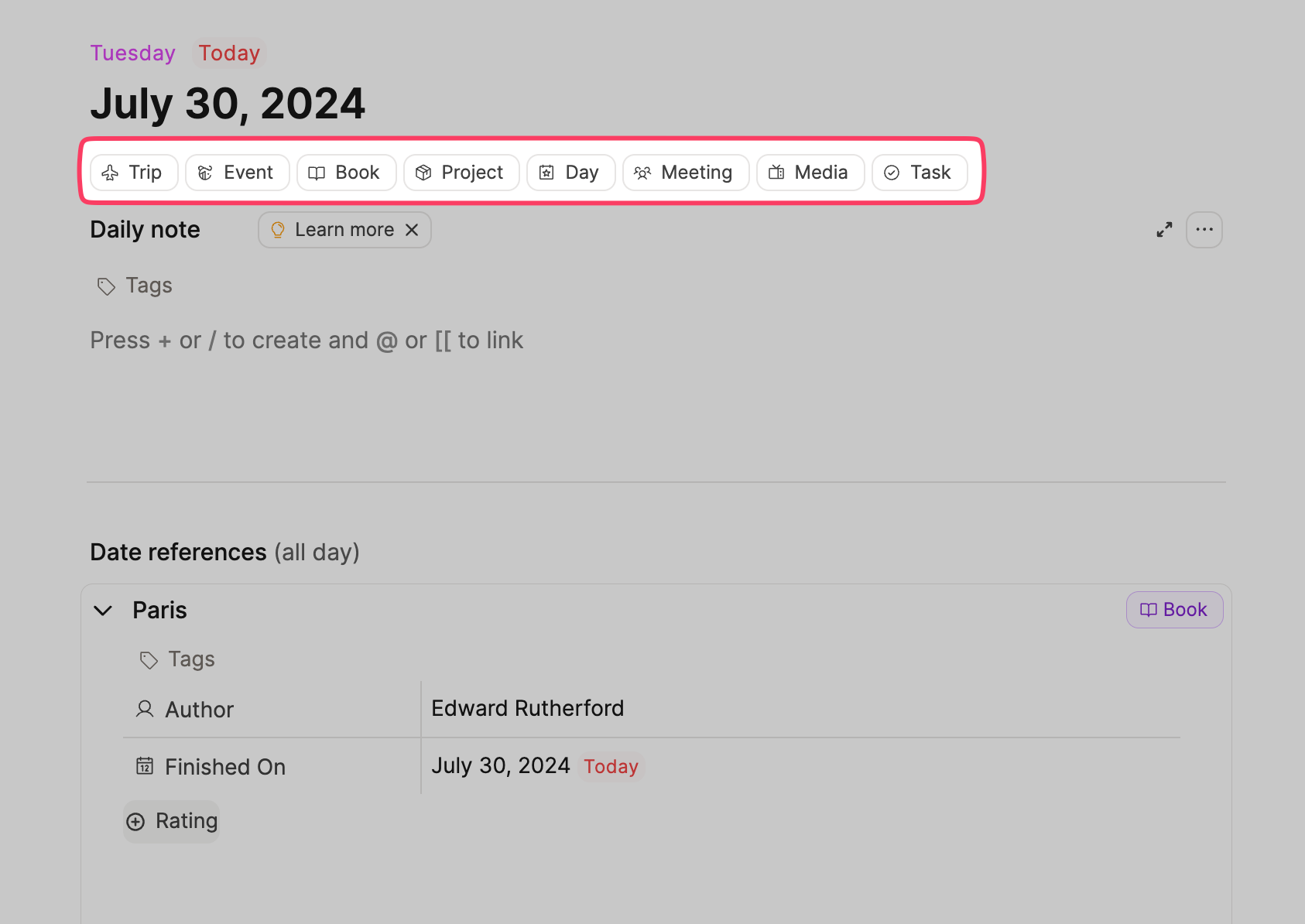
- Date references – objects with a date property set to that day, and mentions of the day in your writing
- Created today – content created on that day
On mobile, the calendar has a Timeline mode instead of those desktop tabs. The timeline shows date references and objects linked to that day through the day. If a date reference includes a time, it appears at that time on the timeline. You can set filters to only show the categories you’re interested in.
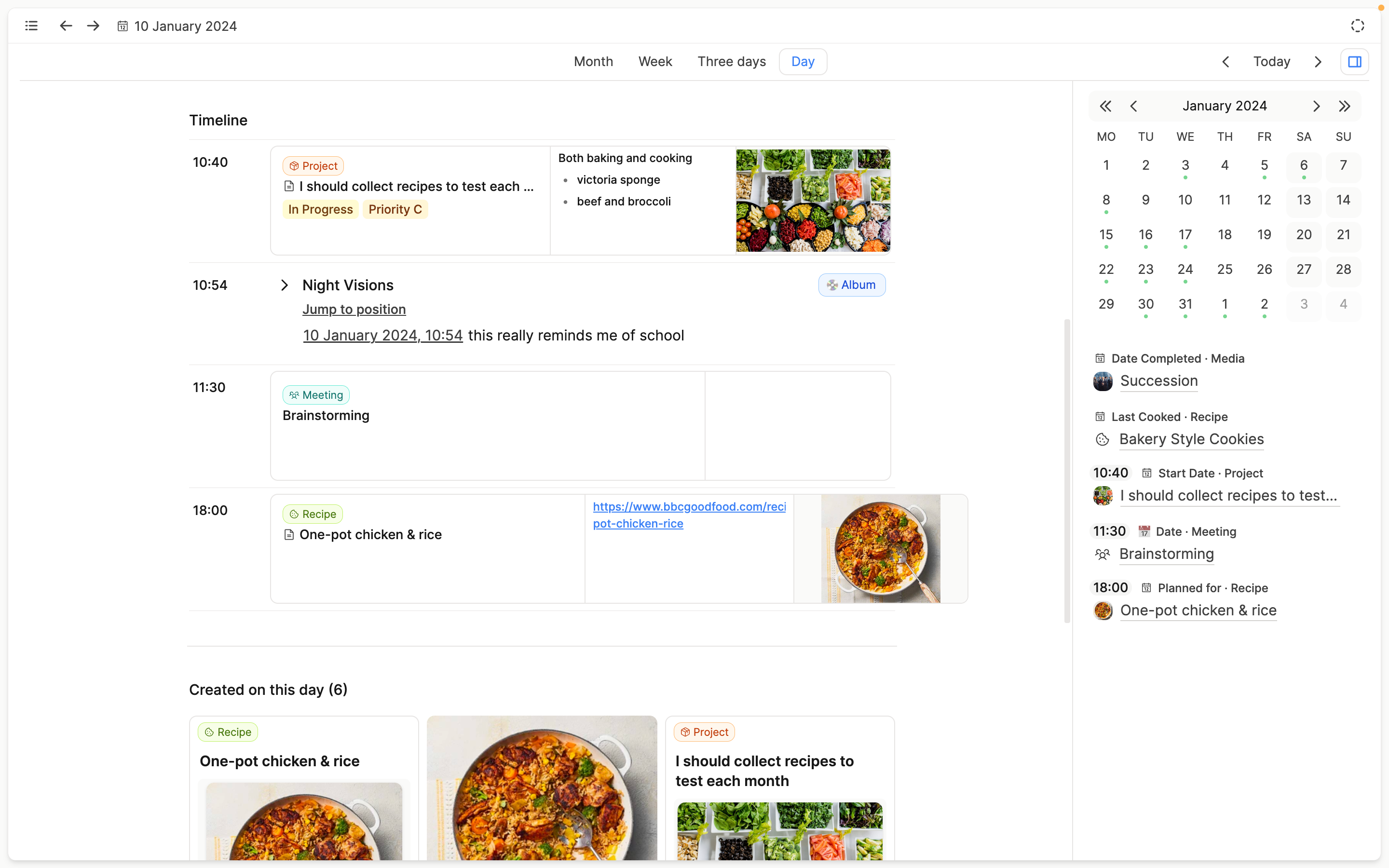
On large screens, you also have access to the calendar sidebar on the right. This sidebar shows a small calendar of the current month. Each day is colored by its daily note:
- White – no daily note yet
- Grey – a daily note exists, but it is not marked Reviewed
- Green – a daily note exists and is marked Reviewed
You can click on any day to jump to that day. Below the mini calendar is a summary of objects with a time and a date property set to this day.
The "Month", "Week", and "Three days" views on the other hand simply show all daily notes of each time period.
You can watch a tour of this page here:
Daily notes
A daily note is a note that is uniquely linked to one day. It often serves as a quick and simple way to write down ideas or things to remember as they occur throughout the day. Some people also use it for interstitial note-taking, to write down to-dos using our to-do blocks, or to keep a journal.
Tags assigned to a daily note appear on the daily note page like on other objects.
Reviewed daily notes
Each daily note has a Reviewed checkbox. Mark a day as done when you have finished with it. The calendar sidebar uses that state for its day colors (white, grey, or green), as described above.
Your Daily Notes dashboard also has an Unreviewed section for days that still need attention. If you do not want this workflow, turn it off in Daily Note settings.
The template menu (three-dot icon) in the daily note header is visible even before a note exists for that day, so you can create the note from a template in one step.
In addition, our input integrations—such as WhatsApp, Raycast, or email—simply add incoming content to today's daily note.
Opening a past daily note on iOS
On a daily note, the date bar at the top lets you move between days, but scrolling back far into the past is slow. On iOS, link to the date from today's daily note instead:
- Open today's daily note.
- Add a date link to the day you want (for example
24th June 2022). - Tap the link to open that day's daily note.
Capacities creates the daily note when you open it if one does not exist yet.
Date links
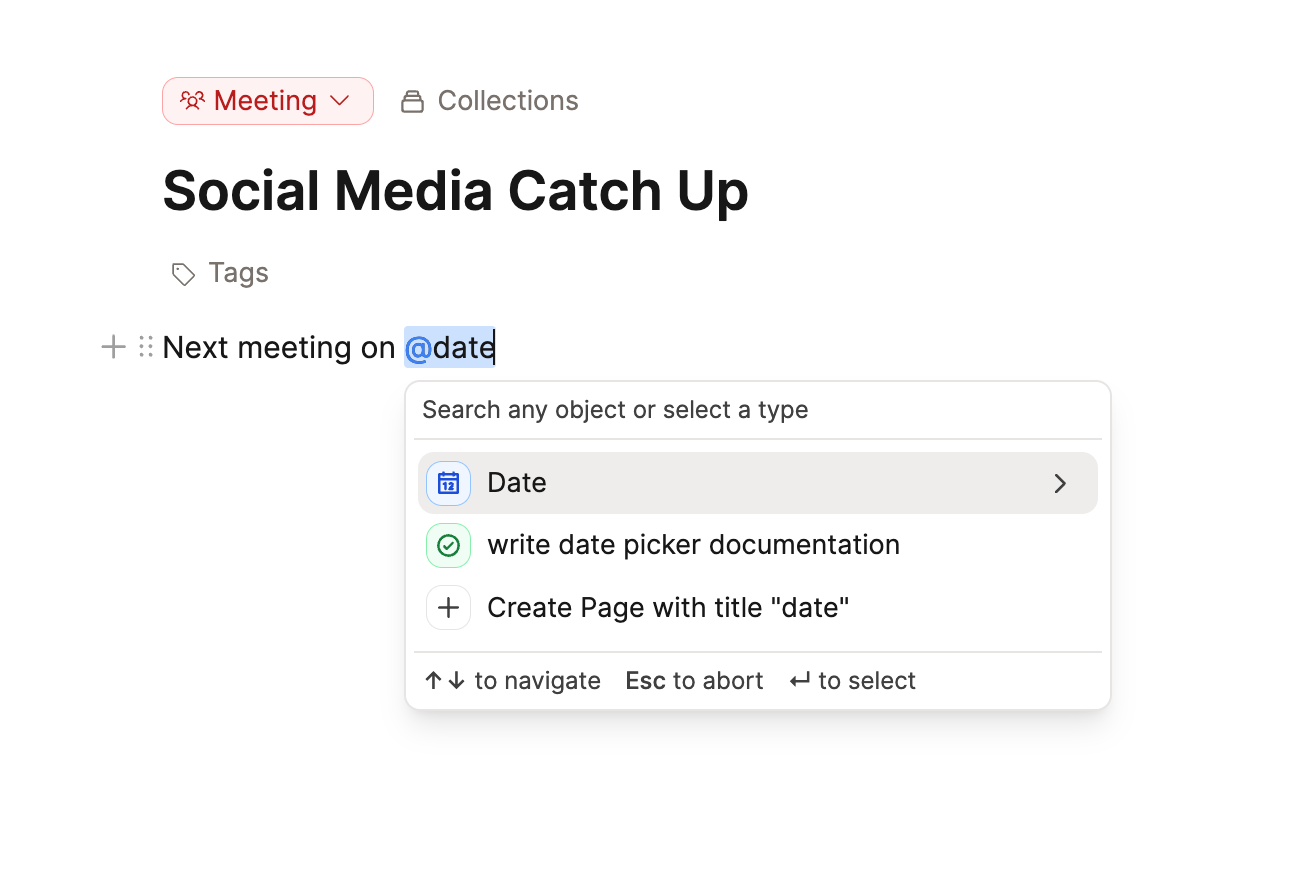
But working with dates is not limited to daily notes. You can reference any date from within any content by using our linking operators @ or [[. In the linking menu type "date" and select the "Date" option. This will open the date picker. Here you can specify a date and even include a time if you like.
These date references will show up in the "Day" view of the Calendar. On desktop, open the Date references tab. On mobile, they appear in the Timeline. If a time is specified, it shows at that time on the mobile timeline.
Date properties
Custom object types can also have a date as a property. You can add this in the object type settings.
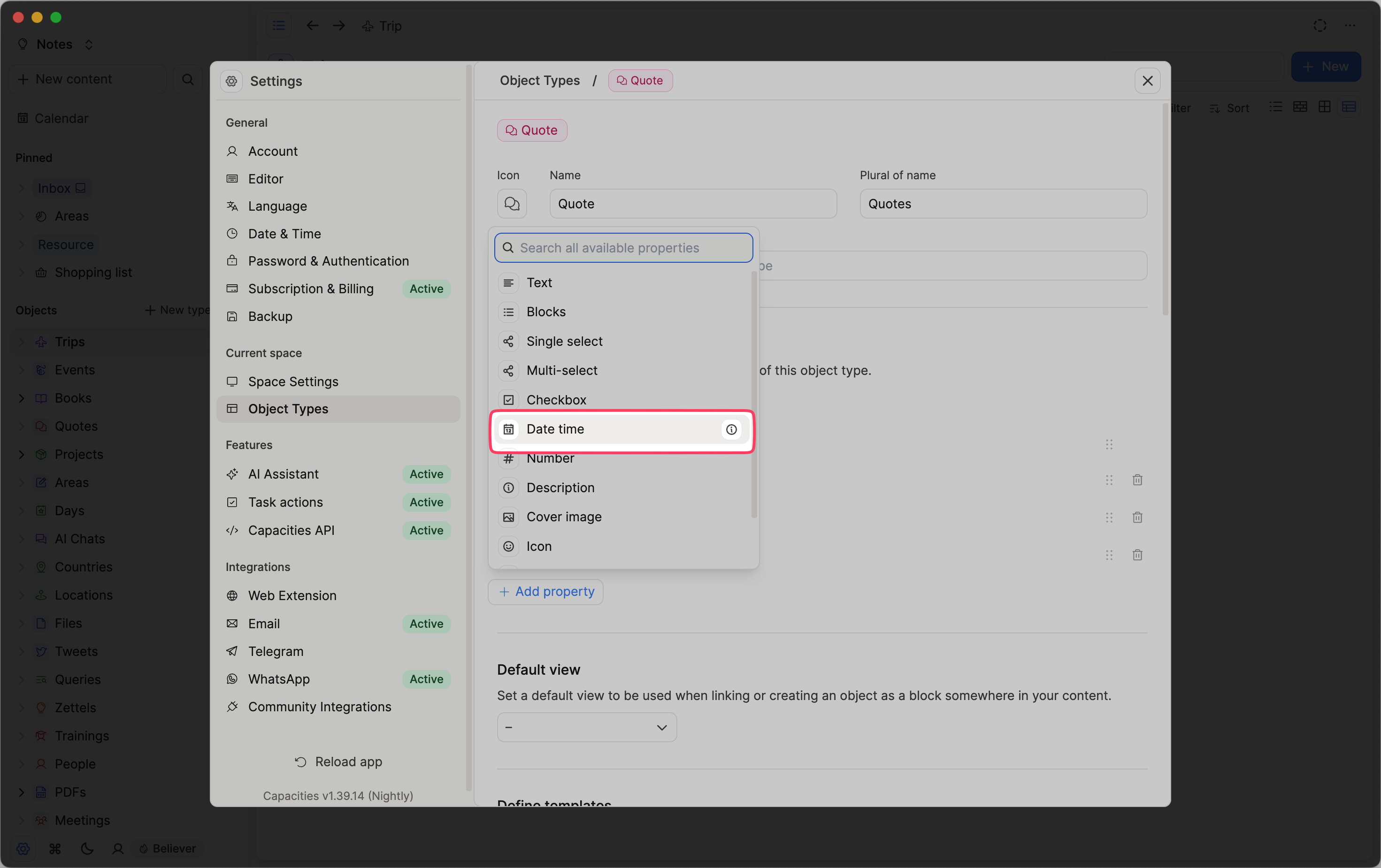
If you fill in an object's date property, you will see it in the Date references tab on desktop, or in the Timeline on mobile.
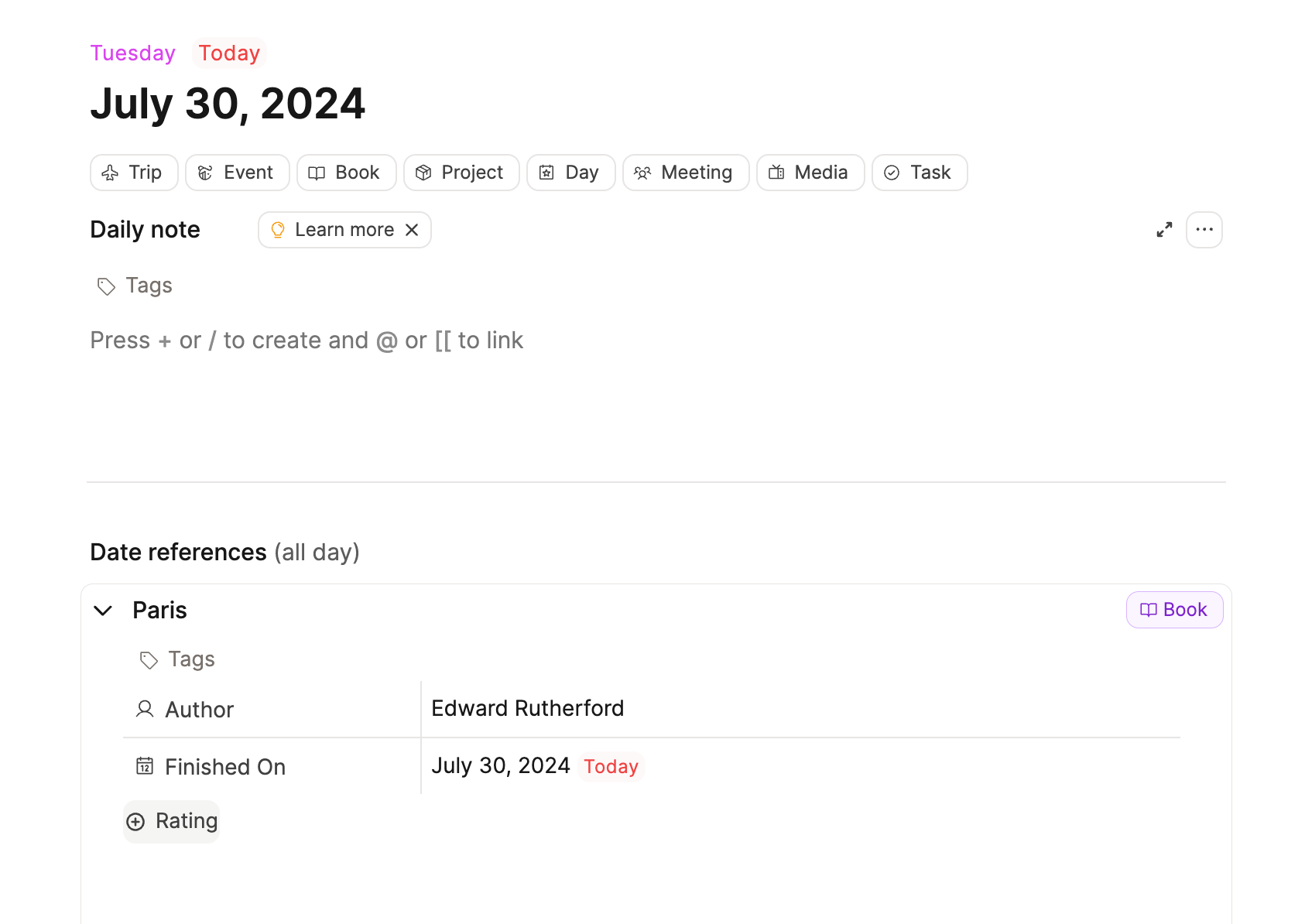
Object types with a date property also get a quick add button in the calendar too. Clicking on this creates a new object of that type, and fills in the date property automatically. If you create from a calendar event or date with a template, the template title is kept and {date:…} placeholders fill for that day.
Date Picker
If dates are such a central part of Capacities, you need a good experience when working with them. The date picker is designed to be as intuitive as possible.
Here's a video that walks you through it:
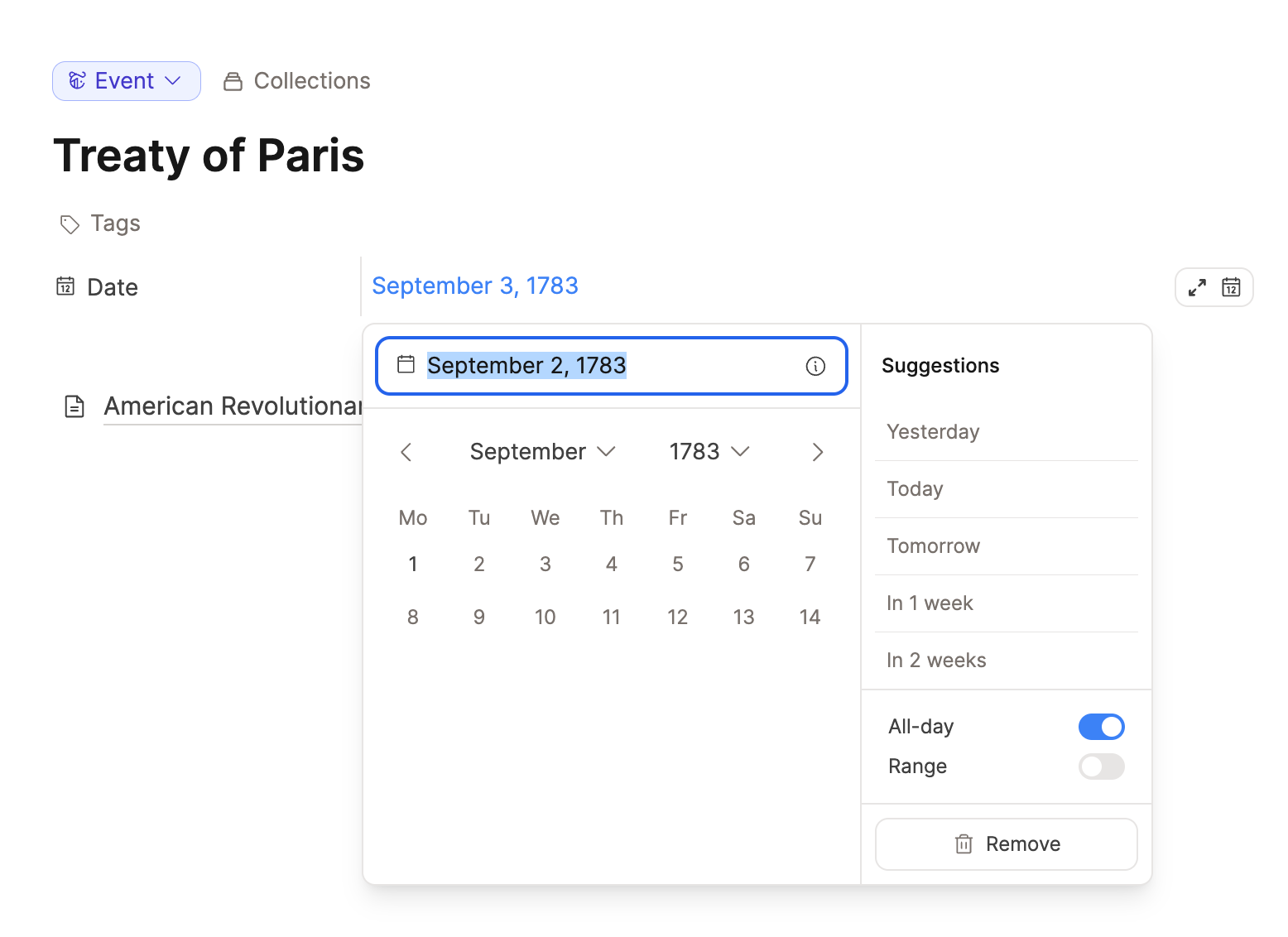
Here is what our date picker looks like:
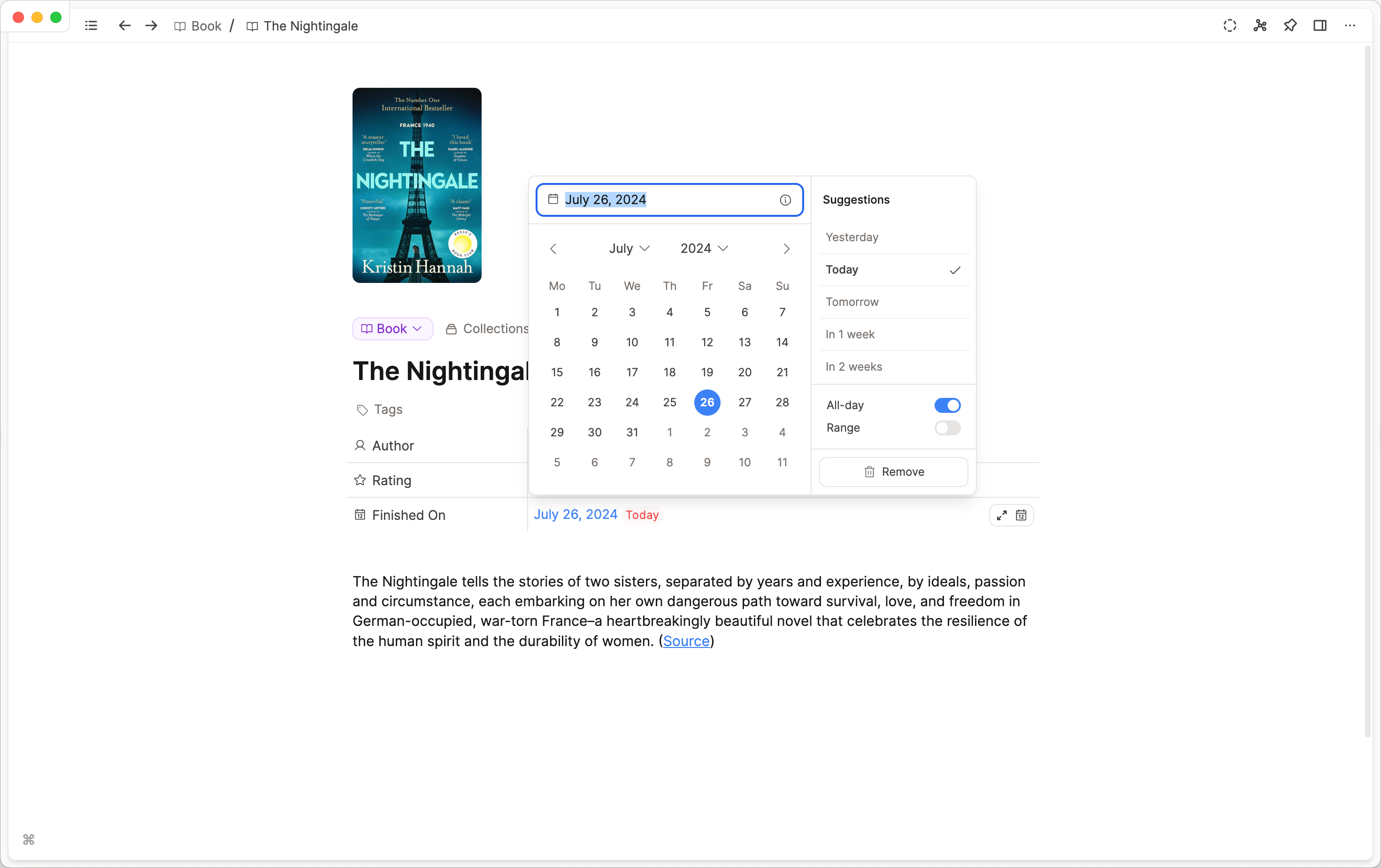
You can choose a date by clicking on the correct date, and navigating between dates and years with the drop-down menus.
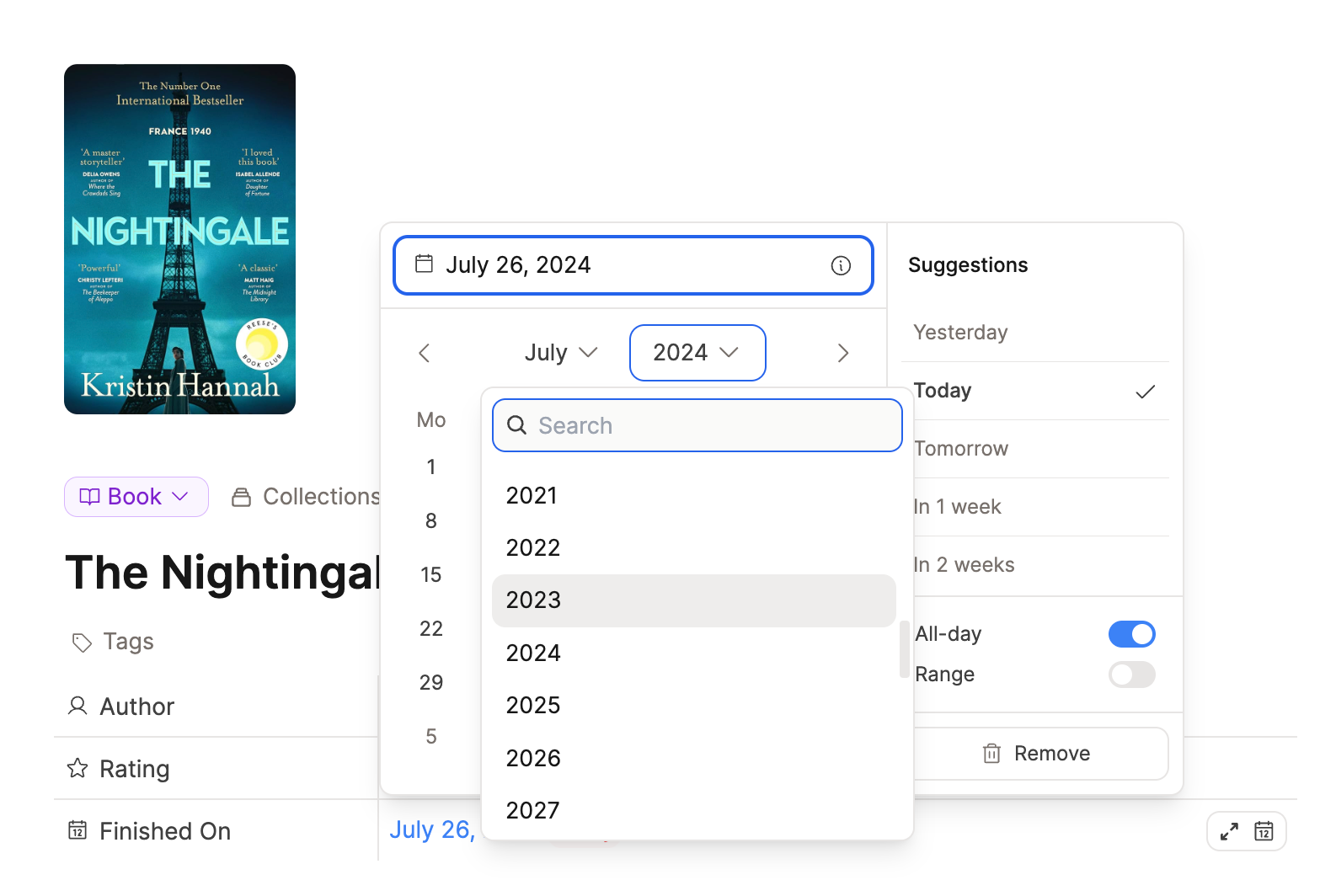
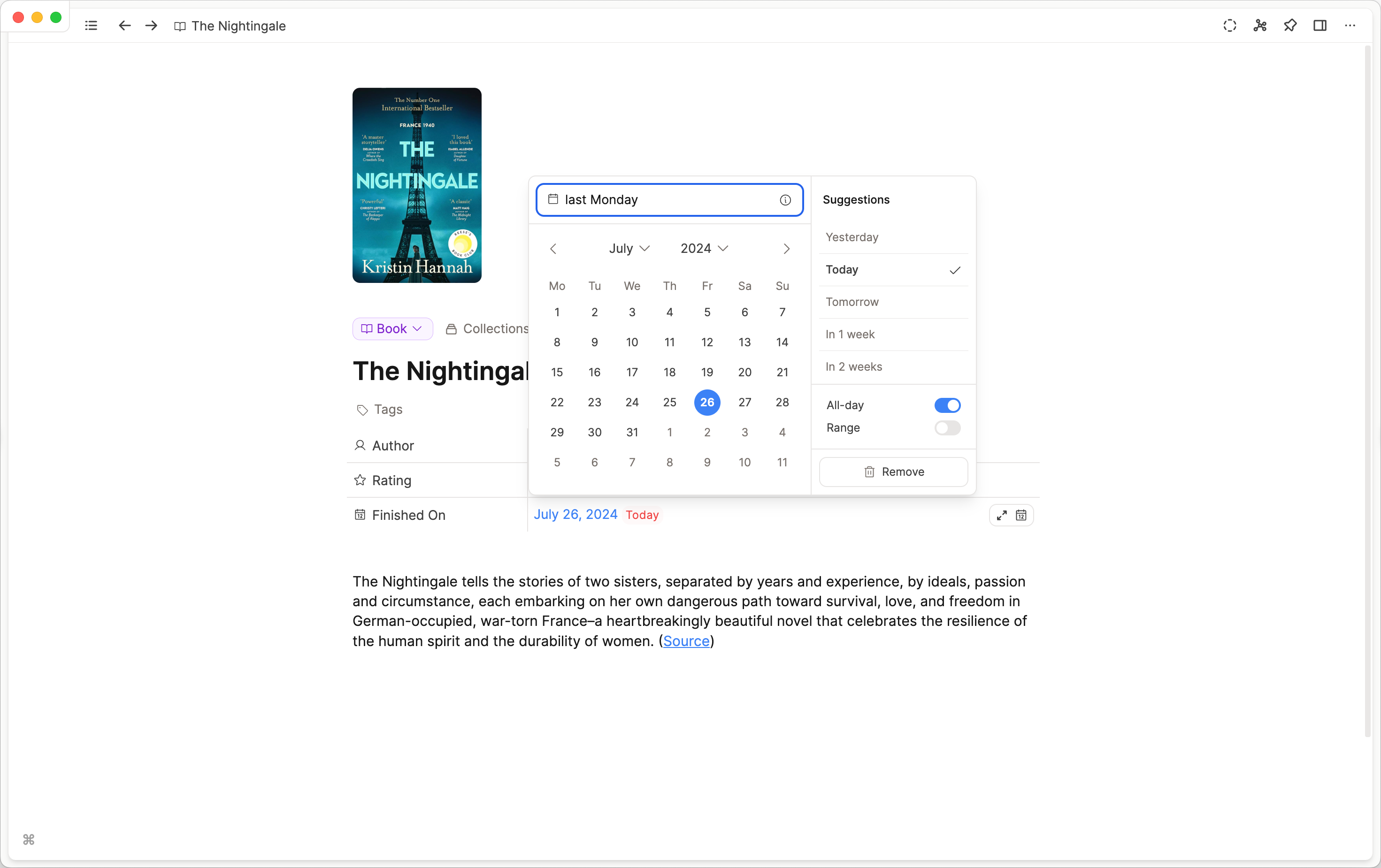
Or you can use natural language. Type in things like in one month or next Wednesday. next week means the upcoming Monday, and next month means the 1st of the month (same as the date picker suggestions). There are extensive options here, so test what feels natural to you and it'll likely work!
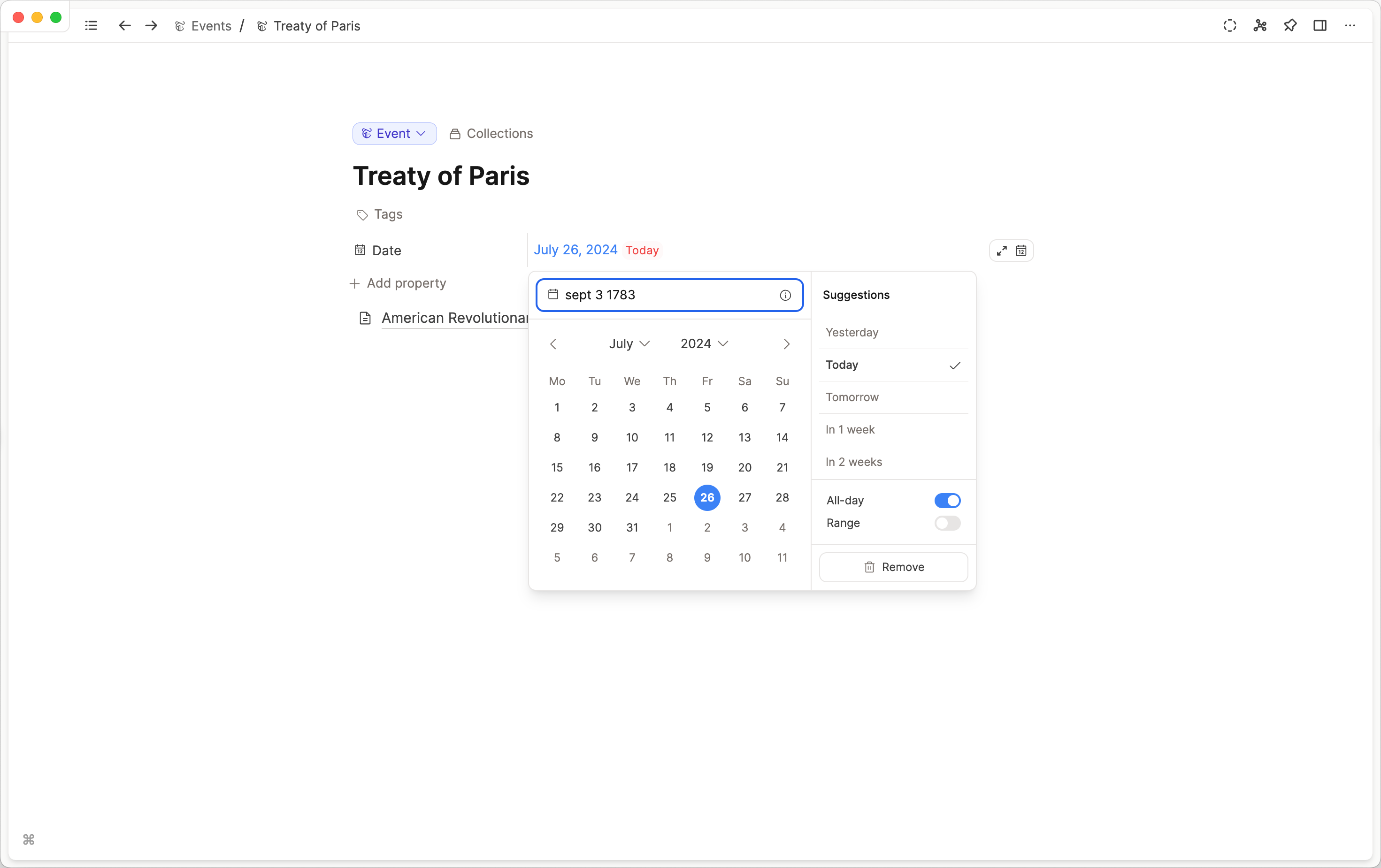
It doesn't have to be a recent date either.
You will also see the suggestions on the right hand side update automatically which is another way to quickly add a date based.
The suggestions are always relative to today. If you have chosen a date that is not today, and you want to use that as the reference for the suggestions then you need to use the start and end date variables. These are $start and $end ($s and $e also work).
You can use them in phrases like one week from $start to get the date one week from whichever date you've selected.
Times
Times can be edited manually or with natural language again. Try entering now or in 1 hour. You can also choose these options from the suggestions on the right. These update automatically to give you the most useful options.
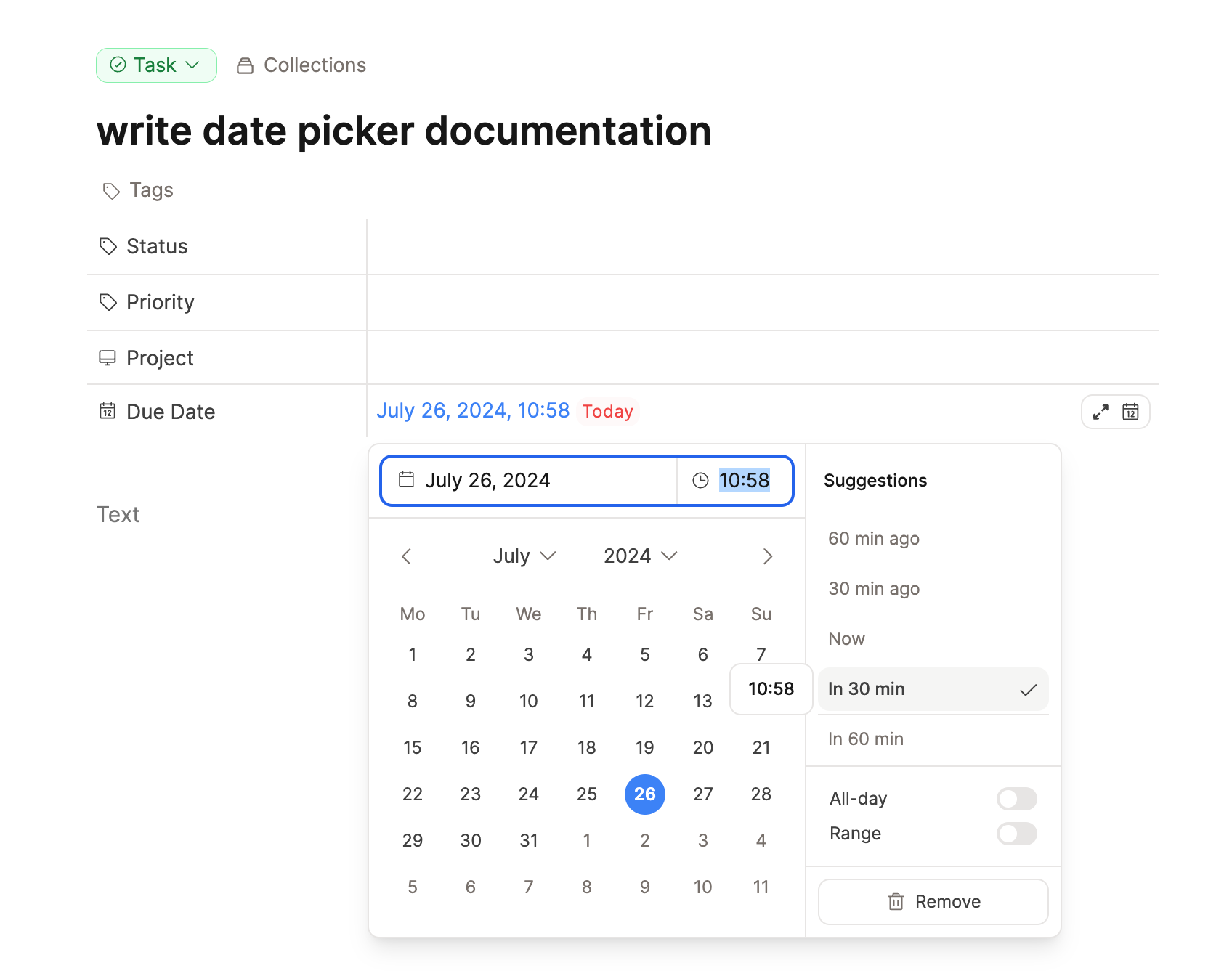
If you don't want a time with the chosen date, turn off Include Time (or use Cmd/Ctrl + D).
Date Ranges
If you'd like start and end dates, turn on End Date (or use Cmd/Ctrl + R). This will open another date picker where you can choose the end date. If you use the calendar to select the dates, the text boxes will be updated automatically. Alternatively, you can type the dates in yourself. The start date is on the left, and the end date on the right.
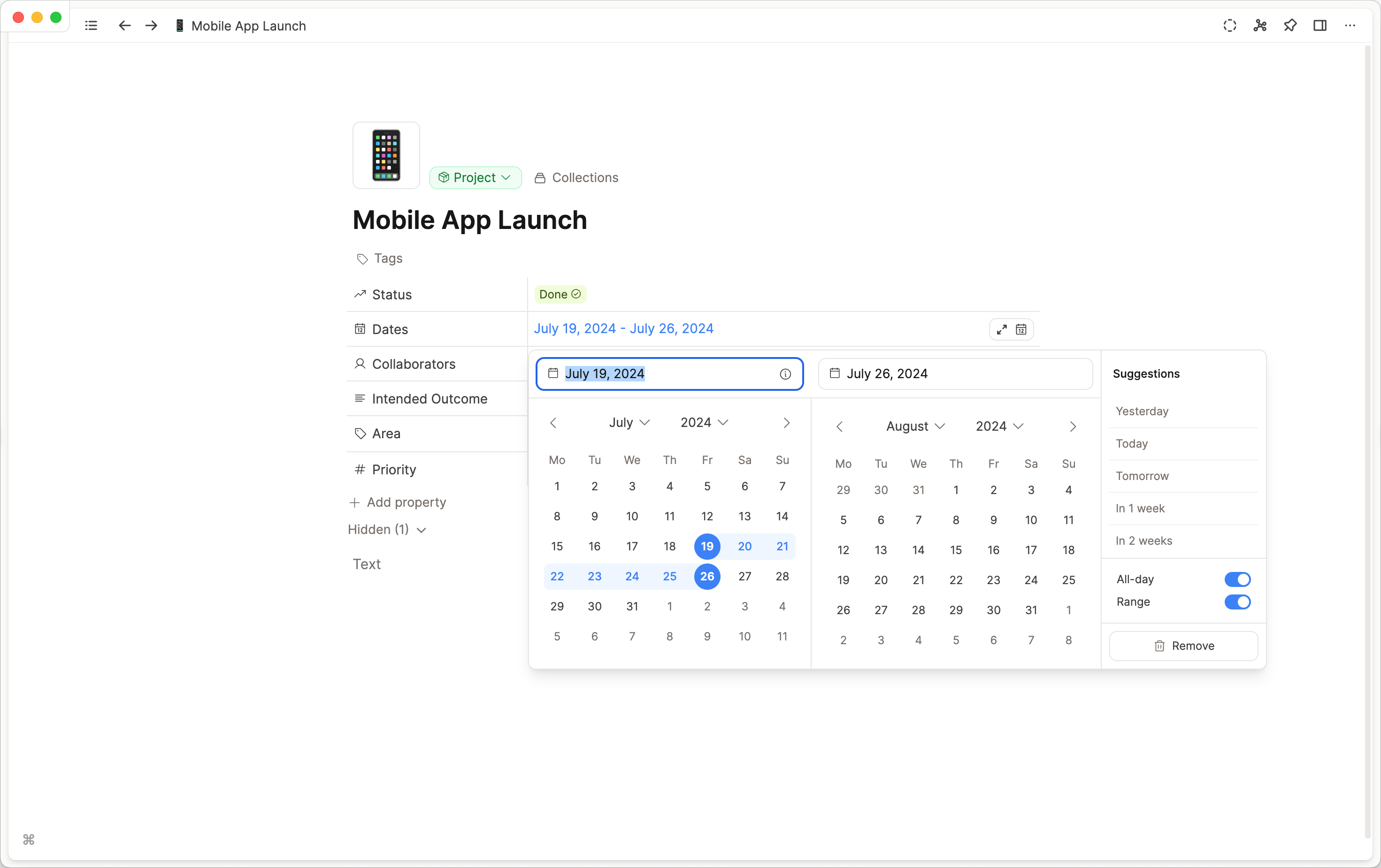
If you just want to update the end date, shift + click when in the calendar. That keeps the start date as is, and updates the end date.
Objects with a date range will show up in the calendar on any date that falls within that range.
You can see a video with more information about that here:
Date Picker Settings
We want this date picker to be intuitive for you so have added some settings to give you more control.
Open your object settings and click on a date property. This opens the date property settings.
Here you can choose to remove the option for a time or a range.
For example, for historical events in the past, it's less important to know the time an event occurred. The date is more important. Therefore you can disallow the 'time' part. We can leave the range optional, as sometimes it's needed.
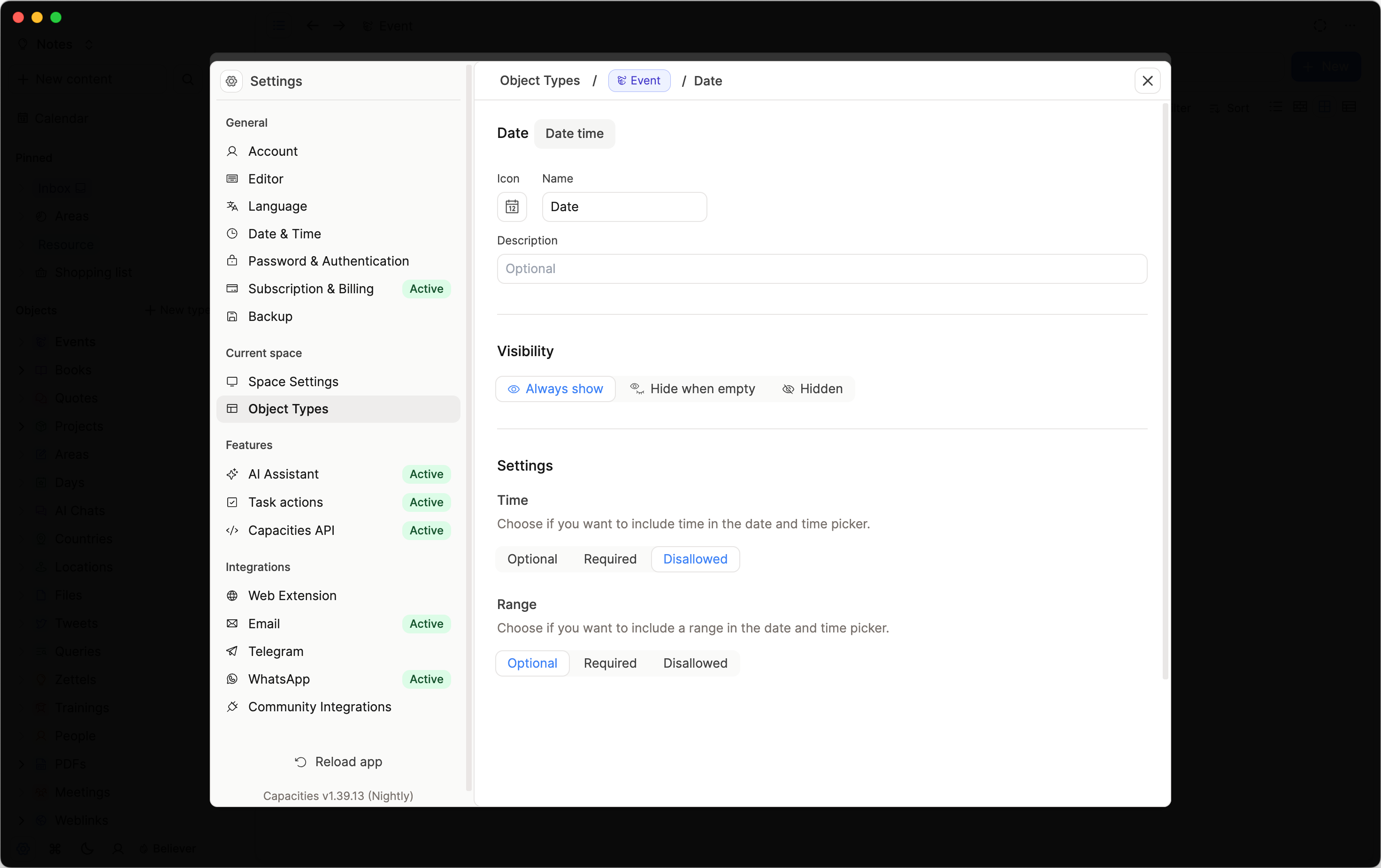
Whereas when planning tasks, it's more important to know the time so we can choose 'required'.
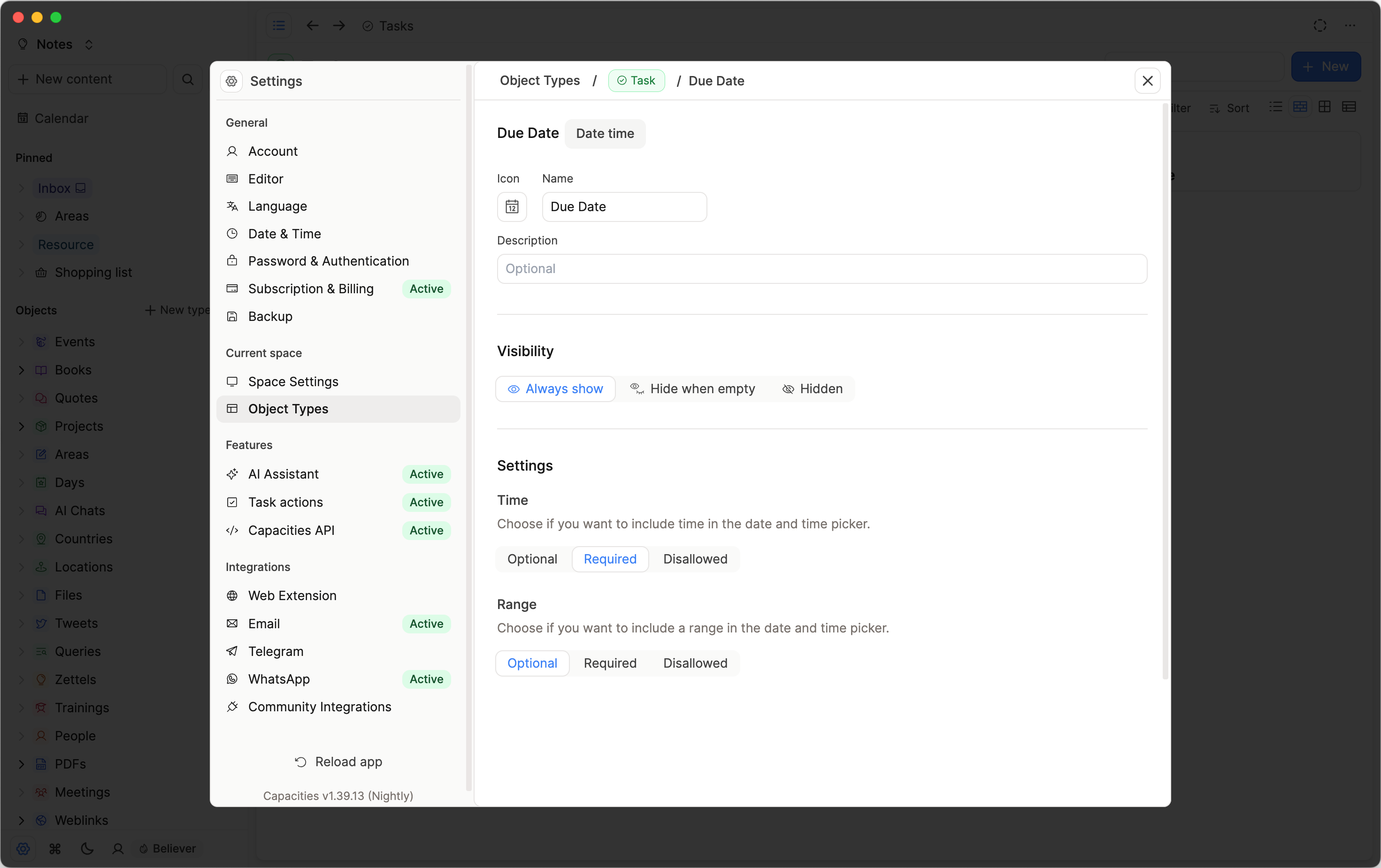
These settings will be applied to all objects of that type.
Shortcuts
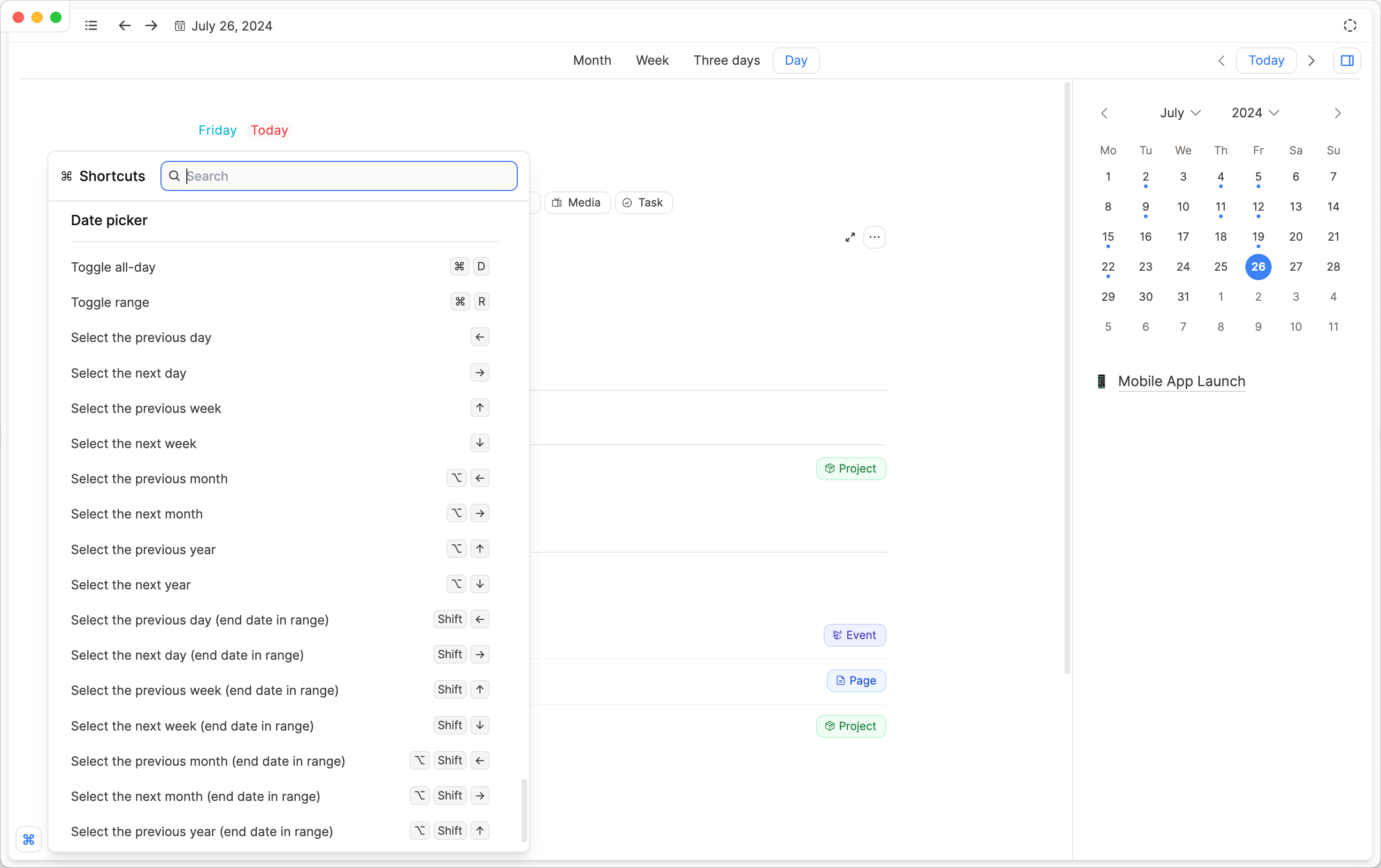
We have added extensive shortcuts for the date-picker. You can find them in the app!
FAQs
- How do I get buttons to quick-add objects from the daily note?
Add a date property to your custom object types. - My object type has a date property, why can't I see the button?
Open the object type settings then go to the Calendar Settings section and made sure that 'Create object from calendar' is set to 'show' - What content goes underneath the calendar sidebar?
Objects with a date property that is filled in will appear below the calendar view. Blocks with timestamps will not appear there; on desktop they are in the Date references tab, and on mobile they are in the Timeline. - How do I open a daily note for a past date on iOS without scrolling the top bar?
In today's daily note, add a date link to the day you want (for example24th June 2022), then tap the link to open that daily note. Capacities creates the note when you open it if one does not exist yet.
Ask a question! - The Docs Assistant knows everything about the documentation, and the ideas and feature requests from other users.
Create a ticket on our feedback board. - Let us know if you have an idea for a feature, improvement or think there is something missing.
Request additions to the documentation. - If your questions are not getting answered, let us know and we will extend the documentation.