Integrations
WhatsApp integration
Integrations
WhatsApp integration
With the Capacities WhatsApp integration you can save formatted messages, images, files or even voice messages to Capacities from a WhatsApp chat. You can even name and tag all resources from within the messenger.
Setup
Open the Capacities app and go to "Account > Settings > Integrations > WhatsApp" and follow the instructions there.
Make sure to add the Capacities number to your address book so you can find it easily!
How it works
After you set up the integration you can simply send messages to the chat with Capacities. All messages will be appended to your daily note.
Formatting
You can send formatted text messages to Capacities. Either use the formatting options WhatsApp provides or use Capacities shortcuts:
#,##,###, and####for headings (add a space afterwards for this!)-for bullets1.for numbered lists>for quotes**text**for bold text*text*for italic text[]for to-dos
Standard markdown formatting is supported as well.
Tagging
To add tags to your message simply use the # symbol. Capacities matches your text with your existing tags or will create new tags.
You cannot use special characters or spaces in your tags. You can use letters, numbers, underscores, and hyphens. Example: #ArtificialIntelligence, #artificial-intelligence, or #artificial_intelligence.
Linking and creating content
You can create new objects and link existing content from your messenger. Use the following syntax
[[page/Wendelstein reactor]]
to link to a page with title "Wendelstein reactor". If this pages exits in your space it will create a link to it, otherwise a new page will be created. This works for all object types in your space. If you have a object type Person you can link or create it by using [[person/Steve Jobs]].
You can use this at the beginning of a paragraph to create a new block and somewhere in your paragraph to link it in your text.
Alternative ways of "create or link" are +person/Steve Jobs/ and @person/Steve Jobs/, similar to the syntax you can use in the app.
If your object type contains spaces, like "Book Summary" you need to specify it in upper camel case format: [[BookSummary/Sapiens]], +BookSummary/Sapiens/, @BookSummary/Sapiens/.
If you only want to link and not create you can do this by just referencing the title:
[[Steve Jobs]]
Saving web links
If you want to save a web link, paste the web link into a new line. If you want you can add tags with the # symbol after it:
[https://capacities.io](https://capacities.io) #pkm #note-taking
The web link will be tagged and saved to your web links database as well.
Saving images and files
If you send images or files from your messenger to Capacities you can set the title of your image or file by giving it a caption in the messenger. If you add tags in your caption they will be automatically saved as tags for that resource.
Saving voice messages
You can use the voice recording button in the WhatsApp messenger. Your voice recordings will be saved as audio objects.
Open the audio object in Capacities and click Analyze (with AI turned on) to get a transcript and a summary. See Audio analysis.
Saving code files
If you send a code file, for example a Typescript or Python file ending with the corresponding extension it will automatically be transformed into a code block that you can continue editing in Capacities.
Saving to a specific space
If you want to save a message to a specific space other than your selected default space just start your message with the space number, here the third space, based on the order of your spaces in your home dashboard.
/3 Some thought ...
Capture via iOS Shortcuts
While the WhatsApp integration is a powerful way to capture thoughts, opening WhatsApp can lead to "notification overwhelm." By creating an iOS Shortcut, you can send notes to Capacities instantly without ever seeing your chat list or unread messages.
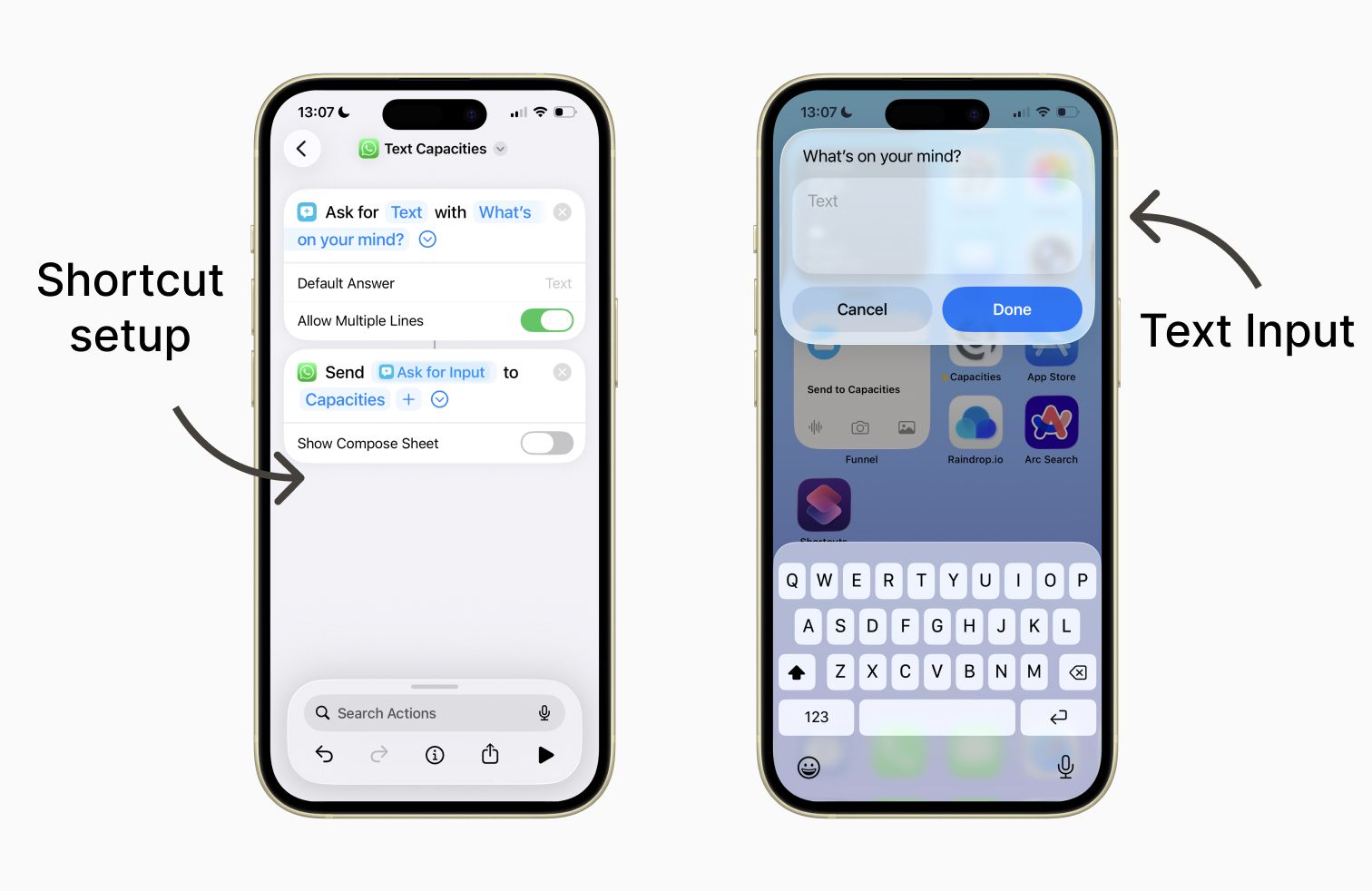
You will need an iPhone or iPad with WhatsApp installed and the Capacities WhatsApp integration already configured.
- First, ensure the Capacities WhatsApp number is saved as a contact on your device.
- Open the Shortcuts app on your iOS device.
- Tap the + (plus) icon in the top-right corner to create a new shortcut.
- Search for the Ask for Input action and add it. This is where you type the message that you will send to Capacities.
- Tap the "Prompt" field and enter a label like "What's on your mind?" or "Add to daily note."
- Search for WhatsApp in the actions bar.
- Select Send Message. This is how the message gets sent to WhatsApp. Do not choose "Send Message via WhatsApp" as it handles automation differently.
- Ensure the message field is linked to the Provided Input from the previous step. It should be done automatically.
- Tap Recipients and select your saved Capacities contact.
- Test it works by pressing the Play icon in the bottom right. Send test content and check it arrives in your Capacities daily note.
- If it works, go back to the Shortcuts app and tap the Share icon (square with an up arrow) at the bottom.
- Select Add to Home Screen.
- Choose a custom icon or color to make it stand out, then tap Add.
- Rearrange your home screen as required.
Now, whenever inspiration strikes, just tap the icon, type your note, and hit Done. Your thought is sent directly to Capacities, keeping you focused and away from WhatsApp distractions. 🚀
Troubleshooting
If you have issues, please ensure you have chosen the Ask for Input and Send Message Commands.
Otherwise please review the issues below.
WhatsApp keeps opening the app
The goal is to stay out of WhatsApp entirely. If the app pops up every time you run the shortcut:
- In your Shortcut editor, look at the Send Message action.
- Tap the small blue arrow (v) next to the recipient's name to expand the options.
- Ensure Show Compose Sheet is toggled OFF. This allows the message to send silently in the background.
The Shortcut "hangs" or stops
The first time you run the shortcut, iOS will ask for permission to let Shortcuts "talk" to WhatsApp.
- Look for a notification or a small prompt at the top of your screen.
- Select Always Allow. If you tap "Allow once," it will keep asking, which breaks the "distraction-free" flow.
"Could not find contact"
If Shortcuts says it can't find your Capacities contact:
- Open your Contacts app and ensure the Capacities number is saved with the full international format (e.g., followed by the number).
- In the Shortcut, tap the Recipients field, delete the current contact, and re-select it directly from your address book.
Sending a blank note
If your note arrives in Capacities as an empty message or just says "Text":
- Check the Send Message action in your shortcut.
- The "Message" field should contain a blue bubble labeled Provided Input.
- If it doesn't, tap the field and select Provided Input from the variable row above your keyboard.
Ask a question! - The Docs Assistant knows everything about the documentation, and the ideas and feature requests from other users.
Create a ticket on our feedback board. - Let us know if you have an idea for a feature, improvement or think there is something missing.
Request additions to the documentation. - If your questions are not getting answered, let us know and we will extend the documentation.