Tutorials
Working with tags
Tutorials
Working with tags
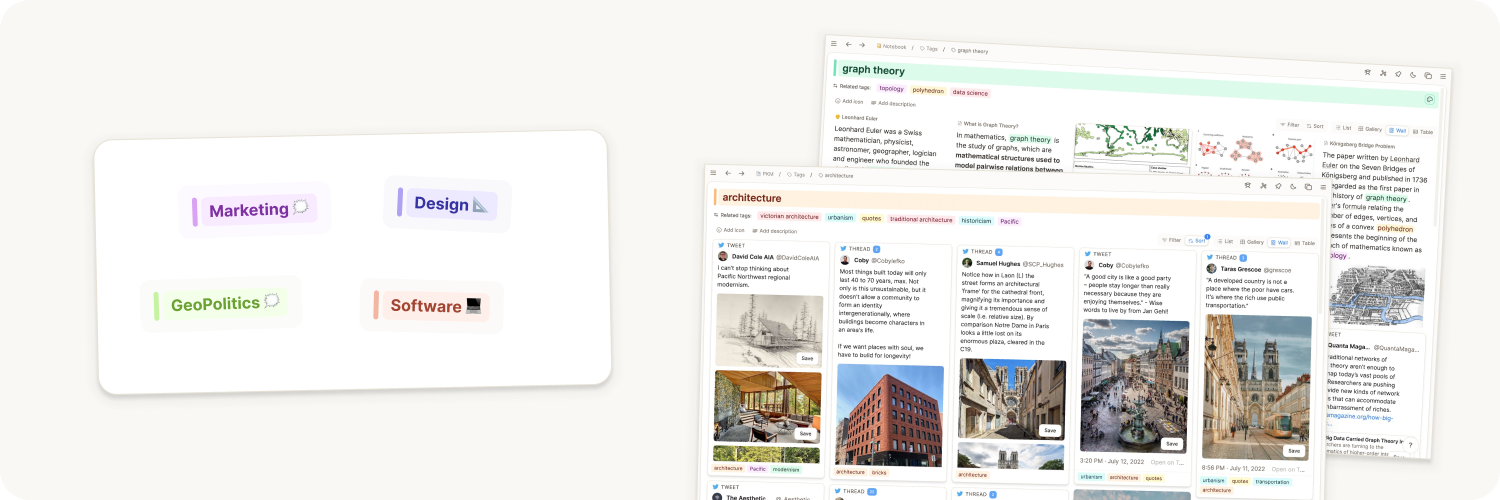
This page is about tagging strategy: how to choose better tags, keep them useful over time, and avoid common mistakes.
For feature details, see Tags. If you are deciding between tags and collections, see Tags vs. Collections.
Build a useful tagging convention
Good tags help you think, not just file things away. Use these heuristics to keep your tag system sharp.
1. Be specific enough to be useful
A tag like #technology is often too broad. Prefer tags that capture a meaningful angle, such as #decision-making, #attention-management, or #habit-design.
Think of tags like landmarks on a map:
- Which places are important enough to name?
- At what level of detail do you actually navigate?
2. Use fewer, higher-value tags
Don't tag for tagging's sake. A few intentional tags are usually better than many generic ones.
If a note needs many unrelated tags, that can be a signal the note should be split into smaller notes.
3. Tag by nearest relevance
Avoid tagging with every possible related tag. Pick the tags that are most central to the note's actual purpose.
This keeps retrieval cleaner and makes related-tag navigation more meaningful.
4. Maintain your tag garden
Tags improve with maintenance. Revisit them regularly:
- merge duplicates or near-duplicates
- rename vague tags into clearer terms
- connect new tags to existing clusters
Common mistakes (and better alternatives)
- Tagging object type as topic
Avoid tags like#meetingor#person; object types already capture what something is. - Tagging specific entities
Avoid using tags for specific companies/clients/people when those should be objects you can link. - Using broad bucket tags everywhere
Replace broad tags with narrower tags that help you retrieve and reason about content later.
Example: from noisy to useful
Instead of tagging a strategy note with many broad labels, choose the few that carry the core intent.
- Noisy:
#work,#ideas,#project,#notes - Useful:
#positioning,#q3-planning,#decision-making
The second set is easier to navigate and gives better retrieval later.
FAQs
- Does Capacities have hierarchical or nested tags?
Capacities does not currently support hierarchical or nested tags in the same way some other tools do.
As a workaround, you can use consistent tag naming, such as project/client, project/internal, or topic/research. You can also use object types, properties, and links to create more structured organization. - How do I group related objects together?
This is a good use for tags, for example all books about climate change. Apply tags under the title of any note.
You can also open an existing note and link to related content with@or[[]]. See more in Backlinks.
Ask a question! - The Docs Assistant knows everything about the documentation, and the ideas and feature requests from other users.
Create a ticket on our feedback board. - Let us know if you have an idea for a feature, improvement or think there is something missing.
Request additions to the documentation. - If your questions are not getting answered, let us know and we will extend the documentation.