Apps
Capacities on Tablets
Apps
Capacities on Tablets
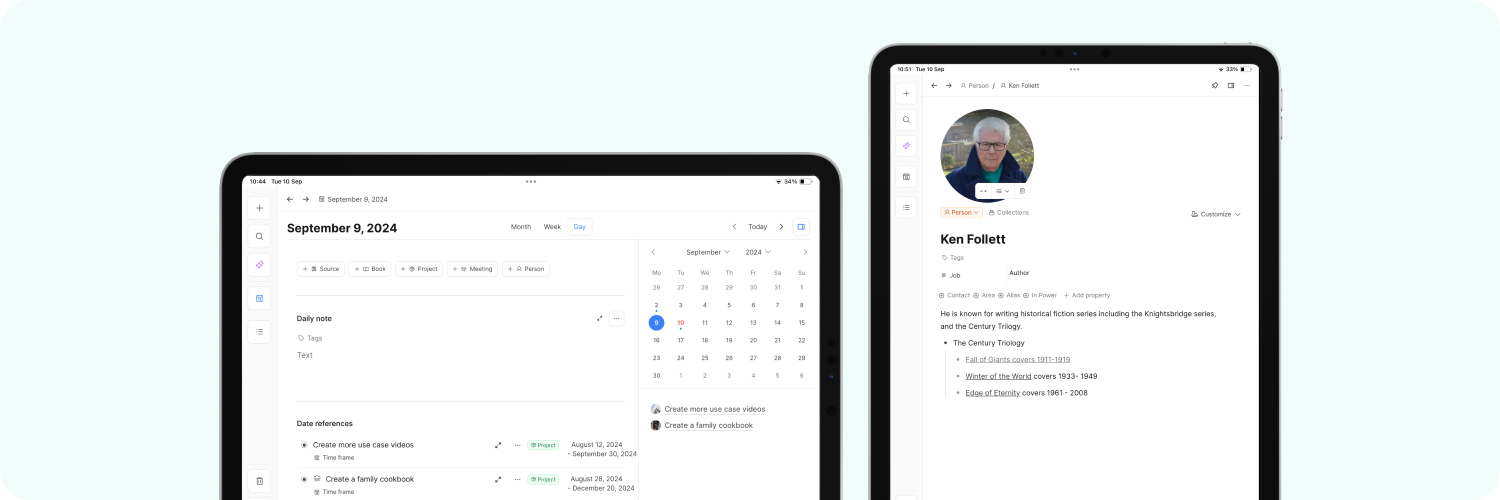
The Capacities Tablet App is now available for everyone. We thank all our Believers for testing the app during the beta phase and providing valuable feedback before the full release.
Our tablet app is built to be a powerful and intuitive combination of our desktop and mobile apps, so if you already use the Capacities apps on desktop and mobile, the tablet app should be very recognizable and easy to use.
Feature overview
In general, Capacities Tablet and Desktop have much in common, but not all features are supported. Here's an overview:
| ✅ Supported | ❌ Not supported |
|---|---|
| Create object types | Tabs |
| Change object types | Split screen |
| Add and edit properties | Some Keyboard Shortcuts not supported |
| Queries | Swipe actions |
| Data Views | Graph view |
| Block references | |
| Extended Search | |
| Command Bar Functionality | |
| Bulk actions | |
| Create, edit, and apply templates | |
| Link Views | |
| Advanced Search | |
| Offline loading |
Downloading the App
The tablet app is available for iPadOS and Android.
For iPads
You can access the app for iPad by downloading Capacities in the iOS App Store on your iPad and signing in with your Believer account. As an universal app, it is the same app as the mobile app in the App Store, but will display the tablet version on launch.
For Android tablets
You can access the tablet app for Android by installing the newest version of Capacities in the Google Play Store on your Android tablet and signing in with your Believer account.
Get to know the app
You can use the app in either portrait or landscape, and your content will be downloaded to your device so offline loading is supported.
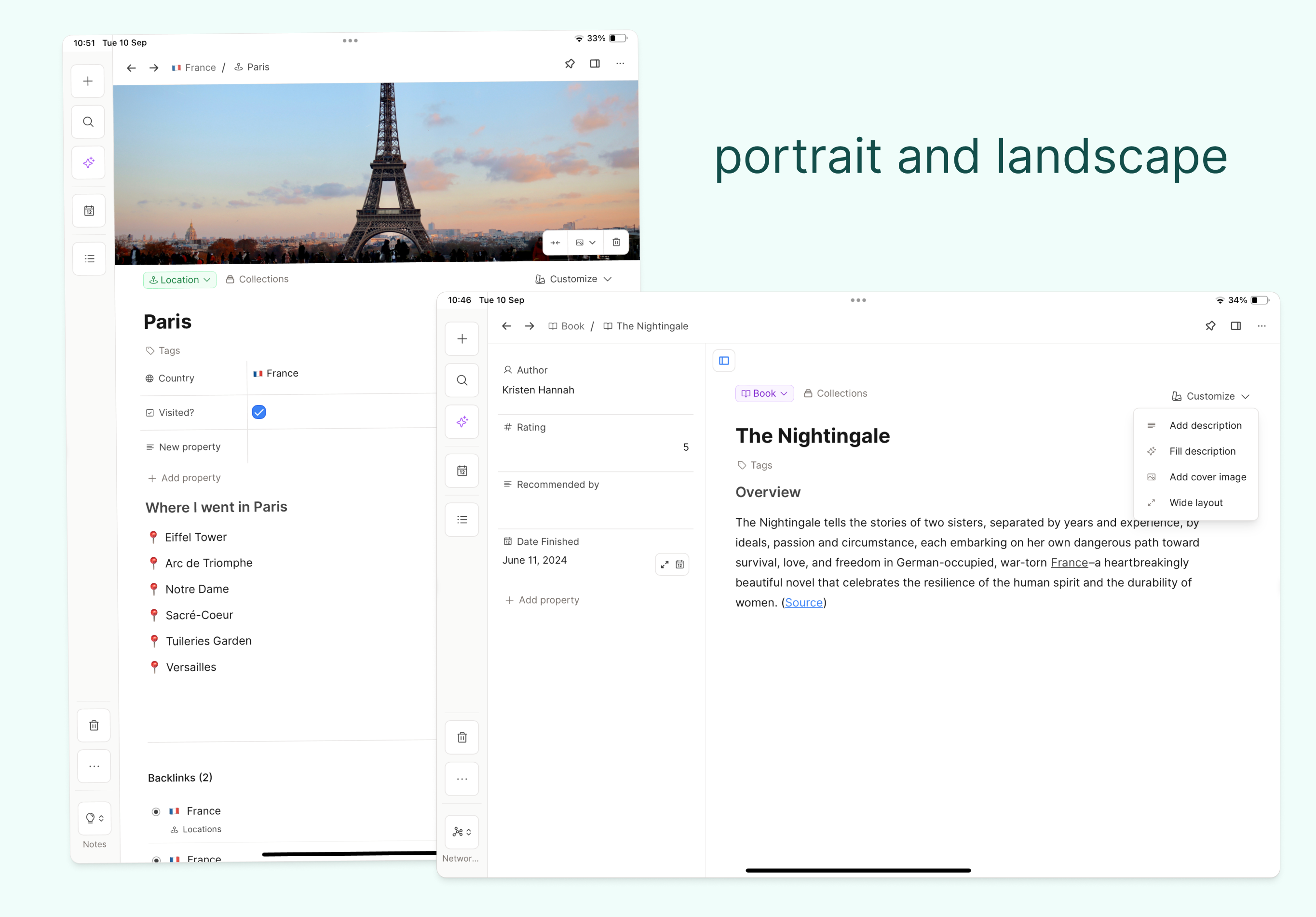
The Tablet app has a menu on the left-hand side, which holds the navigation buttons.
- Quick Action Palette
- Search
- AI Chat (if AI is enabled on Believer)
- Calendar & Daily Note
- Pins & Object types
- Trash
- Settings, links, and log out
- Spaces
Read more about each section below.
Quick Action Palette
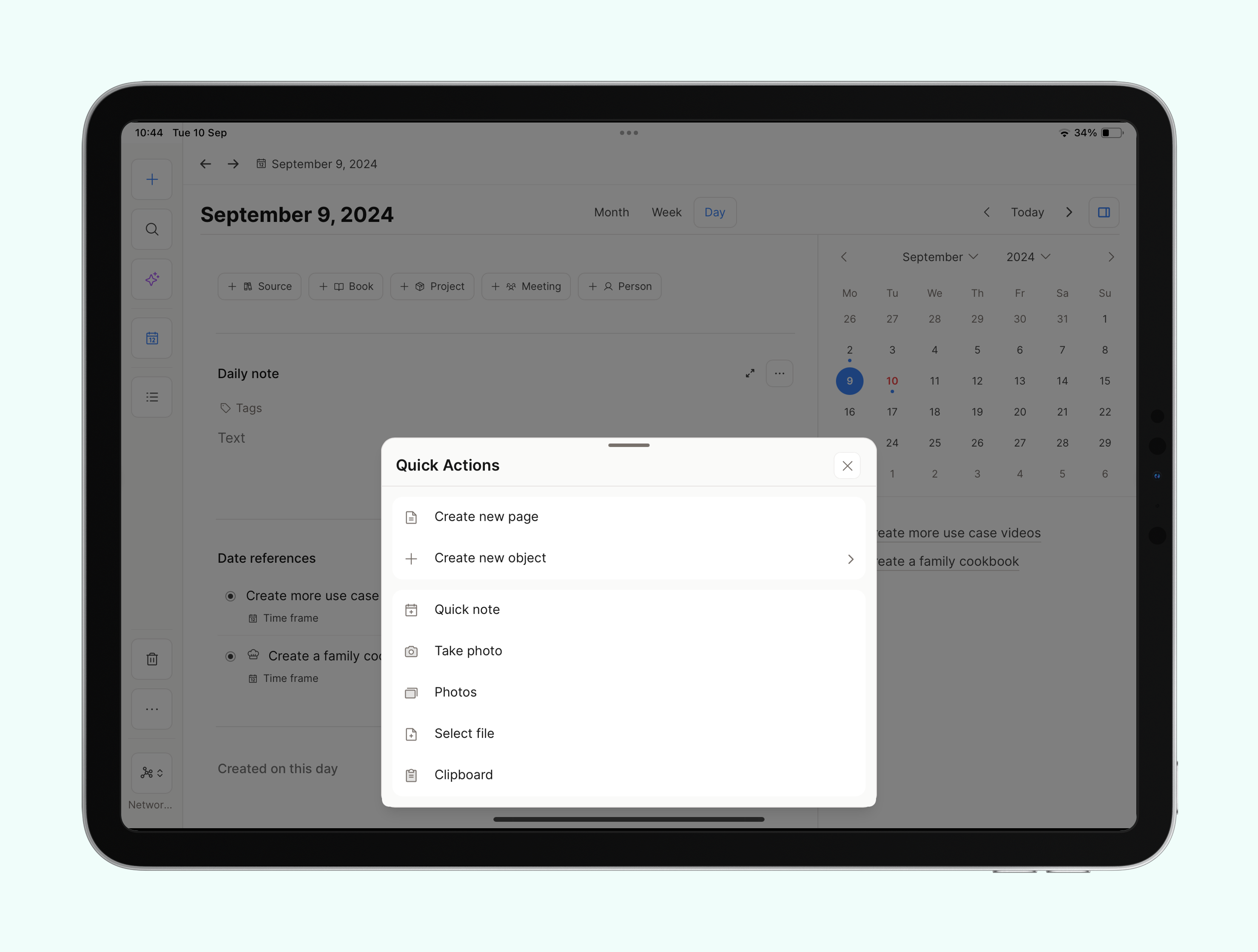
There is a quick action menu for common actions. You should be familiar with the actions from the mobile app.
- Create New Objects
- Create a quick note
- Take a photo and upload to Capacities
- Access your photos to upload one to Capacities
- Select a file to upload
- Paste from clipboard
- Access the AI Assistant
Create New Object
Create an object of any type with this command.
You can scroll to choose the object type you need, or type to refine the search.
This will open a new object for editing.
Quick Note
Quickly add a note to your daily note with this command.
This command takes you to a new block in your daily note, ready to type.
Take Photo
Take a photo in Capacities and upload it instantly as an image object. From here you can rename, add tags, and take notes in the "Notes" tab.
You will need to approve the necessary permissions when prompted.
Access your photos
If you have a photo you want to upload, you can also access your camera roll from Capacities. This will be uploaded to Capacities as an image object too.
You will need to approve the necessary permissions when prompted.
Select File
Just like images, you can also choose a file to upload to Capacities.
Paste from Clipboard
Copy links, images, and more into Capacities with this command.
Copy from a different app, open Capacities, and choose the "Paste from Clipboard" option.
Search on Tablet
Access our powerful search function from the search icon in the left sidebar.
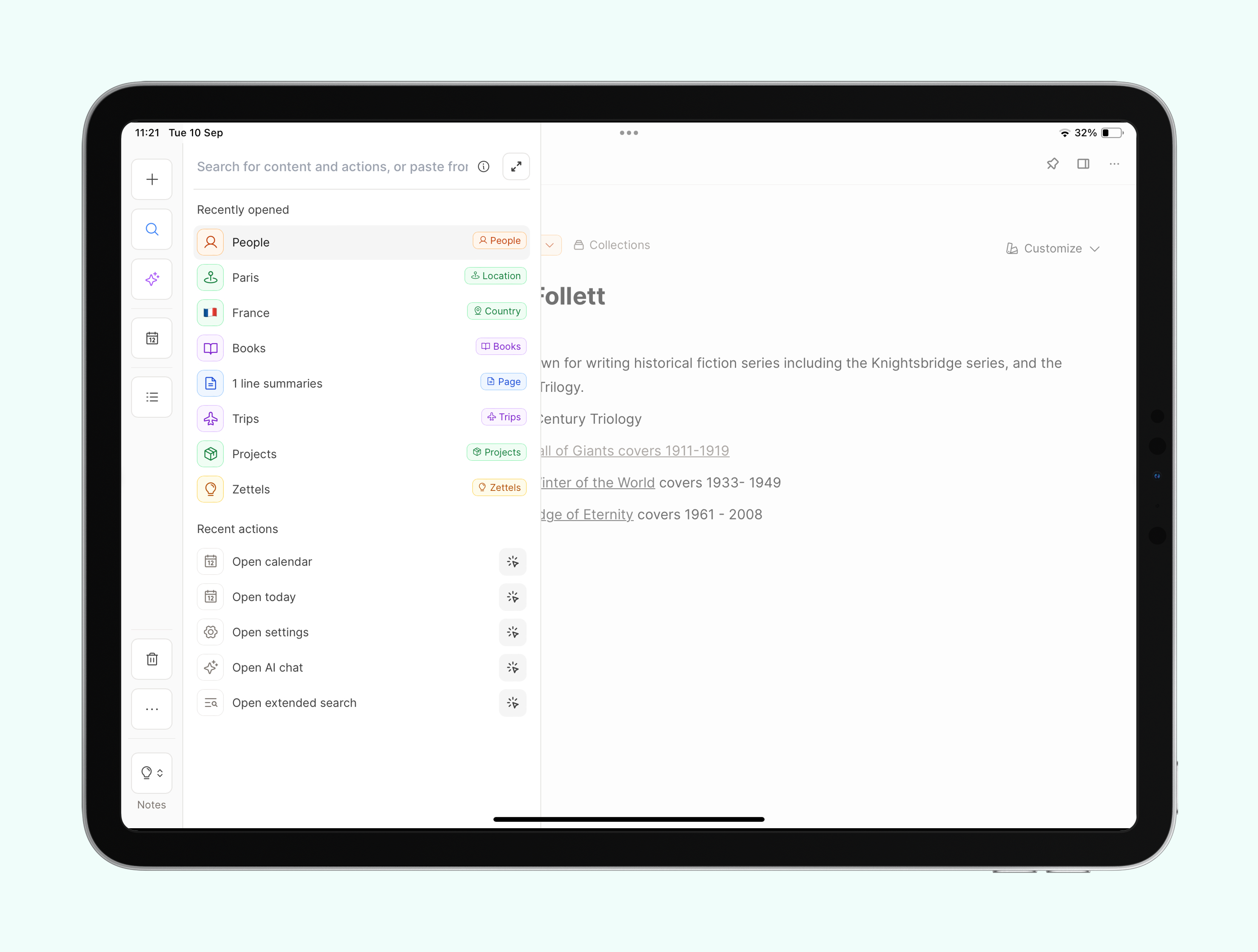
Search works with
- Titles
- Page content
- Properties
You can also open extended search with the usual arrows, to browse your content in more depth.
Access the AI Assistant
You can access the power of the AI Assistant with the AI icon in the left sidebar.
This option opens a new AI chat window and loads the text box so you can instantly begin chatting.
If you have an object open in the background that can serve as context, you will see the option to add this context. Equally, you can open the AI Assistant from a block too.
You can also choose which model you want to use in the top right corner.
If you want to close the AI chat, click "Delete" at the top of the AI window.
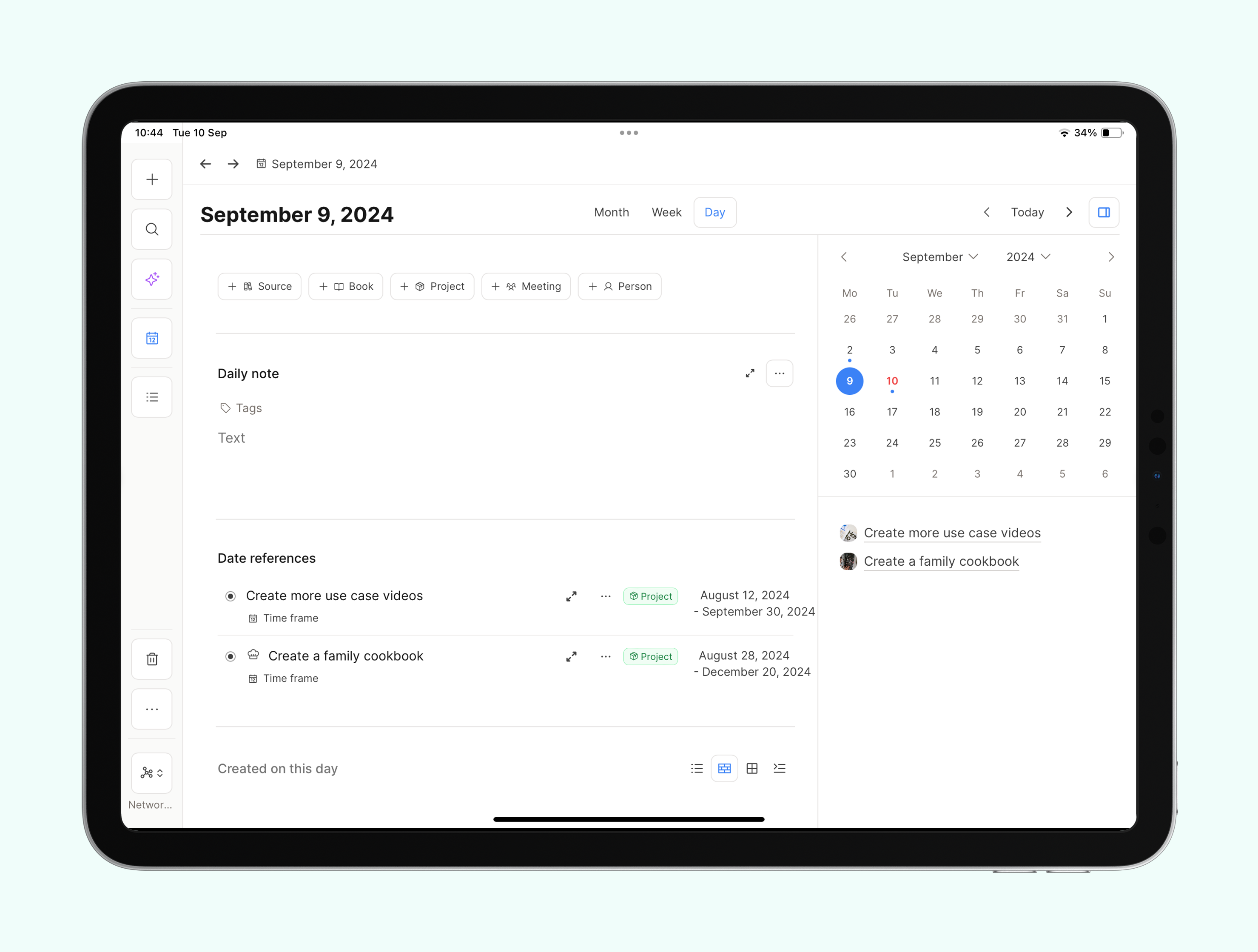
Calendar and daily notes
The calendar icon will take you to the same calendar you will recognize from desktop, with the same views and sections.
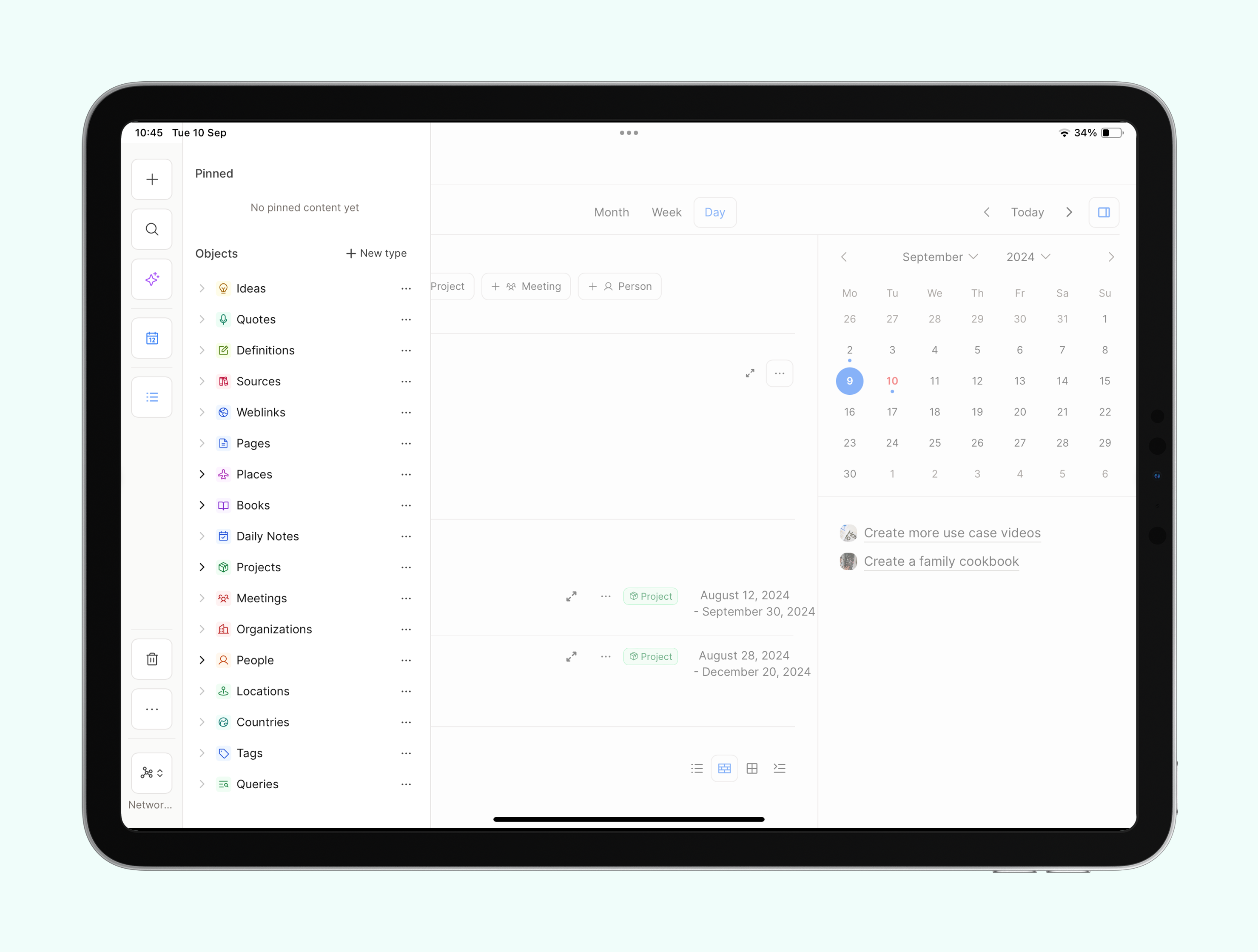
Object type sidebar
You can click on the list icon beneath the calendar to see all your object types and any pinned items.
The three-dot menu is available beside each one with the same functions that appear on desktop.
Trash
Trash is enabled on tablets too. You can find it in the left sidebar. To restore an object in the trash, tap the little "Restore" button on the right of the object. Once it's restored, you can tap "Open" to open the restored object.
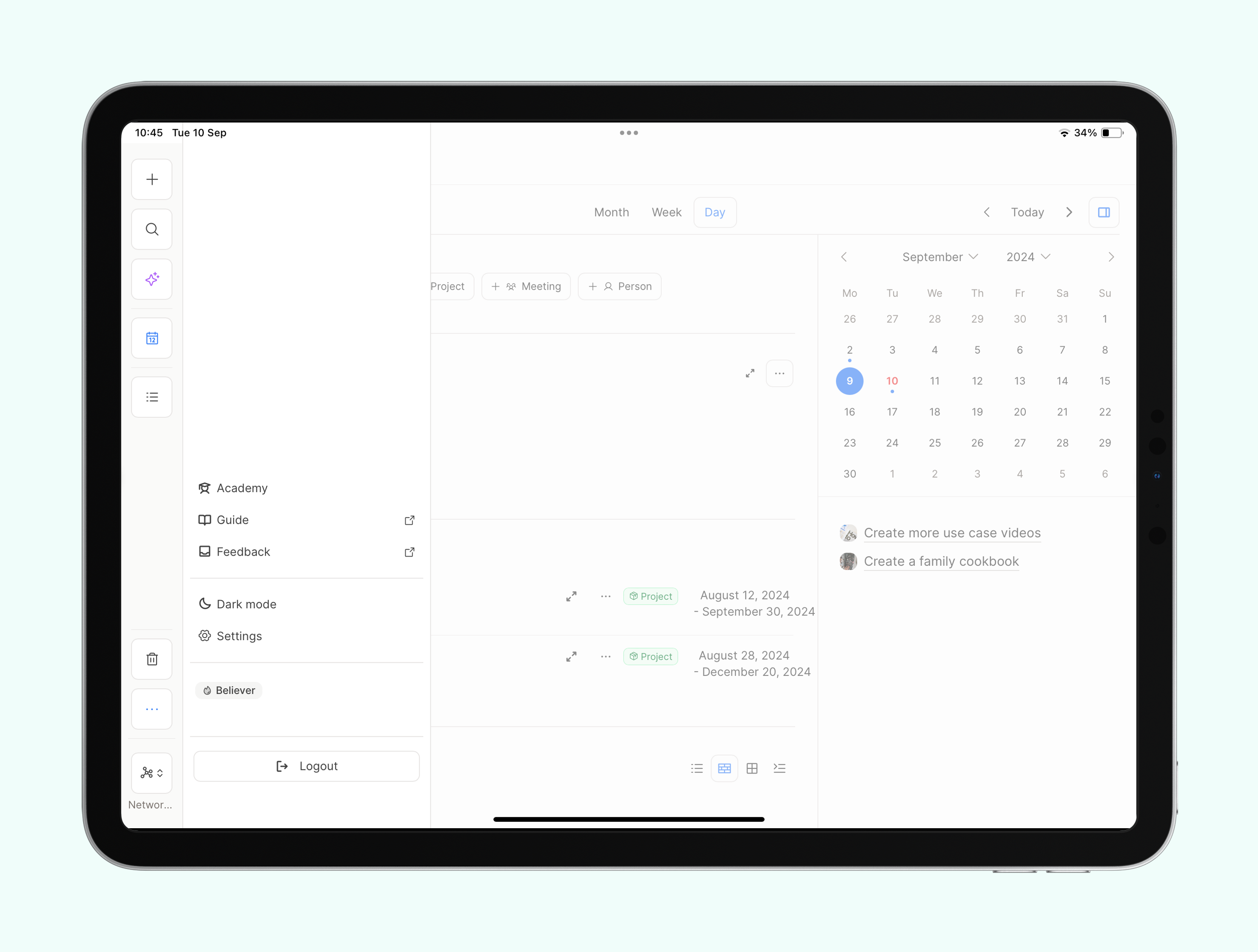
Accessing settings, help, dark mode and more
You can find all of this in the three-dot menu beneath the trash icon.
You can also log out from here too.
Space switcher
You can access and manage all your spaces on Tablet via the space switcher in the bottom left of your tablet screen.
Text editing on Tablet
Your objects should look nearly identical to how they appear on desktop. You have full-text editing capabilities on tablet via the action menu, as you do on desktop, and you can add and edit properties.
You can link to other objects or access commands in the same way as on desktop too, with @ and +.
Two differences to keep in mind
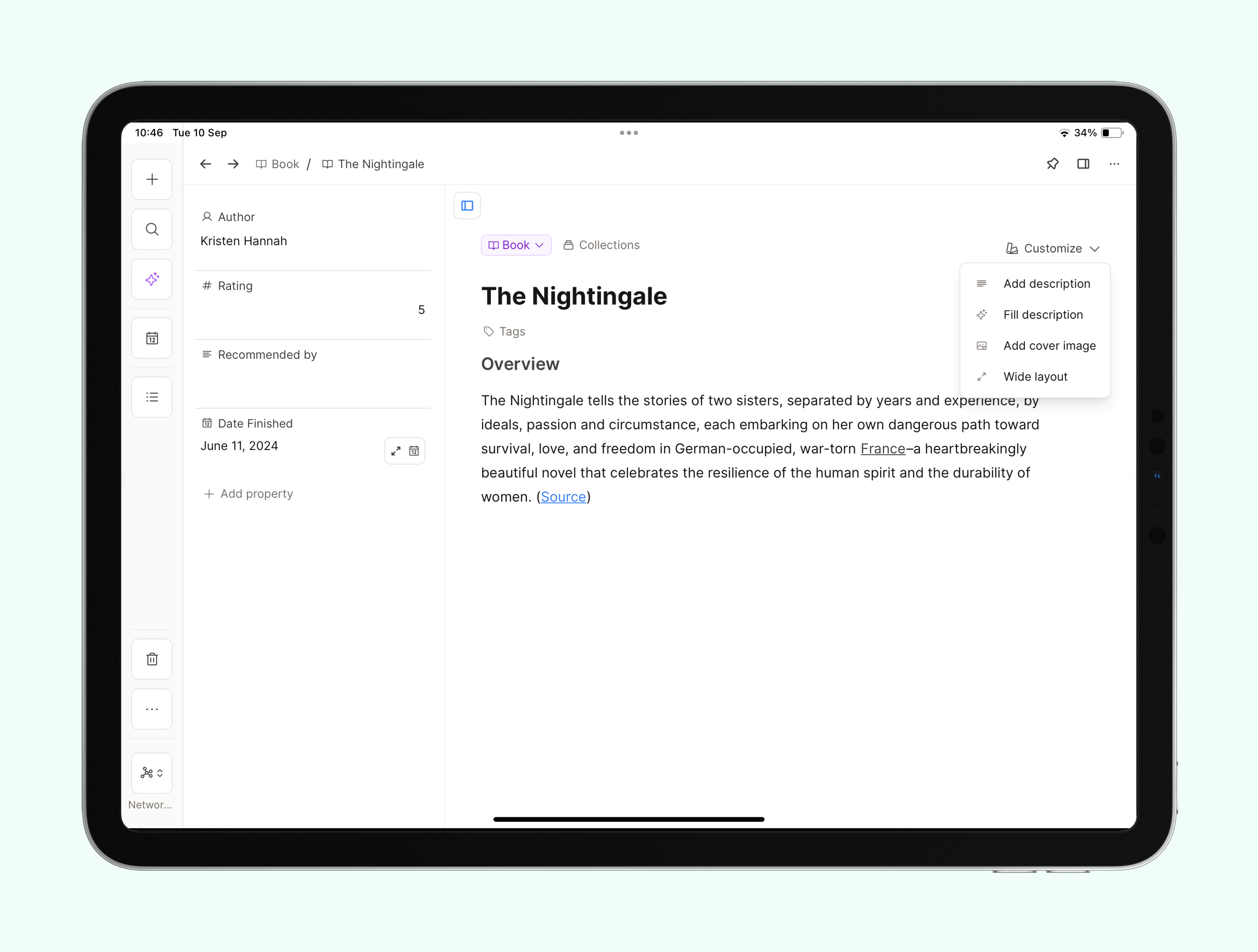
- The new
customizebutton is how you add cover images and descriptions, and how you toggle on the wide layout. - Graph view is not currently supported on tablet while we work on a rework of the tablet UI. In the meantime, use the desktop app, web app, or mobile phone app. See Is graph view available on tablet?.
Block Selection
You can select a block by pressing and holding it. This will select the block and open the action panel. This is the same as on desktop and has a variety of formatting options and other functions such as "Turn into", tag, move or delete.
You can also open the AI Assistant with the selected block as context.
You can choose more blocks by clicking on the buttons that appear to the right of each block, or you can just keep one.
Once the block is selected, you can also long press and drag it around your object to change the layout or order of blocks.
Share sheet
Use the system share sheet to send links, text, images, and other media files into Capacities from other apps. Choose the space and destination when you share; Capacities captures the content in the background without opening the full app first.
For the full steps, see Share sheet in the mobile guide.
How to give feedback
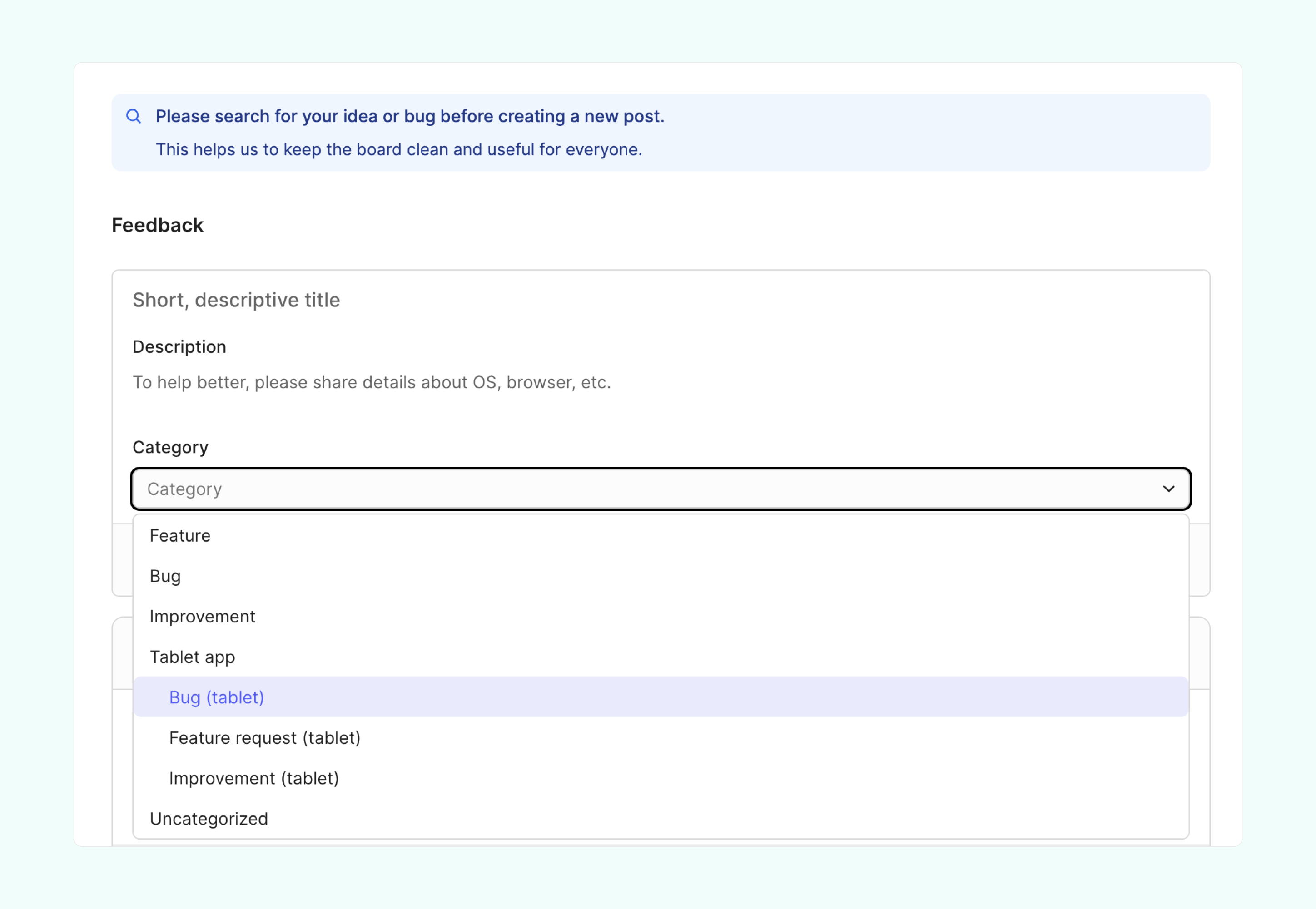
To report bugs, please go to the Feedback board and select Tablet > Bug.
To share feature requests, please choose Tablet > Improvement from this same list.
To share improvements to workflows or appearance, please choose Tablet > Improvement from this same list.
If you'd like to have a general discussion with other users or share more conceptual ideas, this is a great use for the Tablet forum in our Discord Channel. Here's the link.
Ask a question! - The Docs Assistant knows everything about the documentation, and the ideas and feature requests from other users.
Create a ticket on our feedback board. - Let us know if you have an idea for a feature, improvement or think there is something missing.
Request additions to the documentation. - If your questions are not getting answered, let us know and we will extend the documentation.