Reference
Import content to Capacities
Reference
Import content to Capacities
Importing content to Capacities allows you to quickly move to Capacities from another app, or add content you already have on your computer that should become part of your notes.
If you want to add images, audio, files, etc. to Capacities you can just paste them or add them like any other content.
For audio files with playback within Capacities, the file formats .mp3 and .ogg (MIME types 'audio/mpeg' and 'audio/ogg') are currently supported.
On top, Capacities support special import for the following file types:
- Markdown, Text, LaTeX, or Word files can be imported as any object to your space.
- Import directories of Markdown files and media assets or backups from other note-taking apps via Bulk Import.
Import single files
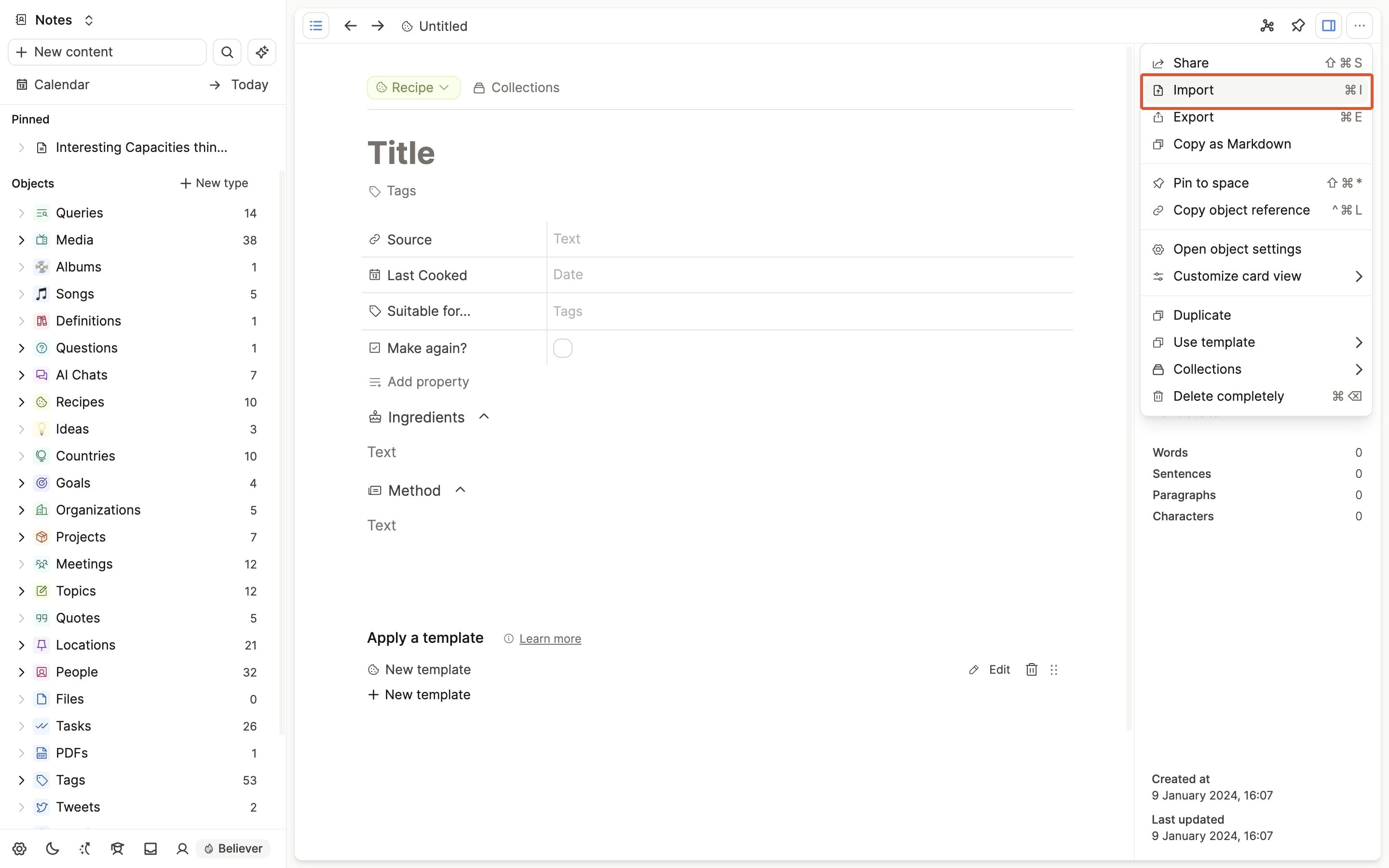
Open a new object, open the three-dot menu (...), and click 'import'. Then you can choose the file you wish to import.
Capacities has a great support for copy/paste from different formats. Instead of importing whole files it's often simpler to just copy a selection in another app, in your web browser, or a document and paste it to Capacities.
We currently support imports from:
- Markdown (
.md) - Microsoft Word (
.docand.docx) - LaTeX (
.tex) - Text files (
.txt) - HTML (
.html)
Import 5 objects at a time with the command palette
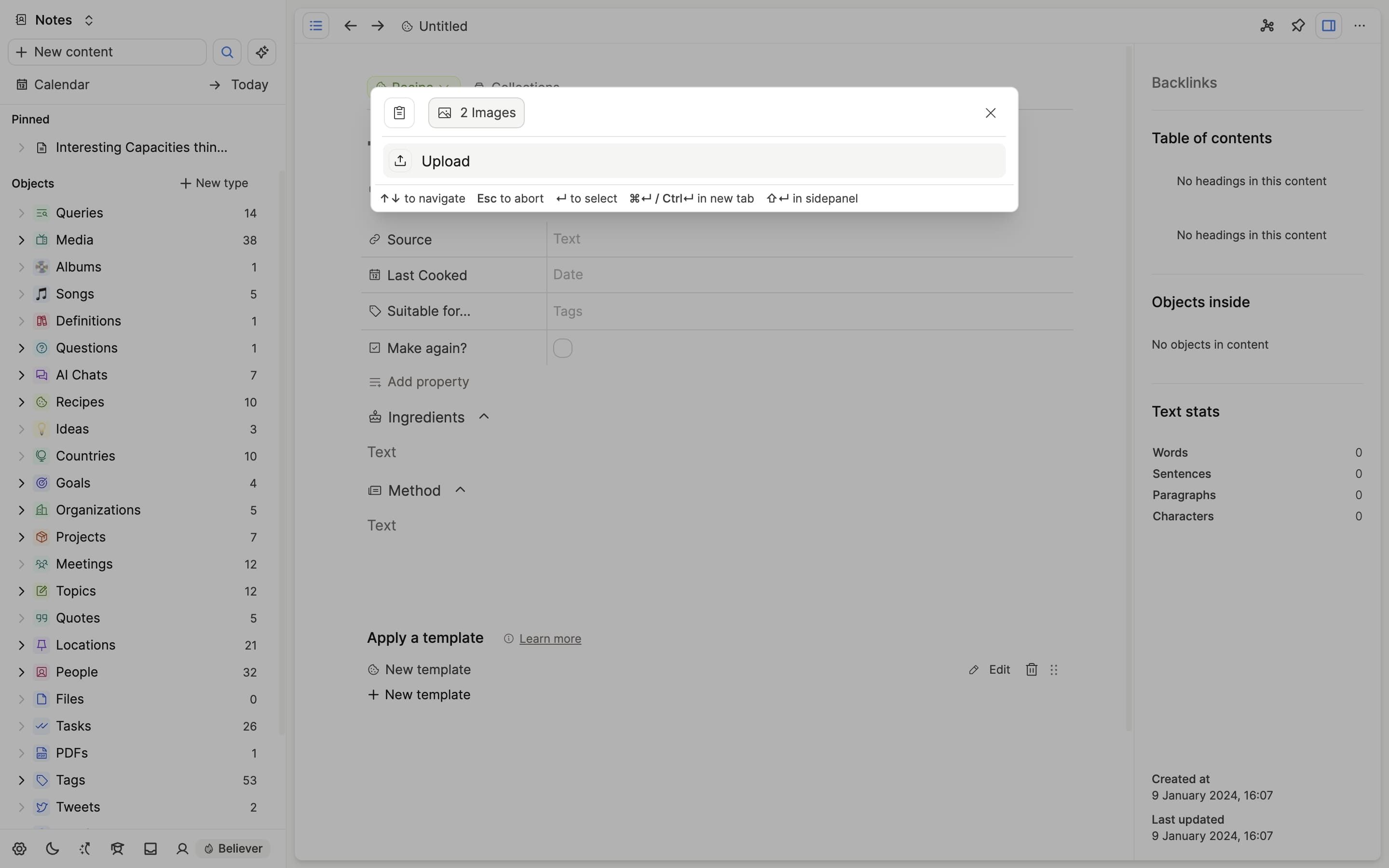
You can copy files, images, pdfs or text from elsewhere on your computer and upload up to 5 at a time via the command palette.
For example, if you have photos in your downloads folder to upload to Capacities, select up to 5, copy them to your clipboard, open Capacities, open the command palette and paste.
Capacities will recognise them and create 5 image objects. The same happens for files and pdfs. You can see more examples of this here.
Bulk Import
Bulk Import is available on the desktop app for all users.
Open Settings > Import Content, then click Start importing in the Bulk import section.
For best results, follow this workflow:
- Review and sanitize the content you want to import.
- Create or confirm the object types you want to import into.
- Run the importer and review mappings before finishing.
If you import larger sets, keep Capacities open until the import is completed.
Read the full Bulk Import Reference for supported formats, mapping behavior, limits, and error states.
FAQs
- How can I bulk import content?
Open Settings > Import Content and click Start importing. See the Bulk Import Reference for supported formats, limits, and workflow.
Ask a question! - The Docs Assistant knows everything about the documentation, and the ideas and feature requests from other users.
Create a ticket on our feedback board. - Let us know if you have an idea for a feature, improvement or think there is something missing.
Request additions to the documentation. - If your questions are not getting answered, let us know and we will extend the documentation.