
Features
AI Assistant
Features
AI Assistant
Artificial intelligence has the potential to enhance our work and help us in our writing, thinking, and organization. Over time, Capacities will supercharge more and more workflows with the help of AI. The first step is the Capacities AI Assistant.
Overview
To get an overview of the AI features in Capacities, please watch the video below:
At the moment, Capacities supports the following AI features:
- AI Chats: Start a chat with AI from Explore, or with a keyboard shortcut. You can pass blocks or notes as context. Context is selected per message with
@. The AI answers based on your notes, can plan multi-step work, and can propose creates and updates for you to approve. Chats are saved as objects after the first message. - AI Panel: After selecting blocks in your content, you can quickly launch the AI panel to perform tasks such as translation, rewriting, or summarization.
- AI auto-tagging: AI identifies relevant tags from your existing tags and assigns them to that object. You can edit the selection if needed afterwards.
- AI collection selection: AI identifies relevant collections from your existing collections and assigns them to that object. You can edit the selection if needed afterwards.
- AI Property Auto-Fill: Rather than manually filling in the properties of your custom objects, you can rely on the AI model's knowledge to auto-fill them for you.
- AI Image Analysis: Analyze any image with one click. The AI extracts a title, description, text (OCR, including handwritten text), a color palette, and a category. All results are written to the image's properties automatically.
- Ask AI command: A quick and convenient way to ask a question without launching an AI chat. Simply type your question inside a new block in your content and then type “/Ask AI”, and you will get a response to that question below.
- AI Query generation: A quick and convenient way to ask a question without launching an AI chat. Simply type your question inside a new block in your content and then type “/Ask AI”, and you will get a response to that question below.
Our internal AI systems utilize token optimization techniques to extend the AI usage as much as possible while giving access to all these features throughout the app.
Setup
Go to Settings > AI Assistant to activate and configure AI in Capacities.
If you use AI features in Capacities, some of your data will be shared with the selected model providers. No data will be shared if you don't use any AI features. For a complete guide to what we share, which models we use, and your controls, see AI and Privacy.
Terms of Use
If you want to use AI features, you agree to with the terms of use of the model provider you select. You can find their terms on the respective website. Model providers may disallow the use of AI for illegal activity, the generation of hateful or abusive content, the generation of malware, and more.
For more information on how to configure AI in Capacities to your liking, please refer to the Preferences & Settings section below.
AI Chat
Explore is the home for your AI chats. On desktop it sits in the left sidebar, above Calendar. Open it to browse conversations, search your chat history, or start a New chat.
You can also launch a chat with the sparkle icon or ⌘ + J on Mac / Ctrl + J on Windows. Shortcuts can carry over the current note or selection as context.
You can start chatting right away.
While a response is generating, click Stop in the chat header to cancel it.
You can run multiple AI chats at the same time in the right side panel. Open another chat from Explore or with ⌘ + J / Ctrl + J while one is already open.
Models and Auto
In the chat, choose a model for the reply. Auto mode will determine which model from your preferred provider works best for your prompt while remaining cost efficient.
Longer chats and context usage
Longer chats show a usage indicator as the context window fills up. Older context can compress in the background so the conversation can continue. This also helps your AI budget go further.
Planning and proposed edits
For bigger multi-step work, the assistant can sketch a plan and ask follow-up questions when the task is unclear. It can also propose creates, updates, or deletes. By default, you approve those changes before they land in your space. Turn on Auto-approve when you want the assistant to apply tool calls and edits without asking every time.
When the assistant asks to create or append to an object, or to update its properties, Capacities shows a preview of the change and a compact Generate / Deny / Approve bar.
Edits it makes show up after the reply, so you can undo before you send the next message.
Auto-approve
In longer chats, you can turn on Auto-approve so tool calls and edits apply without asking every time. Turn it off when you want to review each change.
Message navigator
On desktop, long chats have a message navigator so you can jump to an earlier message without scrolling the whole thread.
Select a context
You can also choose to select some content from your notes to give the AI Assistant context. The content you select is passed to the AI as a reference. You can chose to select a set of blocks or objects. The AI has access to the content and it's backlinks.
Context is set per message in the chat composer. Type @ to mention objects, blocks, or other content as context for that message. You can change context from message to message without a separate bar above the input. You can also add it from the + button.
To better answer your questions or give context to your conversation, the AI can:
- Search for notes: The AI assistant accesses your full-text search to find relevant notes for your conversation.
- Read notes: The AI assistant can decide to read the full content of notes in the backlink section or from the search results.
- Read analyzed media: When analyzed media is in context, the assistant can read specific sections of the analysis and tell your notes apart from media transcripts.
- Generate a query: The assistant can build a query to gather matching objects from your space.
- Fetch query results: The assistant can pull results from query objects you already have.
- Search online: The AI assistant can decide to search online for extra context, when this happens the response will contain a sources summary at the bottom from which you can create Weblinks. This works only when using Capacities AI budget.
If you select blocks as context first, you will get a floating AI panel window when you press Cmd + J. If you want to open it in the side panel, use Cmd + O (Mac) or Ctrl + O (Windows).
File attachments
For models that support it, you can attach a file from your device as context for the chat. Use the paperclip icon in the chat composer. You can attach images and other supported files. Once uploaded, you may choose to create a Media object (image, PDF, audio or file) directly from the AI Chat.
You can also attach block references and other content with @ or the + button, as described in Select a context.
AI chat commands
If you have added some context, you have access to a range of commands to use with the AI chat. They are most valuable if used with a block selection.
You can trigger the command menu by typing / or +. There are several in-built commands that you can use:
- Summarize
- Continue writing
- List key takeaways
- Fix grammar
- Simplify text
- List TODOs
- Translate to
- List counter argument
- Find evidence
- Critique
- Find research questions
- Identify assumptions
After receiving a response from the AI, you can continue chatting to improve the result or ask follow-up questions.
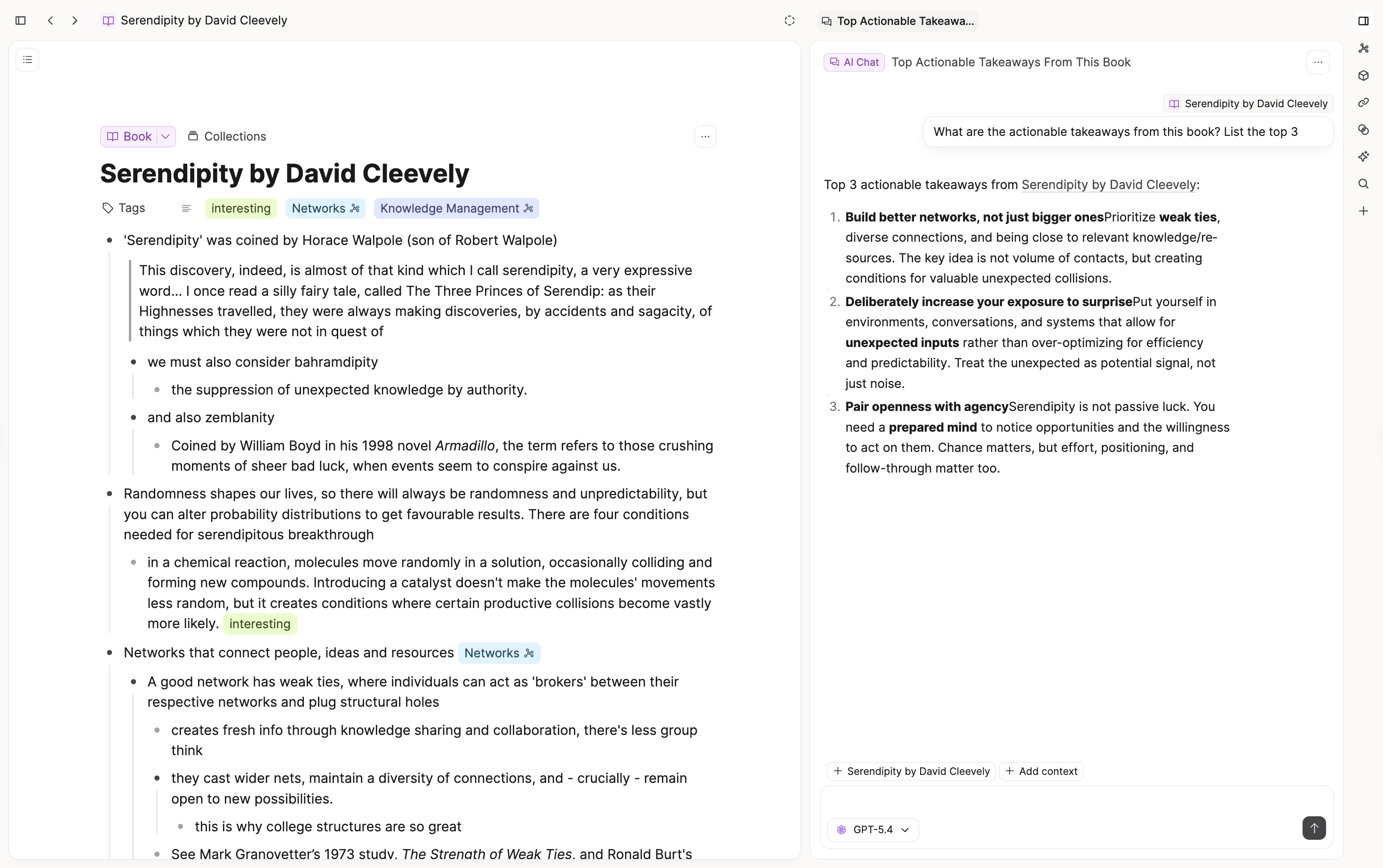
Using the result in your notes
Once you have achieved your goal, you can select from different actions. Click on the buttons beneath a message to choose your action.
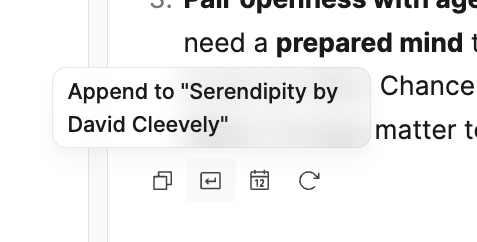
You can copy a message, replace your selection with the message, or append it to your active document.
If you want to start the chat again or use a different prompt, go to your original message, click the three-dot menu (...), and ‘rephrase'.
On desktop, you can also edit a sent message by clicking the message bubble. If later replies would be removed by that edit, Capacities asks you to confirm before rewinding the thread.
AI Chat Objects
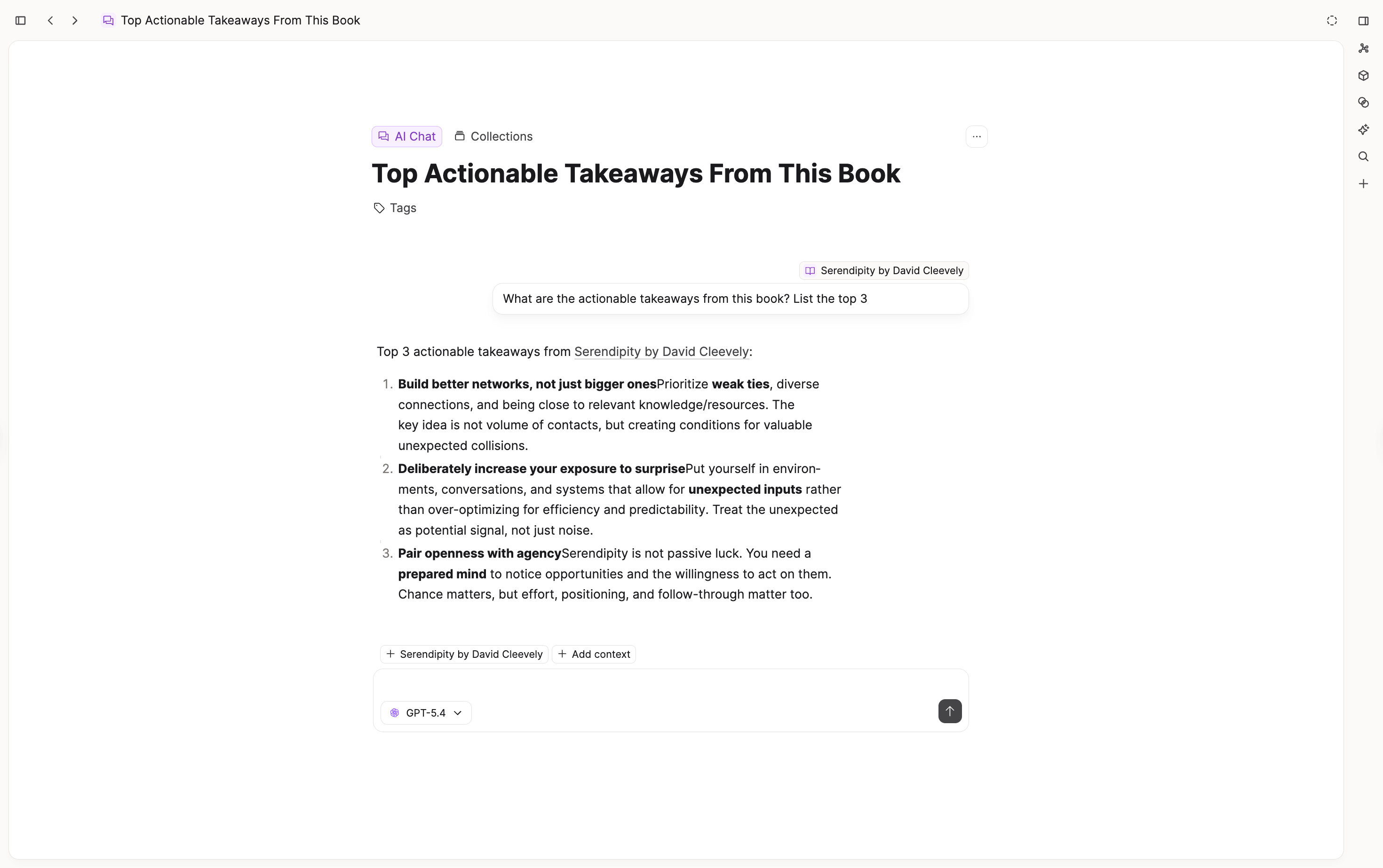
New chats are auto-saved as objects after your first message. This brings you similar functionalities to other objects:
- Organize your favorite AI chats in collections.
- Tag them to relate them to relevant topics.
- Use the object dashboard to get an overview of all your AI chats.
- Link to your AI chats from within any other content.
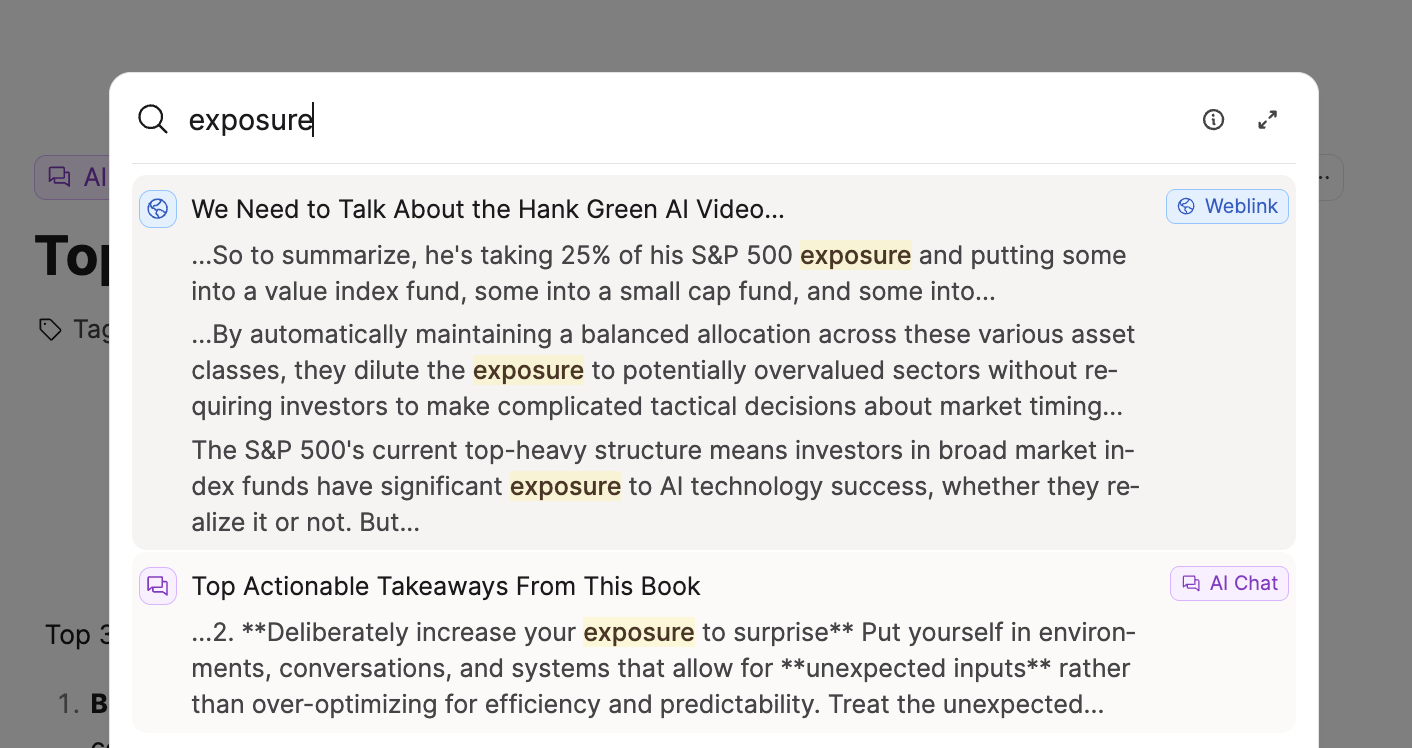
- Search your whole conversations via the full-text search.
Click Explore in the left sidebar (or open the AI Chats object type) to find your saved chats.
If you have used any context for the chat, the saved AI chat will be referenced in that object’s backlink section. You can also reference the AI chat as you would any other object, via the usual @ or [[]] commands. This helps truly integrate the AI chat into the rest of your knowledge work.
These saved chats are also fully searchable via the full-text search. The search results will take you to the message that holds the search term which allows you to quickly find content you know you’ve saved.
AI assistant on mobile
On phone, open AI from the sparkle Explore tab when AI is enabled. You can browse chats, start a new chat, and open AI from selected blocks. Commands are not supported on mobile.
For phone navigation details, see Capacities on Mobile.
AI Chat capabilities
| Tool capability | What it does | Requires user approval |
|---|---|---|
| Searched for notes | Searches your space for relevant notes. | No |
| Read notes | Reads the full content of selected notes. | No |
| Link object | Creates a private link to an object. | No |
| Explored connections | Explores connections for an object. | No |
| Create object | Creates a new object in your space. | Yes |
| Update object properties | Updates the properties of an object. | Yes |
| Delete object | Deletes an object in your space. | Yes |
| Create task | Creates a new task in your space. | Yes |
| Create query | Creates a new query in your space. | Yes |
| Append content to object | Adds new content to the body of an object. | Yes |
| Get object type shape | Reads the configuration of an object type. | No |
| Get query results | Fetches results from a query in your space. | No |
| Search the web | Searches the web for additional information. | No |
| Gather relevant content | Explores relevant objects in your knowledge graph. | No |
| Structure an answer | Synthesizes ideas into a well formatted answer. | No |
| Get support answer | Searches the support documentation for answers. | No |
| Plan response | Drafts an internal plan to fully satisfy a complex or multi-step user query. | No |
| Evaluate progress | Evaluate the actions of a model against a previously drafted plan. | No |
| Add component block | Adds a new block to the body of an object. | Yes |
| Remove component block | Removes a block from the body of an object. | Yes |
| Replace component block | Replaces a block within the body of an object. | Yes |
| Find and replace text | Performs a find and replace text operation on the body of an object. | Yes |
| Create calendar event | Creates a new calendar event, requires calendar integration to be configured. | Yes |
| Delete calendar event | Delete a calendar event, requires calendar integration to be configured. | Yes |
| Fetch calendar events | List calendar events, requires calendar integration to be configured. | No |
All space-editing operations require explicit approval from the user, but they can later be undone before continuing the conversation with the AI Chat. We'll continue working on these and more tools to enhance the AI Assistant experience.
External AI Connectors
If you'd like to access your Capacities data from other AI chats like ChatGPT or Claude, please checkout AI Chat connectors.
AI Panel
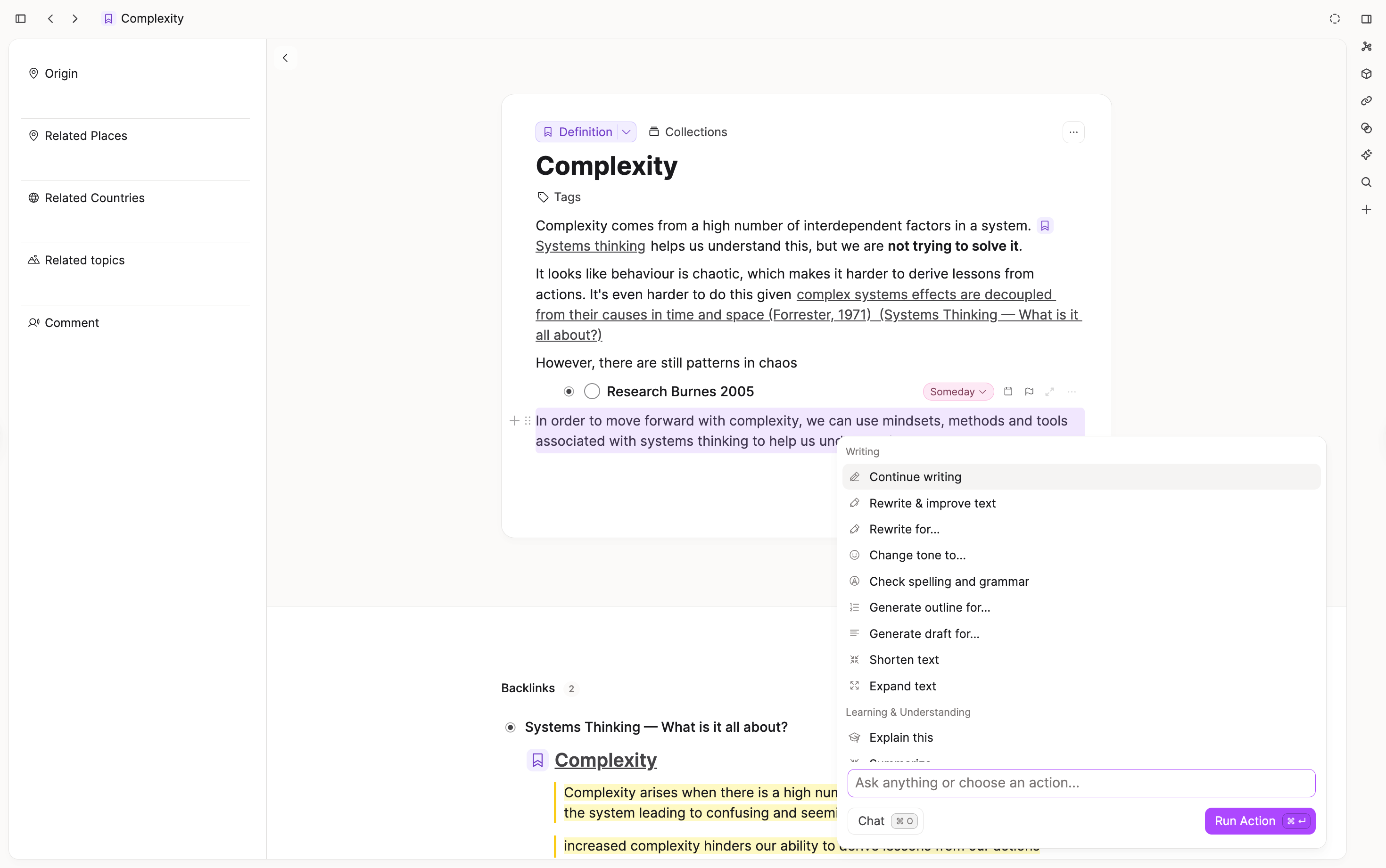
The AI panel is a quick way to perform tasks such as translation, rewriting, or summarization. The panel floats over the top of the text.
To open it, select text and click on the 'sparkle' icon that appears in the context menu.
The panel provides quick actions like Summarize, Translate, Improve Writing, and more. You can see the full list when you open the panel.
Ask AI command
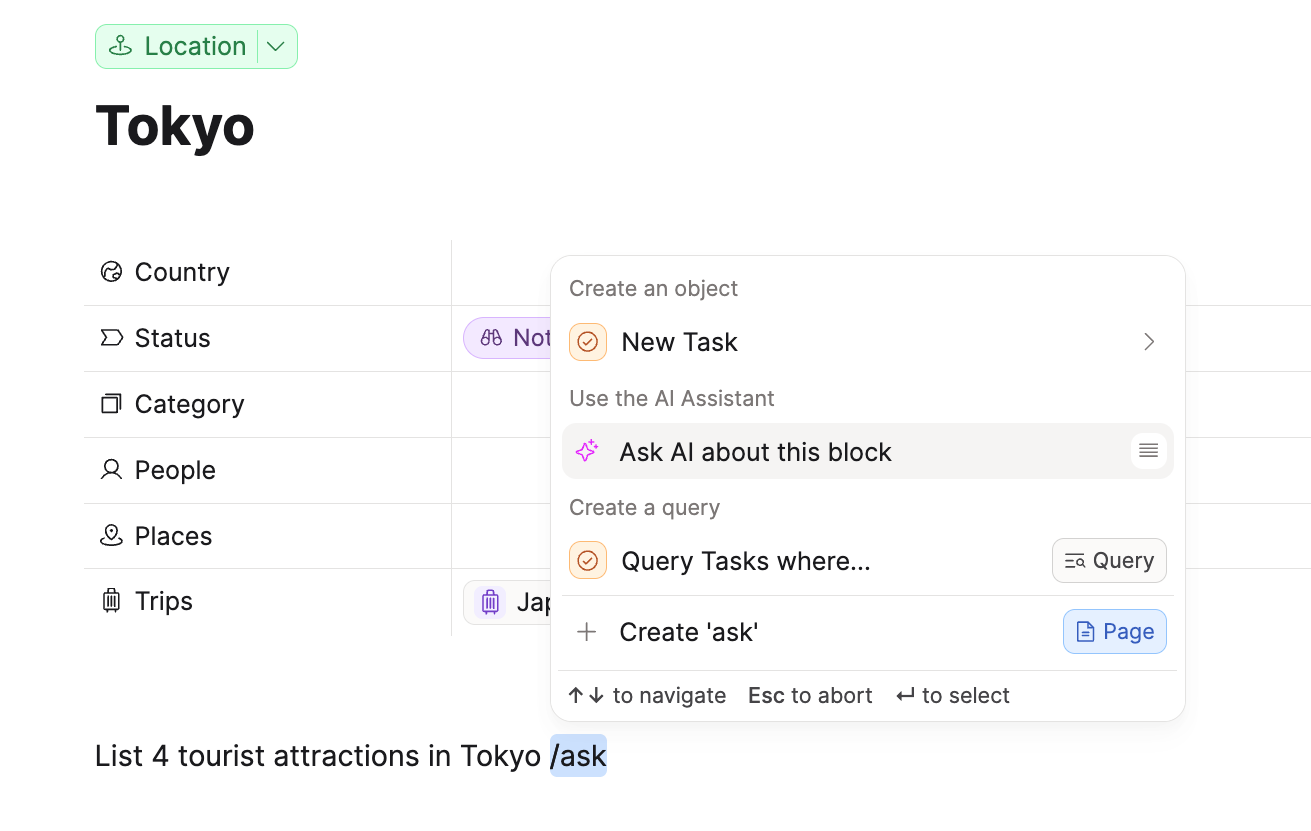
If you don’t want to launch the AI chat, there is a quick and convenient way to ask a question.
Type your question into a new block in your content and then type “/Ask AI”
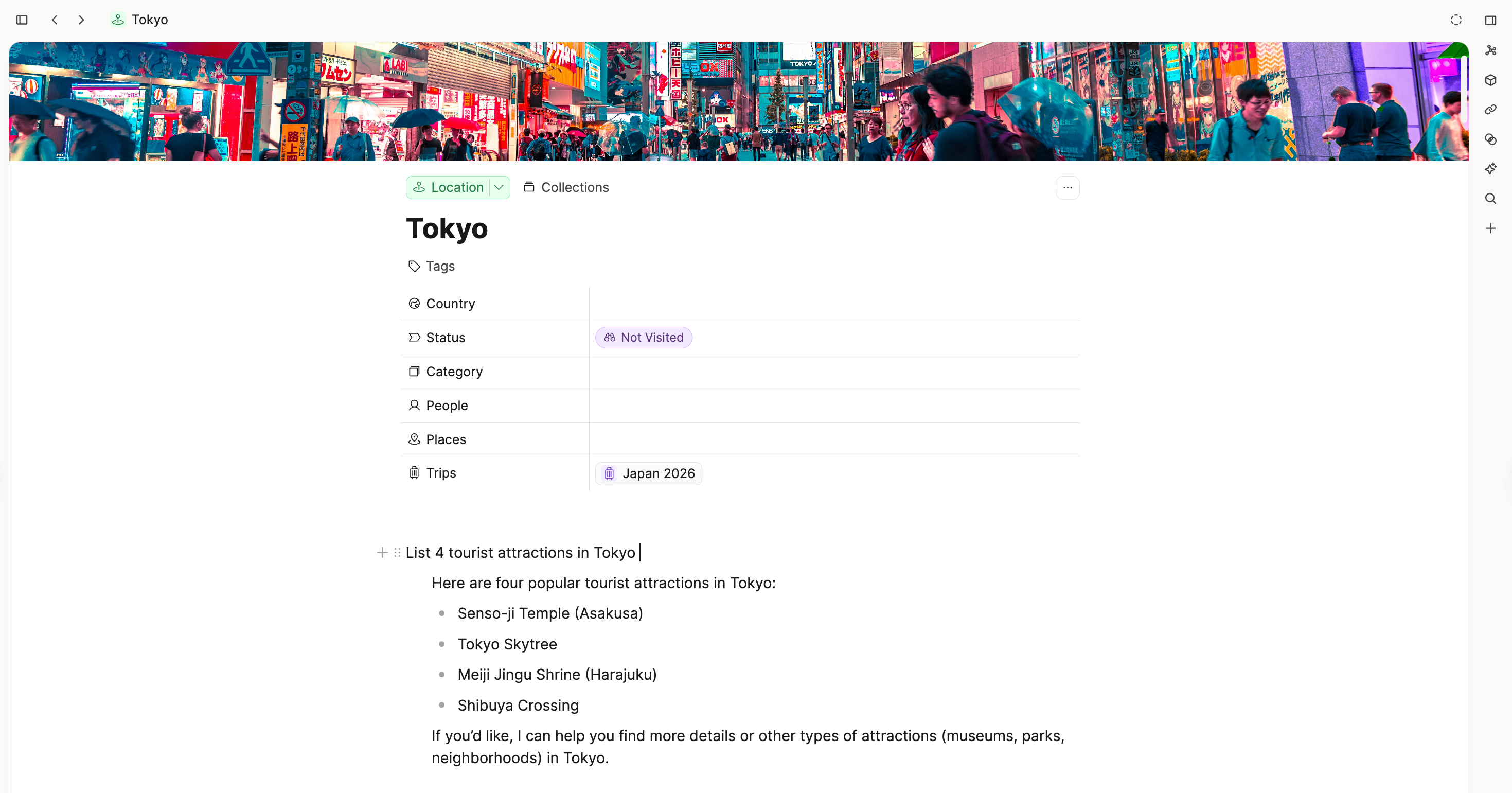
You will get a response to that question below.
AI Query generation
When editing or creating Query objects you can use natural language to define them.
Describe the query you want and press enter.
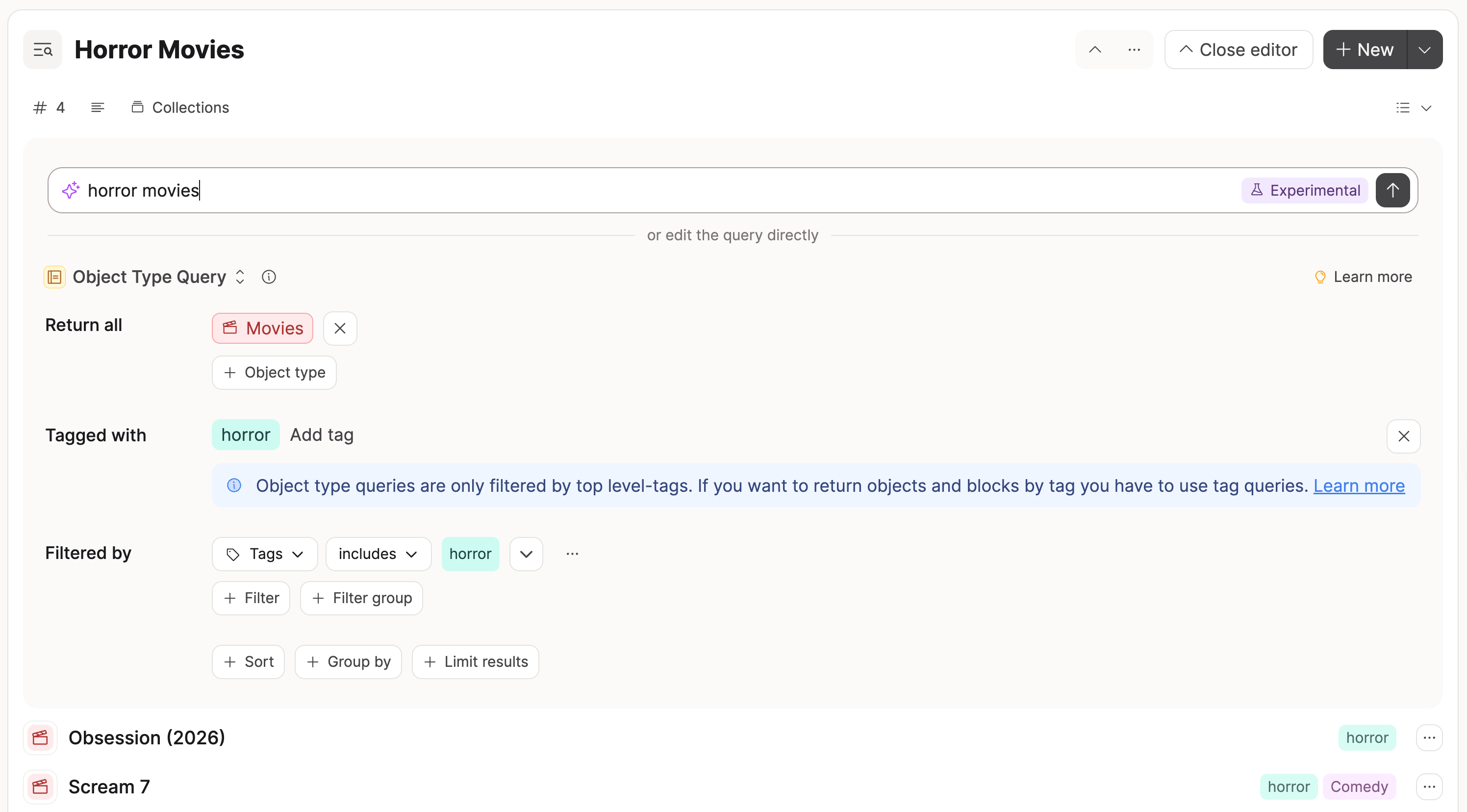
You can then also update it by requesting an edit.
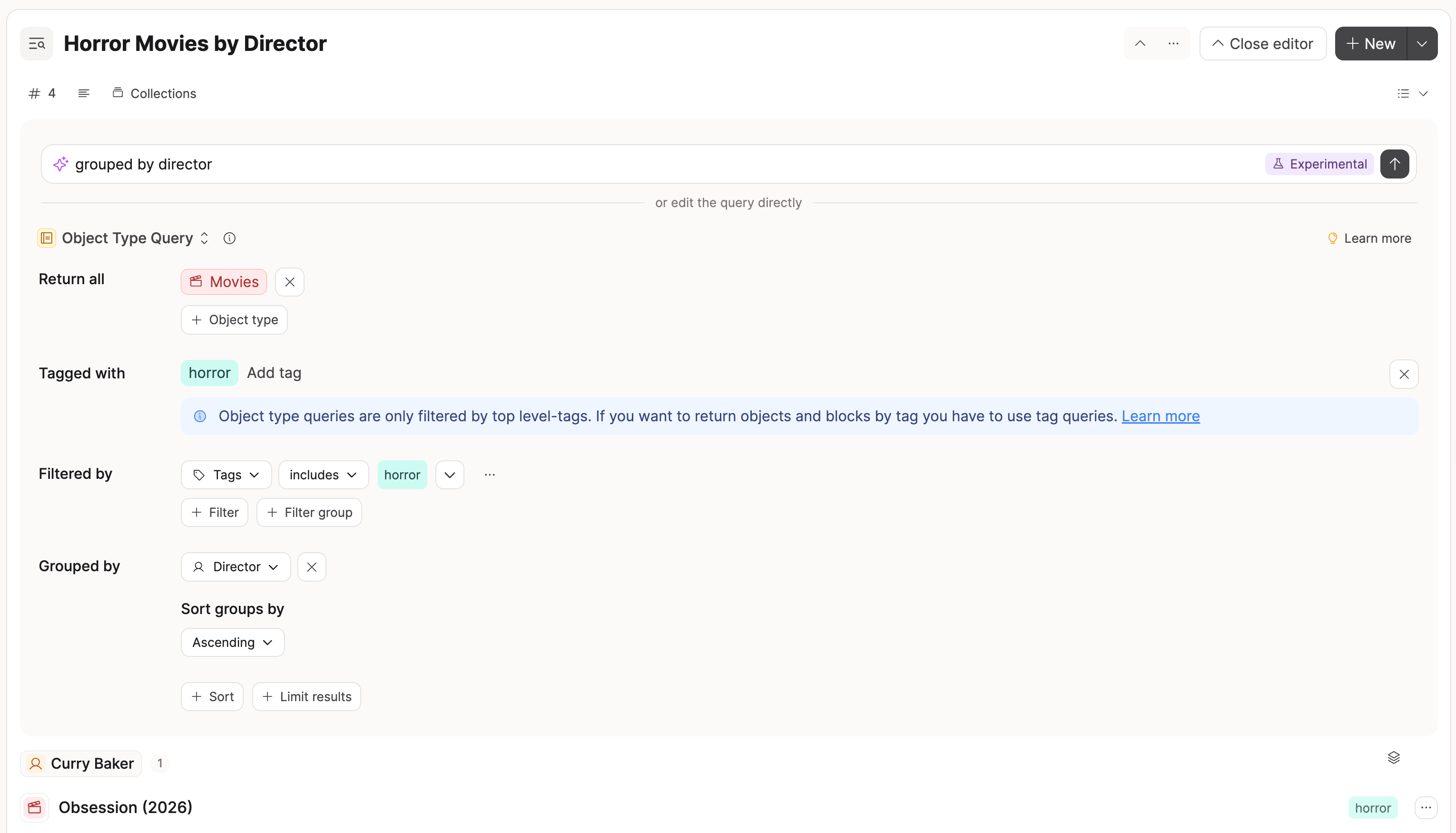
Changes made to the query with AI will automatically update the query title.
AI Auto-tagging
Tags are an important organizational structure in Capacities, and AI can help you use them.
AI identifies relevant tags from your existing tags and assigns them to that object. You can edit the selection if needed afterwards.
This option appears anywhere you see tags for an object.
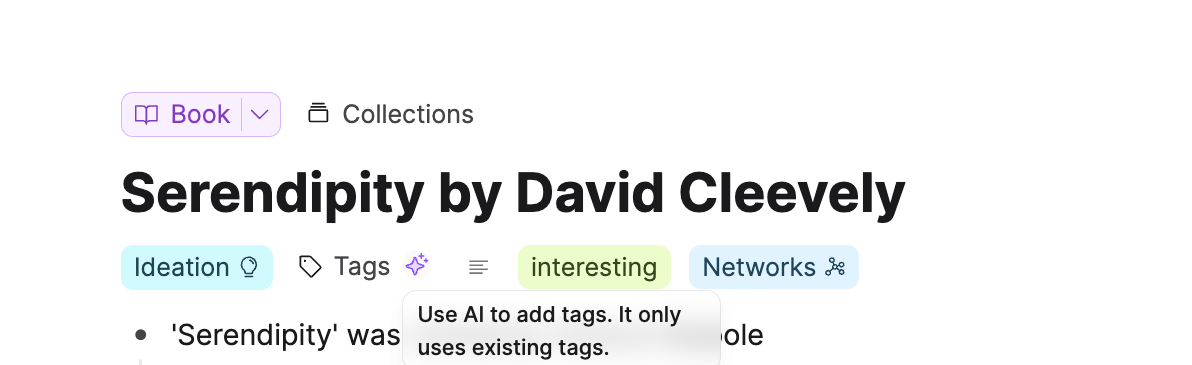
Image generation
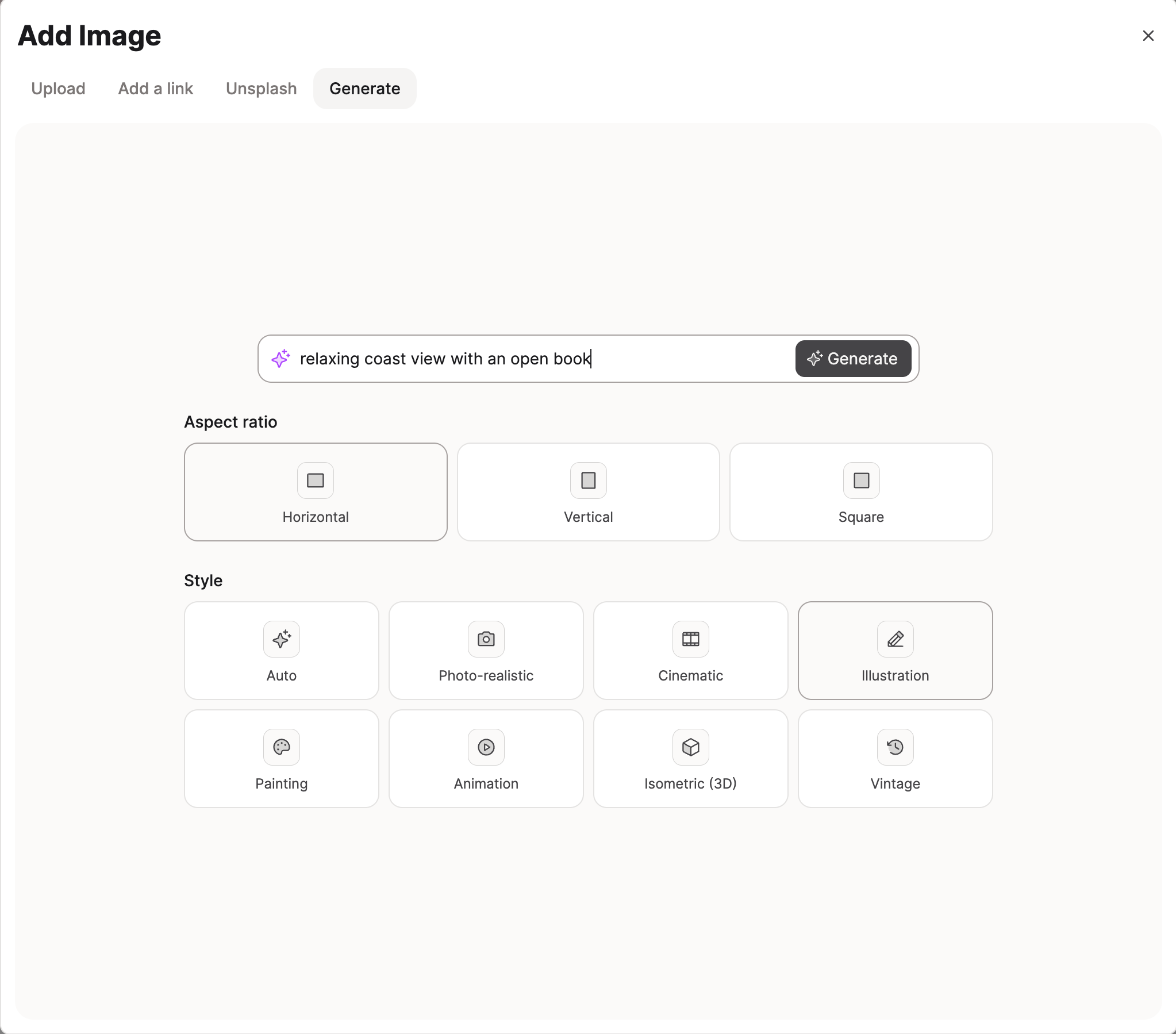
When creating a new image object you can choose to generate one with AI.
Describe the image you want, select an aspect ratio and a style, and press enter.
AI Collection selection
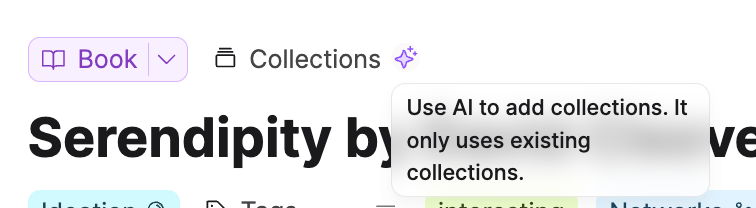
Similar to the AI Auto-tagging, you can also use AI to select collections for your objects. Simply click on the AI button in the collection picker. The AI will then select the most relevant collections for your object. It will not create new collections but only select existing ones.
AI Property Auto-Fill
You can also use AI to auto-fill your properties. This allows you to quickly insert a fact summary or use the AI’s knowledge so you don’t have to research it.
This works for the following properties:
For all AI auto-fill features, your current object’s properties and notes in that object will be sent as a context to the AI.
You can activate the AI property auto-fill in the property settings. You can also choose to add more instructions in the property settings to get more accurate results.
It’s important that you first add content to some other properties (at least the title) so the AI has some context to fill your property.
After activating auto-fill for your property, you can simply click on the button that appears in your property field when you hover over it.
If you have several properties with AI autofill, hover over the title of the object and click 'Fill properties' to fill them all at once.
Adding additional instructions to your property auto-fill
If you're not happy with the result, you can add additional instructions to your property auto-fill in the property settings.
Additional instructions are added to the context that is sent to the AI. This allows you to give the AI more information about what you want to achieve.
Here are some examples:
- Keep in mind that this is a summary for a mathematical concept. Keep it simple and concise.
- This property should be a short summary of the main idea of this book. Do not include any details and keep it to 2 to 3 sentences.
- Do not make things up. Only use information that is already in this object.
You might need to play around with different options. It helps to be very specific. You are also welcome to share your best practices in our community.
Preferences & Settings
Under Settings > AI Assistant, you can configure AI in Capacities to your liking.
Capacities AI
With your subscription, you get access to the Capacities AI.
The Capacities AI assistant can utilize models from OpenAI, Anthropic, Gemini, xAI, Mistral, Deepseek or Moonshot; depending on the provider preference setting found in Settings > AI Assistant.
You get a monthly AI budget with your subscription. It applies to your Capacities account, not an individual space. You can see the status of your budget in Settings > AI Assistant. Settings also show how remaining budget is split across chat, analysis, autofill, and related features.
If you need more capacity, add Pro+ or Believer+ for a significantly larger monthly budget. With Plus you can also purchase top-ups (including auto top-up) under Settings > Subscription & Billing. All models in the picker are available on Pro and Believer; more expensive models use budget faster.
Pro+ and Believer+
Pro+ and Believer+ are optional add-ons for existing Pro and Believer subscribers. They add a much larger monthly AI budget for intensive use (long chats, media analysis, frequent autofill) and top-ups when you need more. All AI workflows and all models stay available on Pro and Believer without Plus. Pro is sized for light monthly use and occasional media; if you analyze media or chat heavily most days, expect to need Plus.
If you exhaust your Plus budget before the billing cycle resets, you can buy a one-time top-up or enable auto top-up in the app. Top-ups require Plus. For how the budget, add-ons, and top-ups work, including practical examples of what a Plus budget covers, see Subscriptions and payments. Current prices: pricing page.
Privacy Settings
In the Privacy Settings section, you can fine-tune the privacy settings for the AI features.
At the moment, you can choose to only opt-in for AI in a list of selected spaces instead of all your spaces. This is useful if you, for example, never want to use AI in your personal space but only in your work space. AI property auto-fill instructions are disabled in spaces that are excluded from AI.
If you have AI enabled for your account, newly created spaces have AI enabled automatically. You can remove it from the selected space list at any time.
Data protection and privacy
For how we handle your data when you use AI (what is shared, which models are used, your controls, and links to our Terms, Privacy Policy, and DPA), see AI and Privacy.
What's next
We envision AI to be used in every layer of Capacities to make your workflows simpler, faster, and more powerful. Read more about our AI roadmap.
If you have any ideas, problems, or feature requests, please let us know on the feedback board.
Error Messages
If you encounter an error message while using the AI assistant, the root cause is usually related to your AI budget or a temporary issue with the model provider.
| Error Message / Category | Potential Cause(s) | How to Fix |
|---|---|---|
| "Insufficient Funds" / "Rate Limit Exceeded" | Your monthly AI budget may be exhausted, or the provider is temporarily rate-limiting requests. | Check your remaining budget in Settings > AI Assistant. Add Pro+ or Believer+, purchase a top-up in Settings > Subscription & Billing, or wait until your budget resets. |
| "Model Not Found" / "Permission Denied" | The selected model is temporarily unavailable. | Select a different model in the AI chat or try again later. |
| "Quota Exceeded" | Your usage has hit a time-based limit for the model. | Wait a few minutes and try again. If this happens often, consider adding Pro+ or purchasing a top-up. |
| "Not Logged In" | There's been a session validation issue. | Log out and into your account again. |
| "Internal Server Error" | A temporary issue on the model provider's side. | Try again in a few minutes. Check the provider's status page (if available) for known outages. |
| "Browser extensions blocking the AI assistant" | Security or ad-blocking extensions may interfere with the request. | Try disabling browser extensions or use the dedicated Capacities desktop application. |
FAQs
- How can I set up the AI Assistant in Capacities?
You can configure the AI Assistant settings underSettings > AI Assistantwhere you can activate or hide all AI features. - What data is shared with the model provider when using Capacities AI features?
When you use an AI feature, the relevant content (e.g., selected blocks, object properties, chat messages, or notes relevant for the conversation) is sent to the AI provider for processing. No data is shared if you don't use any AI features. See AI and Privacy for the full picture. - Is my data used to train AI models?
No. We use enterprise-grade APIs with Data Processing Agreements (DPAs) that prohibit training on your data. Your content is processed to generate responses and is not stored or used for any other purpose. - Which AI providers does Capacities use?
Capacities can utilize models from OpenAI, Anthropic, Gemini, xAI, Mistral, Deepseek or Moonshot; depending on the provider preference setting found inSettings > AI Assistant. The model selection from each provider is based on quality and performance. - How can I disable AI features completely?
Go toSettings > AI Assistantand deactivate AI for any or all of your spaces. When AI is deactivated, no data from that space is sent to any AI provider. You can also choose to only opt-in for AI in a list of selected spaces instead of all your spaces. More information in the Privacy Settings section above. - Is there a limit on how much I can use the AI Assistant in Capacities?
Yes. Pro and Believer subscribers receive a monthly AI budget that resets each billing cycle. If you need more capacity, add Pro+ or Believer+ or purchase top-ups in Settings > Subscription & Billing. - Can I use the Capacities AI Assistant to automatically fill in properties in my objects?
Yes. Capacities offers an AI Property Auto-Fill feature which uses the AI's knowledge to auto-fill properties for you. You just need to activate AI auto-fill in the property settings, and ensure you have added some context like the title for the AI to work with. - Is it possible to save AI chats as objects within Capacities? How can they be utilized later?
Yes. You can save AI chats by clicking the Save as object button. These saved chats function as objects that you can organize in collections, tag, and link to for easy referencing. They're searchable via full-text search and appear in backlink sections of related objects. You can read more about this in the Saving AI chats as objects section above. - What is Pro+ and how does it relate to the AI Assistant?
Pro+ is an optional add-on for Capacities Pro subscribers that unlocks a significantly larger monthly AI budget. See the pricing page for details. - Can I have multiple chats open?
Yes. You can run several AI chats at once in the right side panel. Open another chat from Explore or with⌘ + J/Ctrl + Jwhile one is already running. - Can AI Chats be exported?
Yes, save the chat as an object then you can use any of the existing export options - Can I use European-only models?
Yes. In the AI chat model picker, models hosted entirely in the European Union are marked with a check icon. See AI and Privacy for details. - Can I use local-only AI models? Not at this time, but we have this on the radar and may add it in the future. To be kept up to date, please vote here.
- Can I use custom AI models? Not at this time, but we have this on the radar and may add it in the future. To be kept up to date, please vote here.
- How do I attach an image in AI chat?
Use the paperclip icon in the chat composer to attach an image or other file from your device. You can also add objects and blocks as context with@or the+button. If you want OCR or a full image analysis on an image already in your space, open the image object and click Analyze (✦).
Ask a question! - The Docs Assistant knows everything about the documentation, and the ideas and feature requests from other users.
Create a ticket on our feedback board. - Let us know if you have an idea for a feature, improvement or think there is something missing.
Request additions to the documentation. - If your questions are not getting answered, let us know and we will extend the documentation.