
Features
Queries
Features
Queries
What are Queries?
Queries let you automatically gather and display content based on defined rules. You can filter by properties, tags, content, or object types. Results update automatically whenever new content matches the defined criteria.
For example, to view all the books you completed in 2025, you could create a query for the Book object type and filter by the Completed On property, set to dates within 2025. When you mark a new book as completed in 2025, it will automatically appear in that query.
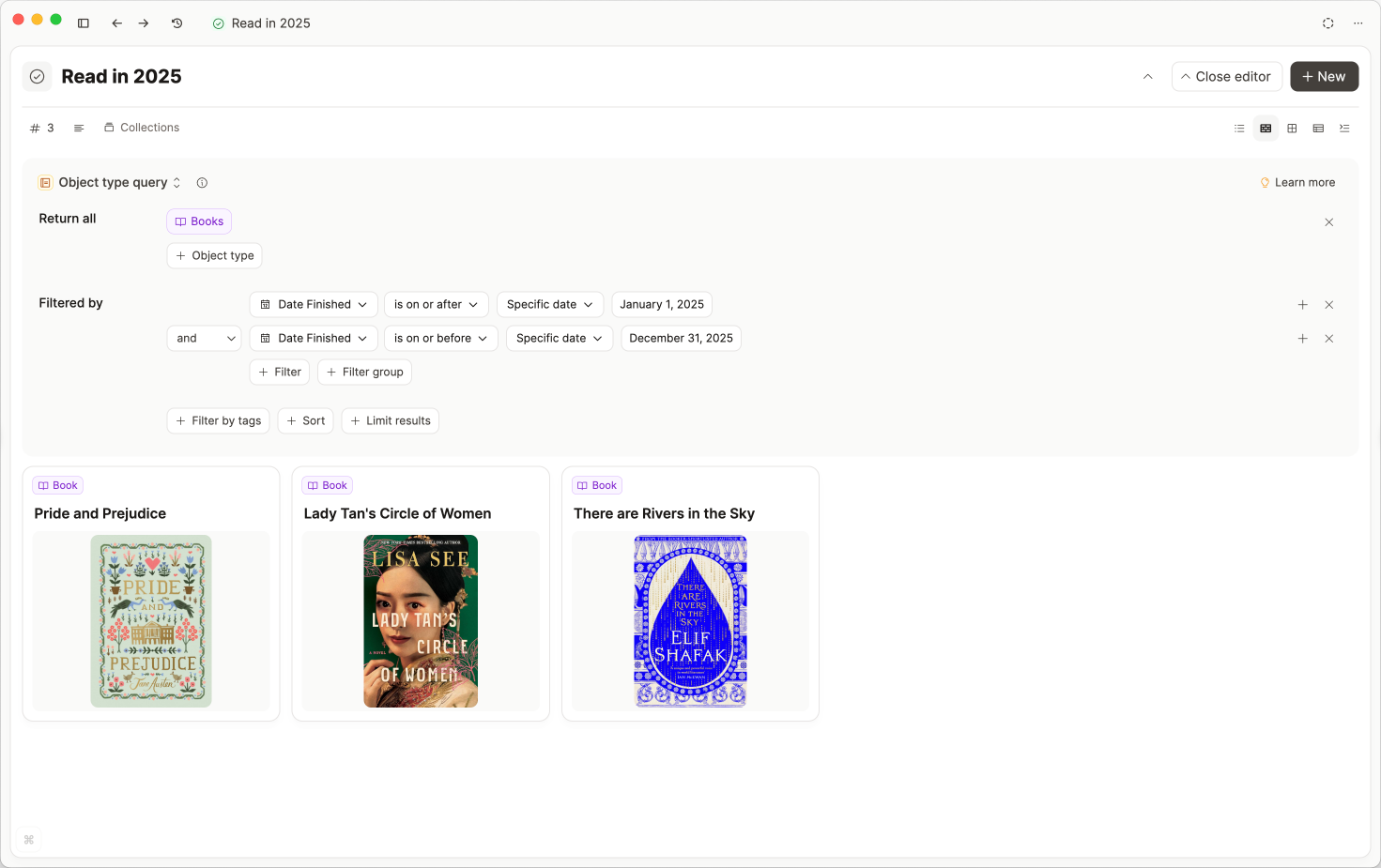
Think of queries as saved filters or smart views. Queries are objects too, so you can link or embed them like any other object.
You can use them to:
- Find and reuse specific information (e.g. all meetings with Jane)
- Embed filtered content in other objects (e.g. topics from this semester in class notes)
- Build dashboards or contextual views (e.g. a project page with just its meetings)
You can also see them as automated, dynamic collections. Instead of manually curating a list, a query does it for you. It updates in real time as your content grows, as long as the content fits the rules you've defined.
If you are choosing between a query and a collection, see When should I use a query instead of a collection?.
For workflow examples (bookshelves, project meeting lists, tag intersections, person hubs, dashboards, daily-note rotation), see Queries in practice.
Query types
Queries extend the functions you're already used to using.
There are three different types of queries:
- Object type queries Object type queries return content based on a set of object types and optional filters. You can apply rules based on collections, tags, and properties. Object type queries extend your object dashboards.
- Search queries Search queries return content based on a set of search terms. You can apply rules based on object types, properties, or tags to narrow down your results. Search queries extend the extended search.
- Tag queries Tag queries return content that is tagged by a set of tags. You can apply rules based on object types, properties, or other tags to narrow down your results. Tag queries extend tag pages.
Getting started with queries
You can create queries from these places (more on this below) or you can create a query from scratch. Queries are objects just like everything else in Capacities, so you can create queries in the same way you create other new objects too:
- Click the
+ Newbutton block in the top left of the window, choose "query" - Or open an object type, click the three-dot menu (
...) and click "new query" - In an object, type
/query. This will embed the result of the query in the page straight away. - You can also use the command palette (
Cmd/Ctrl+KorCmd/Ctrl+P) and typequeryand pressEnter
Once you've got the query ready to begin, you need to choose which type of query you need. The different types are broken down in more depth below, including examples to show when you might use each one.
Object type queries
If you want to find content based on properties you have in an object type, you'll need an object type query.
In your object types, you can filter and sort the objects by their properties in order to find specific selections of the objects of that type. With queries, you can now save these filters as a query and extend these rules beyond one object.
We recommend starting here when learning how queries can best work for you.
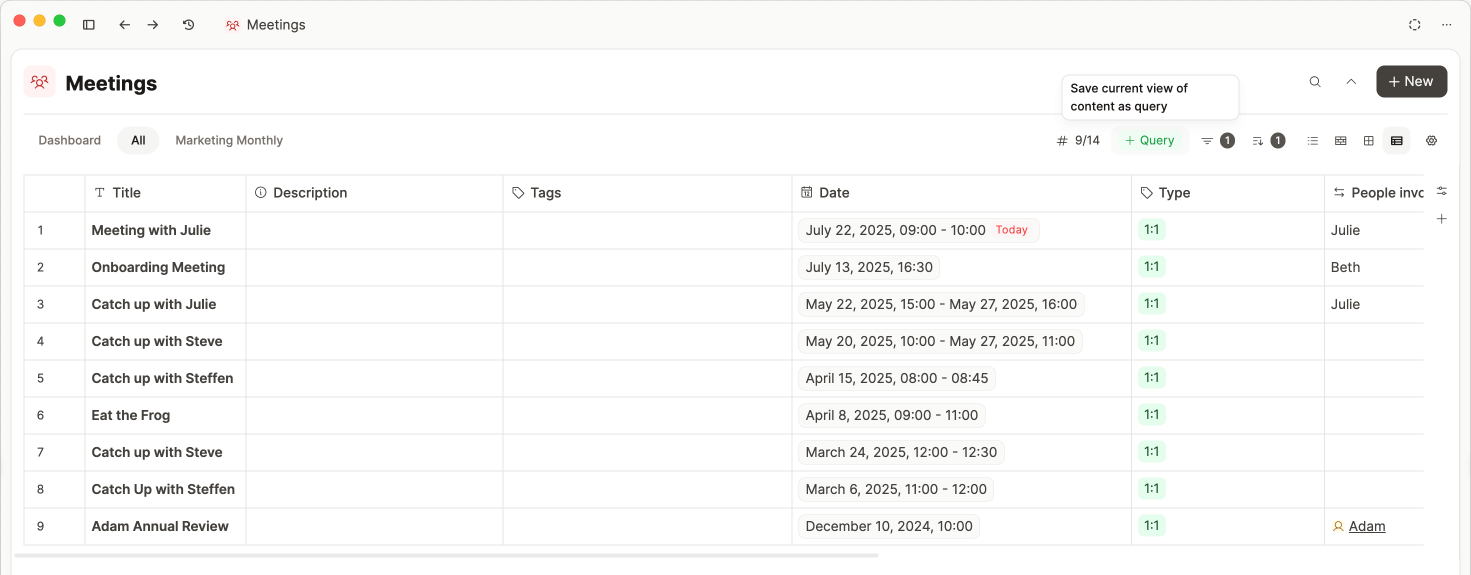
When you click Save as query, a query object is created. You can give this a title. This can be used anywhere in Capacities (type @{query name}).
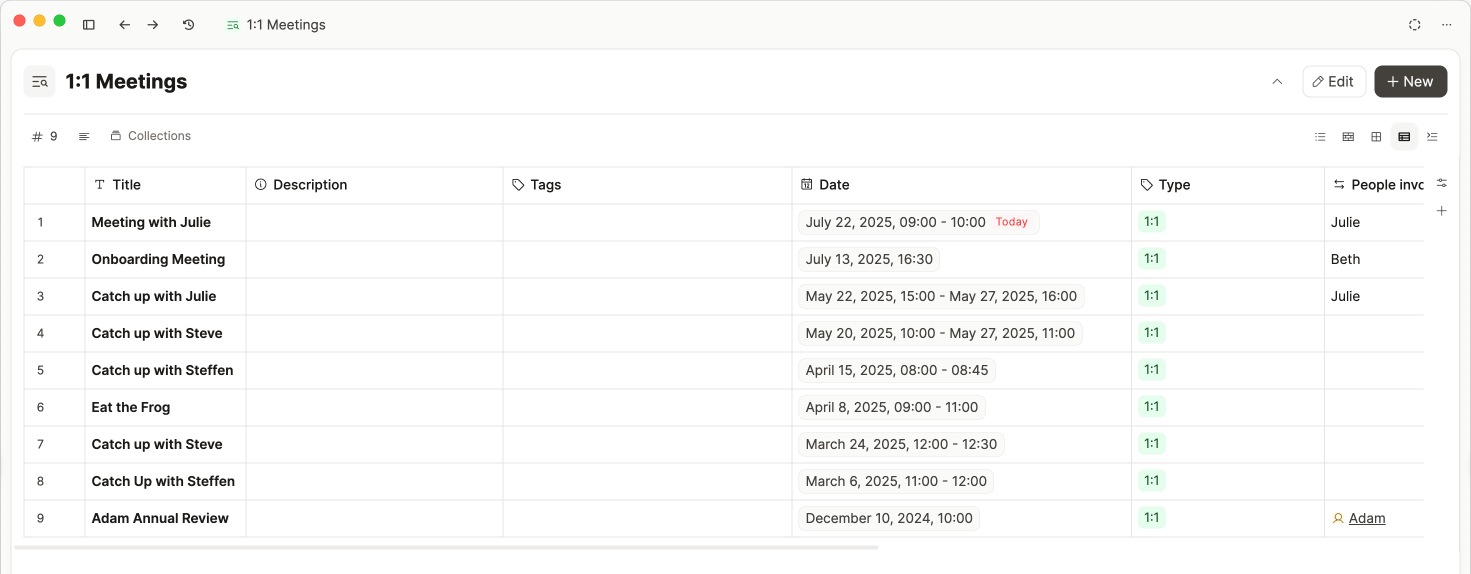
This query will automatically become a section in your object dashboard too for easy access.
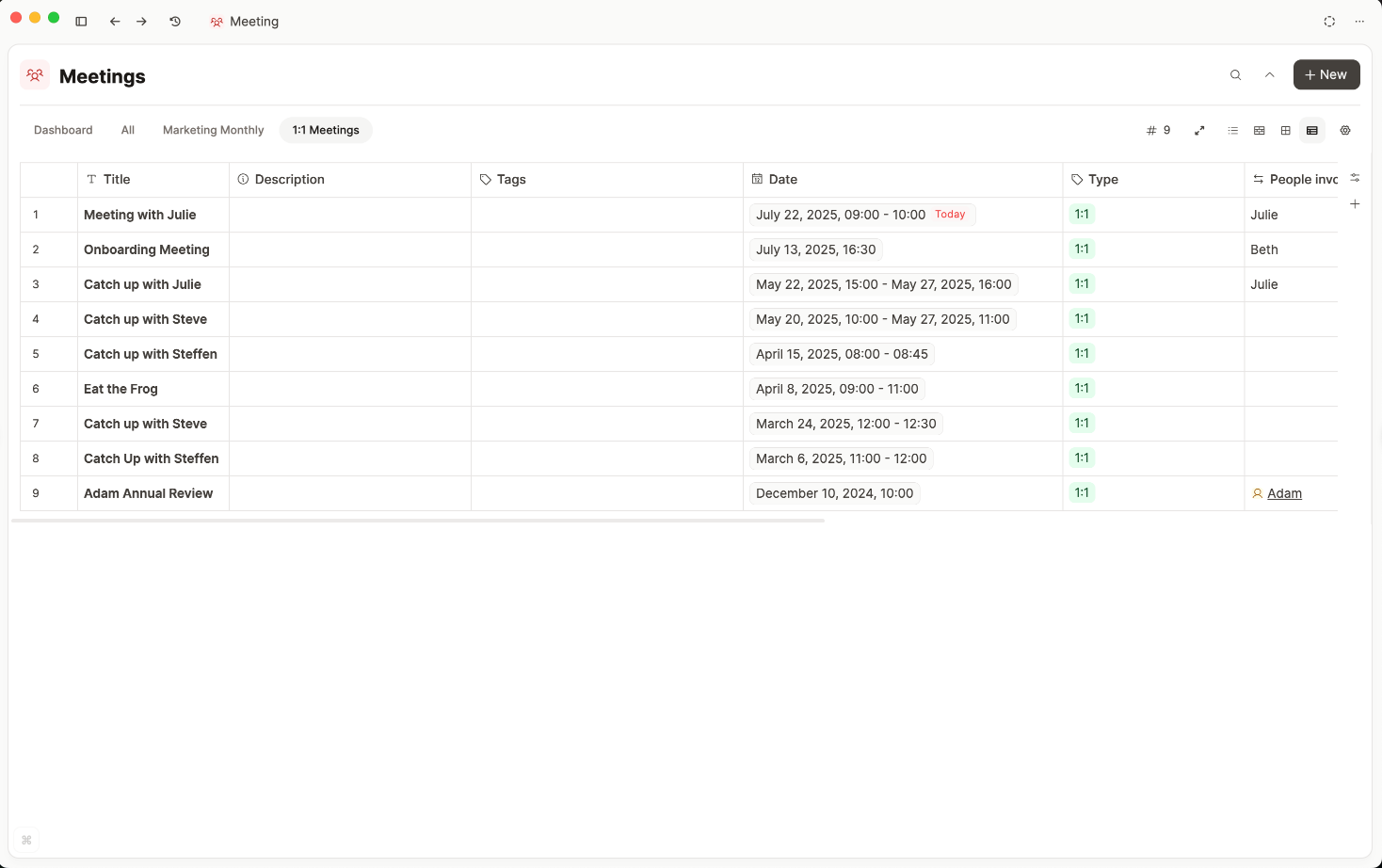
Queries are also set up to be very easily adapted simply by opening the query as a full page and clicking 'edit' in the top right of the query object.
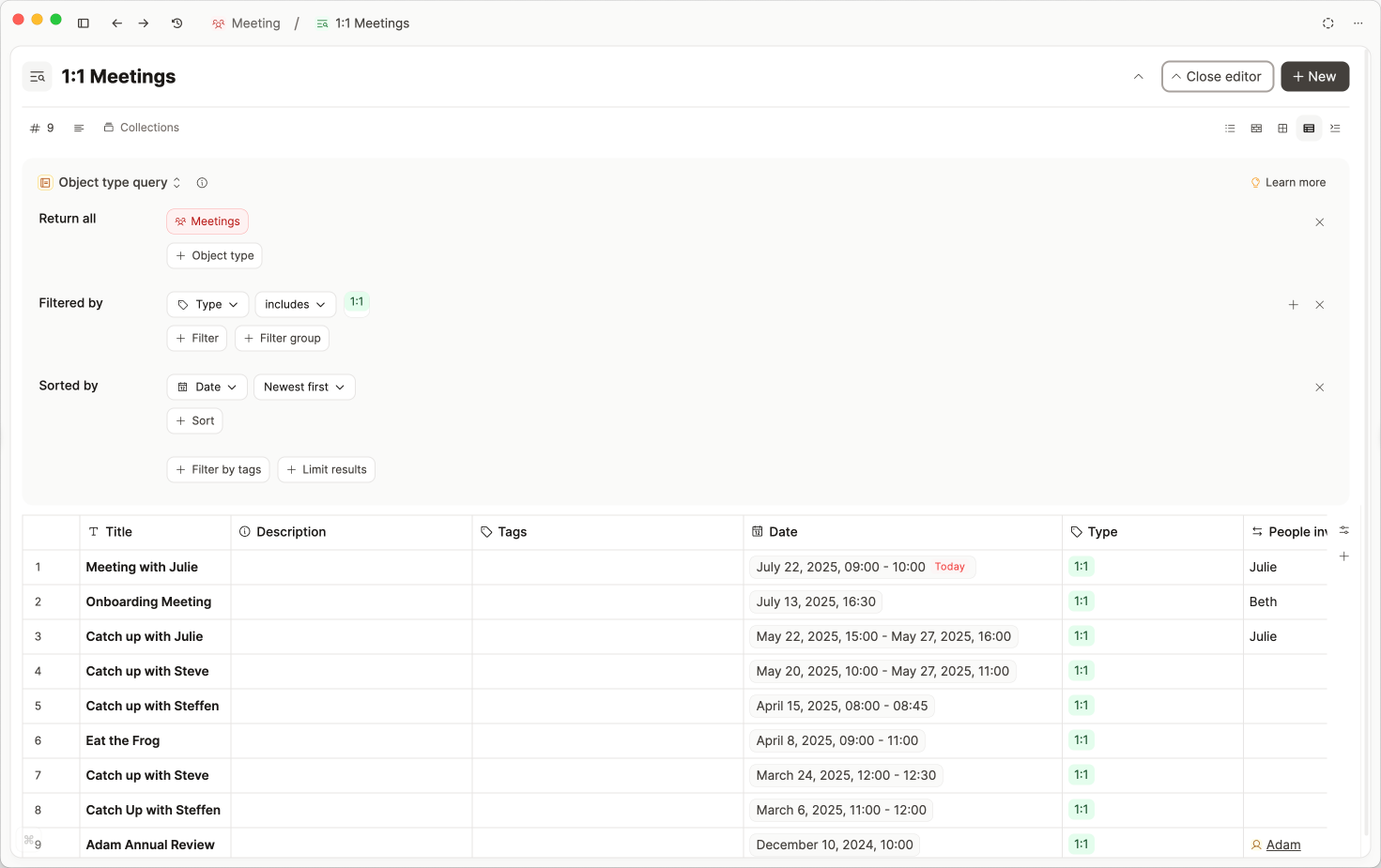
Object Query Options
Your specific query setup depends on your own object type setup. With object type queries, you're looking at the structure of your objects, essentially the properties you've assigned to them, their titles, and their types.
This is why you first choose the object types you'd like to search from the drop-down menu.
You can choose up to 10 object types to include, and you can be more specific than that too, either including or excluding collections of these object types.
Then you decide if you're searching for objects with specific tags or if the information is in the properties.
On top of these filters, you can choose if you want to add sorts, group the results by object type, or limit how many results you have.
The results will update automatically as you add or remove constraints. Once you're happy with the settings, give the query a title so you can easily search for it later.
If you want to learn more about how to use object queries, check out this video:
Search queries
Search queries let you save and reuse a specific search configuration. You can create search queries from the extended search or by building a query from scratch.
To create a search query:
- Open extended search with Cmd + Shift + P (Mac) or Ctrl + Shift + P (Windows)
- Define your search terms and filters
- Click Save as query
You can include multiple search terms in a query. Content that matches one or more of your search terms will be included in the query. On top, you can also filter, sort, limit, and group the results.
If you want your search query to exactly match a whole phrase, simply use one search term and put your whole phrase in this search term.
If you want to learn more about how to use search queries, check out this video:
Tag queries
With tag queries, you can now display the results of multiple tags and apply the same filters as other query types to refine the search further.
Below, there are three tags combined into one page to review related concepts.
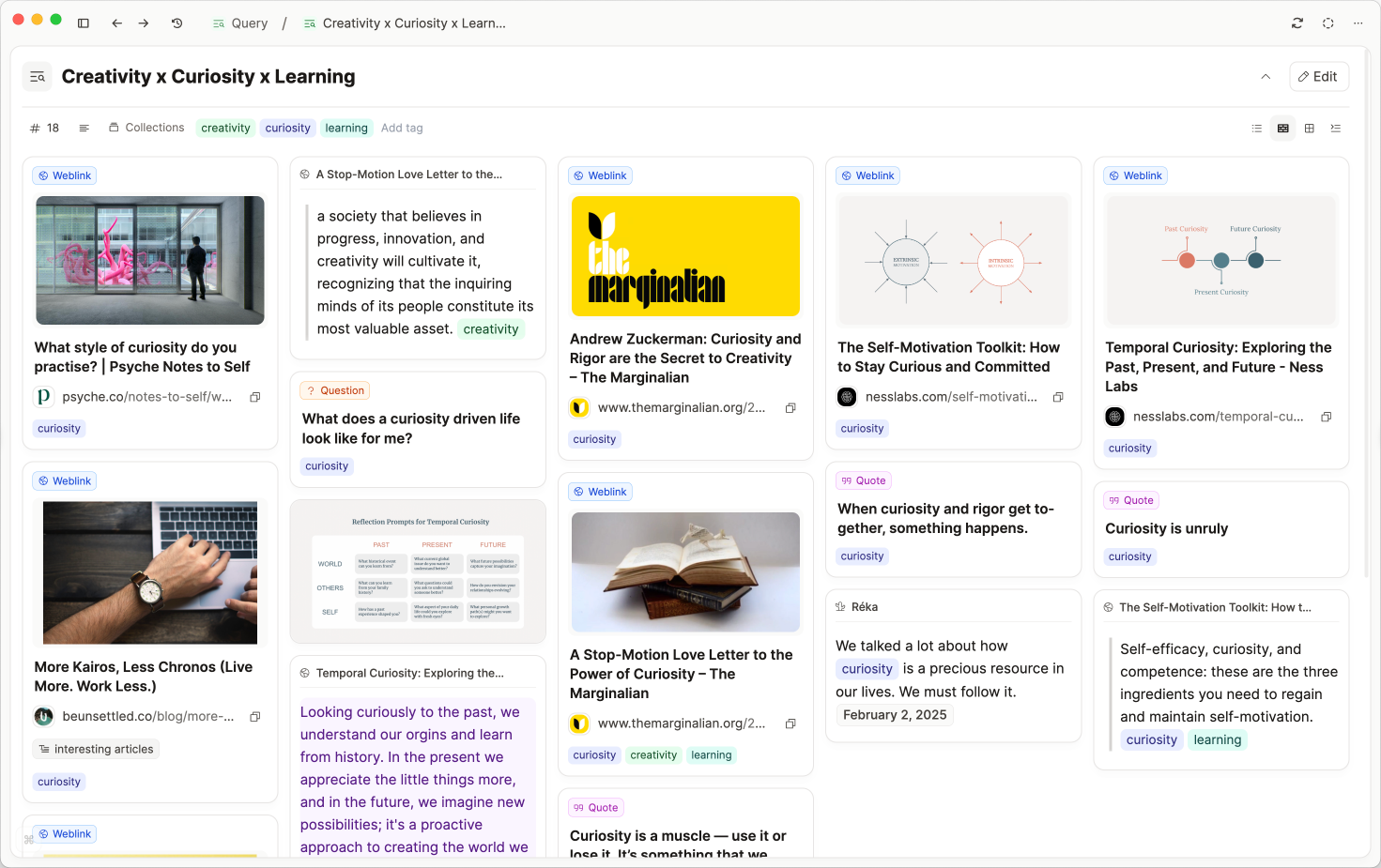
To create a tag query, you can navigate to any tag object and click Create query with tag. From here, you can add more tags to the results and add any filters/views that you'd like. Don't forget to give it a title so you can reference it on other pages.
If you want to learn more about how to use tag queries, check out this video:
Variable Queries
Variable queries let you create dynamic, context-aware queries by using properties of the object in which the query is embedded. Instead of hardcoding specific values (like the name of a project), you can refer to the current object using variables.
In order for variable queries to work, they must be embedded into an object.
Make sure to create the query from within an object (open object -> /query) or embed an existing query within an object (open object -> @{query name} -> make sure the 'link view' is set to embed).
For example, if you embed a query inside a Person object, you can use a variable like 'This object' instead of manually specifying the person's name. When the query runs, it will use the name of the person whose page it’s embedded in.
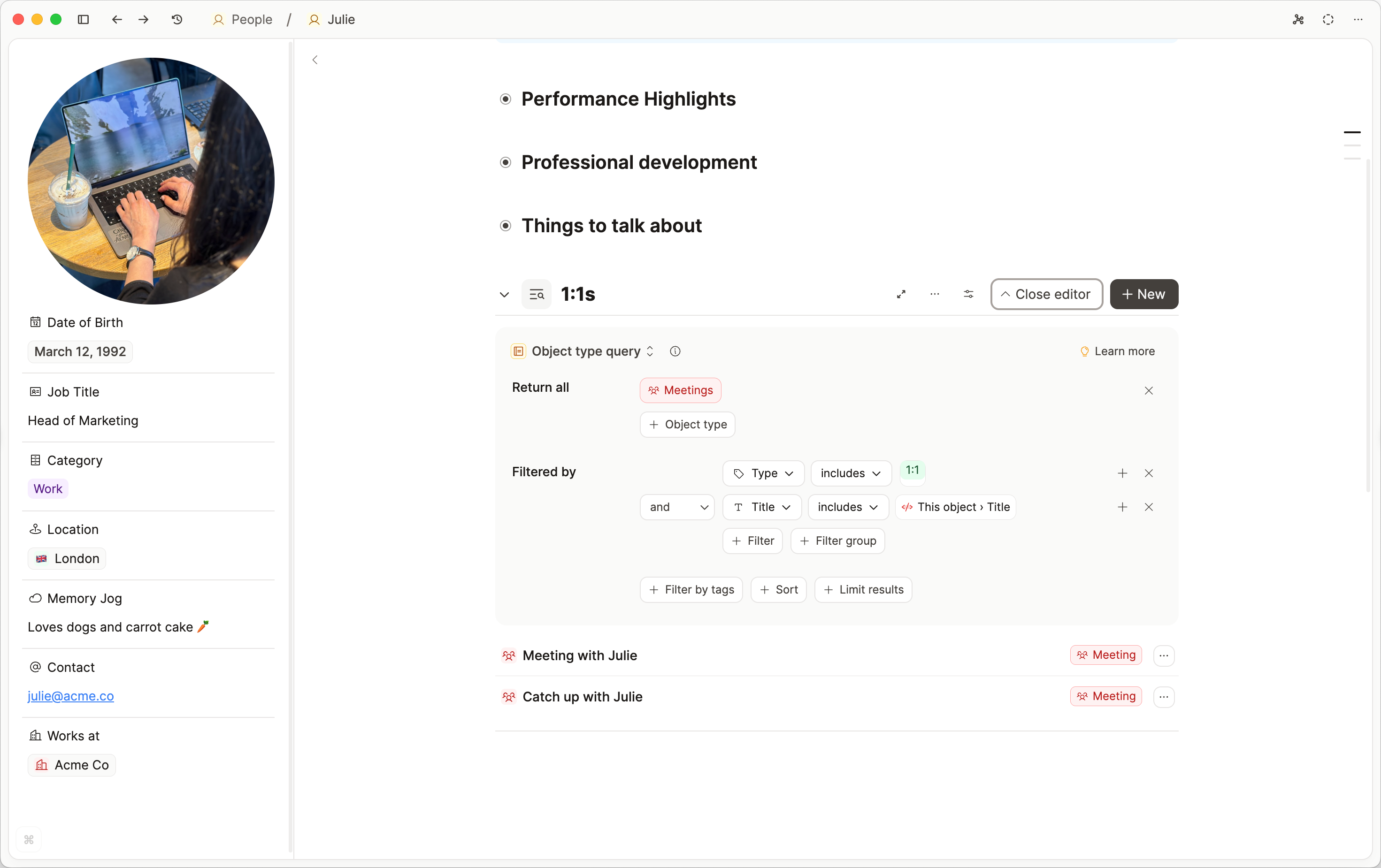
This makes your queries reusable and adaptable to the context they’re placed in.
To use a variable query, open an object and write /query to create a query. Click Filter to filter the objects that will be returned. You can either hardcode the filter, or Select variable.
The variable options will depend on what object you are in and what filter you are trying to apply. All available options are available in the dropdown menu. If you do not see an option, it is not supported.
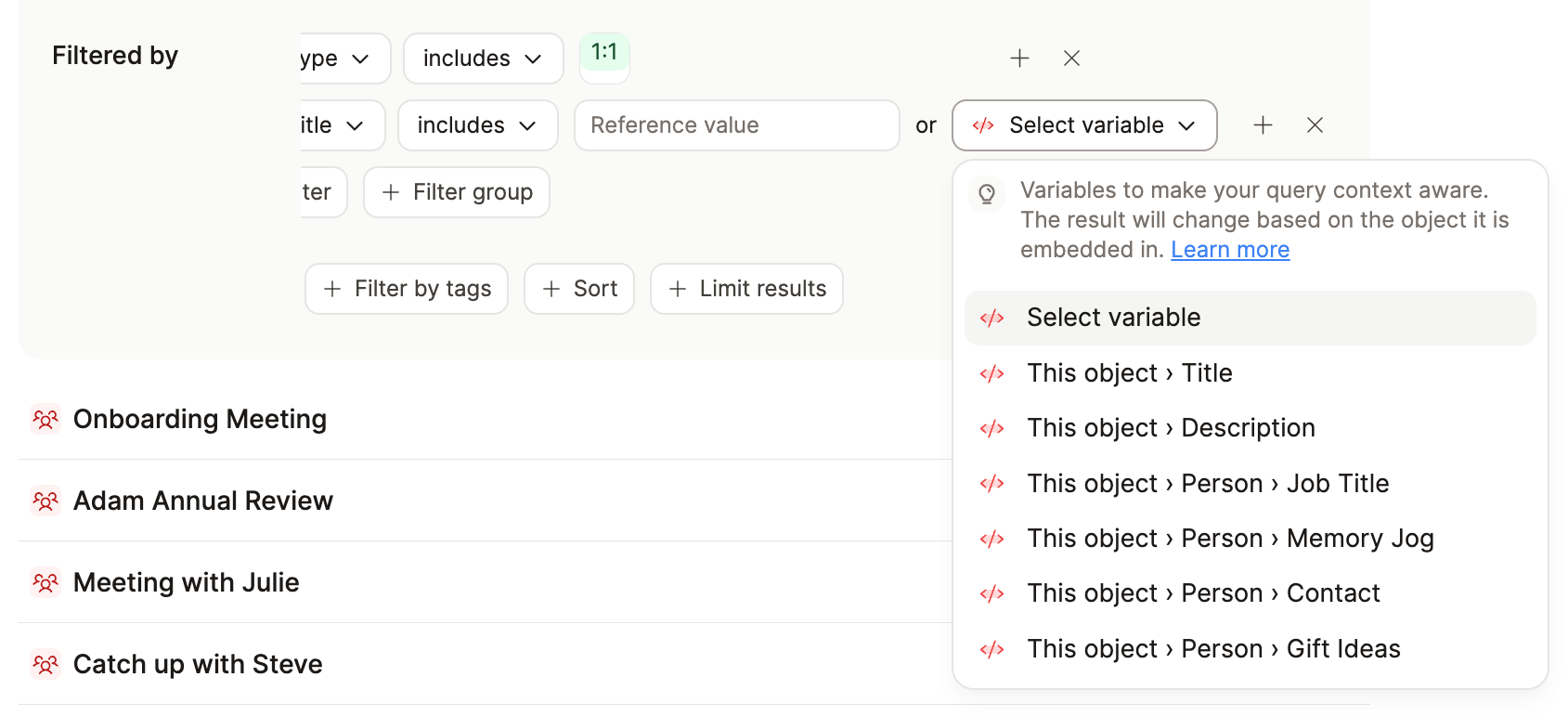
Variable Queries in Templates
Variable queries allow you to build templates that include smart queries, which work immediately without any manual adjustment.
To use a variable query in a template, go to the object type settings > new template > link to the query you want to use (or create a new one) > arrange the template to your liking. Then it's set up and will be available to use in your objects.
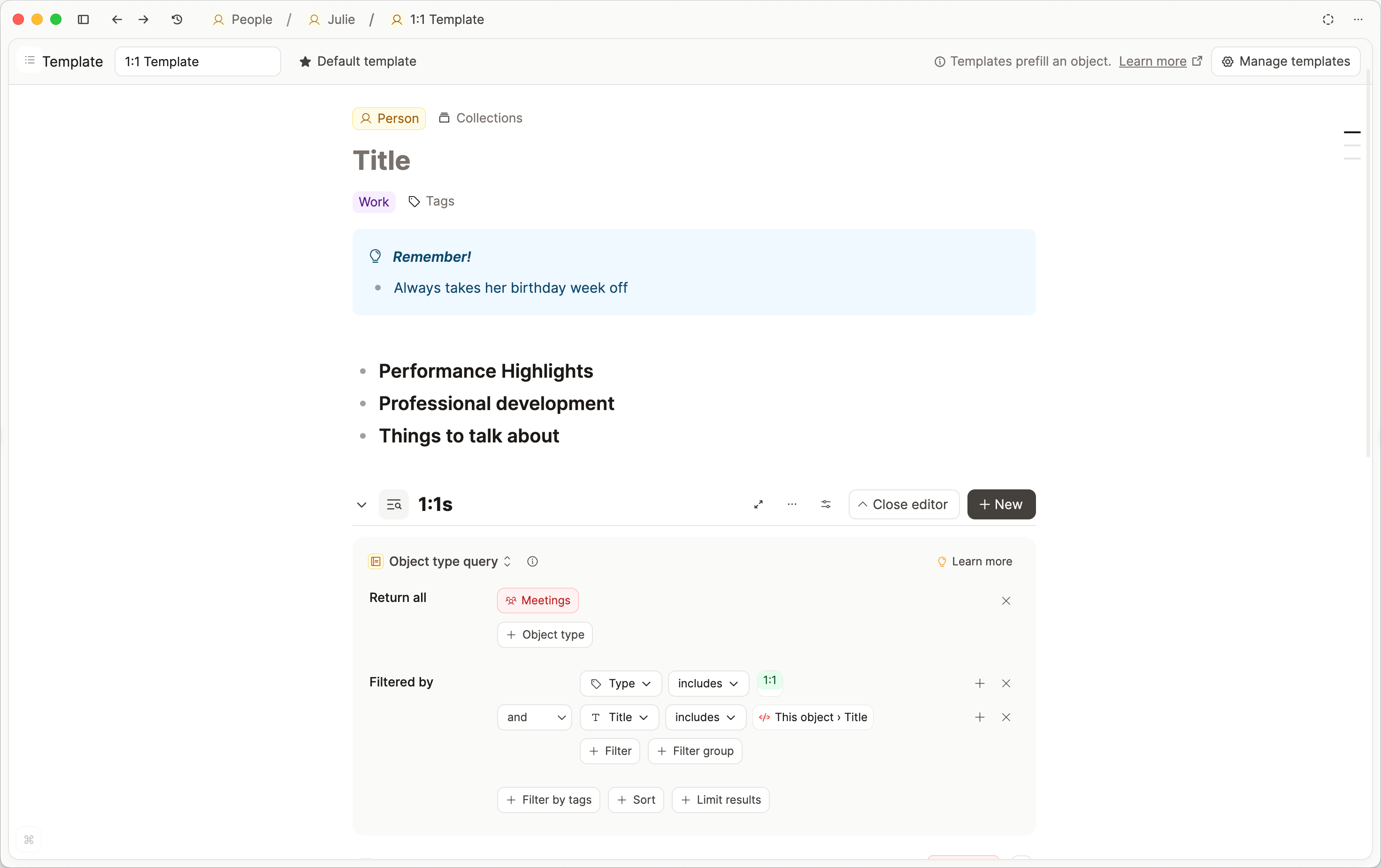
When you use variable queries inside a template, they adapt to the object created from the template. The variables in the query will automatically pull values from the new object’s properties.
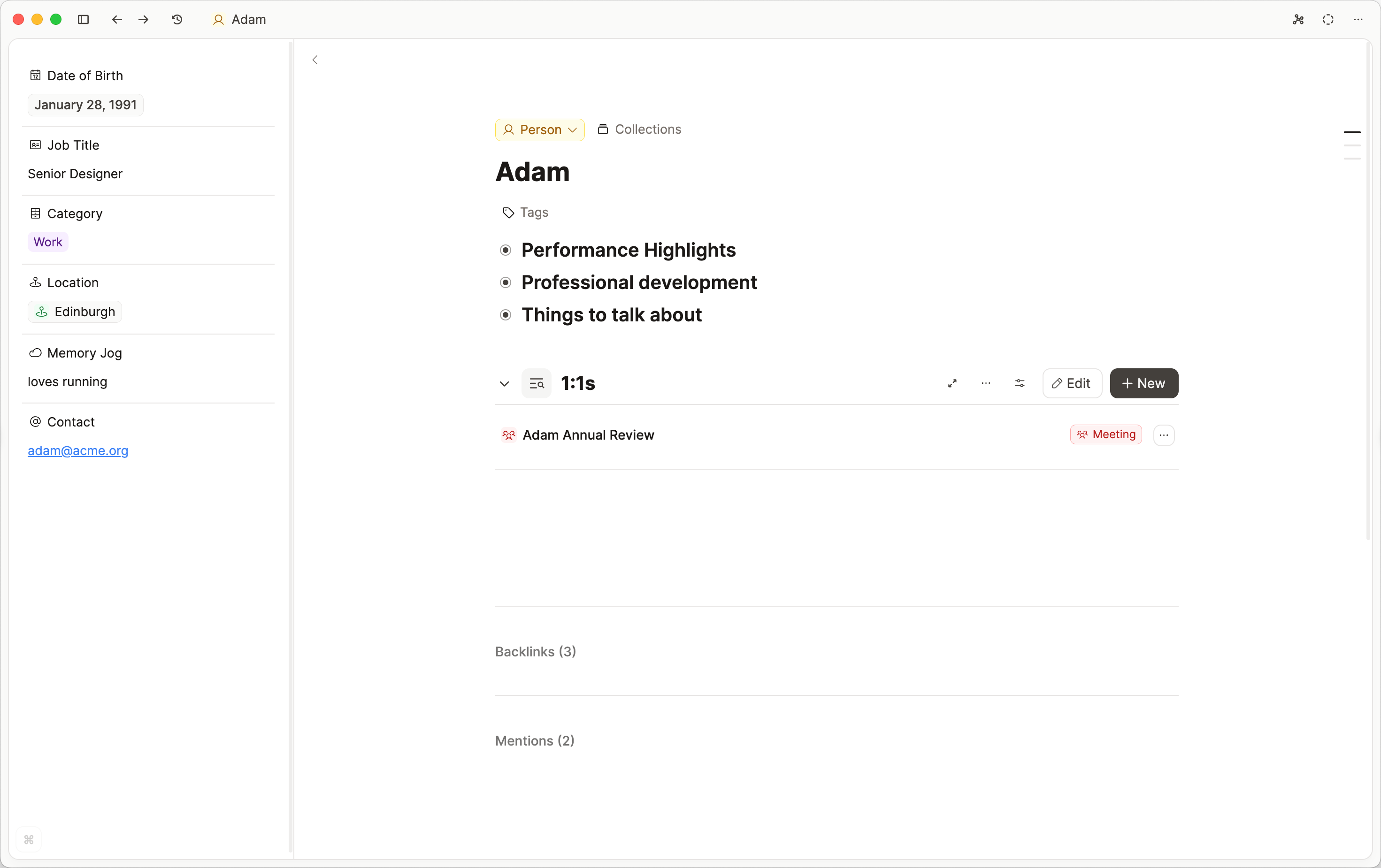
This is the same query, but it shows different results because its context is different. That is how variable queries are context-aware.
Fine-tuning your queries
All queries can be adjusted and fine-tuned to your needs. You can add more filters, change the sort, or limit the results. Let's look at these options in more detail.
Show objects or blocks
In tag and search queries, you can choose to only see text blocks or objects to narrow down your results. This is useful if you want to see all the text snippets that match your search term or tag.
Filter by backlinks (filter by context)
You can select "Backlink objects" in the filter dropdown menus to filter for all objects that have a backlink (or context in case of tasks) to a set of other objects
See the Backlinks reference for more.
For example, if you want to filter all tasks linked to your team, you can create a query for that.
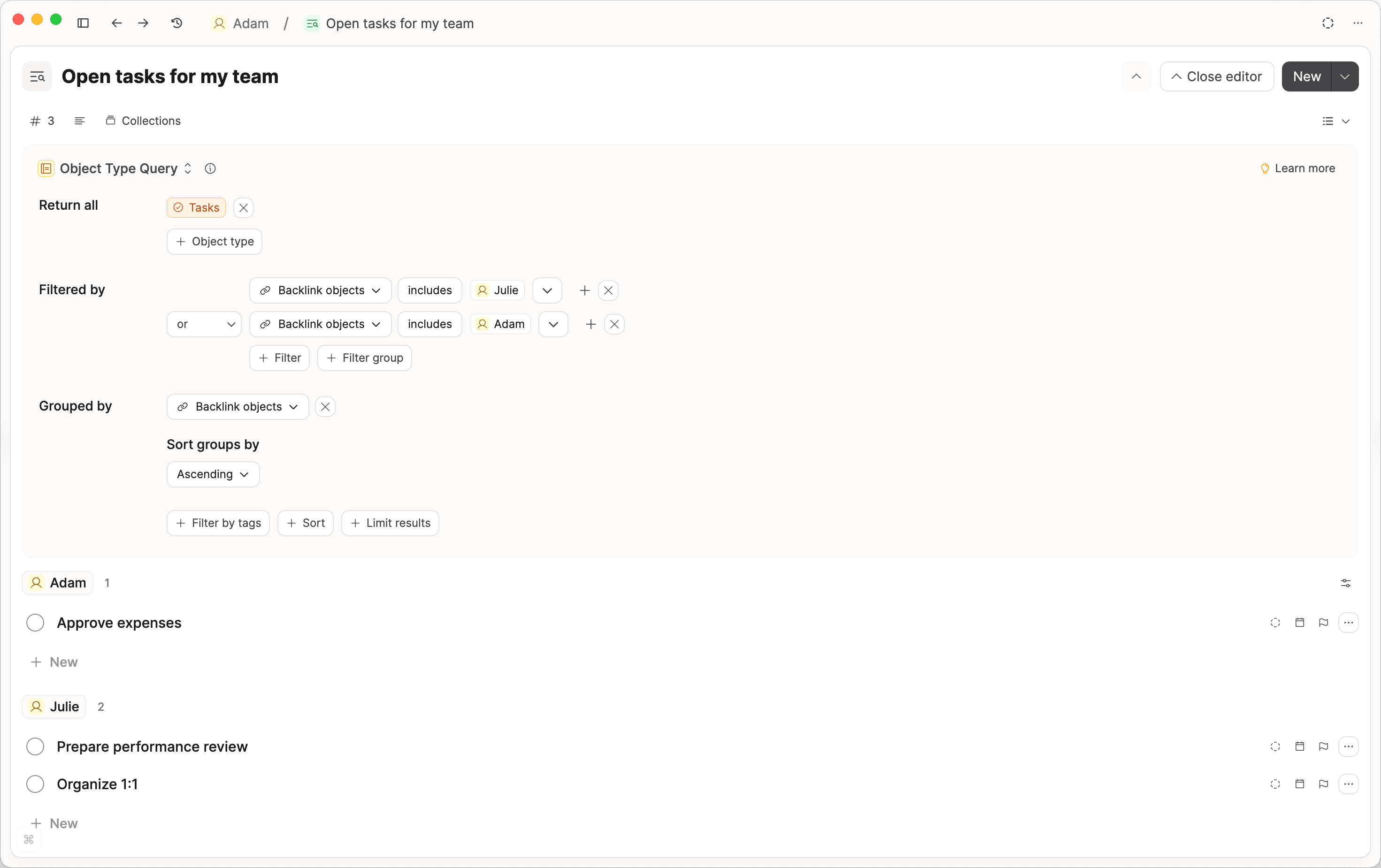
Filter by tags
When tags are an extra bit of information, rather than the singular thing you're searching for, you might choose to filter by tags. If tags are the focus of your search, though, use tag queries.
Sort
Sorting chooses the order in which you see the results. Depending on the type of query you've chosen, you can sort by properties you have created or by properties Capacities creates, such as Created at.
Group by
You can choose to group by your properties by clicking 'Group by' in the query editor.
Choose which property you'd like to group by, and in which order.
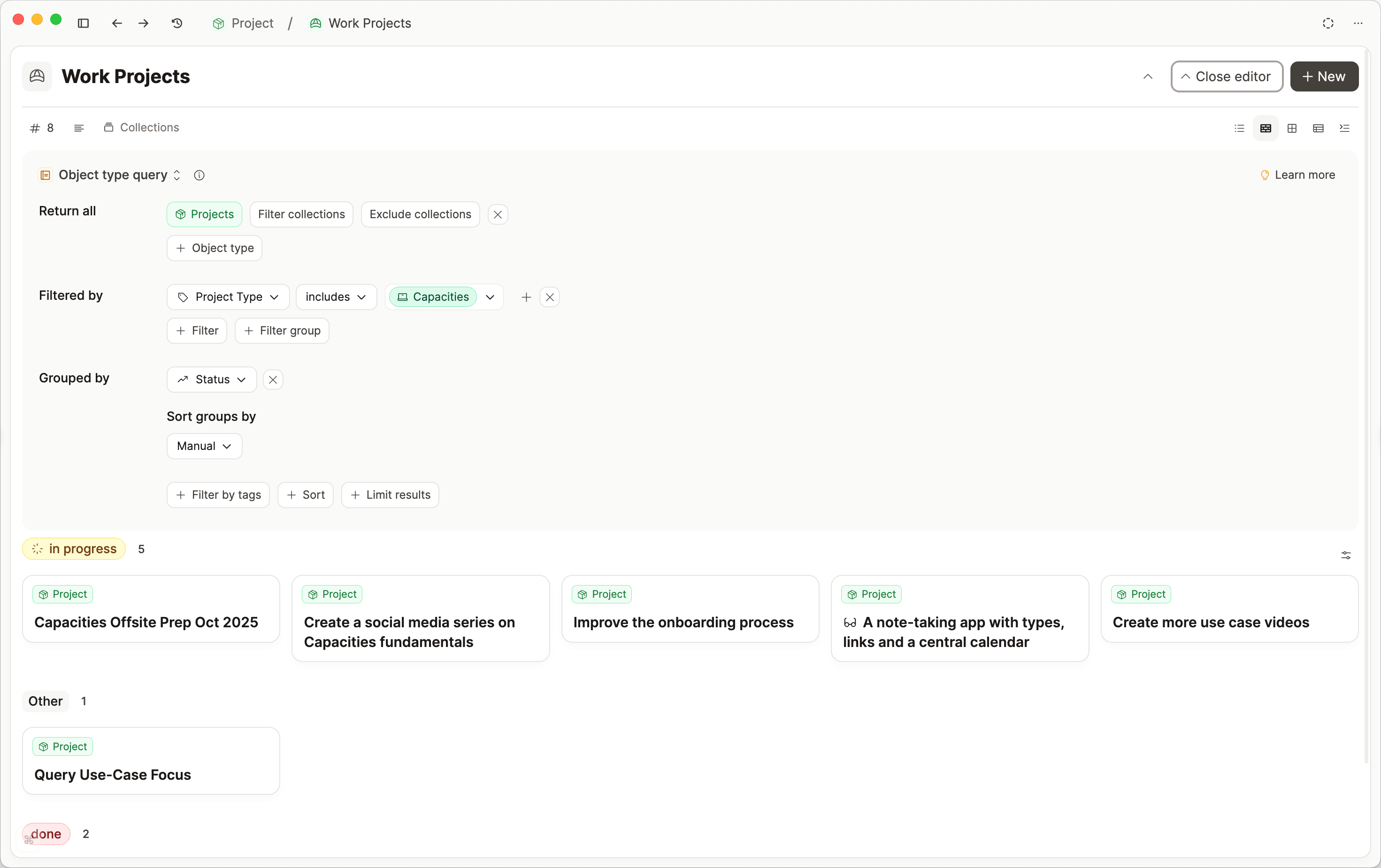
Learn more about grouping here.
Limit Results
You might not want to see all the results for a query as you might expect a lot of results. In this case, you can limit the number of results you see.
Randomizing results
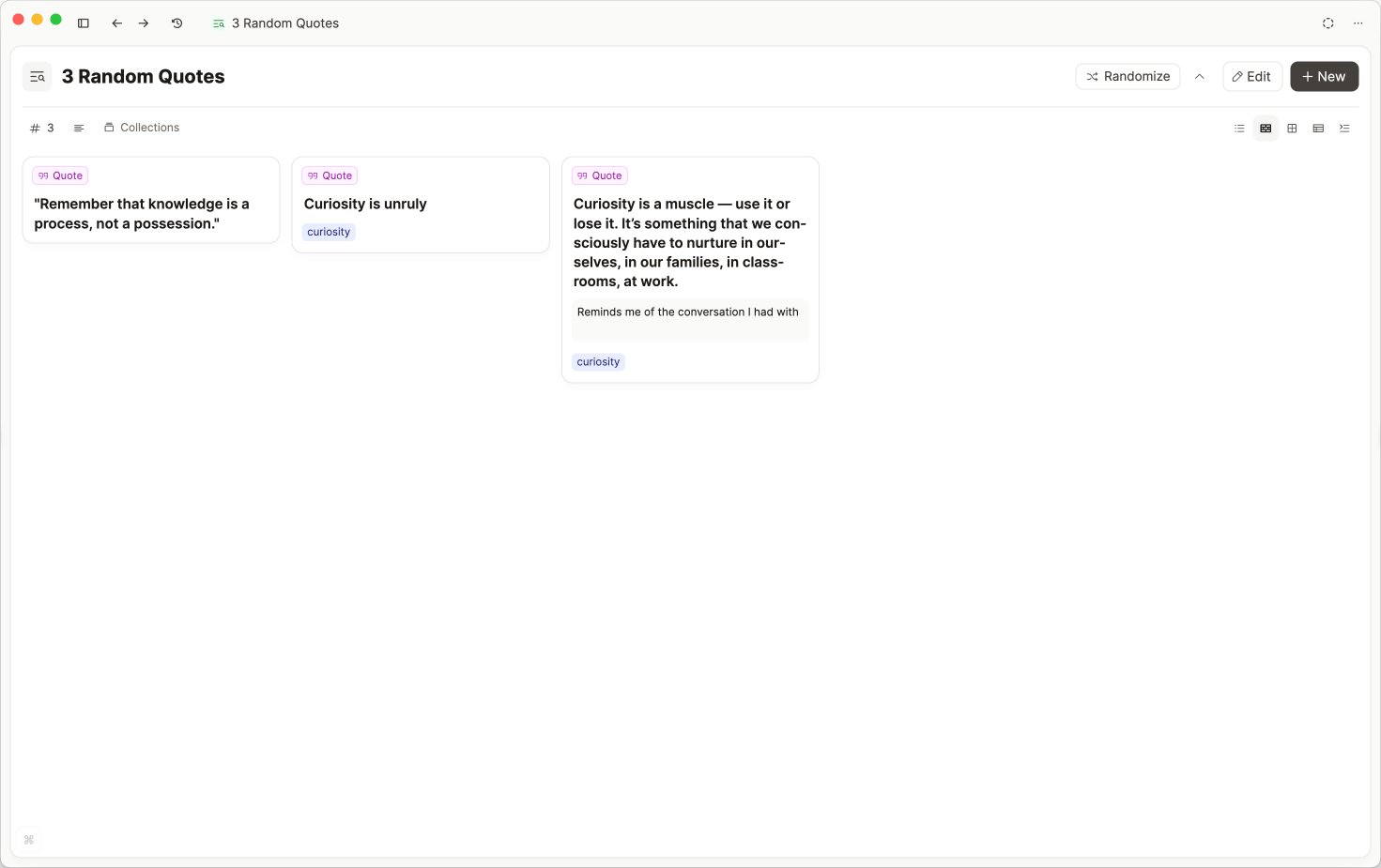
When choosing to limit your results, you can also choose to return a random list of results. This is great to get inspired by a large pool of content. You could, for example, create a query that returns five random quotes from all your quotes.
What's next for Queries?
Queries are a powerful feature, and we're excited to see how you use them. We're also excited to see how we can extend them in the future. Here are some ideas we're thinking about:
- AI-powered search queries
Queries that return content based on their semantic meaning. You can, for example, search for "Notes about Artificial Intelligence" and it will return content on neural networks or LLMs. - Time-based queries
Create queries based on a time span. You can, for example, return all objects and blocks that reference this week or a historic time period. - Faceted search queries
Show simple options to narrow down search results based on the current results. If results contain a lot of Quotes, allow to quickly filter for Quotes. - Rollup Queries
Create queries that roll up content from other queries. For example, you can show all ingredients in your recipes that are tagged with#vegetarianand#italian.
FAQs
- I can't get variable queries to work, why not?
Queries must be embedded within an object before the variable option can show up. Open an object, create a query (/query) and make sure the view is set to 'Embed' (three-dot menu (...) -> change view -> embed).
This query is embedded in the 'Jane Austen' page, therefore it can see the information of that page and use it in a query.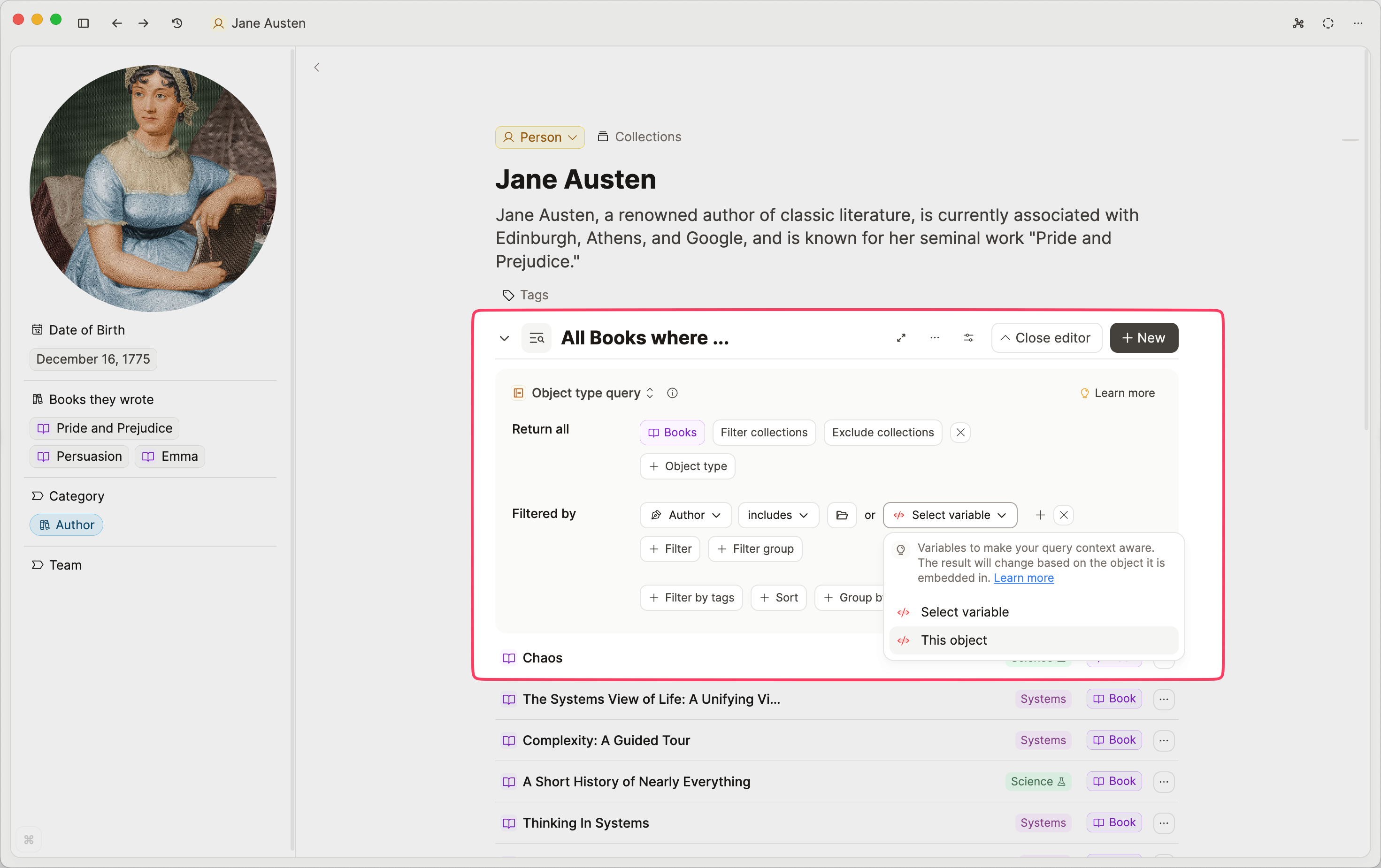
Ask a question! - The Docs Assistant knows everything about the documentation, and the ideas and feature requests from other users.
Create a ticket on our feedback board. - Let us know if you have an idea for a feature, improvement or think there is something missing.
Request additions to the documentation. - If your questions are not getting answered, let us know and we will extend the documentation.