Tutorials
Tags vs. Collections
Tutorials
Tags vs. Collections
Tags and collections are two key organizational features of Capacities, so it's important to know how to use them.
This page helps you understand when to use tags and when to use collections. For deeper details, see Tags and Collections.
Both tags and collections let you group content together. Use collections to group content within the same object type. Use tags to group content across different object types.
Why Use Collections
Collections let you create subgroups of content within one object type. This helps you organize content beyond filtering or sorting, because you can curate clear groups.
These groups let you zoom in on a subset of one object type while keeping all the filtering, sorting, and view options that object type supports.
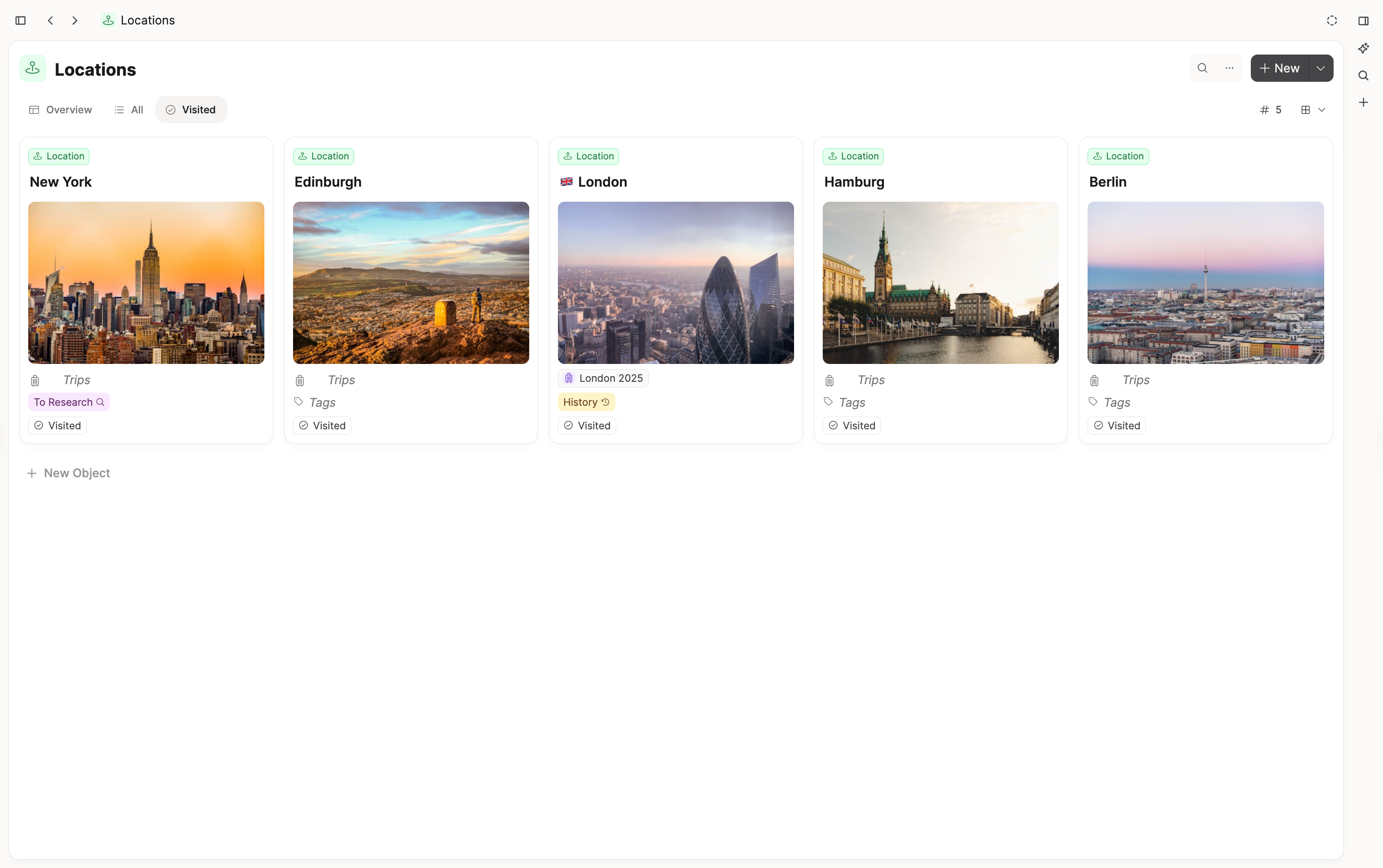
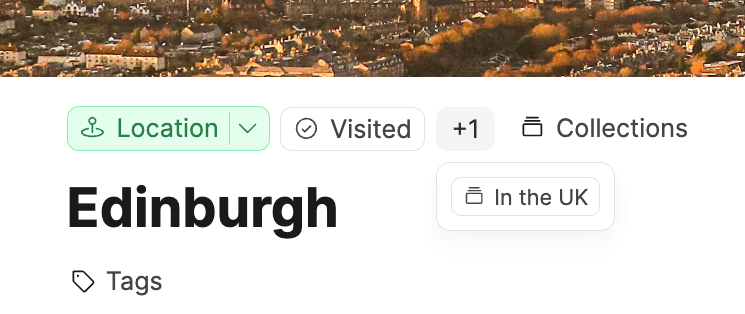
Importantly, content can belong to multiple collections within the same object type and can be moved easily. There is no need to silo information in one place.
How to create collections
Simply open the object dashboard, click on “create collection”, customize the name and icon then click the add button. Your collection is now set up.
How to add content to collections
Open the collection you have just created and click 'add' in the top right corner. You can either type in the name of existing content, add new content, or open the content picker to look more closely at your content.
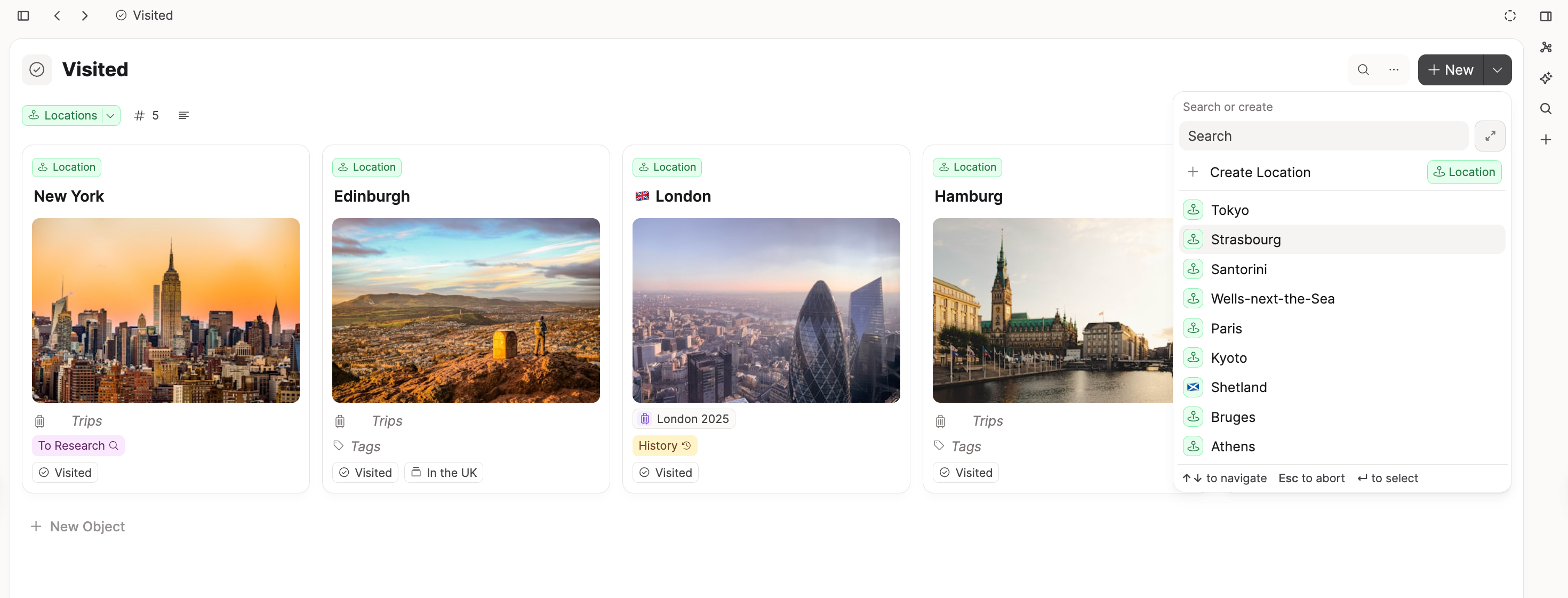
Remember that this only shows content from the object type where the collection was created. This is why collections are sub-groups of an object type.
Examples:
- People object type:
Advisors,Close Collaborators - Meeting object type:
1:1s,Team Retros - Media object type:
Research Papers,Reference Videos
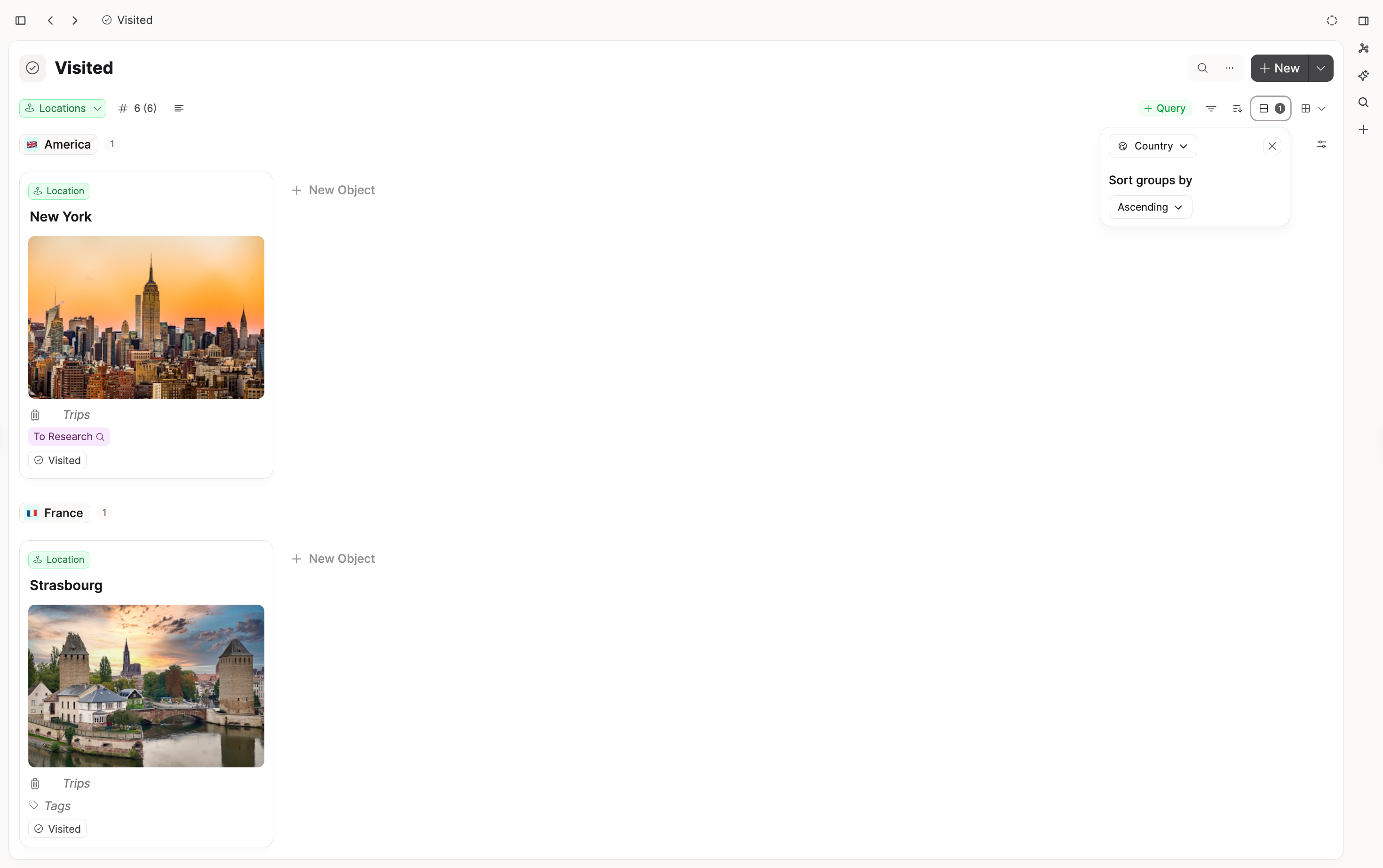
Once the collection is created, you can also go into the wall or gallery view, click the three-dot menu (...) in the top-right corner, and use the shortcut to edit which collection the selected piece of content is in.
Using the collection
You can filter, sort and view the collection how you would like. You can also embed the collection in different pages (using the @ or [[]] function), which will maintain the ability to filter, view and sort them differently in a location of your choosing.
How to collect content from different object types
When you realize you want to unite content from different object types under the same theme, use a tag.
Tags
Tags are keywords you can add to categorize content by theme, such as #ai, #personal-finance, or #decision-making.
Because tags are objects, they are their own piece of content, even if a tag shares the same name as another page.
For example, an AI tag and an AI page are two separate pieces of content.
You can add tags at page level (global tags) or block level (inline tags). Add global tags under the title of an object, or add inline tags anywhere in your text with #.
Using tags and collections together
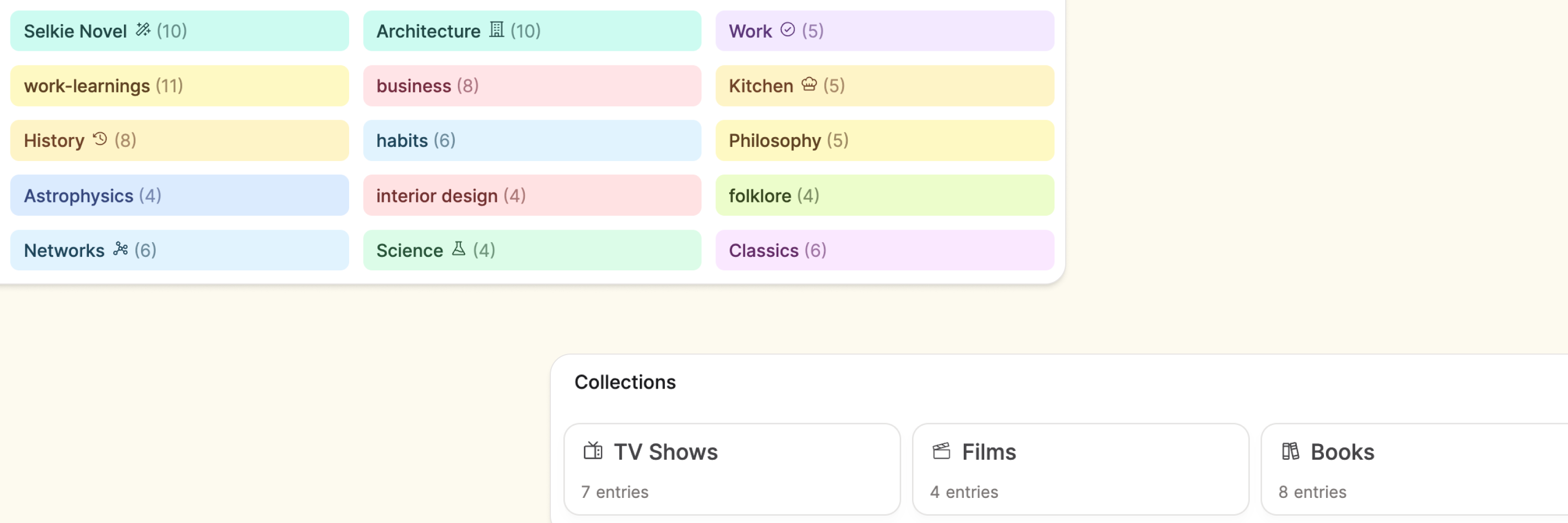
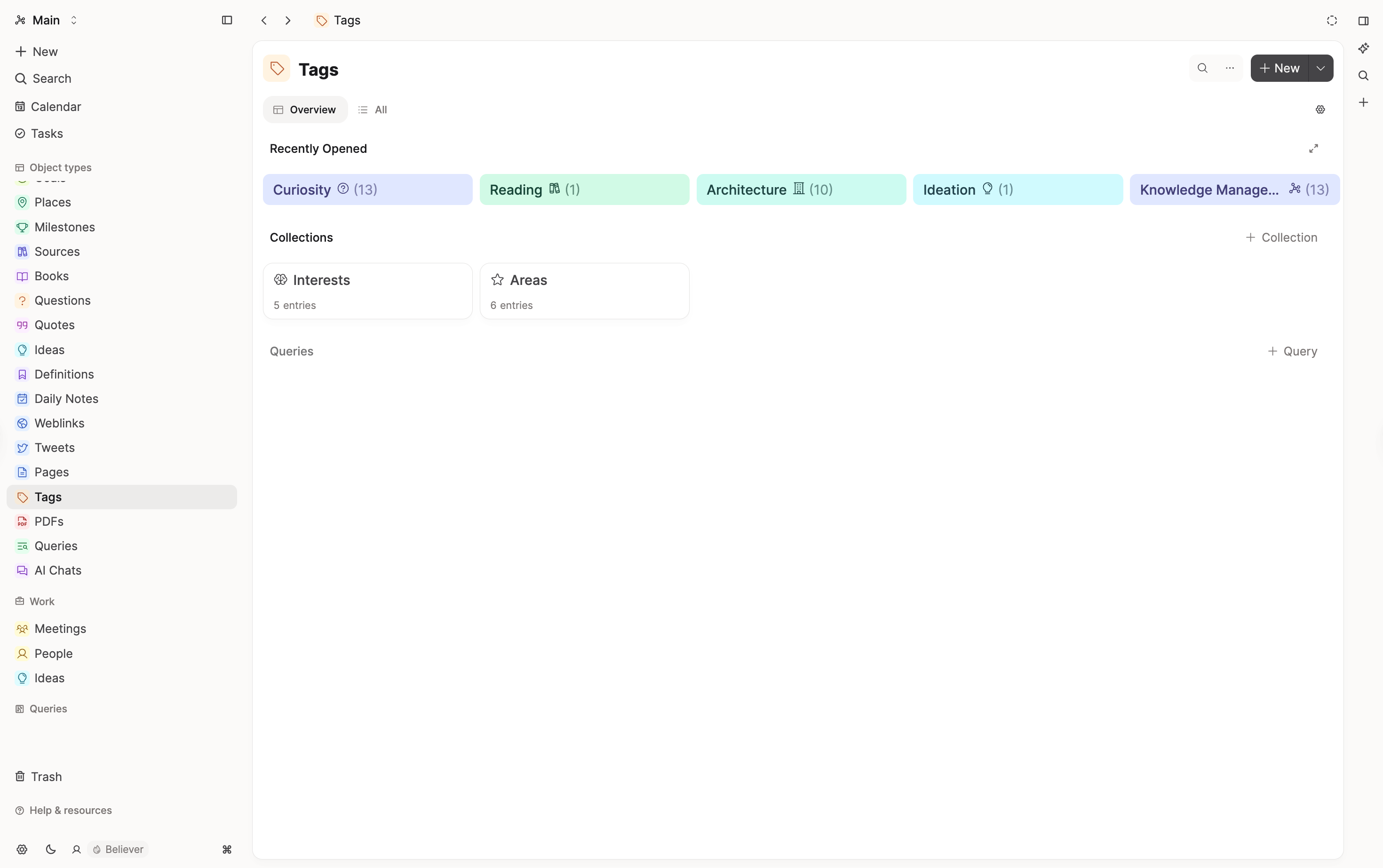
Tags are a great organizational tool, but because they are so useful you may end up with many, and you might want a way to organize them. One organizational method is creating collections within the tag object.
Maintaining your structure
If tags and collections are integral organizational structures to Capacities, you need an easy way to maintain them. How do you know what has not been tagged or added to a collection?
The object dashboards have built-in sections to help with this. Here you can see all the content that hasn't been tagged or added to a collection.
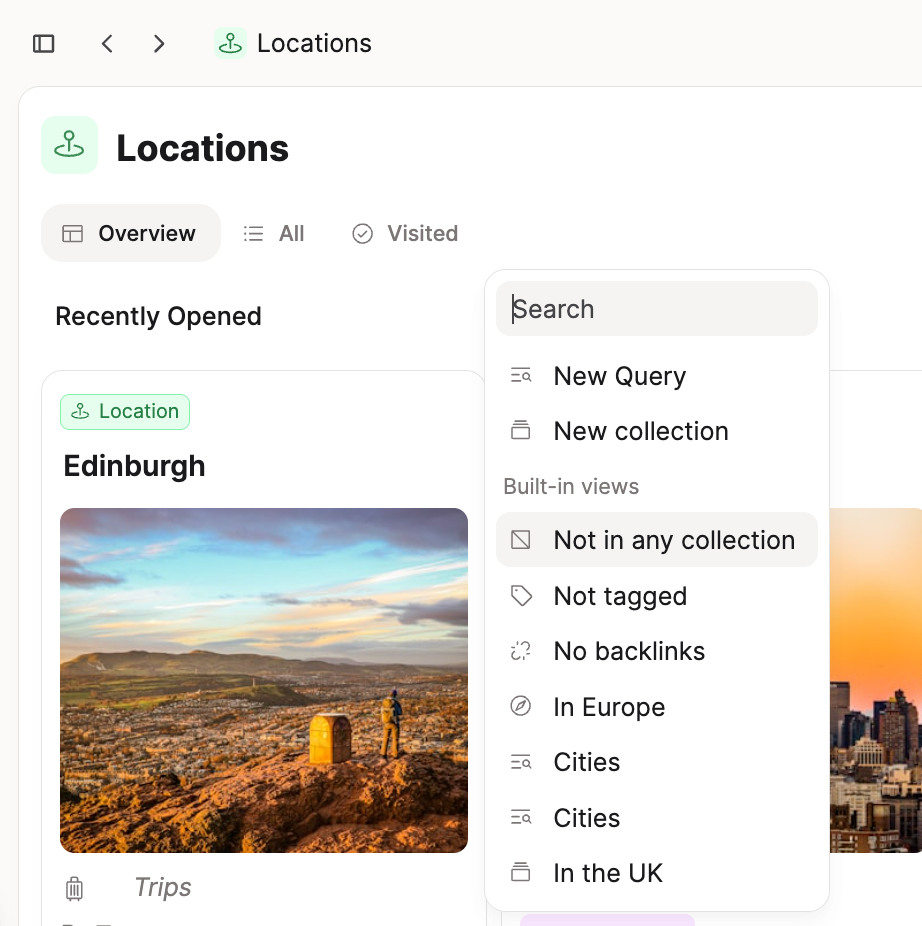
Go to the dashboard of every object type, click the customize settings cog on the right hand side of the screen and add whichever sections suit you. Start with both the 'not tagged' and 'not in any collection' sections.
You can adapt later, but you know this is one unified place to maintain your content in the way that suits your system.
Summary
In short: if you are organizing content within one object type, start with a collection. If you want to connect content across object types by theme, use a tag. To maintain both, use object dashboards and add sections like "not tagged" and "not in any collection."
Ask a question! - The Docs Assistant knows everything about the documentation, and the ideas and feature requests from other users.
Create a ticket on our feedback board. - Let us know if you have an idea for a feature, improvement or think there is something missing.
Request additions to the documentation. - If your questions are not getting answered, let us know and we will extend the documentation.