Reference
Navigation
Reference
Navigation
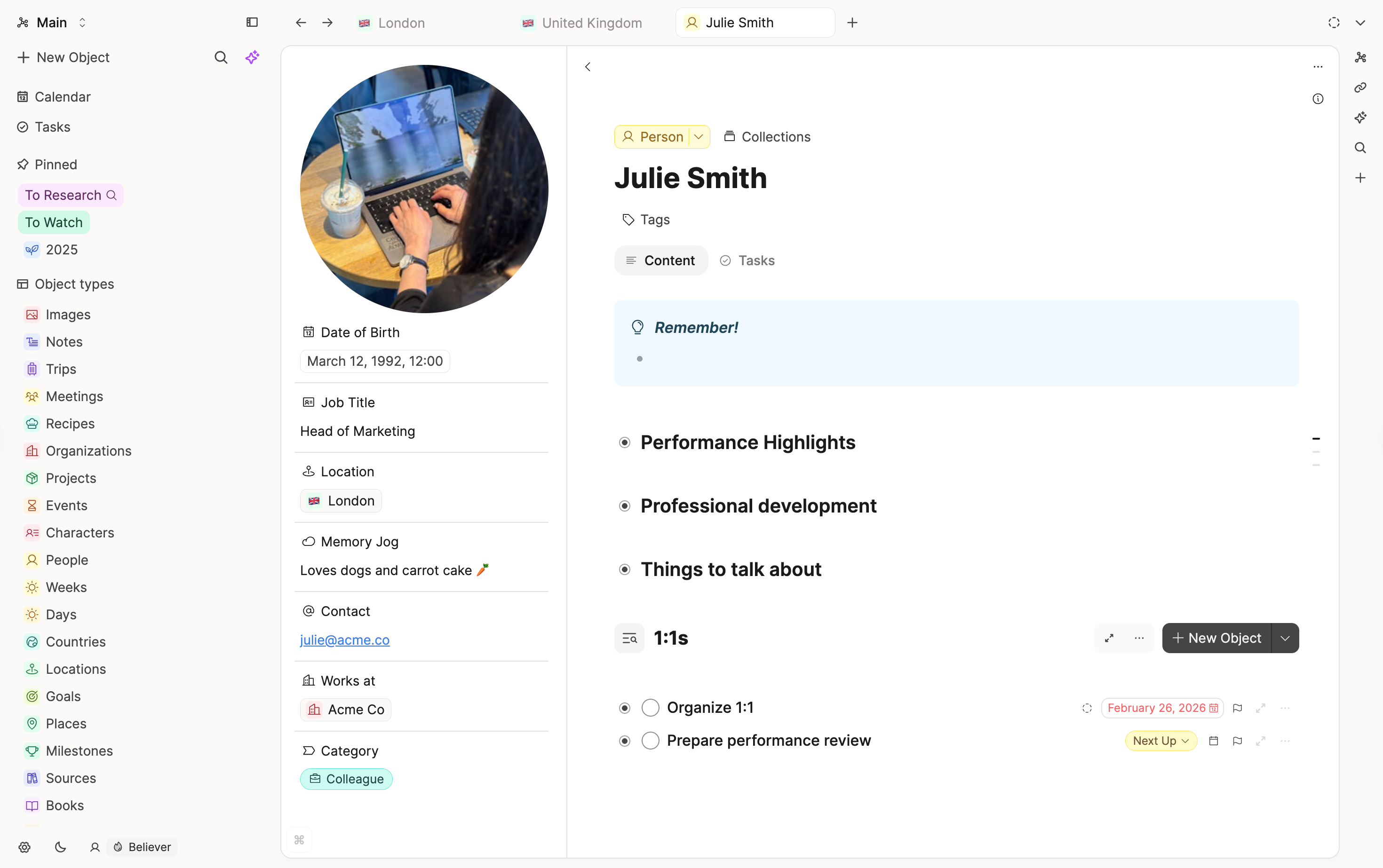
An object in Capacities can be displayed in three different modes:
- full-page as the main content
- in the preview modal
- in the side panel
In addition, you can have several tabs with their own state.
If you have multiple spaces, you can switch between them using the space switcher.
Full-page view
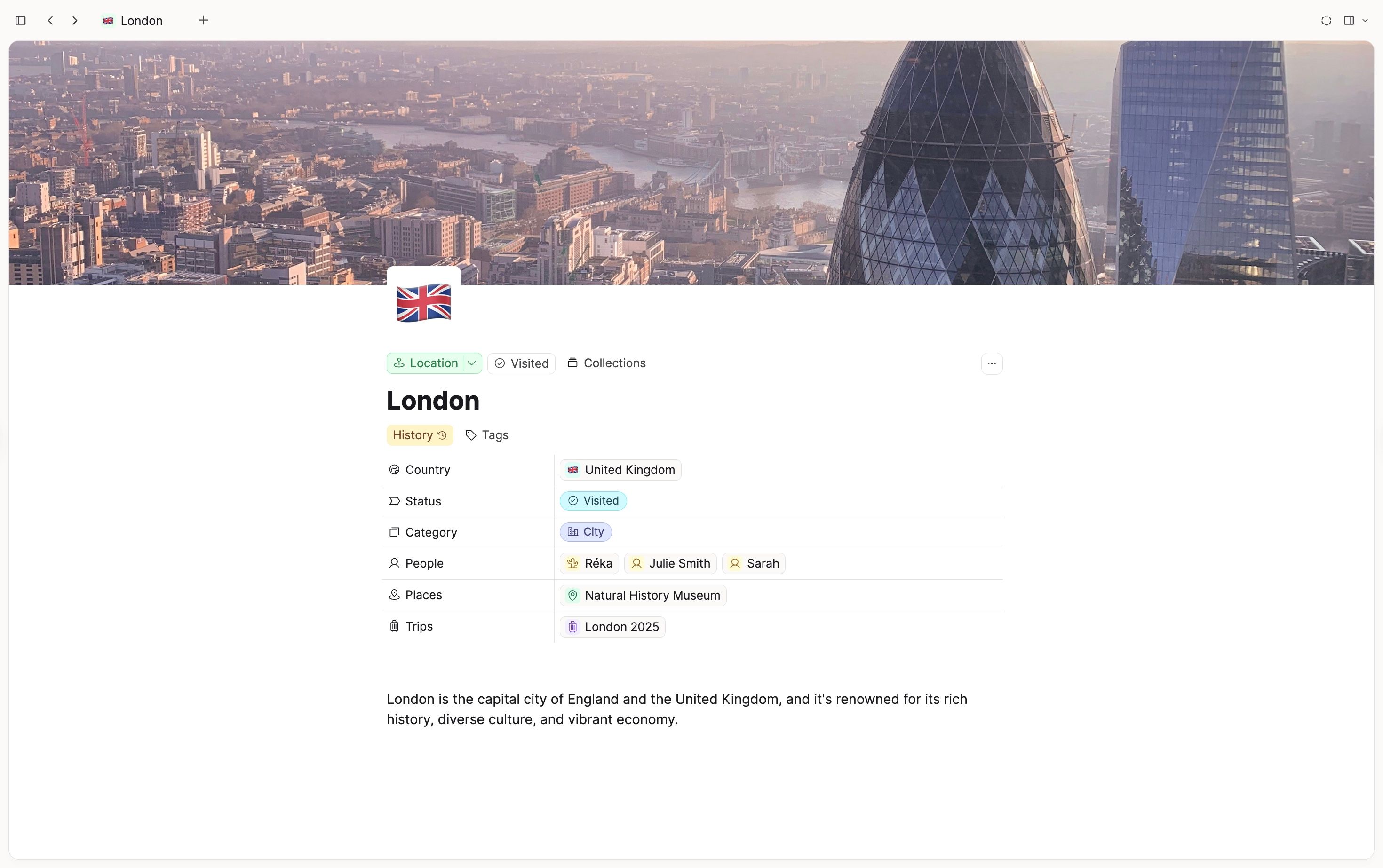
This is the standard way of displaying content in Capacities.
Preview modal
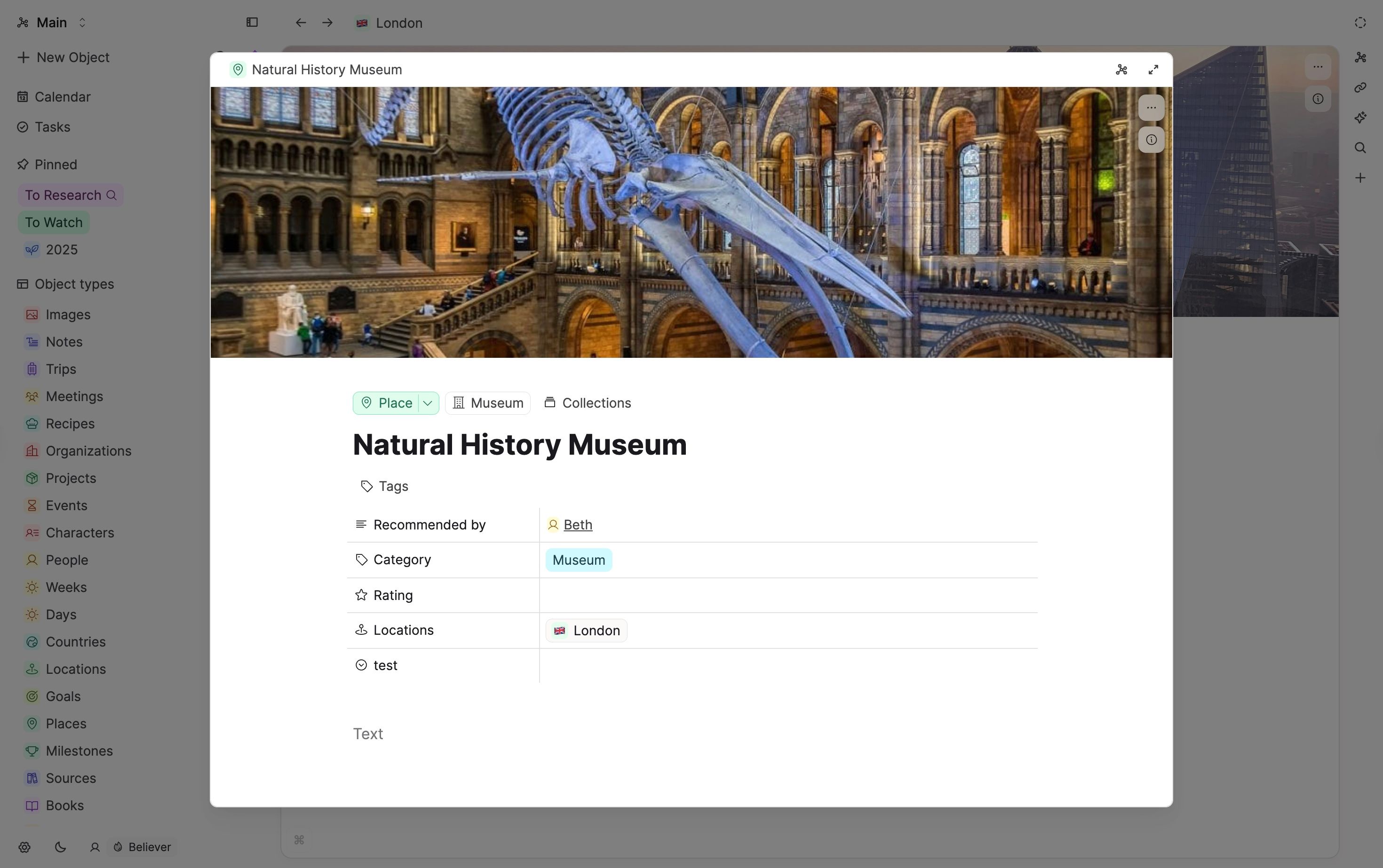
As the name suggests, the preview modal allows you to preview content and quickly skim through it. Content in the preview modal is still fully editable but you will have the best editing experience in the full-page view. The preview modal is useful if you want to have a quick peek at content, but don't want to switch to another context (yet). It is also the fastest way to navigate between several documents in a database or collection using the arrow keys.
If you open the content of a collection or tag page in the preview modal you can use the arrow keys to quickly browse through them.
This only works when you are not currently selecting or editing any text.
Side panel
The side panel allows you to display one or several additional objects right next to the main content and work on them simultaneously. That way you can work in a broader context and explore the relationships of different documents.
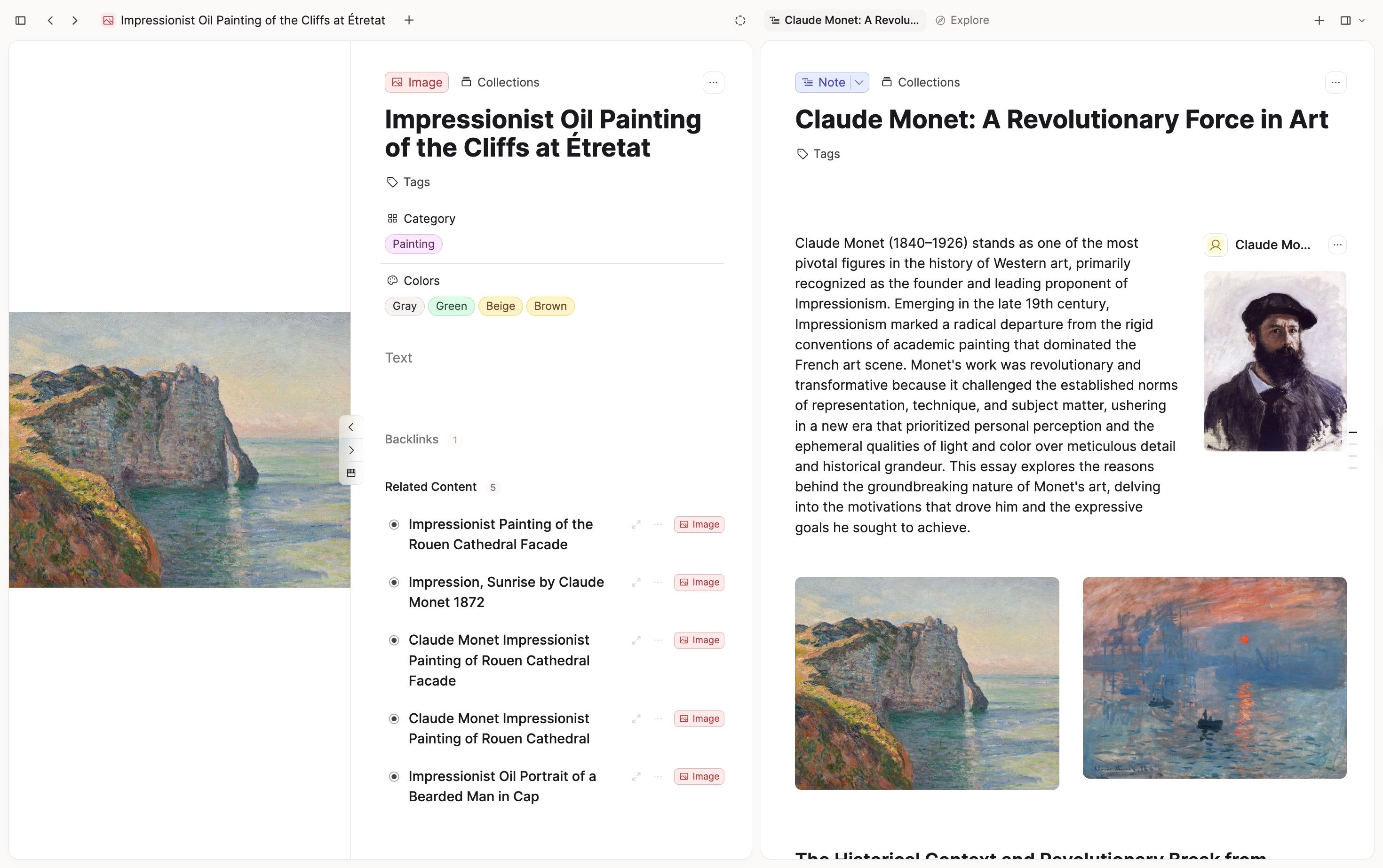
- Start from Explore - The side panel opens with an Explore tab by default. Use it to open contextual views such as graph view, backlinks, objects inside, and related content.
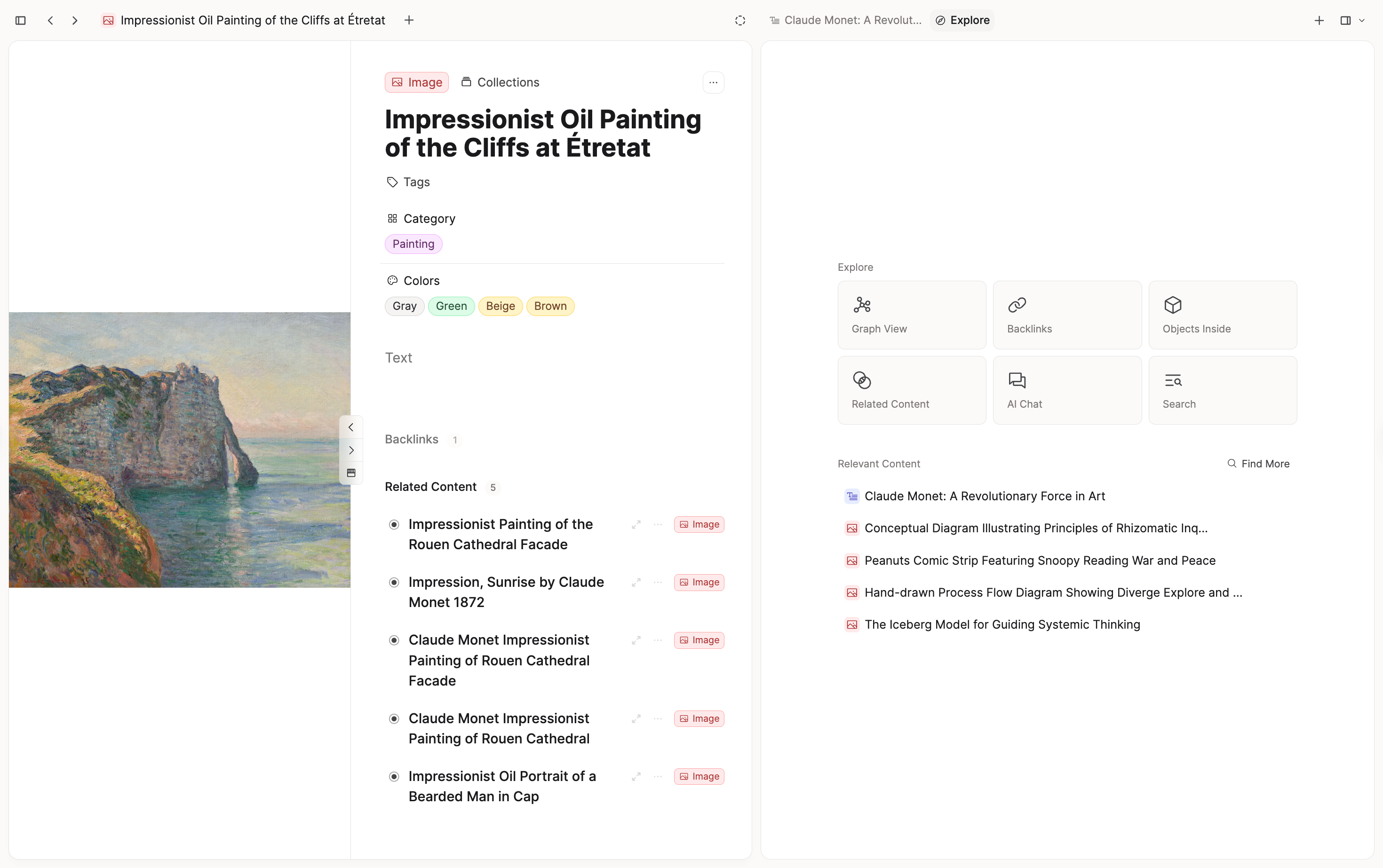
- Open something in the side panel - Shift-click an object.
- Open multiple windows in the side panel - Open one object/view in the side panel, open another and drag and drop that second tab underneath the first side panel window. Up to 3 screens can be used in the side panel. You can resize the windows in the right side panel.
- Swap content into the main panel - Drag a tab from the side panel onto the main editor area to swap it with the page currently open in the main panel.
- Open the side panel by dragging a tab - Drag an inactive main tab to the right edge of the window to open the side panel when it is hidden.
- Drag objects into the side panel - Drag objects from table, gallery, wall, and other views, or from the space overview in the left sidebar, into the side panel.
- Drop onto collections and tags - In collection and tag views, you can drop individual objects to add them where the view supports it.
- Drop onto the space overview - Drag objects onto custom sidebar sections, cover images, or specific objects in the left sidebar.
- Close an entry in the side panel: Hover over the name of the object you have open, click on the "x" at the top right of an entry in the side panel. On side panel tabs, double-click a tab to close it.
- Directly open a newly created content in the side panel: Simply hold shift when creating new content.
- Open a search result in the side panel: Hold the shift key when selecting an entry.
Objects inside
Objects inside are now shown in a dedicated section in the side panel.
Open the side panel and go to the Objects inside section to browse linked or contained objects.
You can also use this section to jump directly to the exact position of a linked or contained object in context.
Tabs
Tabs allow you to create several working environments and switch between them. The breadcrumbs at the top left, as well as the side panel, are persistent for each tab. Space tabs and side panel tabs share the same tab style.
- Directly open newly created content in a new tab: Simply hold the command key on Mac or the ctrl key on Windows when creating new content.
- Rearrange the order of tabs: Grab a tab in the tabs bar at the top and drag it to the desired position.
- Pin or unpin a tab: Right-click a tab and choose Pin or Unpin.
- Many open tabs: Tabs shrink to fit the bar instead of scrolling off screen. When space runs out, an overflow menu lists the rest.
- Preview on hover: Hover over a tab for a quick object preview without opening it. Object previews are not shown for the active space tab.
- Close a tab: Hover over a tab in the tabs bar at the top and click the "x". On side panel tabs, double-click the tab to close it.
- Opening the calendar in a new tab: Hold the command key on Mac or the ctrl key on Windows when clicking on "Calendar" in the left sidebar.
- Open a search result in a new tab: Hold the command key on Mac or the ctrl key on Windows when selecting an entry to open.
FAQs
- How can I open multiple notes at once?
In Capacities, you can open multiple notes simultaneously in basically two different ways:
Use the side panel: Hold shift-click to open content alongside your main note. Or bulk selct objects and click 'Open' in the bulk action menu at the bottom of the screen.
Open new tabs: Hold cmd-click (Mac) or ctrl-click (Windows) to open notes in new tabs. - How can I open a page in full screen automatically, without using the preview modal?
Go toSettings > Editor > Always open as full page. - I can't see the
xwhen I hover over the tab
If you are on a touch screen device, this is expected. You can click where the X should be anyway. The button is there, just not visible. You'll know you are near the button when the pointer changes.
Ask a question! - The Docs Assistant knows everything about the documentation, and the ideas and feature requests from other users.
Create a ticket on our feedback board. - Let us know if you have an idea for a feature, improvement or think there is something missing.
Request additions to the documentation. - If your questions are not getting answered, let us know and we will extend the documentation.