Graph view
Graph view
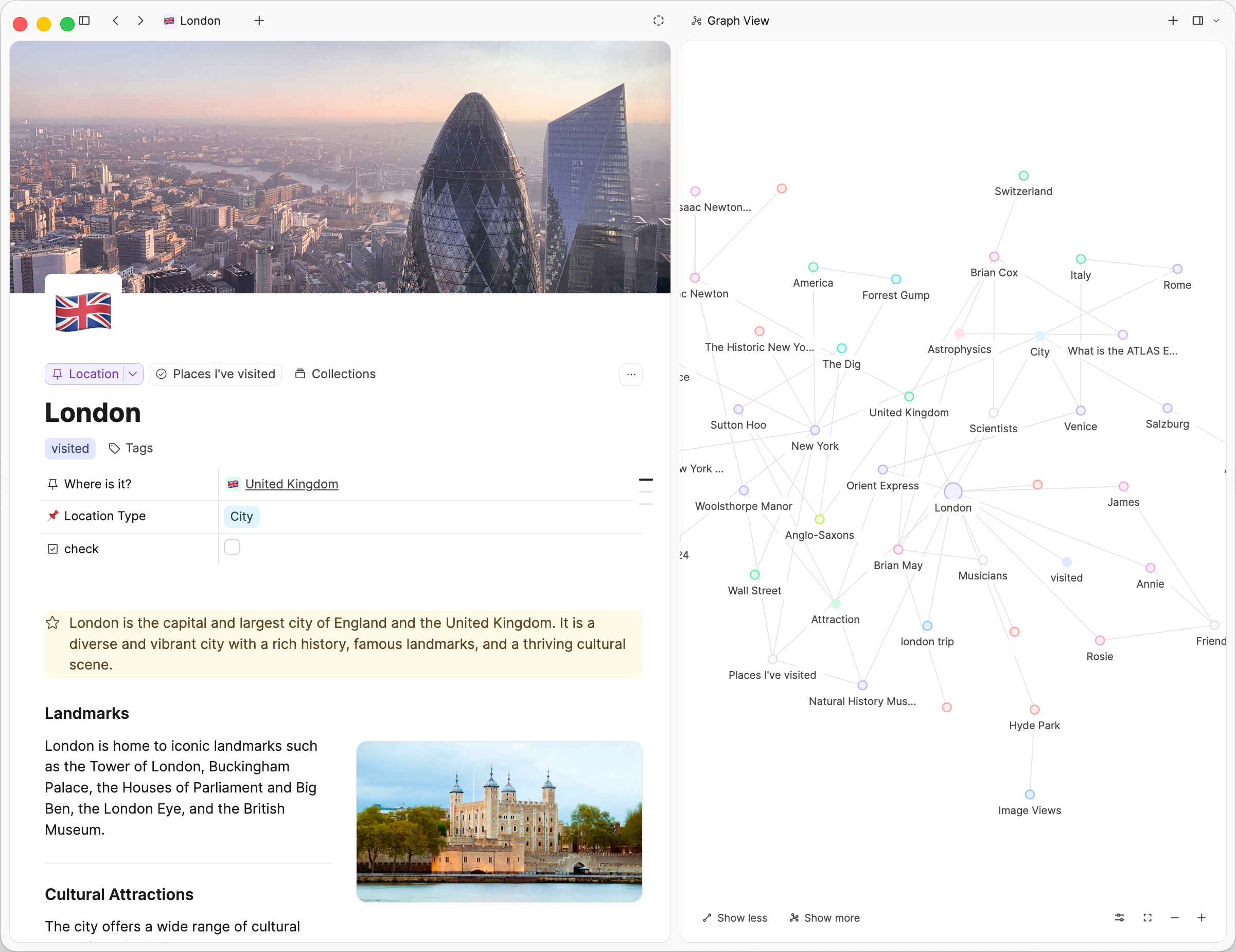
Graph view shows how one object connects to others. Each link between notes becomes a line in the graph, so you can see the local neighbourhood around the note you have open.
It is always a local graph for a single object. Capacities does not have a graph of your whole space.
When to use it
Use graph view when you want a visual map of what an object links to and what links back to it. That is useful when you are following related notes from one home object, for example a Person linked to meetings and places.
If you need a list of connections instead of a diagram, use backlinks and related content in the same Explore area.
How to open graph view
- Open a single object as the main content on the left (for example a Person or a Page).
- Open the right side panel if it is closed.
- Stay on the Explore tab.
- Click the graph view icon.
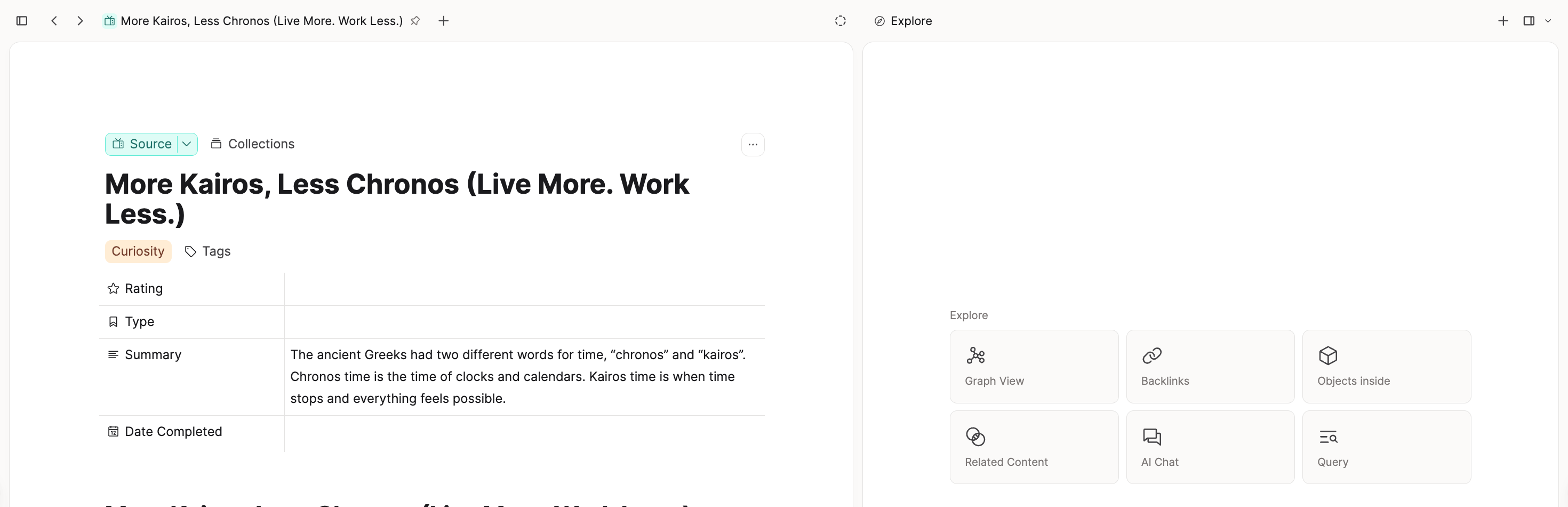
You need an object open in the main panel. Graph view is only available for one note at a time.
If you cannot see graph view in Explore
If the graph view control is missing from Explore, you almost certainly do not have a single note open as the main content on the left.
Graph view does not appear when the main panel is something else. Common cases:
- an object type dashboard (for example all People)
- All for a type
- search results
Open any one object first, then check Explore again.
What the graph shows
The graph centres on the object you have open and shows incoming and outgoing connections.
- Links from properties can appear with the property name as a label between nodes.
- Links created in the page body still appear as connections, usually without a property label.
- Backlinks are part of what the graph draws. Unlinked mentions are not.
You can click Show more to reveal more connections around the current object.
You can click on a node to navigate to that object.
When you open graph view from Explore while viewing shared content, the public subgraph can appear marked in green. See Sharing in a knowledge graph.
No full-space graph
There is no global or full-space graph view. Each graph is scoped to one object.
You can follow the request for a wider graph on this feedback ticket.
FAQs
- Where is the graph view?
Open one note on the left, open the side panel, go to Explore, and click the graph icon. See How to open graph view. - Why is graph view missing from Explore?
Graph view only works when a single note is open as the main content. If you are on a dashboard, All view, or another overview screen, open a note first. - Can I see a graph of my whole space?
No. Graph view is local to one object. See No full-space graph. - Is graph view available on tablet?
Not currently, while tablet UI work is in progress. Use the desktop app, web app, or phone app instead.
Where to go next
- Views: object views and data views
- Navigation: Explore and the side panel
- Backlinks: the connections that feed the graph
- Networked note-taking: linking and when the graph helps
- Where is the graph view?: short FAQ version of the open steps
Ask a question! - The Docs Assistant knows everything about the documentation, and the ideas and feature requests from other users.
Create a ticket on our feedback board. - Let us know if you have an idea for a feature, improvement or think there is something missing.
Request additions to the documentation. - If your questions are not getting answered, let us know and we will extend the documentation.