Backlinks
Backlinks
Backlinks help you see where an object is referenced across your space.
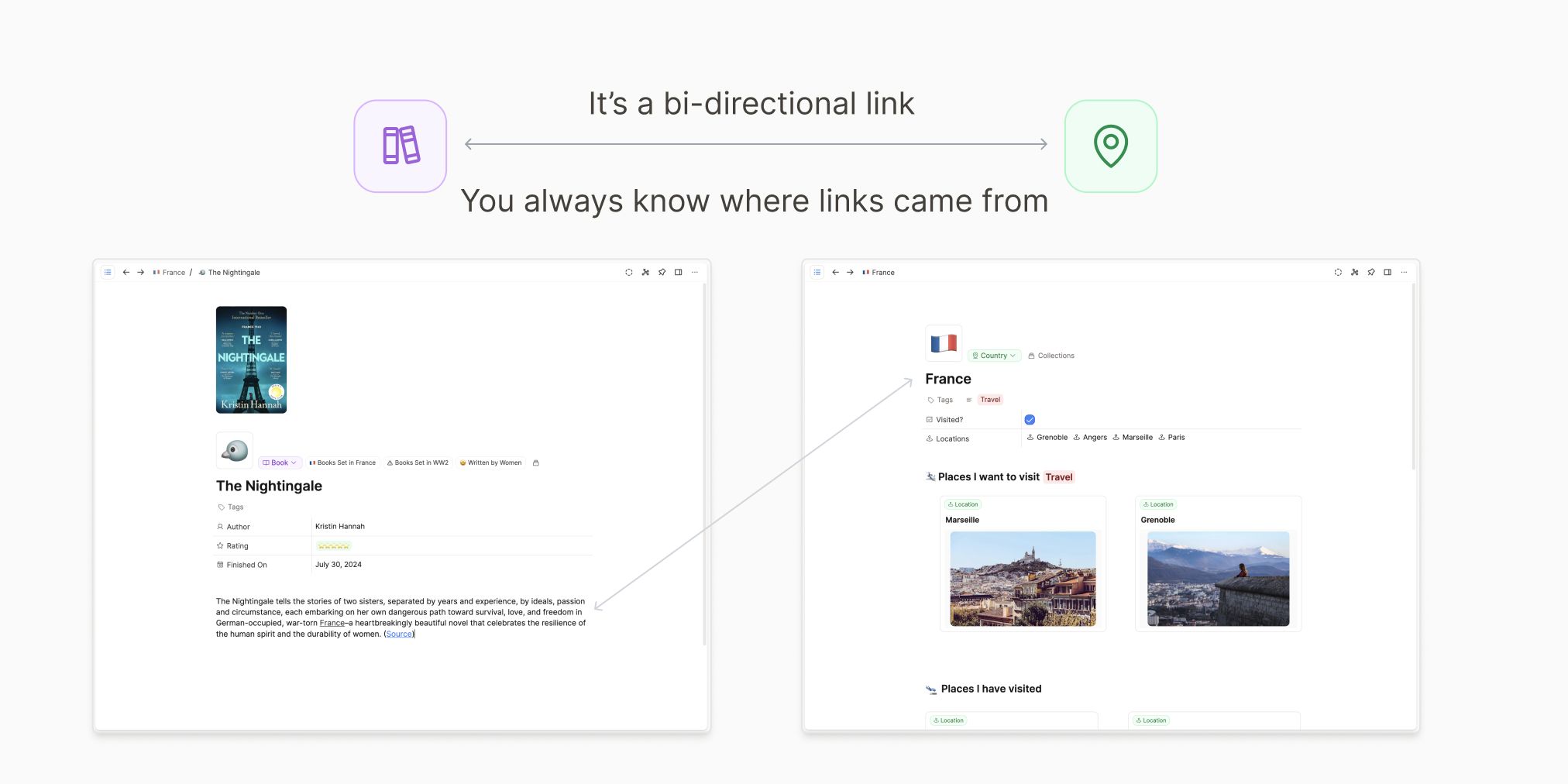
What are backlinks?
A backlink is created when one object links to another object. You can think of it as a path back to where the link came from: if your note “Paris” links to “France”, the “France” page gets a backlink that leads back to “Paris”.
This is what makes backlinks practical: they help you retrace your thinking and quickly reopen relevant context.
Backlinks create the links in the graph view.
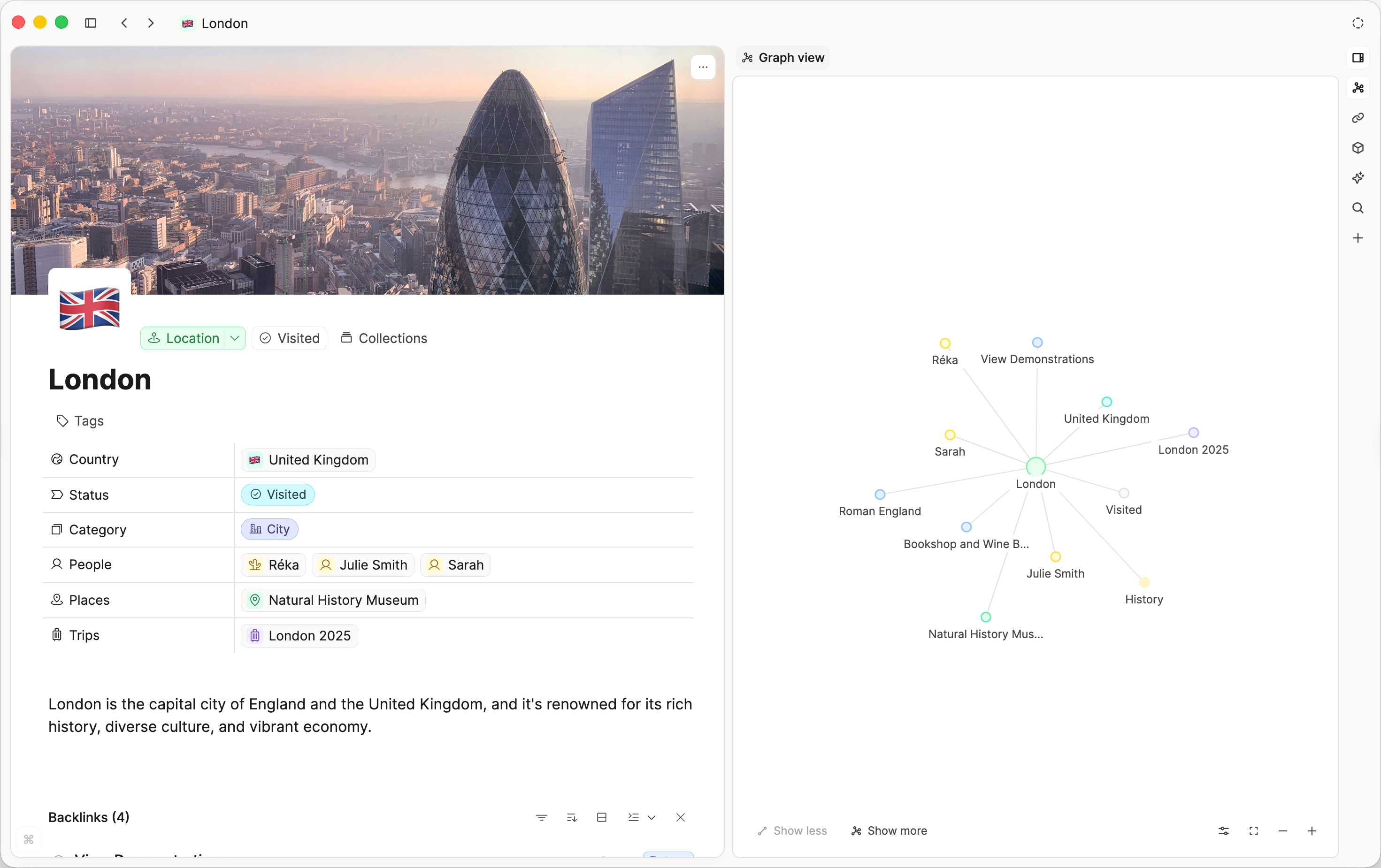
Where backlinks appear
All backlinks are grouped together at the bottom of your object in a section titled "Backlinks". If you see no section, there are no backlinks. To create one, open a different object and link back to the object you had open first. Use @ or [[]] to link to existing content.
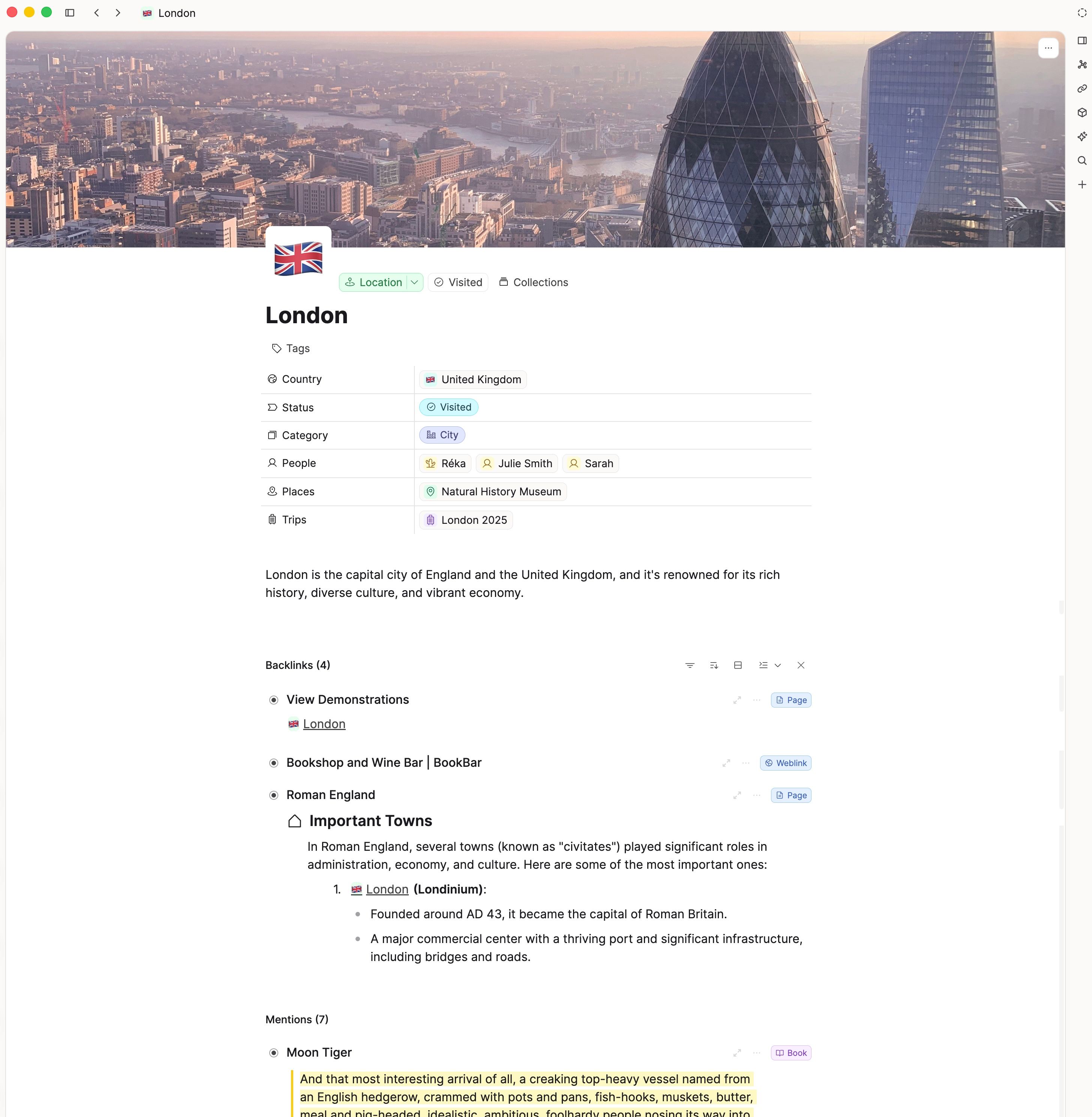
Backlinks vs unlinked mentions
Backlinks are explicit links you created (for example with @ or [[]]).
Unlinked mentions are text matches where an object title appears, but no explicit link exists yet.
Unlinked mentions can help you discover potential connections, while backlinks represent confirmed connections.
If you are wondering when to promote an unlinked mention to a backlink, ask yourself if you want to see that particular block in the backlinks section of the note it will link to. If it will help develop your understanding, then it is worth it. If not, don't worry as it will remain in the unlinked mention section anyway.
As a rule of thumb, link for meaning, not for volume: add backlinks where they improve context, skip links that add noise.
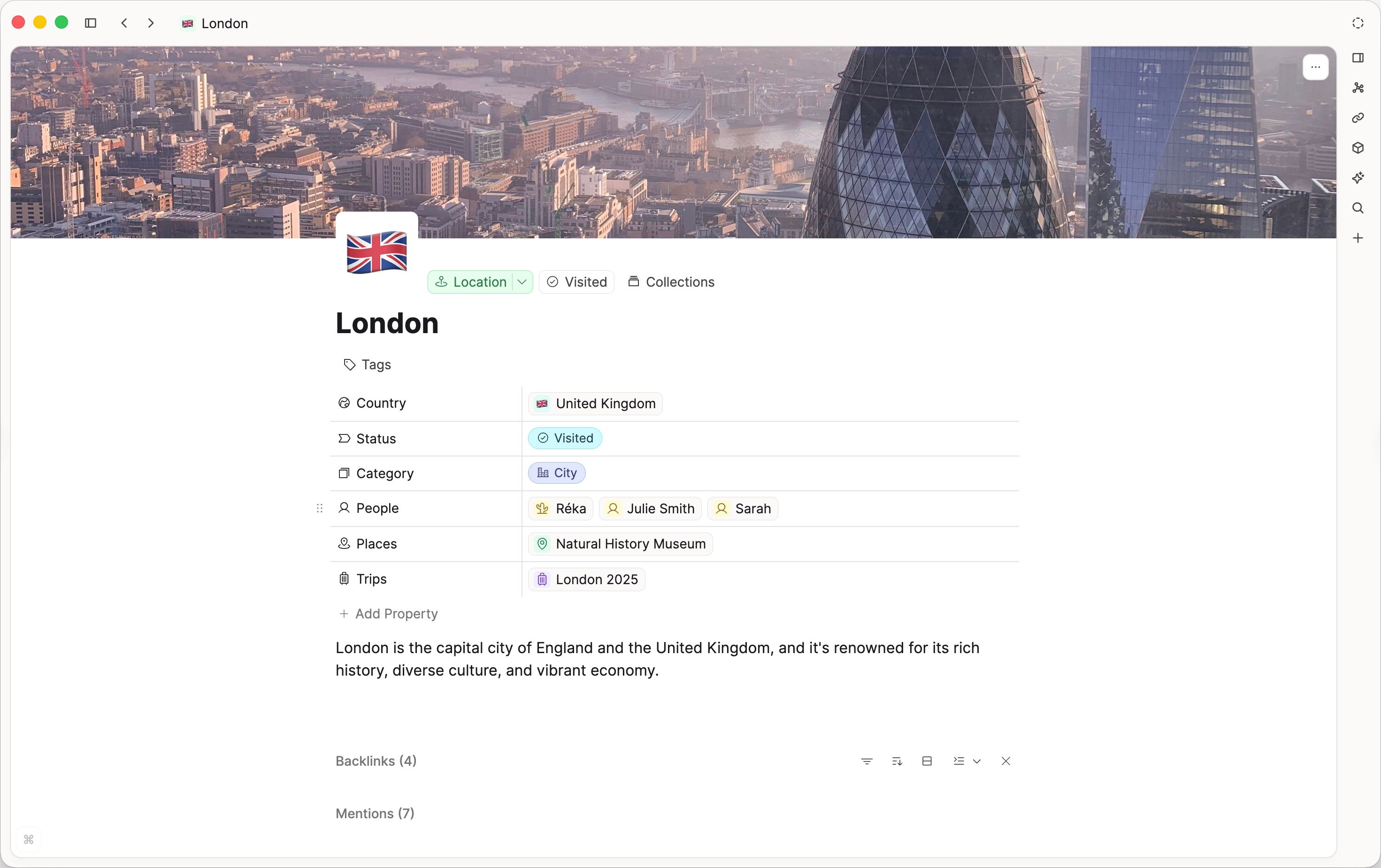
Default open/collapsed behavior
Backlink and mention sections can be expanded or collapsed by default in object pages. Go to Settings > Editor to set this up.
The open/collapsed state can depend on your editor display preferences and per-object interaction, so you can keep the view focused while reviewing notes.
Backlink content view
Backlinks are shown with context so you can inspect where the reference comes from and decide whether to open the source object.
This makes backlinks useful as both a navigation aid and a review surface for connected content.
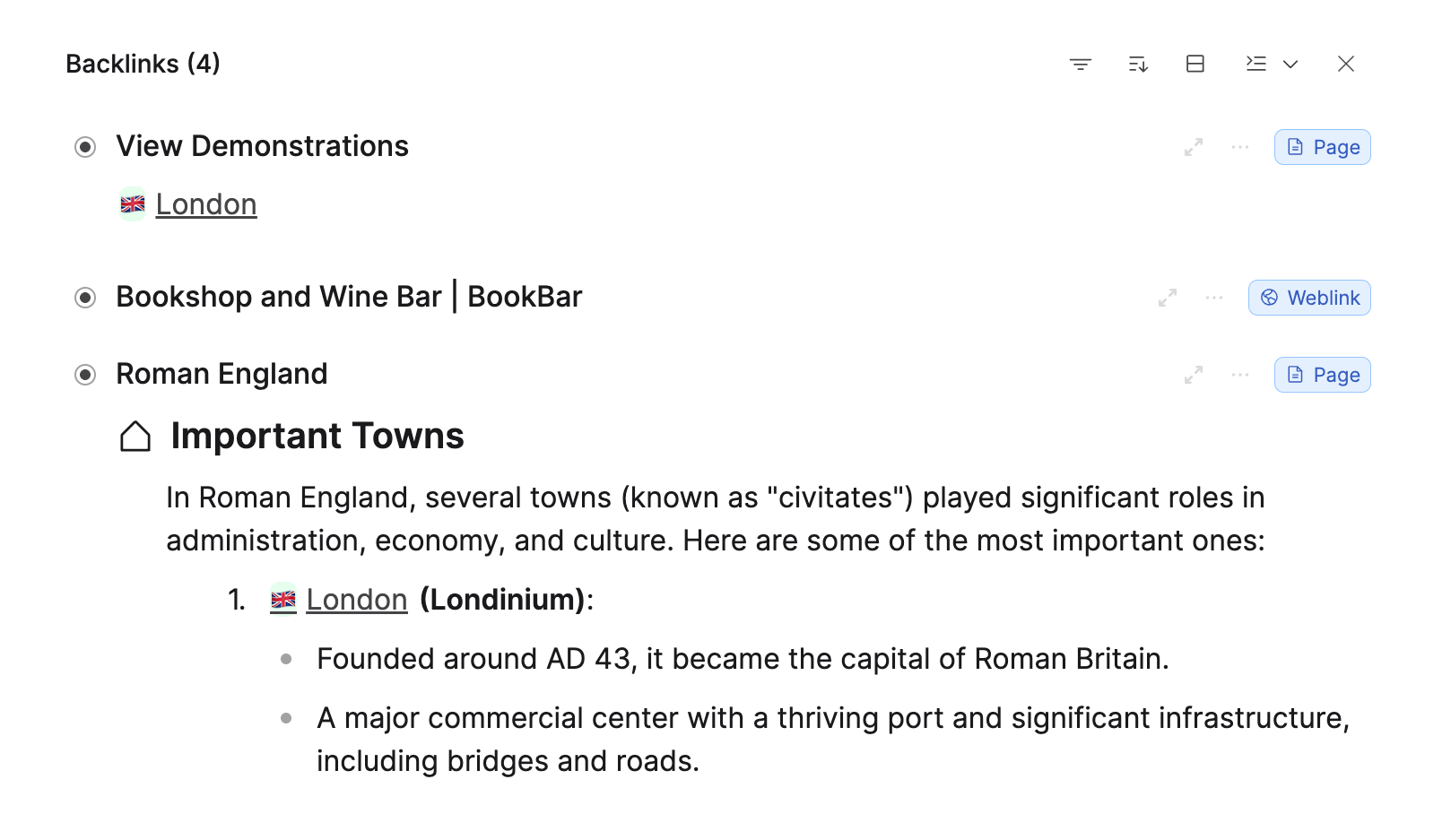
On mobile, backlink views cannot be changed.
Objects inside in the side panel
Objects inside are now shown in a dedicated section in the side panel.
Open the side panel and go to the Objects inside section to browse linked or contained objects.
You can also use this section to jump directly to the exact position of a linked or contained object in context.
Backlink query filtering
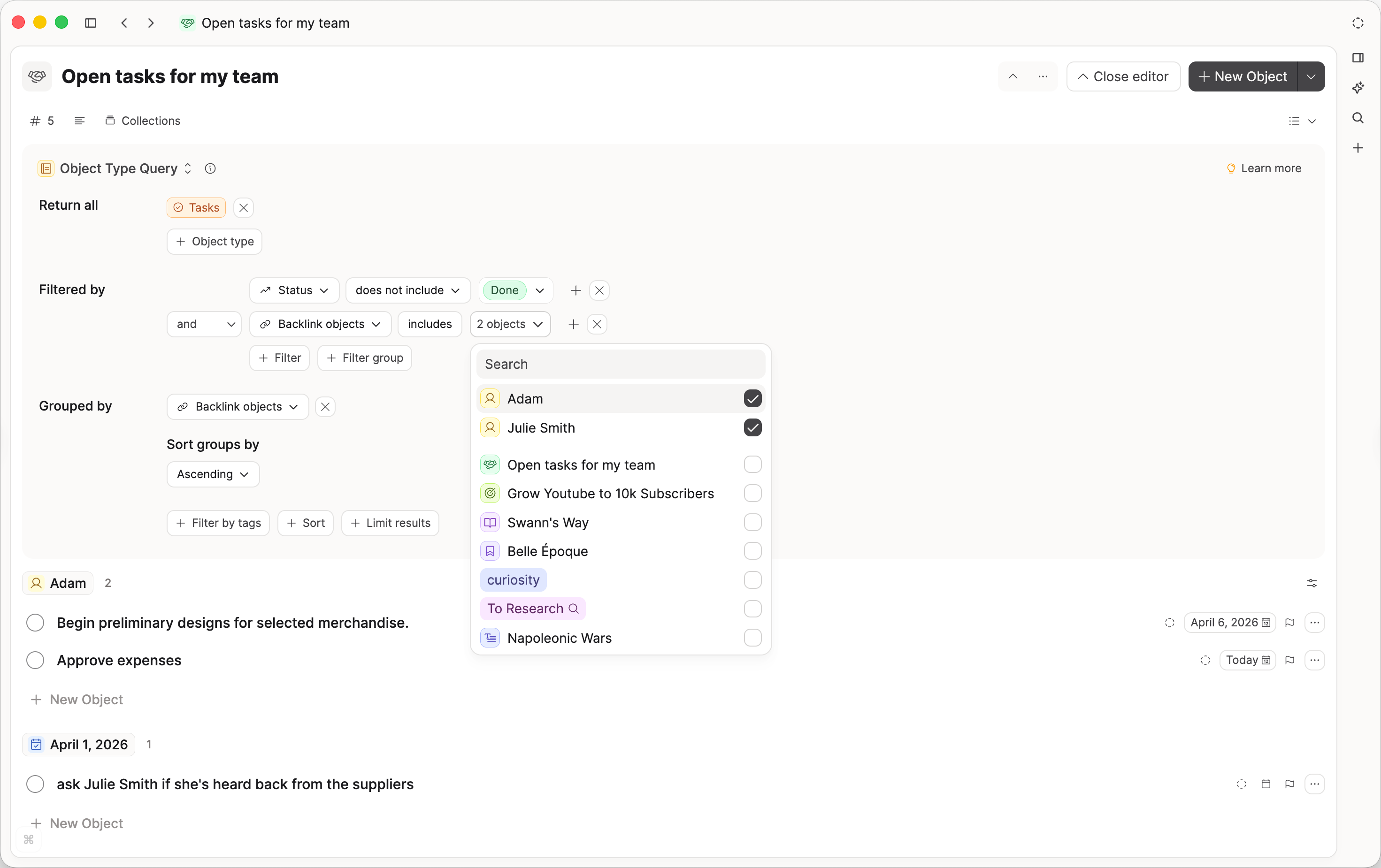
You can filter queries using Backlink objects to return items that link to specific objects.
This is useful for context-focused dashboards, for example collecting tasks or notes connected to a project, person, or topic.
Example (tasks linked to specific projects or team members):
- Filter:
Statusis notDone - Filter:
Backlink objectsincludes the specific project or person (search the project title or team member name) - Group by:
Backlink objects
This gives you one view of open tasks grouped by the related project or person.
See also:
FAQs
- How do I link to a person in a page?
You can link to a person by typing@{person name}. You can do this from any note. You can also link to any of your notes the same way.
If the person doesn't exist yet, create one by typing/person. - How do I mention or link to another note or person?
You can use @ to mention an existing object. - Can I query every block that links to a specific person?
You can't do this with queries. However, if you open that person's note, the backlinks will show you every link.
If you are on Capacities Pro or Believer, you will also see unlinked mentions, which show you every time the name has been mentioned, but not linked.
If you refer to a person with multiple names, make use of the alias property. - Can I find every block that mentions an object?
You can't do this with queries. However, if you open that object, the backlinks will show you every link.
If you are on Capacities Pro or Believer, you will also see unlinked mentions, which show you every time the object has been mentioned, but not linked. - Can backlinks show the exact block where a person is linked?
Yes, this is supported out of the box. - Can I create a query for block-level backlinks?
No, block queries are not supported. Use the objects themselves for this. The backlinks and unlinked mentions (Pro) will show you what you need.
Ask a question! - The Docs Assistant knows everything about the documentation, and the ideas and feature requests from other users.
Create a ticket on our feedback board. - Let us know if you have an idea for a feature, improvement or think there is something missing.
Request additions to the documentation. - If your questions are not getting answered, let us know and we will extend the documentation.