
Integrations
Readwise integration
Integrations
Readwise integration
Readwise and Reader are excellent tools for highlighting books, PDFs, articles and more.
The Capacities and Readwise integration allows you to selectively import specific documents as Capacities objects.
From here, you can start working with them: connect to other notes, add notes, or turn highlights into objects so you can make the most of what you read.
Readwise and Readwise Reader work together behind the scenes. So everything below applies to both products.
How it works
Once connected, you can sync your Readwise or Reader documents, along with all its highlights, into Capacities.
Capacities will not automatically synchronize all your existing documents in Readwise and Reader to your notes. There are two explicit ways to get content into Capacities.
- By adding a “Sync tag” to your document in Readwise or Reader
All documents in Readwise or Reader tagged with your “sync tag” will get synchronized to Capacities. If you continue adding highlights, the will also get added to Capacities.
If you only have one space configured in the integration settings you also have the option to “Auto-import all new content” so you don’t have to manually apply the tag every time for new document. - By using the “Import from Readwise” option in Capacities
You can either search for “Import from Readwise” in the command palette and then search for your document in Readwise or Reader.
Open the search bar (Cmd P / Ctrl P) > Type Readwise > Click ‘Import from Readwise’ > Search the title > Click to import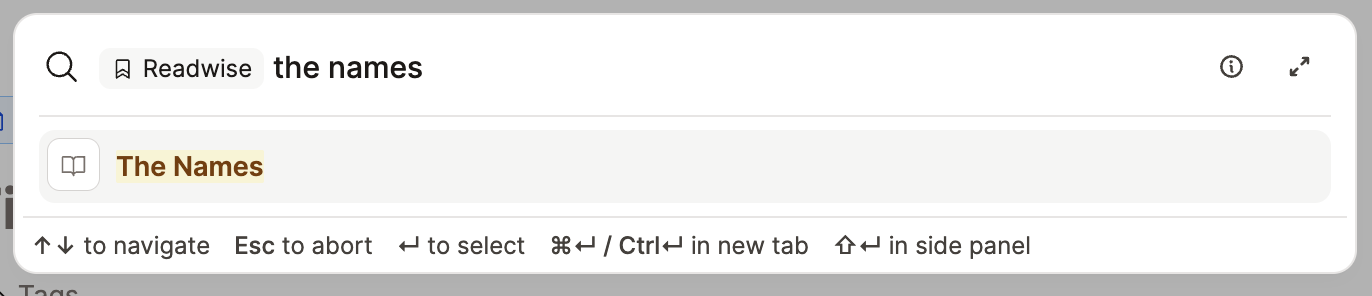
Or you can click on the “Import from Readwise” option on the “New” button in your object types you linked to in the settings.
Capacities will apply the “sync tag” to your Readwise or Reader documents and will synchronize the document from now on.
The integration is one-way synchronized. Objects and properties get created once in Capacities but not updated afterwards. Highlights from Readwise and Reader will get synchronized but changes to them will not be synchronized.
Any changes in Capacities will not get synchronized back to Readwise or Reader. Capacities is the place where you process your notes. You can do this without affecting your documents in Readwise or Reader.
Connect Capacities to Readwise
Go to Settings > Readwise Integration and click on “Connect to Readwise” to give Capacities access to your Readwise and Reader content.
Configure the Integration
In the integration settings, you can select a set of spaces you want to synchronize content to.
Your first space will be chosen for initial setup, but you can ‘Delete’ and choose a different space if you’d prefer. Click ‘Add space’ to do this.
Sync tag
In the setup of your space, you need to define your “sync tag”. You can choose your own tag. It is case-sensitive. If you apply this tag to your document (not your highlight) in Readwise or Reader, it will get synchronized to Capacities.
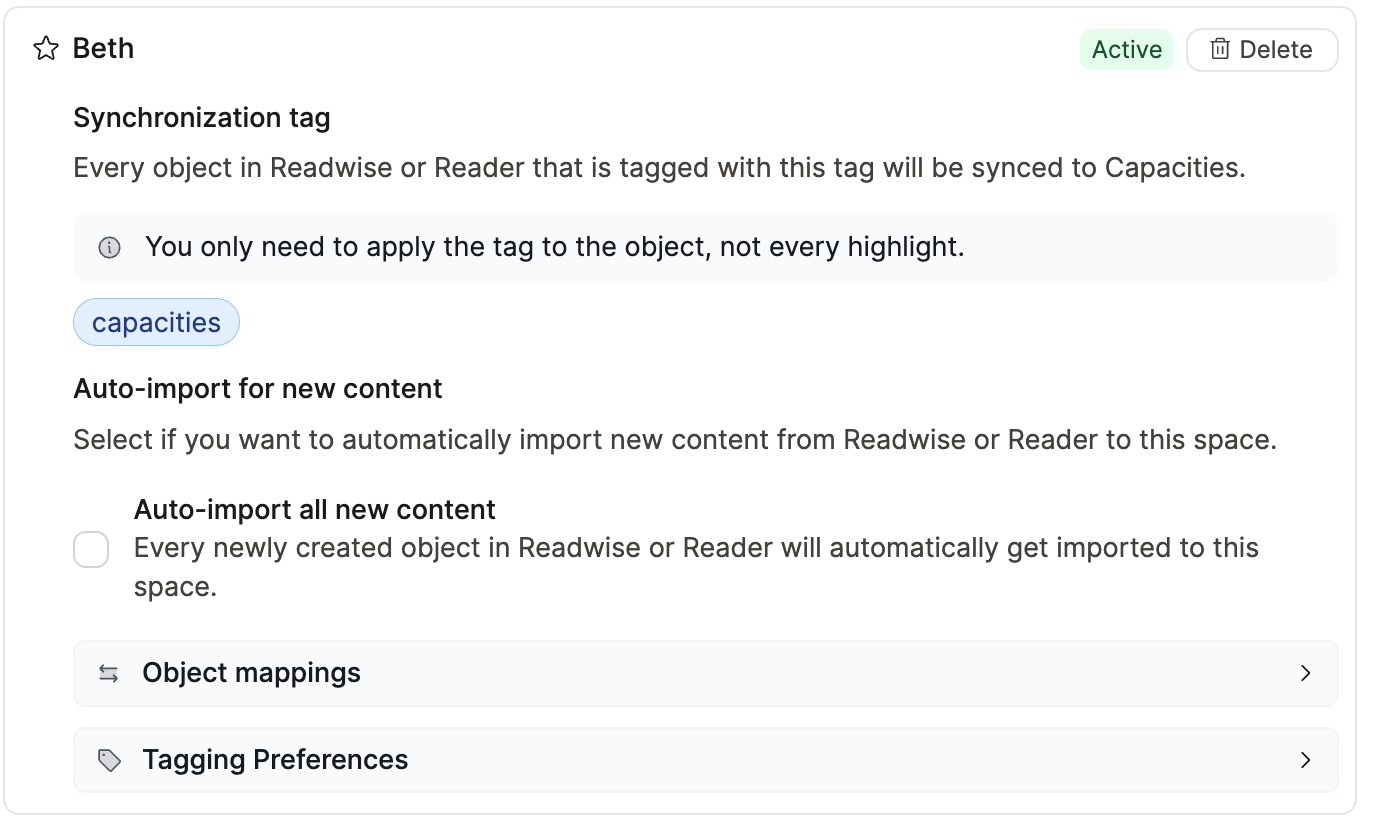
Auto-import all new content
The default behavior of this integration is only to bring Readwise/Reader documents tagged with your sync tag. If you would like to bring all new highlights into Capacities automatically, click ‘Sync all new items’
Capacities will then automatically sync new Content to Capacities. Once a document has been imported, the integration will automatically tag it with the configured sync tag.
This does not bring in all the documents you’ve ever highlighted.
Documents created in Readwise before the connection with Capacities will stay in Readwise. If you want to bring them into Capacities, use your sync tag or the import option.
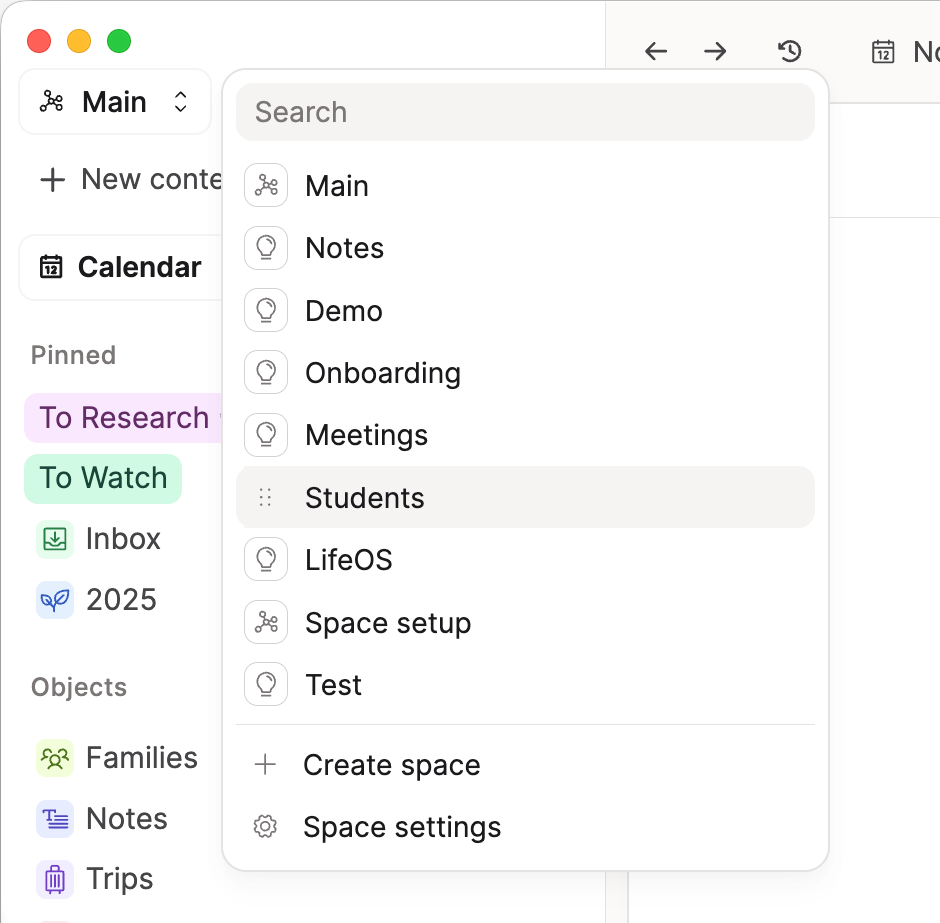
This works with one space only. A 'space' is where all of your object types live. To see what spaces you have, click on the space switcher in the top right of Capacities. If you are a new user, you will have one space called 'Notes'.
Object Mappings
Readwise or Reader documents become Capacities objects. For most document types, you can choose which object types they should become and how text properties can be mapped.
You can map text properties in your Readwise and Reader documents to text and block properties in Capacities
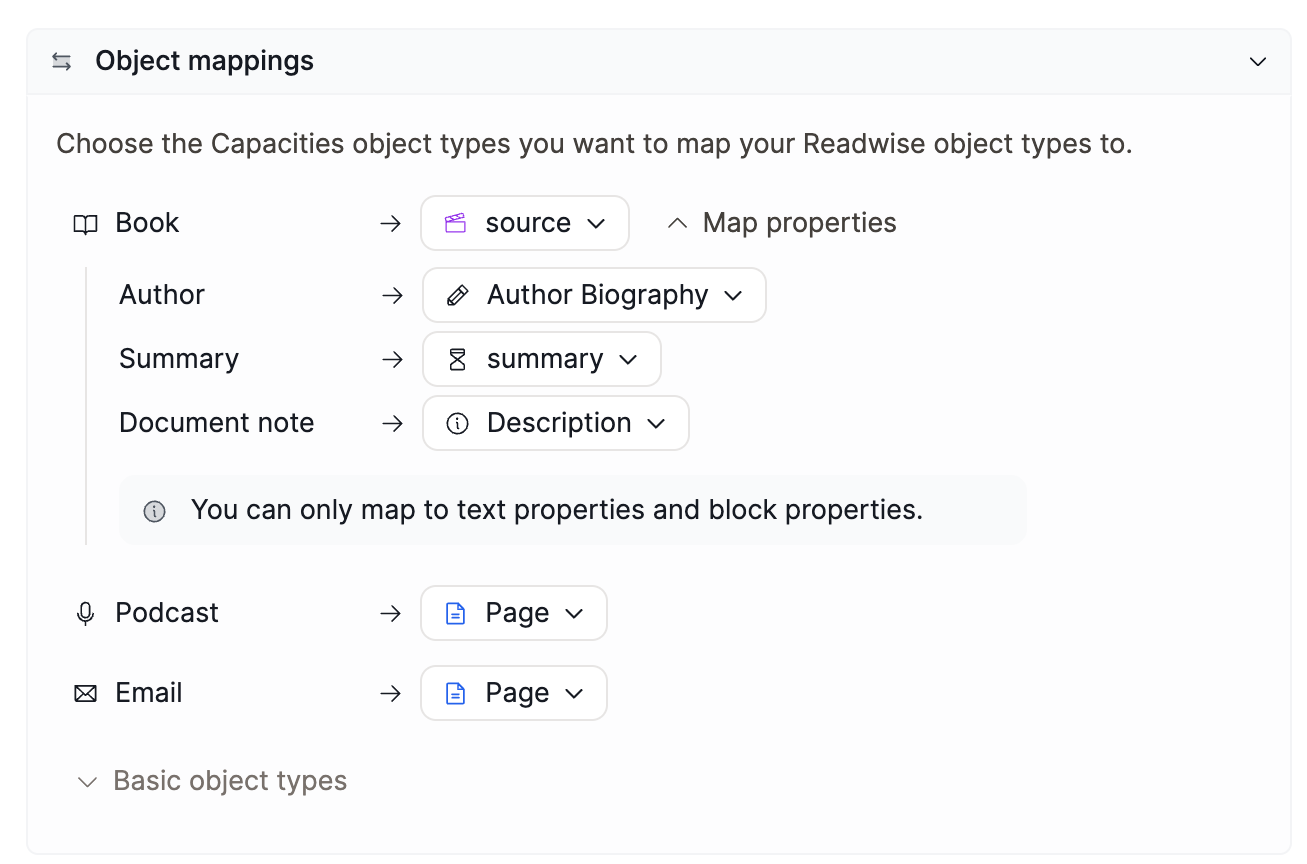
URL-based content will automatically get analyzed and mapped or uploaded to Capacities’ basic object types like PDF, files, or weblinks. Articles, Videos, Podcasts and RSS feeds coming from Readwise/Reader default to becoming weblinks, but they can be mapped to a custom object type with a source URL property.
Tagging preferences
If you have applied tags in Readwise or Reader, you can choose what to do with them in Capacities:
- Ignore tags - No tags will get imported
- Match to existing tags - Only tags that already exist in Capacities will be added
- Import all tags - Tags that do not yet exist in Capacities will get created
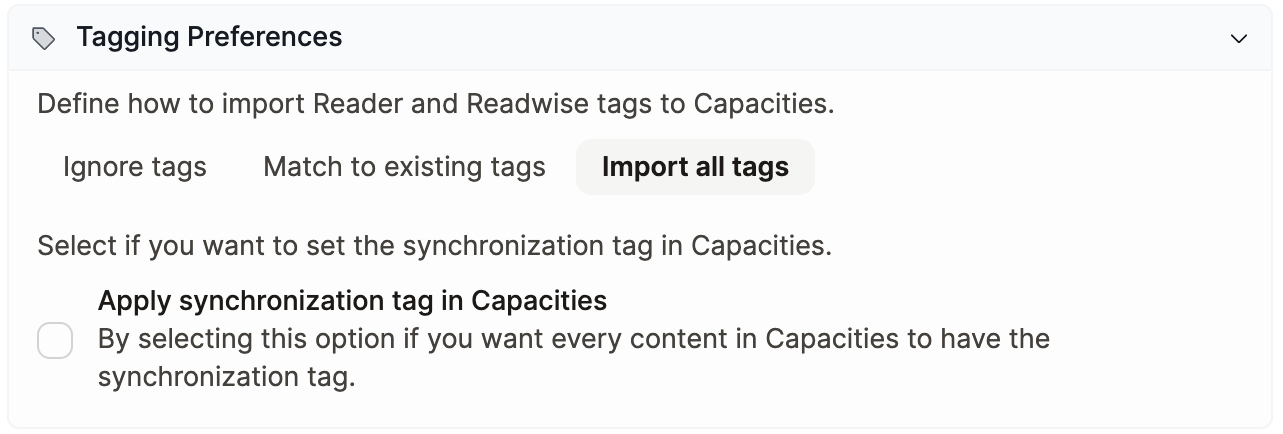
On top, you can also choose to import the sync tag or not.
If you want to have a place for all your Readwise imports, you can, for example, name your sync tag “capacities-readwise” and select this option. You can then open this tag to see all content from Readwise or Reader
Working with Highlights
Once you have documents and highlights from Reader or Readwise in Capacities, you can process them so they become meaningful knowledge to you.
If you want a practical system for this, follow our Reading workflow use-case.
Refine highlights
Before building on them, you might want to clean up and refine your highlights:
- Rearrange highlights to reflect a logical or thematic flow. Click the six dots to the left of a highlight block and drag to wherever you want it.
- Edit highlights to clarify context or to fix formatting if the original highlight missed any text.
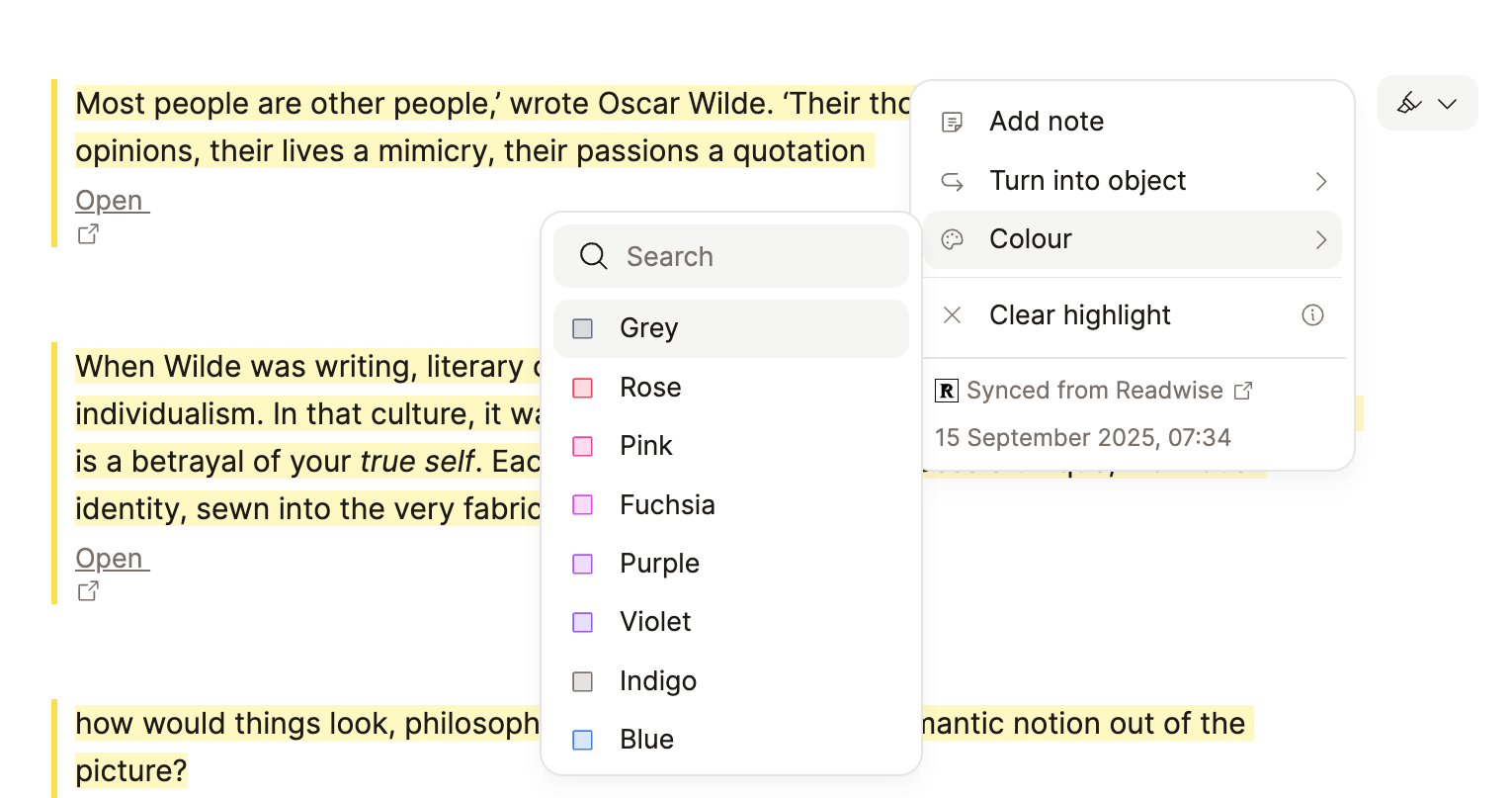
- Change colors to visually differentiate ideas (e.g., insights, questions, references).
- Delete irrelevant or duplicate highlights to reduce clutter. Remember all the highlights remain in Readwise too!
Annotate and Expand
It’s important to extend your highlights to integrate them into the rest of your knowledge work. To do this, you can:
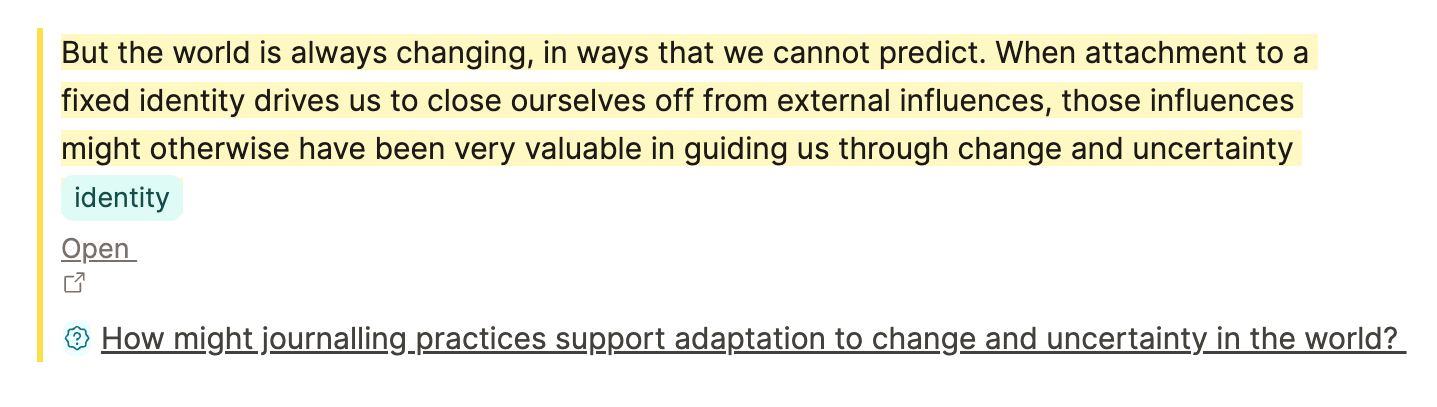
- Add your own notes
- Add relevant tags
- Link to relevant notes
This builds context and makes your thinking visible. Linking to other notes or tags makes finding the highlight in useful contexts very easy.
Turn highlights into objects
Capacities lets you convert a highlight into its own object. Here are some other ideas of new objects you could create from your highlights.
- Concepts (e.g. serendipity)
- People (e.g. Isaac Newton)
- Quotes
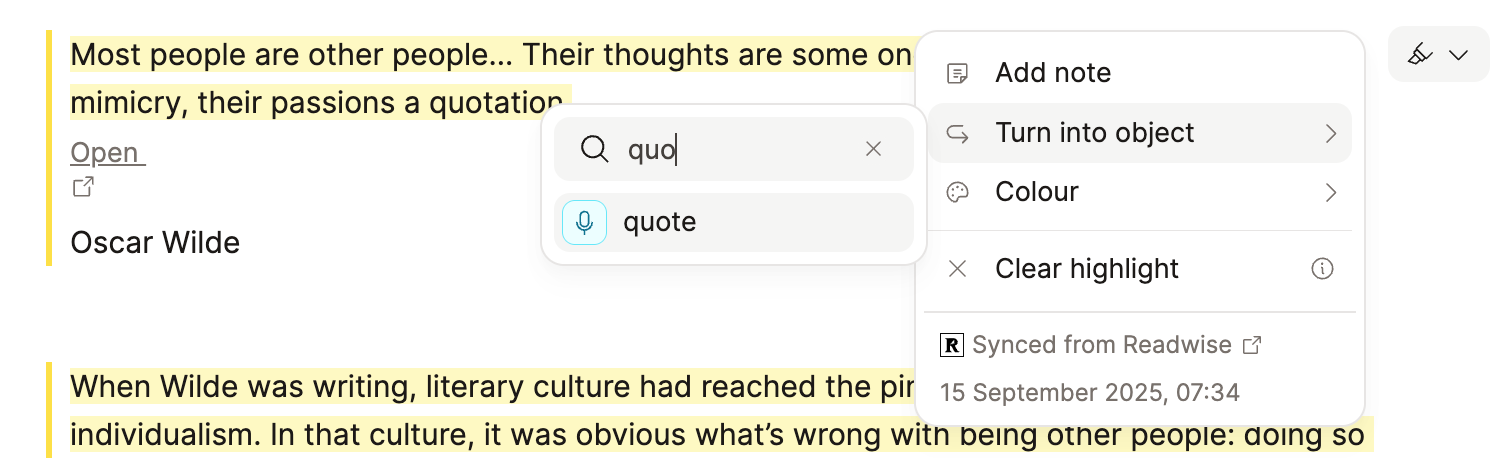
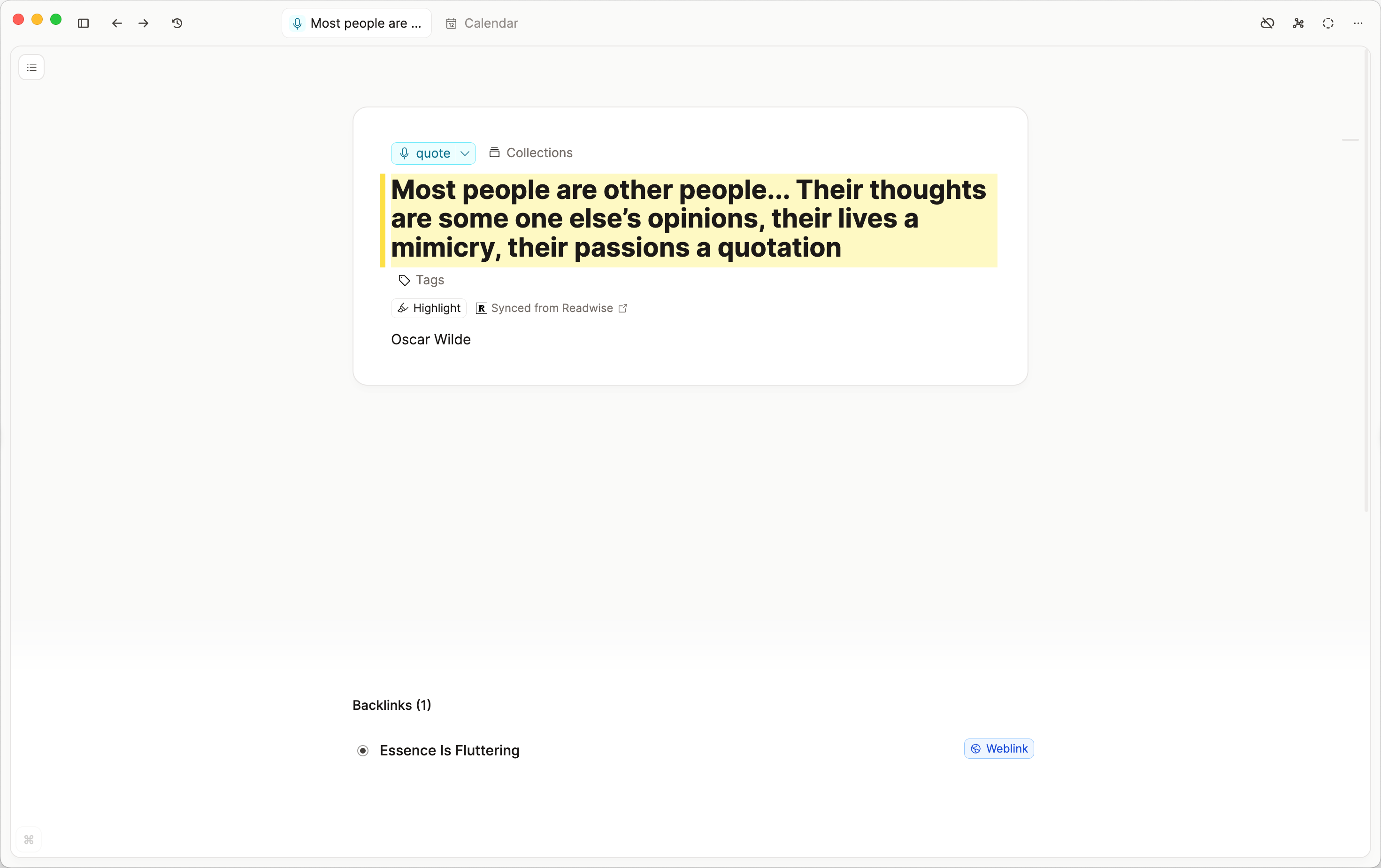
These objects can be reused and linked elsewhere in Capacities.
FAQs
- How can I bring all my highlights into Readwise that I've already collected?
This is not possible. You can selectively bring items in via the sync tag or by search. - My Kindle highlights do not appear or take longer to sync. Why's that?
New highlights take time to propagate to Capacities. Capacities usually synchronize with Readwise within a 15-minute interval.
Readwise sources like Kindle or Kobo sync on a different schedule, like once a day. Capacities can only read highlights that Readwise has already processed. Please check if highlights are available in Readwise or Reader, and check their documentation for synchronization delays. - How often are Readwise highlights synced to Capacities?
We process new highlights from your Readwise account every 5 minutes. This means that, in the worst case, your highlights will be imported 5 minutes after you created them.
Errors and Issues
If you’re having issues with the integration, you can do the following:
- Please first make sure that you've added highlights, simply adding a document to Readwise or Reader will not trigger the integration.
- Some highlights might take time to get synchronized. Depending on the highlight source, you may need to wait up to a day to get it automatically. Check the FAQs section for more details.
- For problems with Readwise or Reader, please refer to their documentation or their support.
- If you don't have "Sync all new items" enabled, try re-tagging the items that are not being synced to Capacities.
- If the issue is related to the integration or Capacities, create a ticket on our feedback board with as many details as possible so we can help you as fast as possible.
Roadmap
This is a “Version 1” of the Readwise integration. Here are some ideas we have in mind without a clear timeline or prioritization:
- Author property as Object select: Allow to map the Author field in Readwise to an People object select property.
- Query Readwise Objects: Allow to filter for all objects coming from Readwise or Reader
- Highlights section in objects: Have an additional section which shows all highlights chronologically and filter them by color and other properties.
- Query all Highlights: A blocks query that returns all highlight blocks based on rules
FAQs
- How can I change my highlight style?
Go toSettings > Editor > Highlight Styleand choose Default or Minimal. This is a Pro feature.
Ask a question! - The Docs Assistant knows everything about the documentation, and the ideas and feature requests from other users.
Create a ticket on our feedback board. - Let us know if you have an idea for a feature, improvement or think there is something missing.
Request additions to the documentation. - If your questions are not getting answered, let us know and we will extend the documentation.