Object Properties
Object Properties
Object properties let you link a property to an object type using a dropdown. You select from a predefined object type and can customize the property to support single or multiple selections, two-way syncing, and fixed sets.
Set Up
To add an object property, click + New Property and choose the object type you want to link to.
Example: Add an “Author” property to a Book object that links to the Person object type. This creates a dropdown of all people in your space.
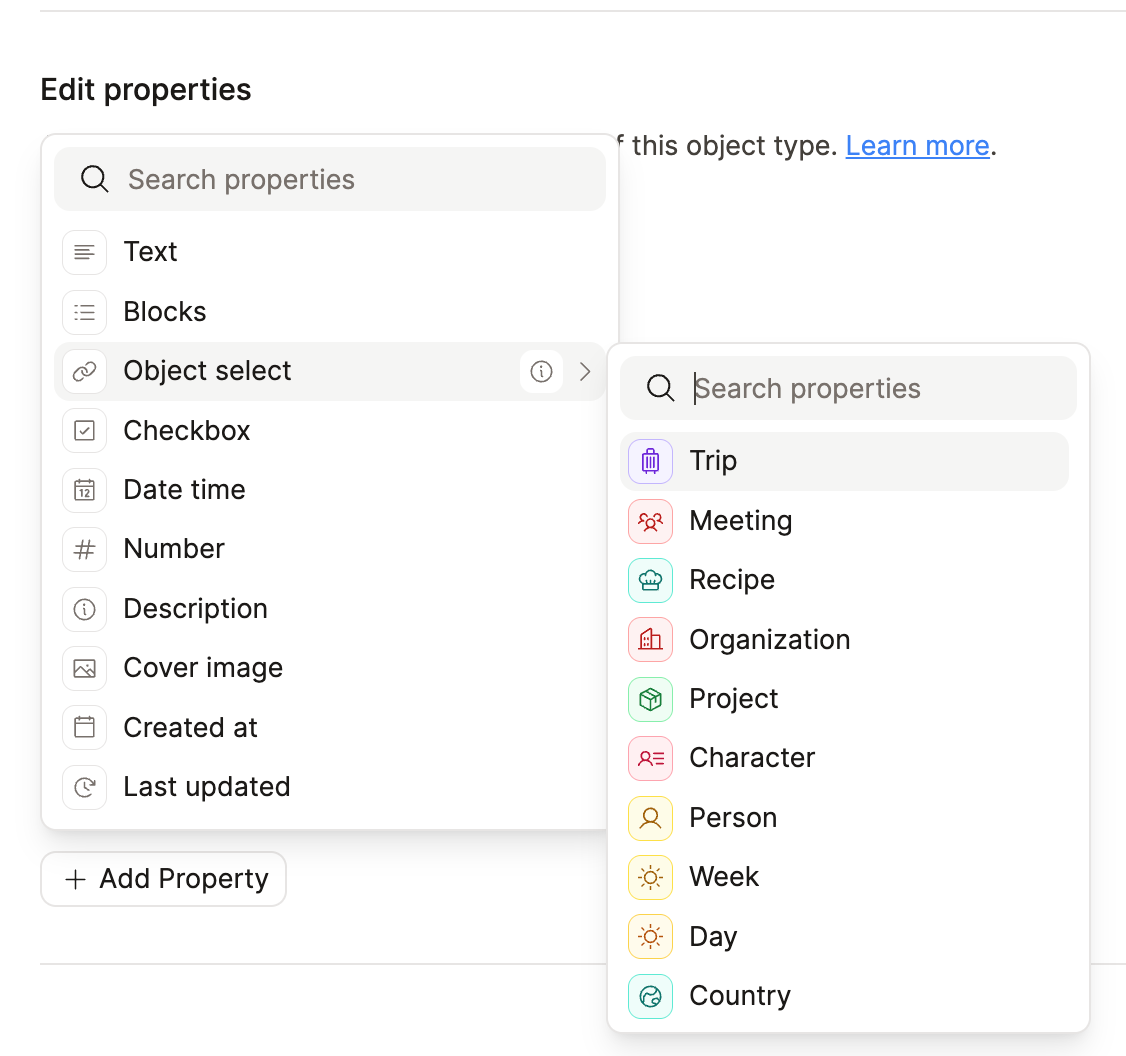
By default, the property allows selecting multiple objects from the linked type, with no restrictions.
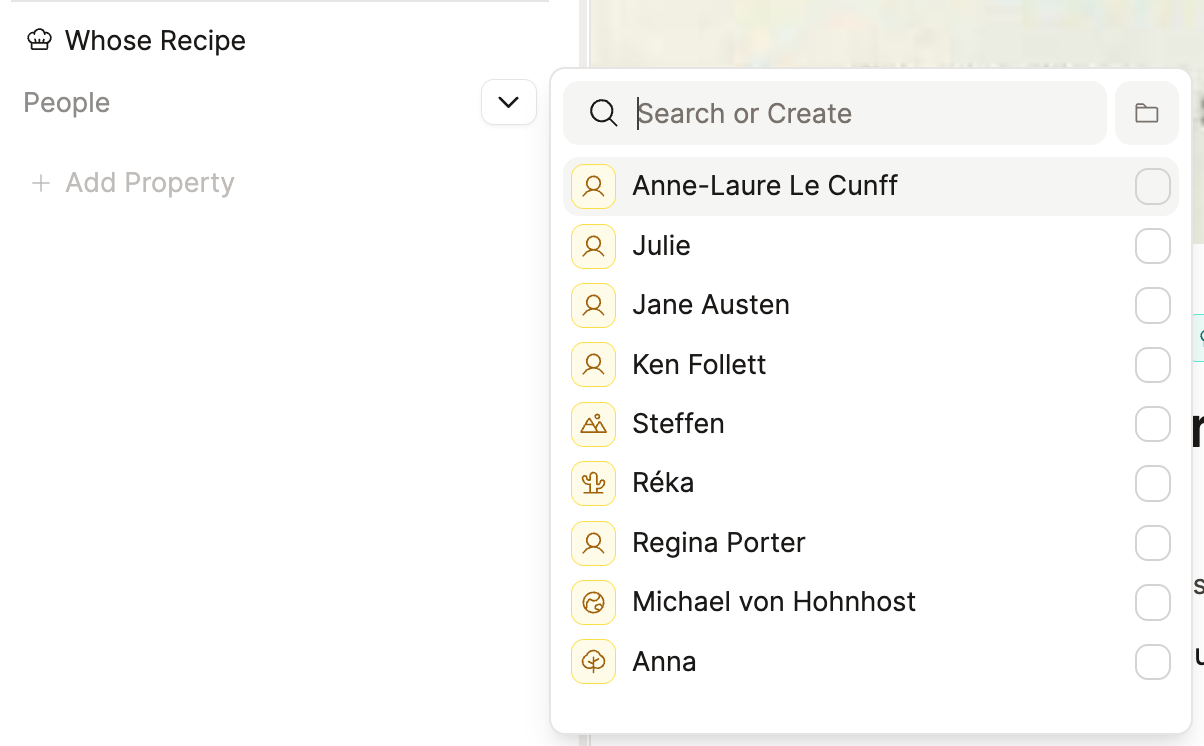
To limit selection to a single object or a specific set of objects, see the Customizations section below.
Multiple object selects for the same type
You can add more than one object select property on a single object type, even when they all link to the same other type. Each property has its own name, so the link carries a specific meaning. The property name tells you how two objects relate, not just that they are linked.
Example: Person to Person
On a Person type, you might add:
- Spouse → Person (single select)
- Children → Person (multi-select)
- Manager → Person (single select)
All three properties draw from the same Person objects in your space. On a person’s page you see separate dropdowns for spouse, children, and manager instead of one generic “related people” list.
Example: Project to Organization
On a Project type, you might add:
- Client → Organization
- Partner → Organization
- Vendor → Organization
Each property points to Organization, but the name makes the role clear when you read or filter the project.
Example: Book to Person
On a Book type, you might add:
- Author → Person
- Editor → Person
- Translator → Person
This works well whenever the relationship role matters more than the object type alone. Use separate properties instead of one catch-all link when you want structured, labeled connections.
Customizations
Two-Way Linked Properties
Two-way linking is not available when the linked object type is a built-in basic type: File, Weblink, Image, Page, Tag, PDF, Audio, Tweet, AI chat, Table, or Query.
Custom object types (including those created from templates) support two-way linking.
Enable two-way linking to sync properties between two custom object types. This is useful for automatically linking two objects together via properties. Here are some example use-cases:
• Linking books (Book) to authors (People)
• Linking Employees (People) to employers (Organizations)
• Meetings (Meetings) to attendees (People)
• Spouse to Spouse (People to People)
• Definitions to Synonyms
• Books to topics
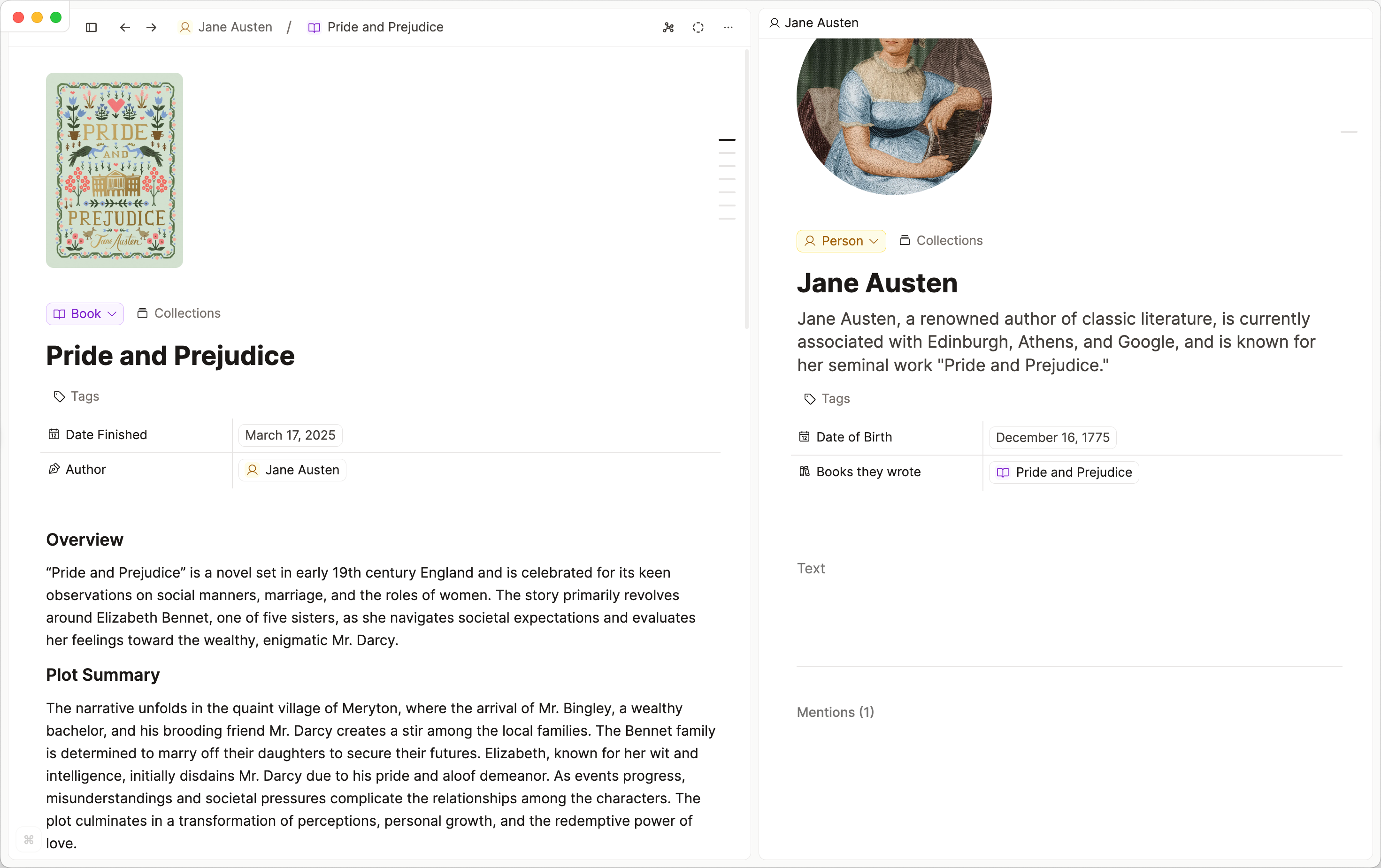
To set it up:
• Open the property settings
• Go to the ‘Two-way linking’ section
• Choose (or create) the corresponding property in the linked object type
The connection is handled automatically.
Two-way linked properties will remove the link to the other object from the backlinks and add it to the property you are linking to. This keeps your backlinks cleaner and easier to review.
If you like the views of the backlinks section, you can create a query using the two-way linked property and explore the views there.
You can see all of this in action in the video:
Single vs. Multiple Selection
Go to the property settings and find the ‘Single or multi select’ section.
Choose: • Single Object – only one object can be selected
• Multiple Objects – switch back any time if needed
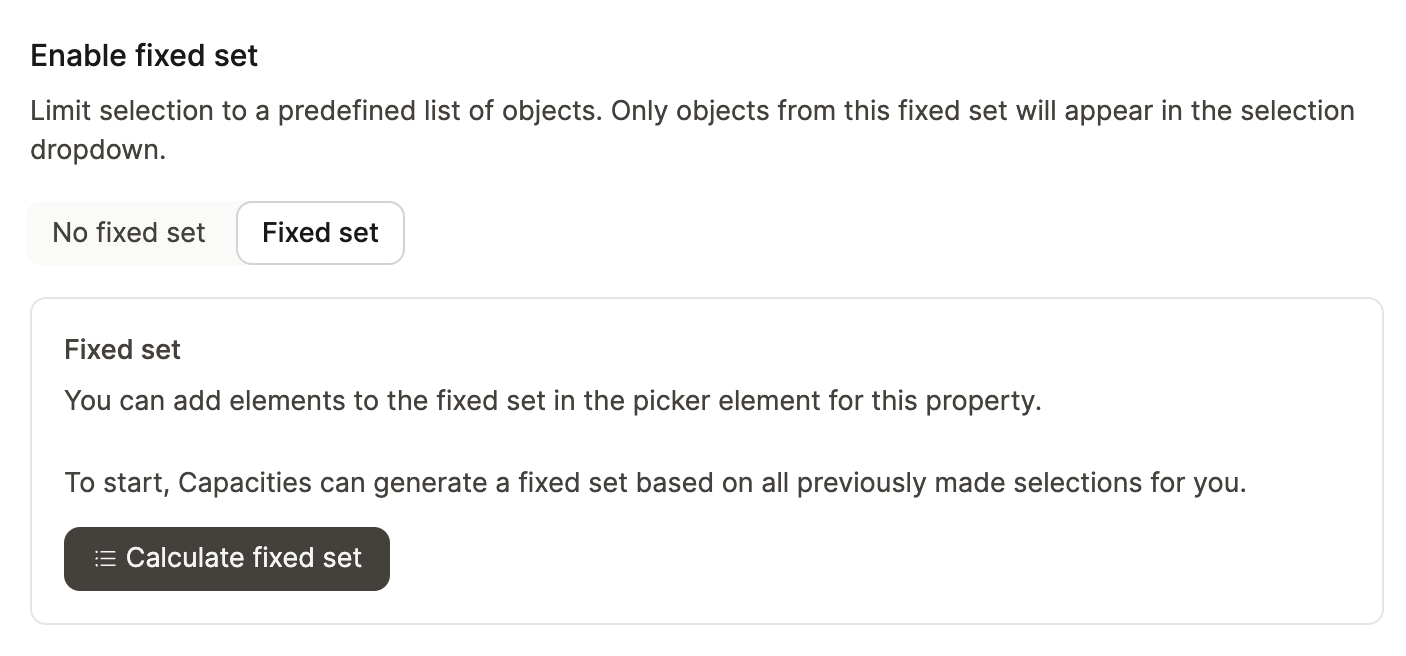
Fixed Set (Custom Dropdowns)
Use a Fixed Set to limit the dropdown to specific objects.
For new properties:
• Click Fixed Set during setup
• Each object you link grows the dropdown list organically.
For existing properties:
• Go to Property settings > Enable fixed set > Fixed set > Calculate fixed set
• You must click Calculate or all current selections will be cleared
After changing settings, always click Apply. Changing to a fixed set or altering selection limits may remove previously selected items from your content.
FAQs
- Can I change the linked object type?
Yes, but doing so removes all previously selected items. - Can I link to multiple object types?
No. Use a text property for that. Learn more - Can I switch between single and multi-select?
Yes. Switch modes in the property settings. Be aware that switching to single-select may remove items if multiple were selected. - Should I use an object select or a label?
If you only want to use this label in this one property of one object, use the label. If you want this option to be available in several properties of different types, use tags.
Some label examples: meeting types, project types, fiction/non-fiction. These narrow down an object type.
Some tag examples: best for topics, but some users might want to unify statuses, ratings, priority across any type. - Can I define the fixed set to only show a subset of my objects based on rules?
No this is not possible. You can only define the fixed set to only show a subset of your objects based on a manual selection. - Can I display only active projects in my dropdown?
No, this is not possible. You can only define the fixed set to only show a subset of your objects based on the objects themselves manually. - Can queries be used to define the fixed set?
No this is not possible. You can only define the fixed set to only show a subset of your objects based on the objects themselves manually.
Ask a question! - The Docs Assistant knows everything about the documentation, and the ideas and feature requests from other users.
Create a ticket on our feedback board. - Let us know if you have an idea for a feature, improvement or think there is something missing.
Request additions to the documentation. - If your questions are not getting answered, let us know and we will extend the documentation.