Sections
Sections
“Section” shows up in two places in Capacities. The two uses look similar in name, but they do different jobs.
| Where you see it | What it is for |
|---|---|
| Left sidebar | Groups of shortcuts to objects and object types you pin for quick access |
| Object type dashboard | Tabs/views inside one object type (for example People), often backed by collections or queries |
Sidebar sections do not organize your notes into folders. Dashboard sections do not change where an object “lives”. Both are ways to look at or reach content faster.
For a short overview of the sidebar UI, see User interface. For object type dashboards in full, see Object types.
Sidebar sections
Sidebar sections live in the left sidebar. Use them when you want a custom layout of shortcuts to important objects.
They are not a replacement for object types, tags, collections, or queries. Your notes stay organised by type. Sections only rearrange how you open things from the sidebar.
What you can put in a sidebar section
You can pin:
- individual objects (for example a project page you open every day)
- object types (for example People or Meeting)
Pinned section vs custom sections
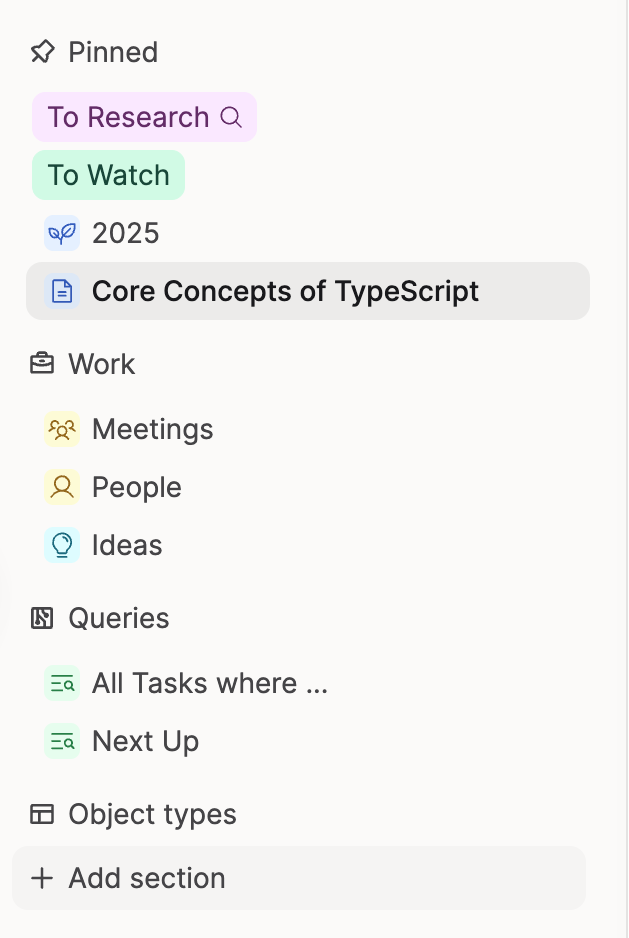
Capacities gives you a default Pinned area in the sidebar. You can also create custom sections (for example Work and Personal) with New Section under the object type list.
Custom sections are the same idea as the default pinned area: named groups of pins. Use one section if a short list is enough. Use several if you want separate groups.
How to pin something
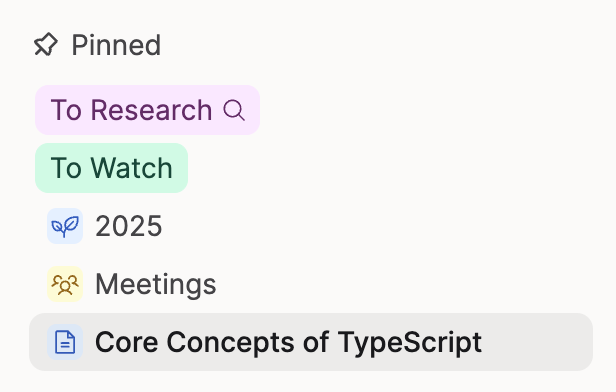
- Open the object (or use the object type).
- Open the object menu (
...). - Choose
Pin. - Pick Pinned section or the custom section you want.
You can also click + in a section header and search for what to pin.
Rearranging the sidebar
You can rearrange and collapse sections. Drag pins and object types between Overview sidebar sections to move them. If you rely mainly on custom sections, move the Object types list toward the bottom of the sidebar and collapse it. Your custom sections stay visible first, and every object type remains available when you need it.
The object type list always lists every object type in the space. Pinning People into a custom section does not remove People from the object type list. That is why you can see the same type twice. See Why do I see People twice in the sidebar?.
Deleting a sidebar section
If you no longer want a custom section, open the section’s three-dot menu and delete it.
Deleting a section does not delete the objects or object types that were pinned there. Those items stay in your space.
What sidebar sections do not do
- They do not create folders or move objects between types.
- They do not filter content on an object type dashboard.
- They are not the same as dashboard tabs (see below).
Dashboard sections
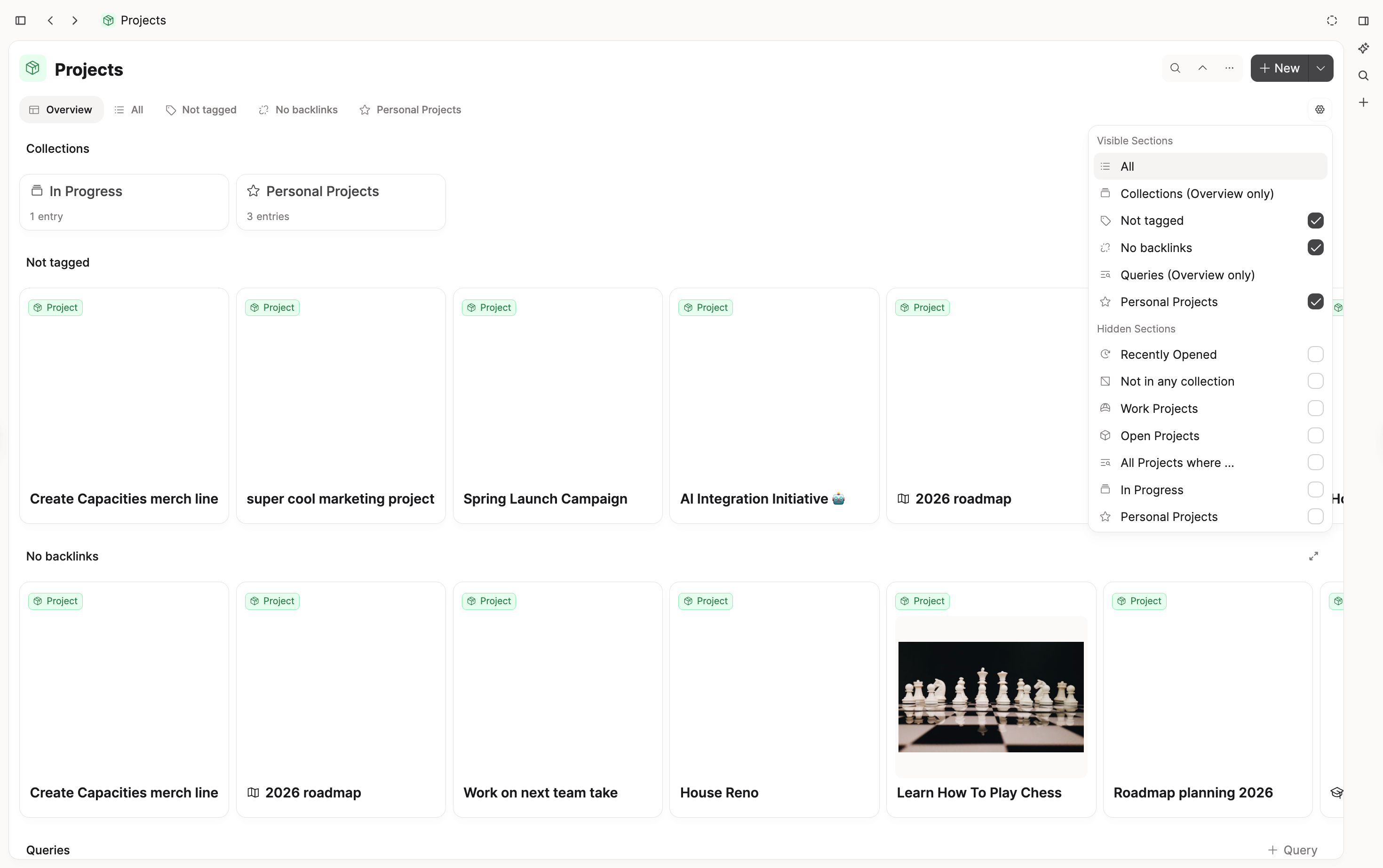
Dashboard sections are the tabs under an object type title when you open that type from the sidebar (for example all People, or all Books).
Each section is a view of objects of that type: a built-in overview, a collection, or a query. You use them to browse one type in different ways, not to pin shortcuts in the sidebar.
Built-in sections
Every object type dashboard can include built-in sections such as:
- Recently opened objects
- Untagged objects
- Objects not in a collection
- Objects with no backlinks
- Collections
PLACEHOLDER: Confirm the full current list of built-in sections and whether any are type-specific (for example Images or Tasks).
Task dashboards add their own built-in sections (for example Inbox and Today). See Task management.
Adding and removing dashboard sections
To add a section, hover over the dashboard tabs and click +. You can add built-in options, collections, or (on Pro) queries. Recommendations suggests ready-made queries you can start from.
To remove a section from the dashboard, click the tab name and choose Remove. That only hides the tab for this object type dashboard. It does not delete the collection, query, or objects inside it.
Pro users can also use Pinned to Dashboard on an object type query so the query becomes available as a dashboard section. See Object dashboards.
Remove from this section vs Unpin from Dashboard
These menu labels refer to the two different kinds of sections:
- Remove from this section: removes the item from a sidebar pinned/custom section. It is no longer a sidebar shortcut. This option appears when the object is already pinned to that section.
- Unpin from Dashboard: removes that item as a dashboard tab/section for the current object type (for example unpinning a section on the People dashboard).
Sidebar sections vs dashboard sections
| Sidebar section | Dashboard section | |
|---|---|---|
| Location | Left sidebar | Tabs on an object type page |
| Purpose | Quick access shortcuts | Views of content within one type |
| Typical contents | Objects and object types you pin | Built-in views or collections; queries on Pro |
| Deletes content? | No | No (removing a tab does not delete objects) |
If you want a faster way to open People, pin the People type in a sidebar section. If you want a tab that shows only clients among your people, add a collection or query as a dashboard section on People.
FAQs
- What are sections for?
Sidebar sections group pins so you can open frequent objects and types quickly. Dashboard sections are tabs that show different views of one object type. Neither replaces object types as the main way Capacities stores and groups notes. - What is the difference between an object and a section?
An object is a piece of content (a person, book, meeting, page, and so on). A section is either a sidebar group of pins or a dashboard tab. Sections help you navigate; objects are the content itself. - Should I use objects or sections to organize my notes?
Organize by object types first. Use tags or collections for themes and curated groups, and queries for filtered views that update on their own. Use sidebar sections only to shape the left sidebar. Use dashboard sections to shape how you browse a single type. - Why do I see People twice in the sidebar?
The object type list always includes every type, including People. If you also pin People into a pinned or custom section, the same type appears again as a shortcut. That is expected. Collapse or reorder the object type list if you prefer working mainly from custom sections.
PLACEHOLDER: Add a screenshot of People in both the object type list and a custom section, if useful. - How do I delete a section?
For a sidebar custom section: open the section’s three-dot menu and delete it. Your pinned content is not deleted from the space.
For a dashboard section: open the tab menu and chooseRemove(or unpin from the dashboard). The underlying collection or query stays unless you delete that object separately. - I deleted a sidebar section. Where did my pins go?
PLACEHOLDER: Document the exact behaviour after deleting a custom sidebar section. - Can I rename a sidebar section?
PLACEHOLDER: Confirm rename steps for custom sidebar sections.
Where to go next
- User interface: left sidebar layout and related UI
- Object types: customising dashboards and All view
- Queries: rule-based views you can pin as dashboard sections
- Collections: manual groups within one type
- Organizational structures: how types, tags, collections, and queries fit together
Ask a question! - The Docs Assistant knows everything about the documentation, and the ideas and feature requests from other users.
Create a ticket on our feedback board. - Let us know if you have an idea for a feature, improvement or think there is something missing.
Request additions to the documentation. - If your questions are not getting answered, let us know and we will extend the documentation.