Basic types
Images
Basic types
Images
In Capacities, images are not just extras that you add to your notes. They are their own entities. Open the image object type in the left sidebar to see them all.
All images are image objects, and this means they can individually tagged or enriched with notes.
You can reuse images in any object, with the usual @ or [[]] shortcuts.
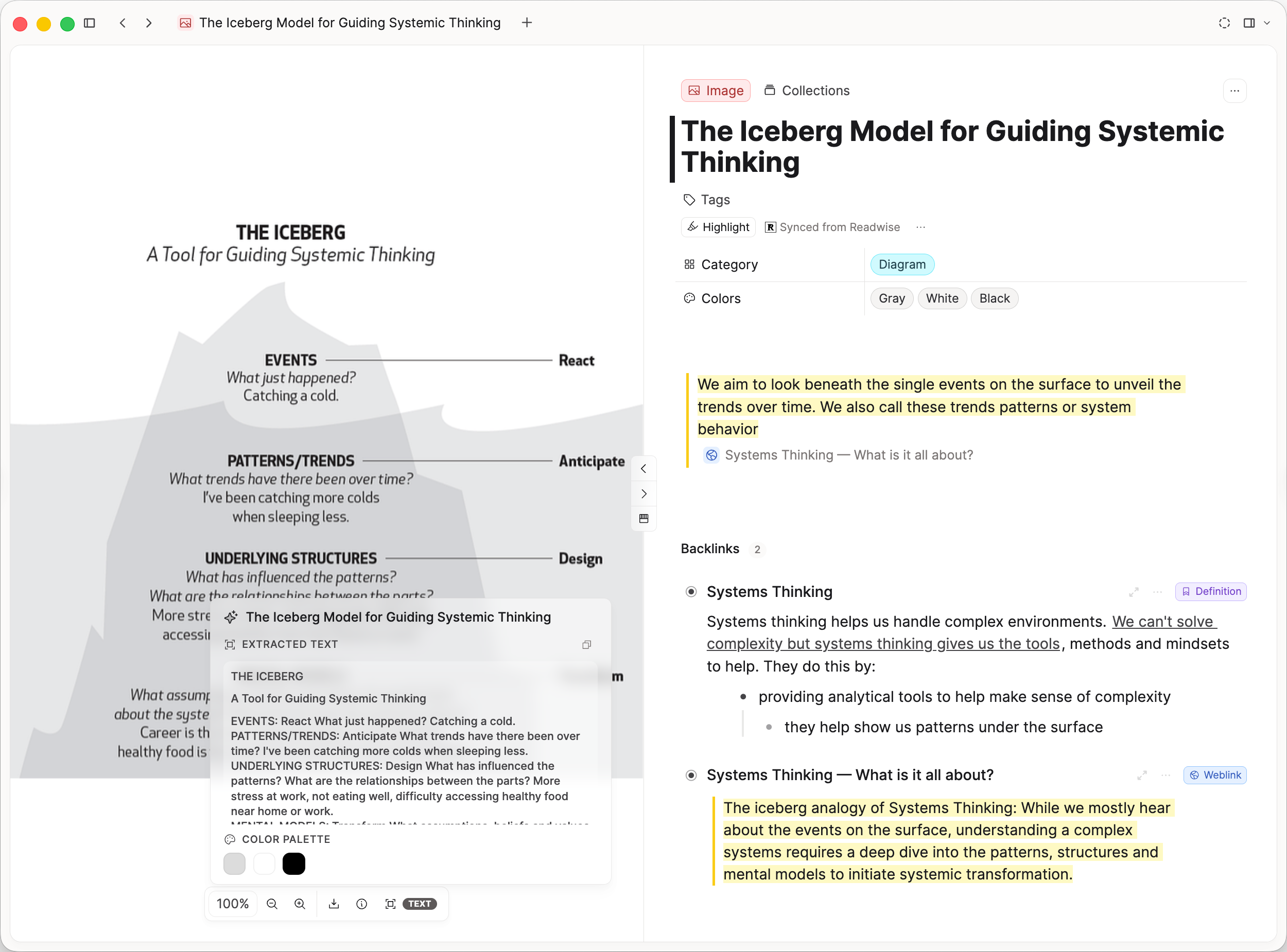
Image properties
Every image object in Capacities comes with a set of properties that help you describe, organize, and query your images:
- Title – The name of the image object.
- Tags – Labels you can assign to group related images.
- Description – A text field for notes about what the image contains.
- Blocks – Where you write your notes on the image.
- Source – Indicates where the image came from (for example, upload or Unsplash).
- URL – The source link stored for uploaded image references.
- Category – A predefined classification used for filtering and queries.
- Colors – A palette of dominant colors used for filtering and visual organization.
Capacities Pro users with AI enabled can use image analysis to fill these properties automatically.
Users on the Capacities Basic plan can still use the properties manually.
Pro users can use these properties to build queries.
Supported file types
The following table shows all supported file extensions for the respective media types:
| Media Type | Supported Extensions |
|---|---|
| Image | *.png, *.jpg, *.jpeg, *.gif, *.svg, *.webp |
| Audio | *.mp3, *.ogg, *.wav, *.m4a |
| File | All |
Adding an Image to Capacities
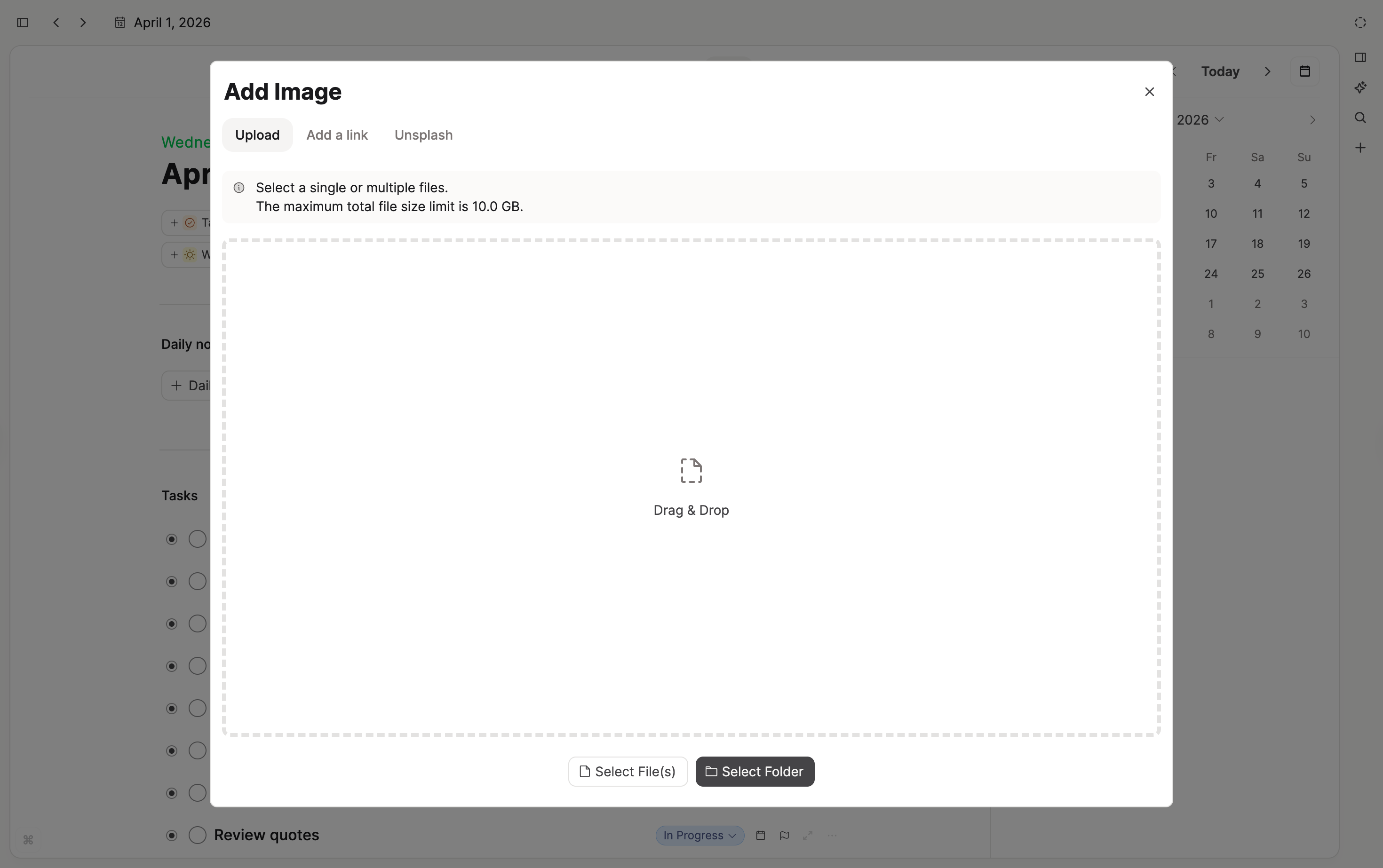
Simply copy and paste an image into your notes. Or you can type '/image in your notes and choose/upload one from there.
From the @images picker, you can insert several images at once.
You can also access this option from your images object type by opening the three-dot menu (...), clicking upload, and then following the instructions there. Empty image dashboard views also show import shortcuts.
Here, you can drag and drop, paste, browse Unsplash or add an image from a URL.
Images uploaded via URL may expire if the original image is no longer available. This will mean it cannot be viewed in Capacities. We recommend the upload option to prevent this. See more here.
Generate an image
Capacities ProYou can generate an image from /image in a note, or when you add a cover image to a page or object. Open the Generate tab instead of uploading a file. Describe the image you want, then pick an aspect ratio and a style and generate. Choose the result to insert it as an image object in your space.
Styles include photo-realistic, cinematic, illustration, painting, animation, isometric 3D, and vintage. You can also leave style unset.
Image generation is available for Capacities Pro and Believer users (or an active trial) with AI features enabled. It only runs in spaces where AI is turned on.
Generation uses your AI budget.
When you generate an image, your prompt (and the style you picked) is sent to the AI model provider. No existing image from your space is sent. For full details on how your data is handled, see AI and Privacy.
Different Views for the images
If you are using an image in your notes, you can choose how it looks when embedded into that page.
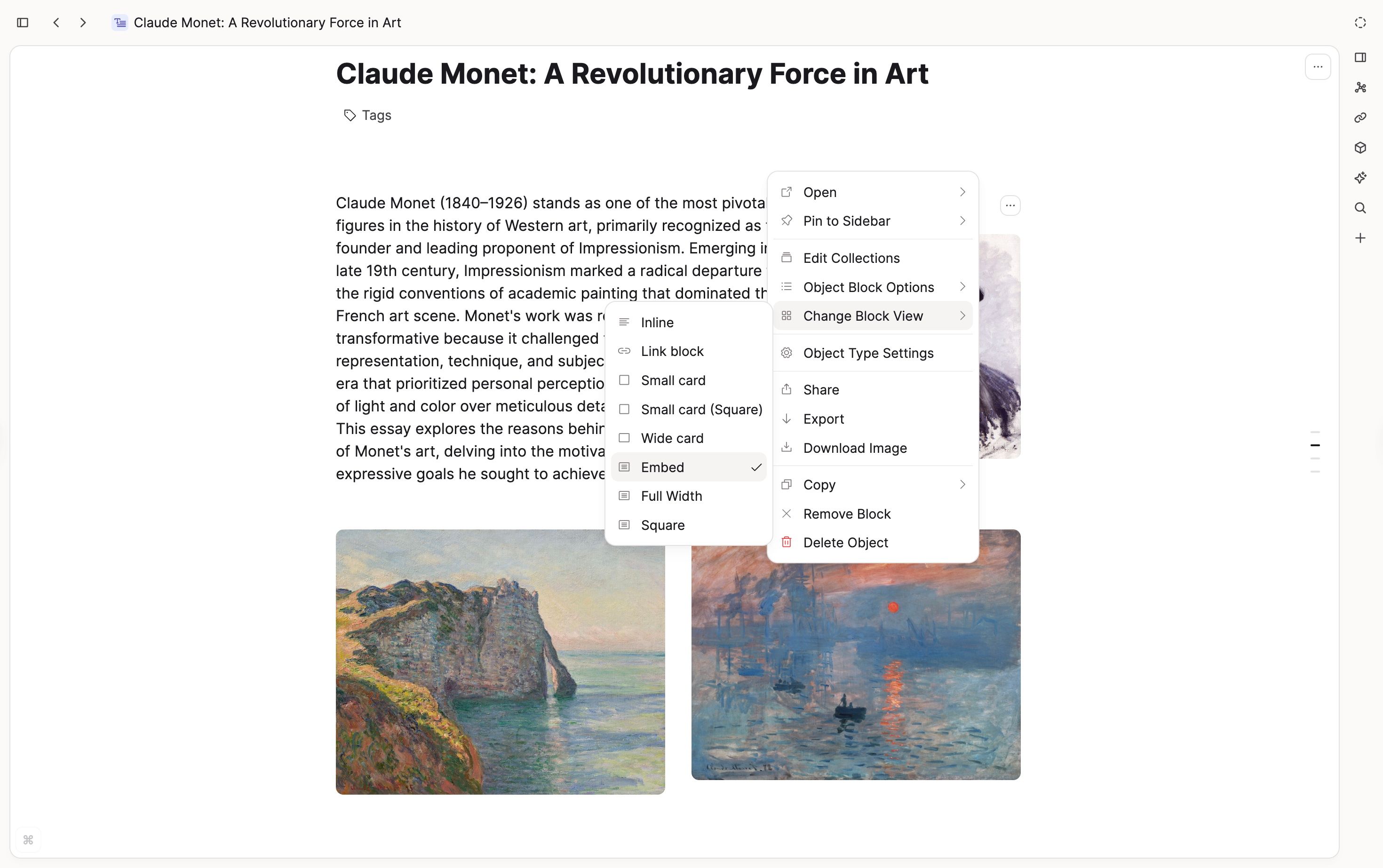
Image analysis
Capacities ProImage analysis is part of Capacities' media analysis feature. You can use it to analyze your images and automatically extract useful information. Open any image and click the Analyze button (the ✦ icon) in the image toolbar or object menu. The AI will process the image once and fill in the following:
- Title – A descriptive name for the image.
- Short description - A summary of what the image shows
- Extracted text (OCR) – Any text found in the image, including handwritten text. This is rendered as copyable markdown, so text trapped inside images becomes searchable and reusable.
- Category – One of a selection of predefined categories (e.g. document, screenshot, whiteboard, receipt, photo of people, etc.), written to the image's Category property.
- Color palette – Dominant colors shown as visual swatches. Click any color to copy its hex value. These are generalized and then written to the image's Colors property.
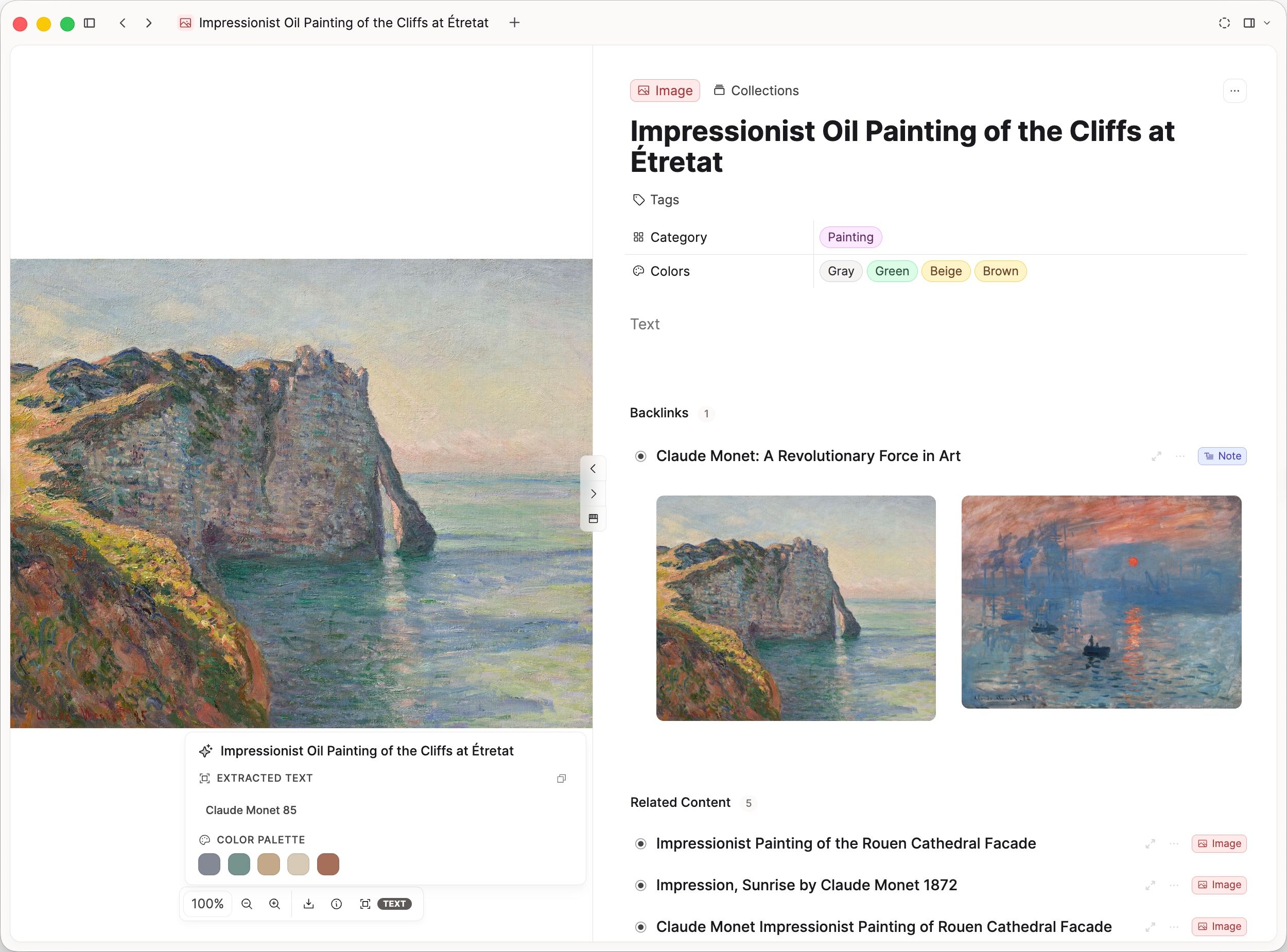
All extracted data is written to the image's properties automatically, making your images queryable and filterable across your space.
Analysis results are integrated directly into the image UI: category and color swatches are shown when you hover over the image, and extracted text can be opened from the Text pill in the image toolbox.
Image analysis also includes smart title updates: if an image still has a generic title such as “image” or “screenshot”, analysis will suggest a more descriptive title. If you have already given the image a meaningful title, it will not be changed.
Language handling
For image analysis output:
- directly extracted text (OCR) keeps the original language
- generated fields (for example title and description) follow your AI output language settings first, then your app language as fallback
Analysis labels are also localized to your app language.
When you run an image analysis, the image is sent to the AI model provider for processing. No images are sent unless you click the Analyze button. For full details on how your data is handled, see AI and Privacy.
Image analysis requires Capacities Pro with AI features enabled. Analysis only runs when you trigger it (for example by clicking Analyze).
If your AI budget is exhausted, the action shows an AI budget used state and opens AI settings.
Offline Image Access
All the images you upload to Capacities will be downloaded to your device and therefore available offline.
If you use the "add a link" option, the image is only referenced in Capacities, not copied into it. Therefore these images are not available offline. Additionally, if the link becomes invalid, you will no longer see the image in Capacities.
If you uploaded images in this way and can no longer see them, it's likely the link from the third-party site is now invalid. We have no control over this.
If you expect to use a lot of images offline, we recommend uploading a copy of the image rather than referencing it with a link.
FAQ
- How do Category and Topic work with collections?
If you've been using collections to categorize content, you can now let the built-in Category and Color properties do that work automatically with queries. For example, instead of maintaining a collection for "all images of handwritten notes", you can create a query on Images filtered by theCategoryproperty.
Collections are still useful when you want to manually curate items (for example, "my favorite pics"). But for rules-based groups such as "all images of handwritten notes", queries based on Category/Color can replace those collections and keep your setup cleaner. For more on this, see Can I customize the options for Category, Colors, and Topics?. - Can I add custom image sections like "blue images" or "architectural pictures"?
Yes. Beyond the built-in image dashboard sections, you can add your own sections using queries.
Open the Images object type, click the+next to dashboard sections, and create a new query. Then set filters for what you want to see (for example,Colorsincludes blue, orCategorymatch architecture). This will be saved as a dashboard section automatically.
Think of each section as a saved query: you control both what appears in it (filters) and how it appears (list/kanban, grouping, sorting, and hiding empty groups). - Do I need to use AI image analysis to use the Category and Color properties?
No. You can fill both properties manually, or use AI image analysis to fill them automatically. - How can I change the orientation of the image?
You can switch between landscape and portrait mode by click on the button next to the arrows under the image. - Can I customize the dropdown menus for the Category and Color properties?
This is not possible and not planned. You can request a new Category to be added on our feedback board. - How do I change the image title?
The default title for images is 'image', but you can change that by editing the title when you open your image object. Alternatively, you can use image analysis to rename your images. - How do I generate an image with AI?
Checklist:- You are on Capacities Pro or Believer (or an active trial).
- AI is turned on for the space.
- You have AI budget left (
Settings > AI Assistant). - Type
/imagein a note, or add a cover image to a page or object. - Open the Generate tab (not the upload tab), describe the image, pick a ratio and style, then generate.
See Generate an image. - I am on Pro. Why can't I find AI image generation?
Confirm AI is enabled for that space and that you still have AI budget. Then use/imageor a cover image and open the Generate tab. Generation is not under image analysis. - Where has the analysis tab gone in the image objects?
We've removed the analysis tab and integrated extracted text and color swatches directly into the image toolbox and image UI. - How can I add or attach an image to a note
Type /image and upload from there.
Ask a question! - The Docs Assistant knows everything about the documentation, and the ideas and feature requests from other users.
Create a ticket on our feedback board. - Let us know if you have an idea for a feature, improvement or think there is something missing.
Request additions to the documentation. - If your questions are not getting answered, let us know and we will extend the documentation.