Integrations
Email integration
Integrations
Email integration
With the Capacities email integration, you can send notes to self, images or files to Capacities.
Whilst you can also forward emails to Capacities, they will not be perfectly formatted and may need some tidying up. We will develop an email object type in the future which will be better suited to this use-case. Vote on this ticket to stay updated.
Setup
You don't have to set up anything to use this integration, just use the email address you signed up with. If you want to add additional email addresses open the Capacities app and go to "Account > Settings > Integrations > Email" and follow the instructions there.
Choosing a default space
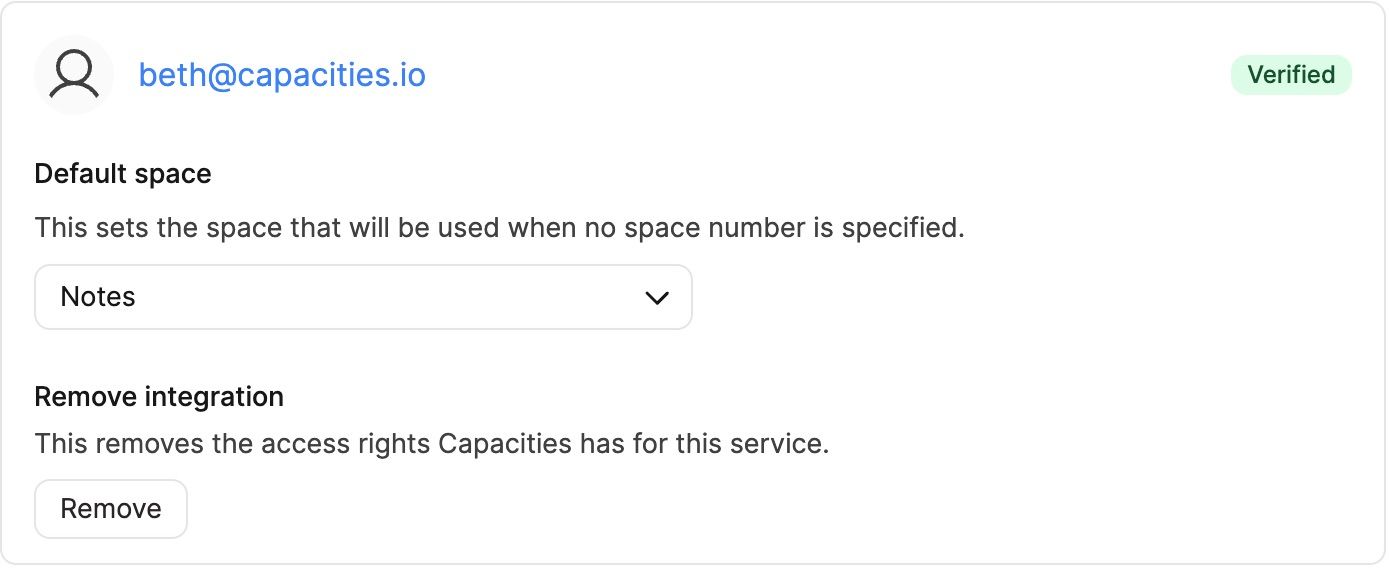
This is an optional step, but if you want to set a specific space as the default for recieving emails, open up the email settings (settings > integrations section > email) and choose the correct space from the drop down menu.
How it works
Simply send an email to save@capacities.io from the email address you signed up at Capacities. It will be appended to your daily note as a "Toggle" Block with an email icon. Just click on the toggle to open it.
Sending an email to a specific space (not the default)
You can do this by editing the subject of your email.
You can add the space number, here the third space, based on the order of your spaces in your home dashboard.
/3 My email subject
Furthermore, you can add tags to your note with the # symbol
My email subject #hashtag
Formatting
You can send formatted emails. You can use all Capacities shortcuts:
#,##,###, and####for headings-for bullets1.for numbered lists>for quotes**text**for bold text*text*for italic text[]for to-dos
Standard markdown formatting is supported as well.
Tagging
To add tags to your message simply use the # symbol. Capacities matches your text with your existing tags or will create new tags.
If you are using multi-word tags, use [[tag/tag name]] to ensure it is read properly.
Linking and creating content
You can create new objects and link existing content from your email. Use the following syntax inside the body of your email (not supported in the subject line):
[[page/Wendelstein reactor]]
to link to a page with the title "Wendelstein reactor". If this page exits in your space it will create a link to it, otherwise, a new page will be created. This works for all object types in your space. If you have a object type Person you can link or create it by using [[person/Steve Jobs]].
Note that this will only create a link to a new or existing object. It will not insert the content of the email or the subject line into the linked object.
You can use this at the beginning of a paragraph to create a new block link for that object or somewhere in your text to create an inline link to that object.
Alternative ways of "create or link" are +person/Steve Jobs/ and @person/Steve Jobs/, similar to the syntax you can use in the app.
If your object type contains space characters, like "Book Summary" you need to specify it in upper camel case format: [[BookSummary/Sapiens]], +BookSummary/Sapiens/, or @BookSummary/Sapiens/.
If you only want to link and not create you can do this by just referencing the title:
[[Steve Jobs]]
Saving web links
If you want to save a web link, paste the web link into a new line. If you want you can add tags with the # symbol after it:
https://capacities.io #pkm #note-taking
The web link will be tagged and saved to your web links database as well.
Saving images and files
If you send images or files as attachments. They will be added to your daily note.
Saving code files
If you send a code file, for example, a Typescript or Python file ending with the corresponding extension it will automatically be transformed into a code block that you can continue editing in Capacities.
Saving markdown and text files as pages
If you attach .md or .txt files to your email they will be saved as pages in your space. The file name will be used as the title of the page.
Privacy note
The transit from the moment you send the email until its content reaches our servers is protected following standard security protocols with TLS and SSL encryption.
However, in order to transform the email message into Capacities content, our backend system does need to read the email content programmatically.
All emails you forward to Capacities are not sent to a classic inbox. Nobody working at Capacities has an inbox for save@capacities.io. It's only a programmatic queue where all emails are held for a short period of time. They will be processed by our servers once they are fetched from the queue and are redirected to the corresponding space based on the email address they were sent from. After an email was added to your space it will be deleted from that queue.
Please always make sure that you're forwarding the emails to our address save@capacities.io and not another.
If you want to read more about privacy in general visit this page.
FAQs
- How do I tag or link to objects from an email?
You can create or link to any object type in your space directly from the body of your email using the[[type/name]]syntax. This works for all object types, including Tags, Pages, and custom types like "Person".- To link a Tag: Use
[[tag/Your Tag Name]]. - To link a Page: Use
[[page/Your Page Title]]. - To link a Person: Use
[[person/Steve Jobs]].
- To link a Tag: Use
- How do I handle tags with multiple words?
While you can use a single#for one-word tags, it is not recommended for tags with spaces because the integration will stop reading at the first space.
Use[[tag/the brain]]to ensure the entire phrase is captured as a single tag. - What happens if I use a name that exists in multiple object types?
If you have a Tag and a Page with the same name, using the[[Type name/Object name]]pattern ensures Capacities connects to the right one.- Specific Link:
[[tag/Mercury]]will always point to the tag, while[[page/Mercury]]will point to the page. - Generic Link: If you use
[[Mercury]]without a prefix, Capacities will attempt to match it to an existing object. If no match is found, no new object is created to prevent accidental clutter.
- Specific Link:
- Can I use special characters in my tags?
Yes. Capacities tags are objects and can include spaces, hyphens, and underscores. For the most "robust" experience across different apps and integrations, wrapping these tags in[[tag/your-tag-here]]is the best practice to ensure they "just work". - Does tagging an email move the content into that tag?
No. Using a link or tag in an email will create a link to that tag. The email content will still appear in your daily note.
Ask a question! - The Docs Assistant knows everything about the documentation, and the ideas and feature requests from other users.
Create a ticket on our feedback board. - Let us know if you have an idea for a feature, improvement or think there is something missing.
Request additions to the documentation. - If your questions are not getting answered, let us know and we will extend the documentation.