Integrations
Web Highlights Integration
Integrations
Web Highlights Integration
Web Highlights is a popular Chrome extension that enables you to highlight websites.
- You can download the extension from the Chrome Web Store.
- There are both free and paid plans.
- You can read about how to highlight on Web Highlights' website.
Community integrations are not part of the official Capacities product. We are reviewing and testing all integrations and are in contact with the developers to ensure the quality of the integrations. However, we cannot guarantee the quality of the integrations and are not responsible for any issues that may arise from using them.
Note, if you just want to save weblinks into Capacities, we recommend using Web Extension which is a simple solution. If you want more advanced workflows with several different media types, we recommend our Readwise Integration. If you are looking for a first-class integration between Capacities and a tool that helps you highlight the web, read on.
Set Up
Capacities ProThe full power of this integration requires an access token. If you are on Capacities Basic, there is a manual workaround.
Web Highlights currently uses the Capacities API Beta, which will be discontinued on September 1, 2026. You generate a token for this integration under Settings > API Tokens (Beta API) in the desktop app.
The access token allows access to all your data. Do not share it with anyone you don't trust.
To get an access token, follow these steps:
- Open the Settings in the Capacities app
- Go to
API Tokens (Beta API)(Capacities Pro only) - Enter a Token Name (such as 'Web Highlights')
- Click "Generate Token"
- Copy this token
Then navigate to Web Highlights' Settings, and go to Integrations > Capacities Export to finish the set up.
- Paste the token into the
Capacities API Tokenbox - Choose the space you would like your highlights sent to
- Press Enter to complete the set up
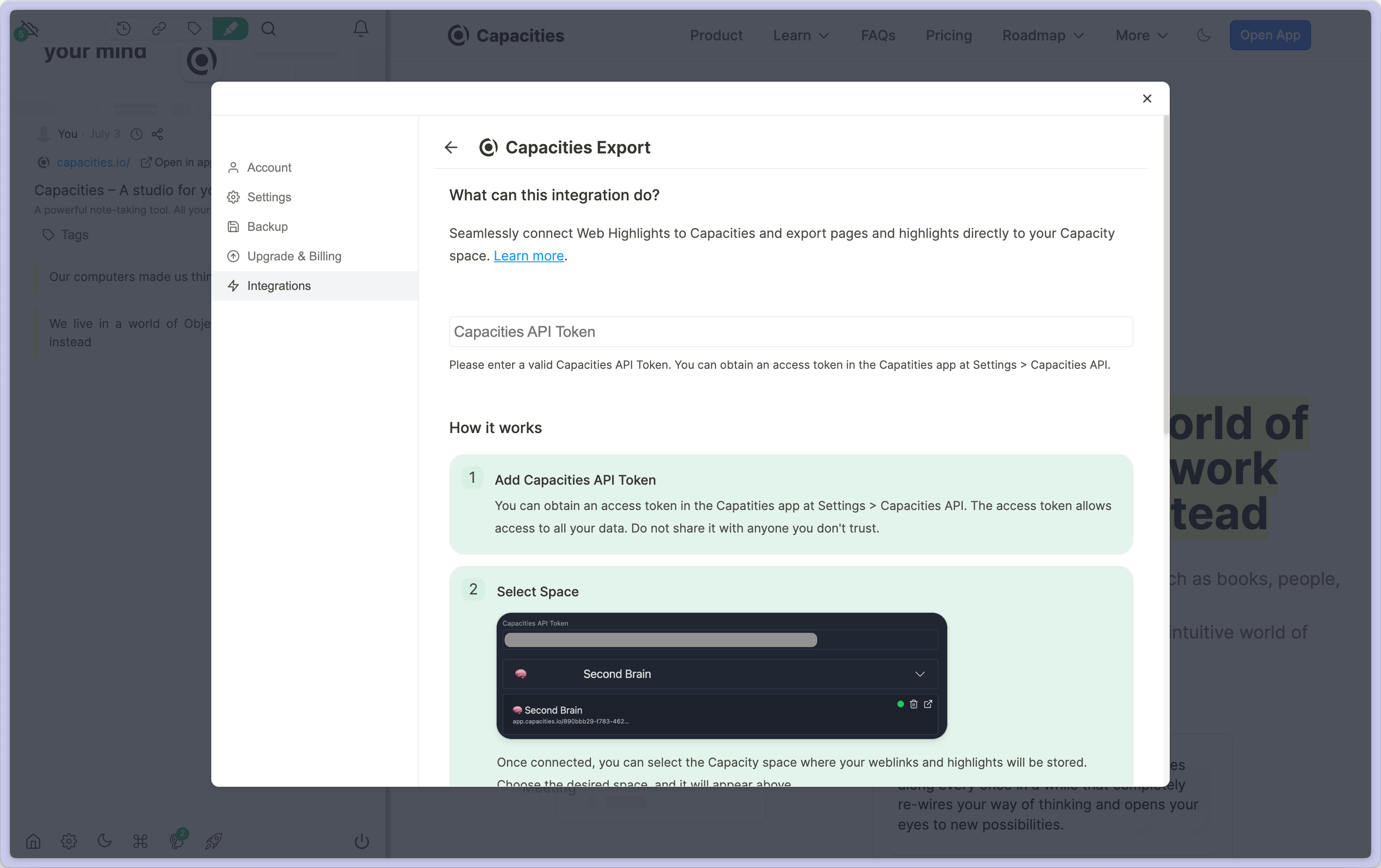
Now it's time to highlight!
Export Highlights to Capacities
Once you have highlights to export, click the three-dot menu (...) under the banner and click 'export to Capacities'.
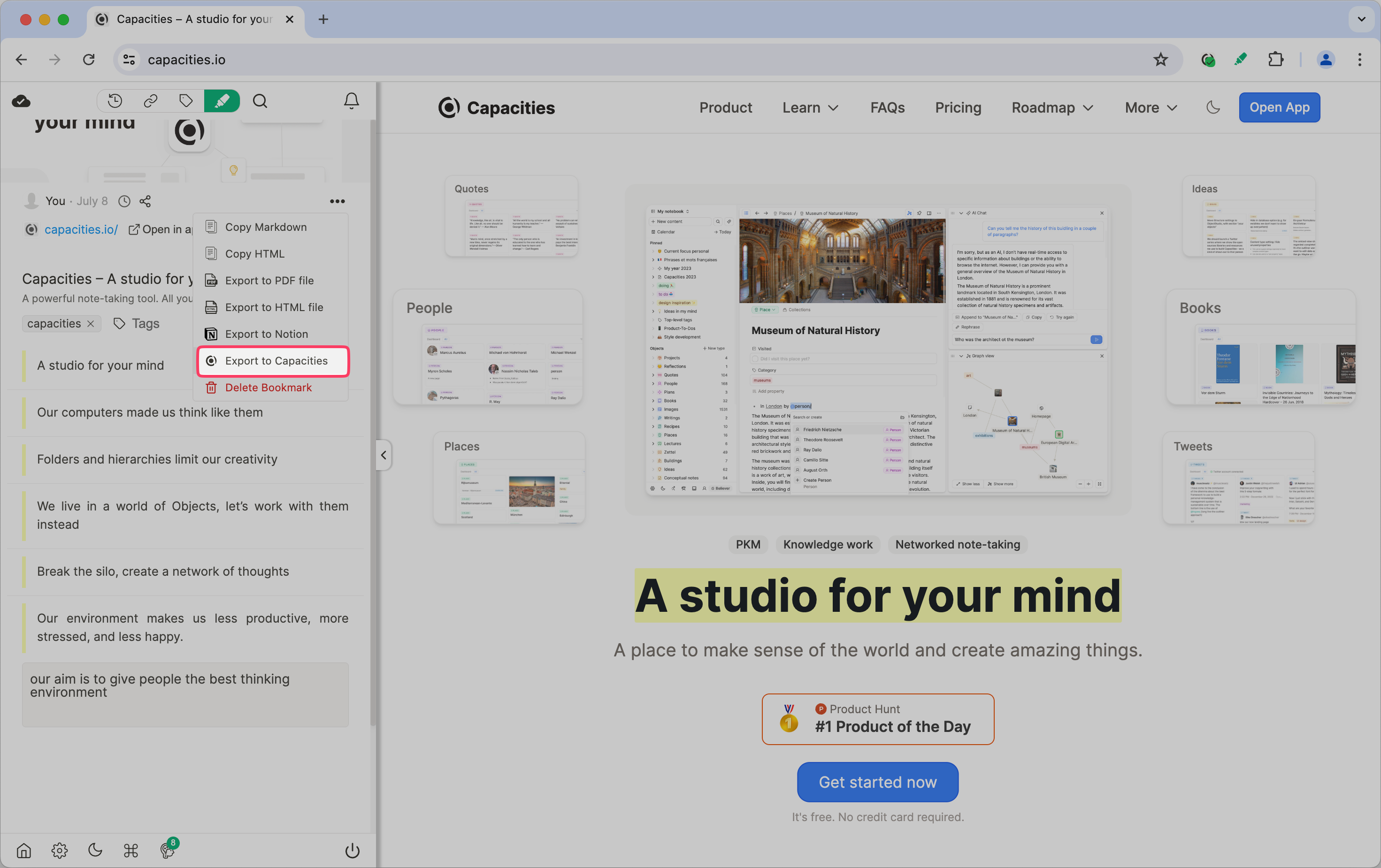
This will instantly create a weblink in your designated space, with the title, cover image and highlights imported into the blocks as highlight blocks.
It will also give you links to the original webpage and to the highlights page from Web Highlights.

How to work with your highlights
Check out this video based about highlight workflows. Whilst the content in the video was imported from Readwise, the same advice applies to content imported from Web Highlights.
You can also follow the full Reading workflow use-case.
Free Version
If you are on Capacities Basic, you can somewhat combine Web HIghlights and Capacities' Web Extension with the 'copy markdown' option in Web Highlights.
First make sure you have the Capacities web extension and the Web Highlights extension installed. Then you can highlight any web page with Web Highlights as normal.
Once you are ready to send those highlights to Capacities, click on the three-dot menu (...) and choose 'copy markdown'.
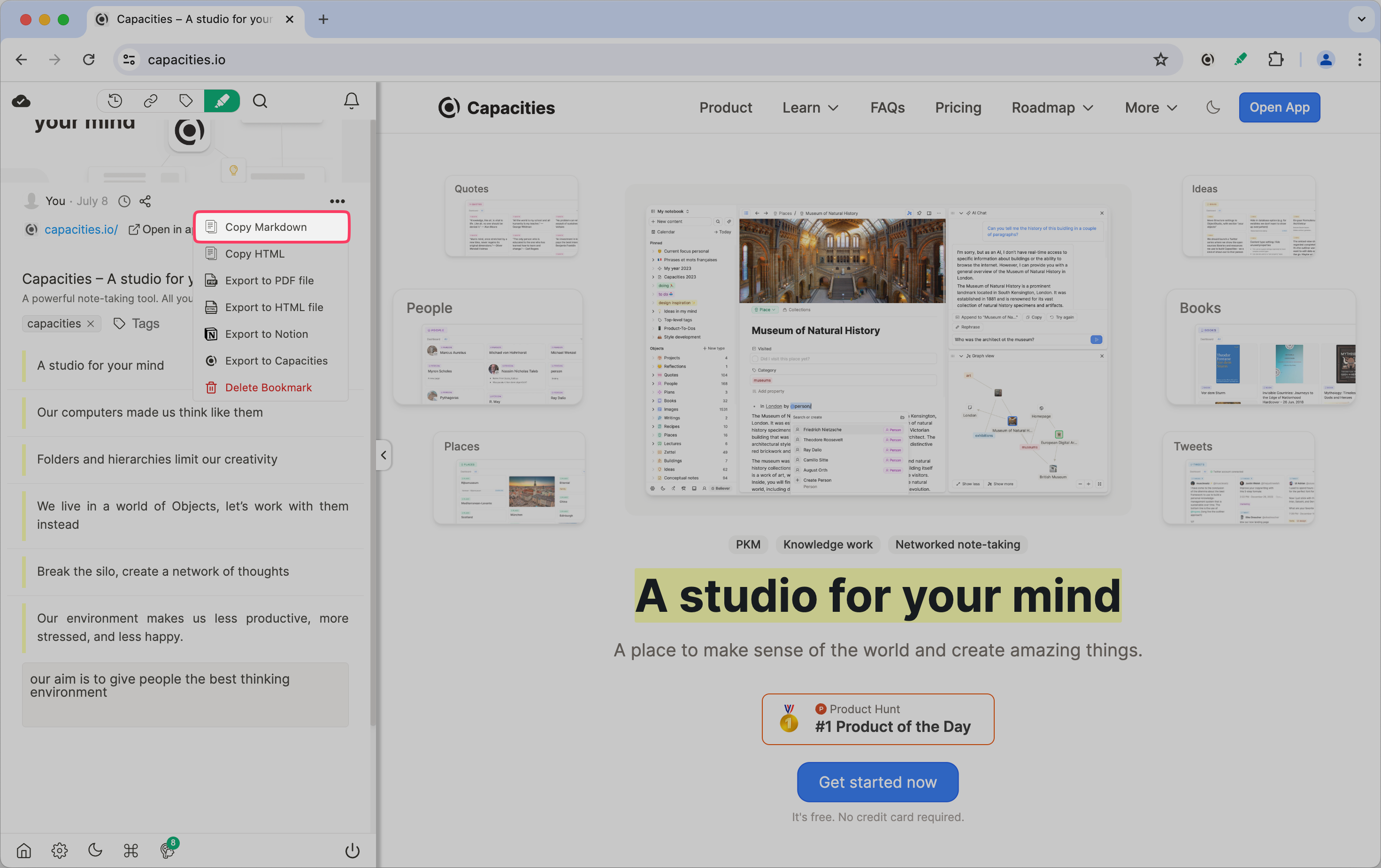
Next, click on the Capacities Web Extension and paste those markdown highlights into the 'notes' box. You can delete everything before Highlights & Notes. Then click save.
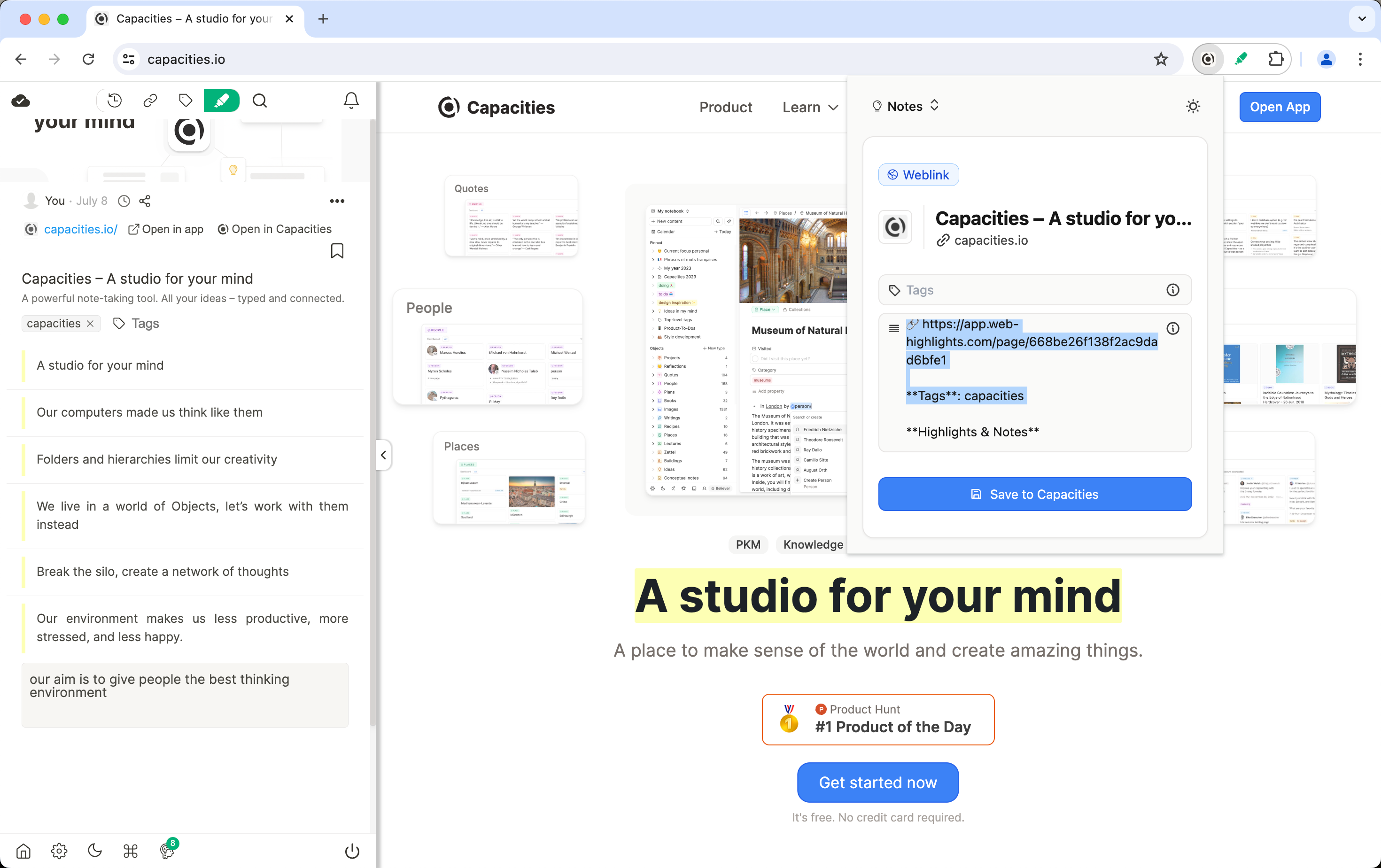
This will bring just the notes into Capacities from Web Highlights, as the Capacities Web Extension will look after the title, cover image and URL.
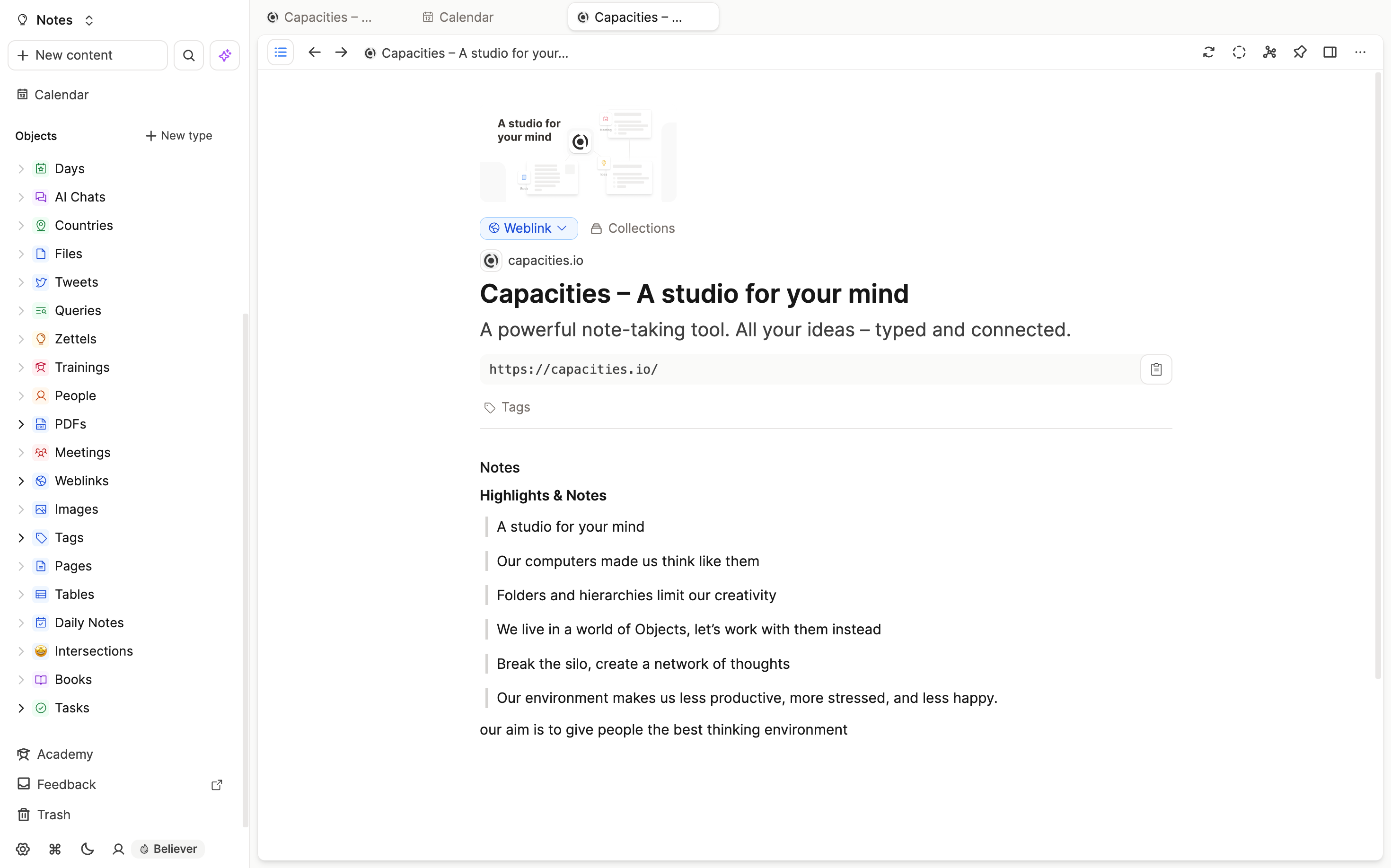
This requires more formatting than the Pro version, but this means all users can make use of the useful Web Highlights extension in some way.
FAQs
- Why aren't my PDF highlights importing?
There is no PDF highlight support with the Web Highlights Integration.
Please use the Readwise Integration for this. - What happens if I add more highlights and export again?
Only new highlights will be synced when you click Export again. - How can I change my highlight style?
Go toSettings > Editor > Highlight Styleand choose Default or Minimal. This is a Pro feature.
Ask a question! - The Docs Assistant knows everything about the documentation, and the ideas and feature requests from other users.
Create a ticket on our feedback board. - Let us know if you have an idea for a feature, improvement or think there is something missing.
Request additions to the documentation. - If your questions are not getting answered, let us know and we will extend the documentation.